Best Ways to Migrate Lycos Emails to Gmail With Attachments

Published On - June 16, 2026
On 15 May 2018, Lycos officially discontinued its free email services. By then, users have to pay for using its email services ($4.95/month or $19.95/year).
So, when it comes to paying for the service, why not choose the advanced platforms like Gmail?
Migrating mailboxes seems complex, as you have to preserve important emails, attachments, and other mailbox data. The blog addresses the same issue and helps to migrate Lycos emails to Gmail safely.
Why Transfer Lycos Emails to Gmail? – Explore Benefits
Although Lycos Mail is best for basic email communication, it lacks the features that Gmail that has to offer you:
- 15 GB free of cost cloud storage.
- Two-factor authentication (2FA).
- Spam and phishing protection for security.
- Integrate with Google Drive, Calendar, Meet, and Docs.
- Access emails from anywhere with multi-device support.
- Long-term email accessibility with reliable infrastructure.
Important Steps to Follow Before the Transition From Lycos Mail to Gmail
Prepare the following things to avoid in-between problems that may occur during the migration. Here they are:
- Enable IMAP Access from the source account.
- Review your mailbox size to estimate migration time.
- Delete unnecessary emails (spam, duplicate, or trash).
- If you don’t have any existing Gmail account, then create a new one.
- Keep Lycos account details (email address, password & server settings) ready.
| IMAP Settings | POP Settings | SMTP Settings |
|---|---|---|
|
imap.lycos.com |
pop.lycos.com |
smtp.lycos.com |
|
993 |
995 |
465 |
|
SSL/TLS enabled |
SSL/TLS enabled |
SSL/TLS enabled |
How to Migrate Lycose Emails to Gmail Manually?
This section includes the most effective solutions to move Lycos mailboxes. Try them to find the appropriate one for yourself now.
Method 1. Use the Import Feature to Transfer Lycos Emails to Gmail
Move data from different email platforms at the user level with the built in Import feature of Gmail. To do the same, follow the given steps:
Step 1. Sign in to your Gmail account and navigate to Gear icon.
Step 2. Tap on See all Settings to proceed. 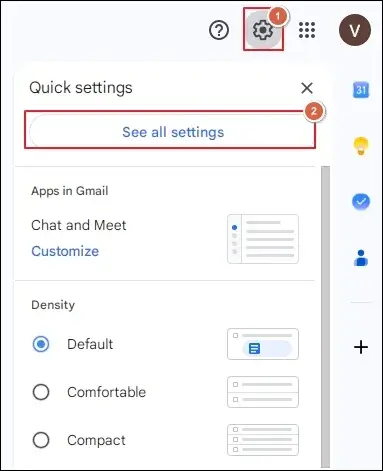
Step 3. Go to Accounts and Import tab and click on Import mail and contacts option.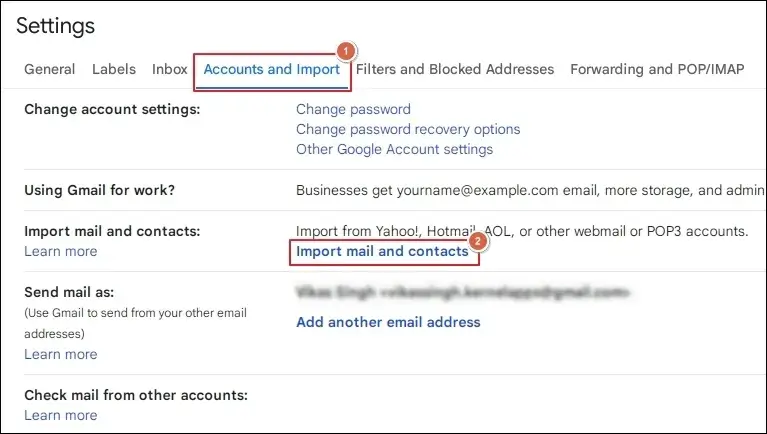
Step 4. Enter your email address and proceed to Continue.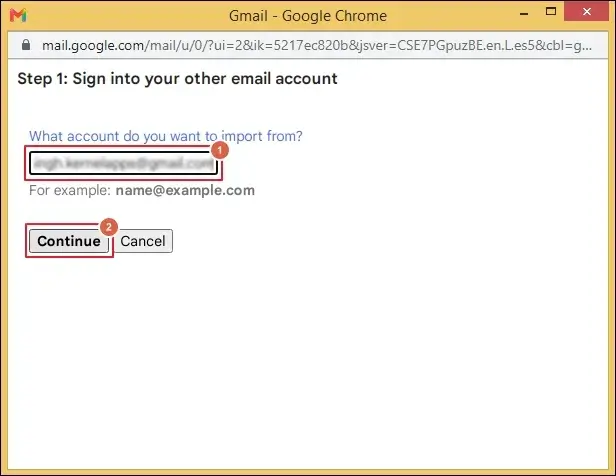
Step 5. Hit Continue to follow the on-screen instructions.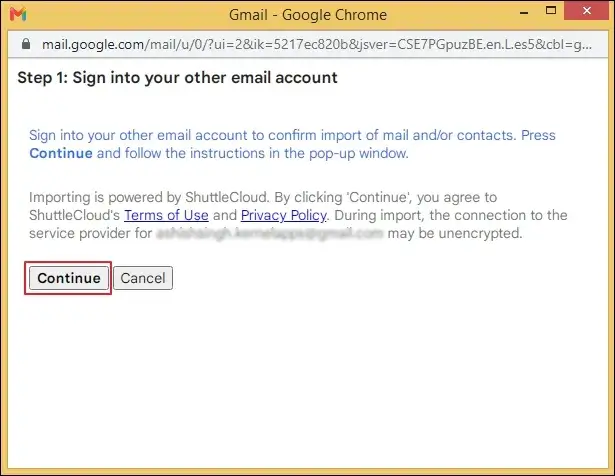
Step 6. Once done, verify all the imported emails.
Method 2. Migrate Lycos Emails to Gmail With Thunderbird
Check out the steps below to transition from Lycos Mail to Gmail using the Thunderbird application.
Part 1. Configure Lycos Mail & Export Mailbox Data
Step 1. Access Thunderbird and go to Settings.
Step 2. Tap on Account Settings and expand Account Actions.
Step 3. Then, proceed to Add Mail Account. 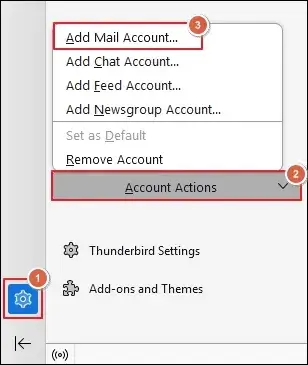
Step 4. Enter Your full name, Email address, and Password in their respective spaces.
Step 5. Go to Configure manually section to continue. 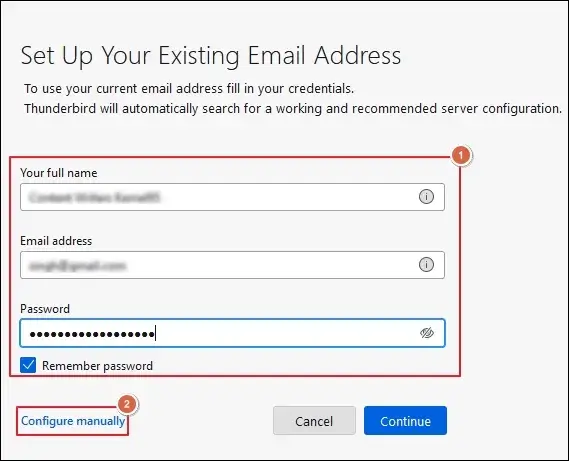
Step 6. Provide the necessary configuration settings and proceed to Done.
Step 7. Go to Menu bar and select Tools > Export. 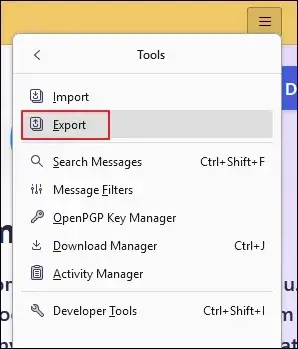
Step 8. Tap on Export mailbox data to Save it locally. 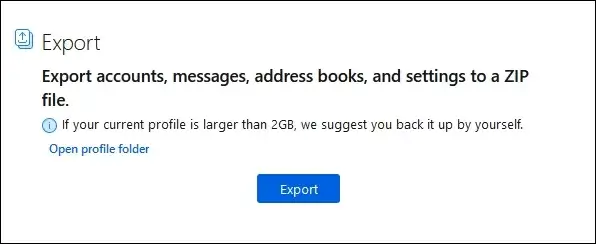
Part 2. Import the Exported Data to Thunderbird Application
Important Note: Configure your Gmail account before performing the following steps.
Step 1. Click on the Menu bar and proceed to Tools > Import.
Step 2. Select the Import from a file option to Continue. 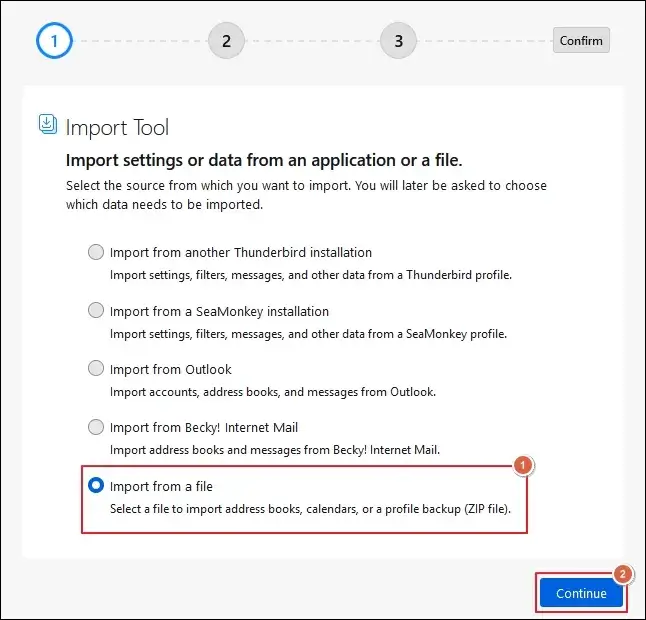
Step 3. Go with the Import Backed-up Profile option and Continue.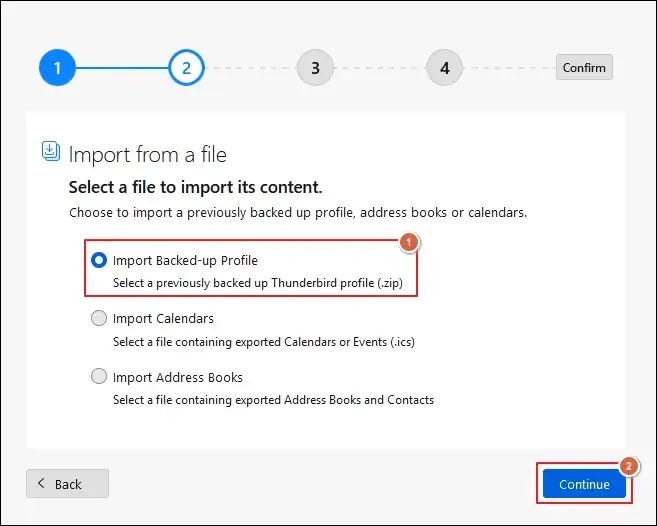
Step 4. Choose a ZIP file and proceed to Continue. 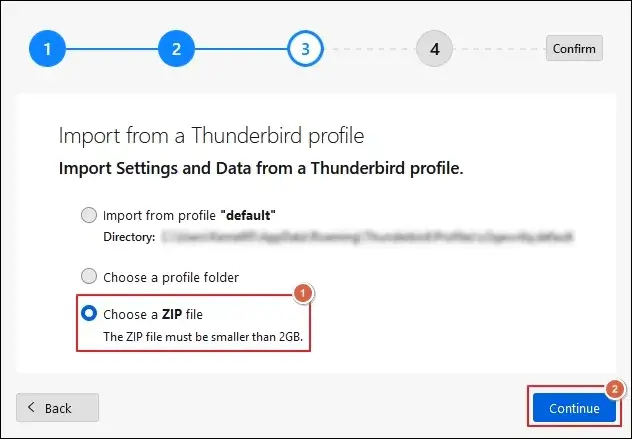
Step 5. Select the locally stored backup file and Open it.
Step 6. Check the necessary boxes and hit Continue.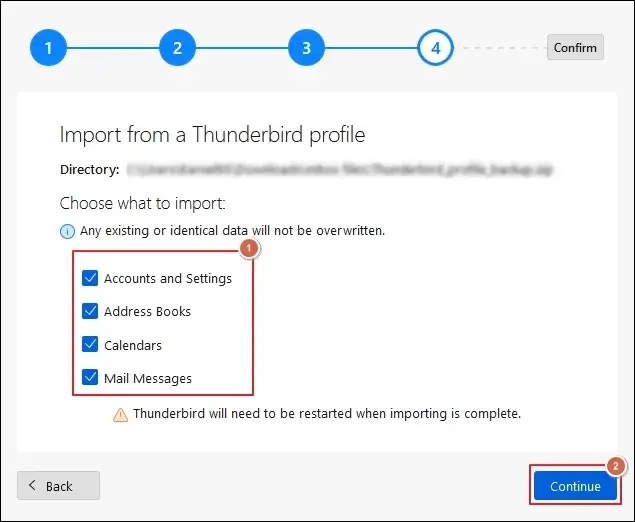
Step 7. Start Import process after verifying the chosen data.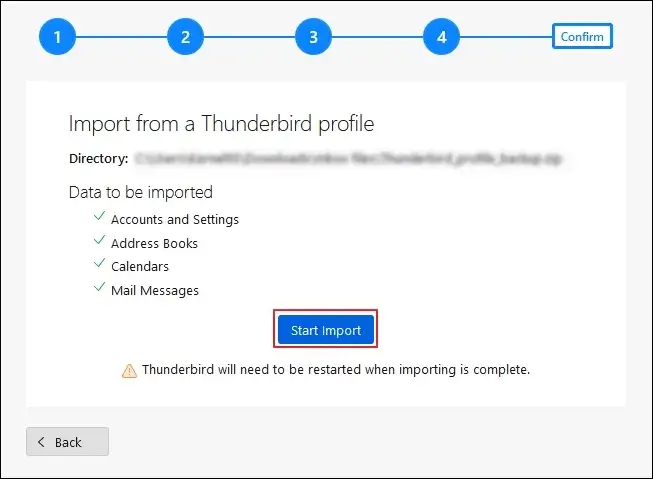
Step 8. Wait till the process is completed.
Step 9. Then, click on Finish to restart the application.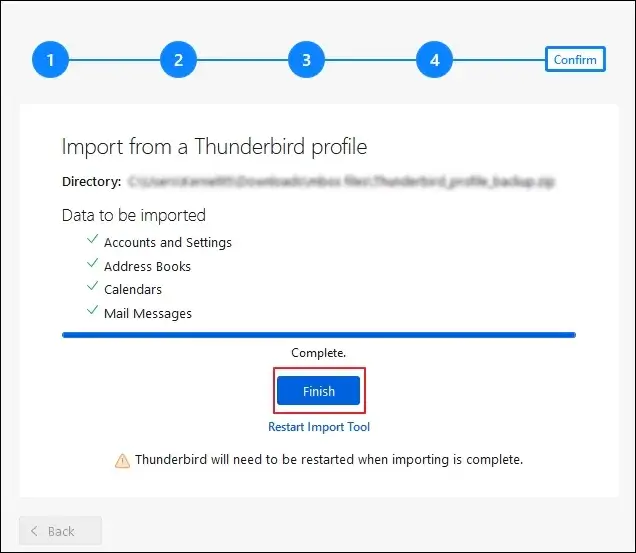
Method 3. Export Lycos Emails to Gmail Using Outlook
Here’s how to use the outlook application to transfer your mailbox from Lycos Mail.
Step 1. Open the Outlook application and go to the File menu.
Step 2. Then, choose the Add Account option to proceed. 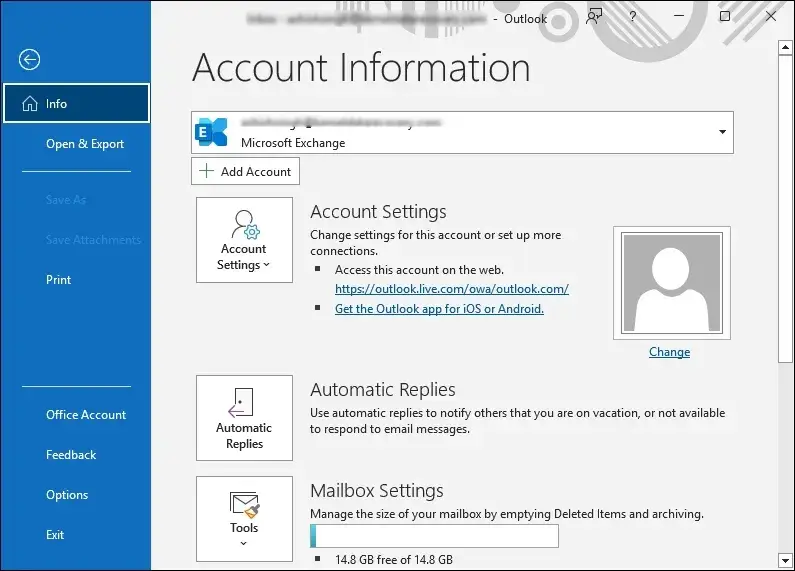
Step 3. Type your Lycos Mail address and expand Advanced options.
Step 4. Check the Let me set up my account manually option and Connect. 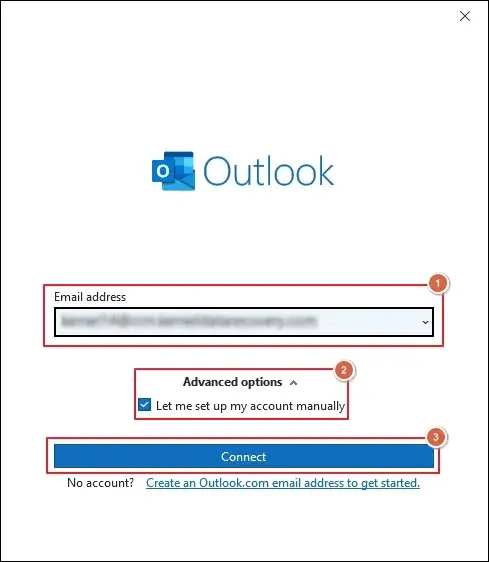
Step 5. Select the IMAP under the Advanced setup window.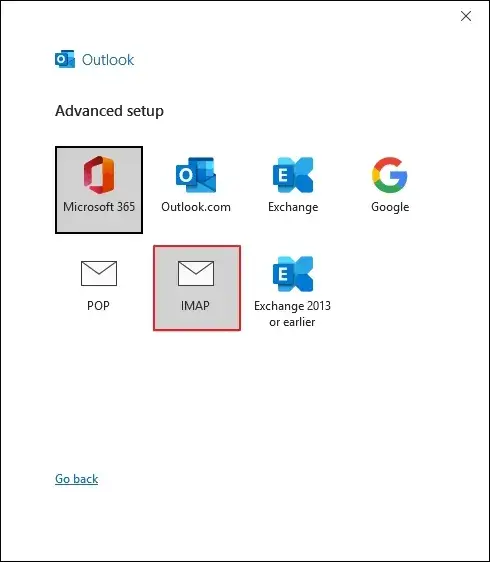
Step 6. Fill in all the necessary details in the IMAP Account Settings wizard.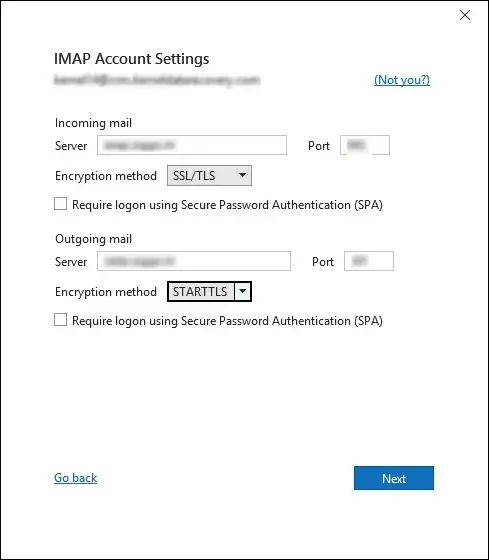
Step 7. Enter the Password and Sign in to proceed.
Step 8. After the successful authentication, click on Done.
Step 9. Perform the same steps for Gmail to configure it.
Step 10. Drag and drop the folder of Lycos Mail to Gmail in Outlook.
Step 11. Repeat the same till all the folders are moved.
Related Blog: Step-by-Step process to migrate IMAP mailboxes to Exchange Server.
Don’t You Think Native Approaches Are Lengthy? Try This One
You have gone through the detailed steps of manual methods to transfer Lycos emails to Gmail. But too many involved steps increase the chances of getting errors. To avoid them, why not try solutions like Recoveryfix?
The IMAP Migration tool helps to migrate data from one email account to another directly. It supports the migration of multiple accounts at the same time.
Final Thoughts
Here, we have covered the best available solutions to migrate Lycos emails to Gmail. You can select either manual or automated solutions to move your mailboxes.
As per our advice, select the native ones for small-scale migration and a migration utility for the large-scale data transfer. The software also helps you migrate emails from one host to another with ease. Take the free trial today.