5 Methods to Split OST File Into Multiple Files

Updated On - July 13, 2026
A growing OST file doesn’t just consume storage; it can slow Outlook, trigger sync errors, and make managing your mailbox increasingly difficult. So, splitting an oversized or large OST file can help you avoid related issues.
Here, we will show you the exact ways to split OST files safely and efficiently. Let’s start with the reasons behind the issue.
Find Possible Causes: Why Do OST Files Become Large?
Several Outlook components contribute to mailbox expansion along with the emails. Here they are:
- Cached Exchange Mode is enabled.
- Old and recent emails are still in Outlook.
- Deleted items are not removed completely.
- Cached Shared Mailboxes store data locally.
- Large email attachments, contacts, & calendars.
- Multiple mailboxes are connected to the Outlook application.
- Synchronization errors created duplicate or incomplete mailbox items.
What Are the Benefits You Get By Splitting OST Files?
Avail the given list of benefits when you break large-sized OST files.
- Manage small-sized mailboxes easily.
- Reduce the chances of data corruption or loss.
- The performance of Outlook significantly improved.
- Easily backup or migrate data to the desired destination.
- Avoid synchronization issues between the OST file & Exchange Server.
Manual Methods to Split Oversized OST Files [Best Ones]
Check out this section to find the different solutions to reduce the size of an OST file. Try them now to find the most appropriate one.
Method 1. Compress OST File Size
You can easily split OST files without deleting any information with the help of this innovative in-built utility offered by Outlook. Let’s see the steps below:
- Launch Microsoft Outlook and click on File tab.
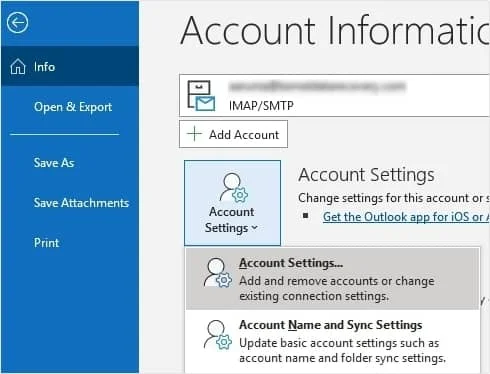
- Click on Account Settings and select Account Settings from the drop-down list.
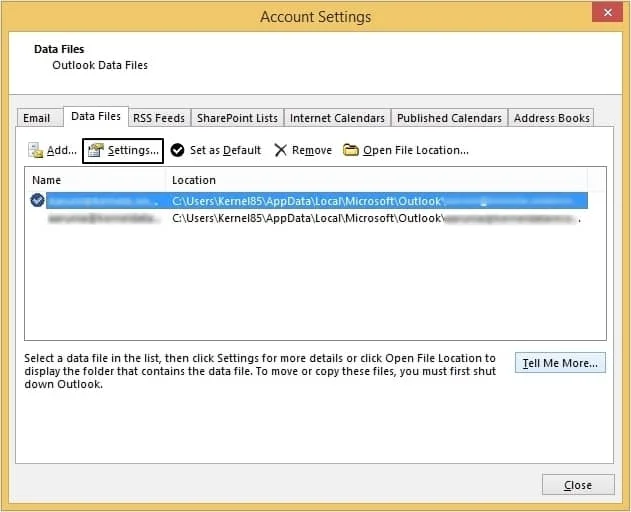
- In the new window, click on the Data Files tab and choose the OST file you need to compress. Click on Settings.
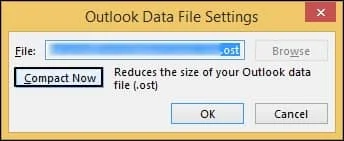
- In the newly opened dialogue box, click on Compact Now.
Method 2. Archive Old OST Files
Archiving old emails allows you to free up space in your inbox while creating a backup of your essential files for future use. By doing so, you can reduce large OST files & keep the size in the defined limit. Here are the steps:
- Launch Microsoft Outlook. Click on File>Tools.
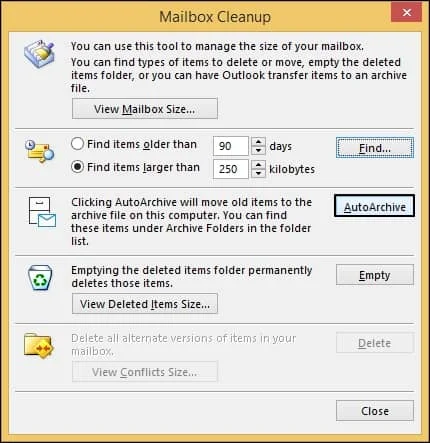
- Choose Mailbox Cleanup from the list. A new window will open.
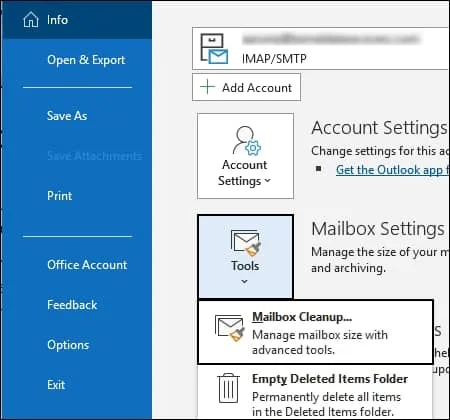
- Click on AutoArchive from the Mailbox Cleanup wizard to shift all your old emails to the archive folder.
Method 3. Disable Shared Folder Synchronization
Shared folders often can increase the size of OST files which can hamper Outlook’s functionality. So, disable shared folder synchronization with these steps:
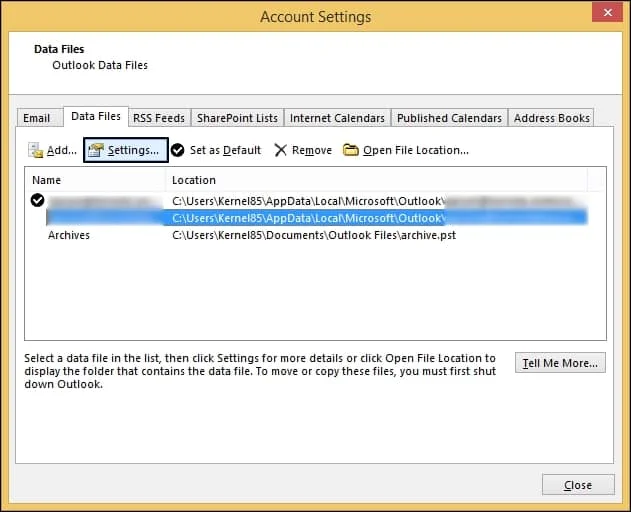
- Click on File tab and Account Settings > Account Settings.
- Choose the OST file you need from the Data Files tab and click on Settings.
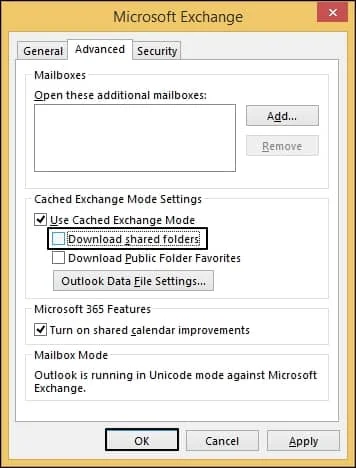
- In the Advanced tab, uncheck the Download shared folders option and click OK.
- Restart Outlook.
Method 4. Reduce the Mail to Keep Offline Settings
Reduce the Offline Settings to synchronize only recent emails in place of the entire mailbox. Here’s how:
Step 1. Go to File > Account Settings > Account Settings.
Step 2. Under the Email tab, choose the Microsoft Exchange account.
Step 3. Then, tap on Change to proceed.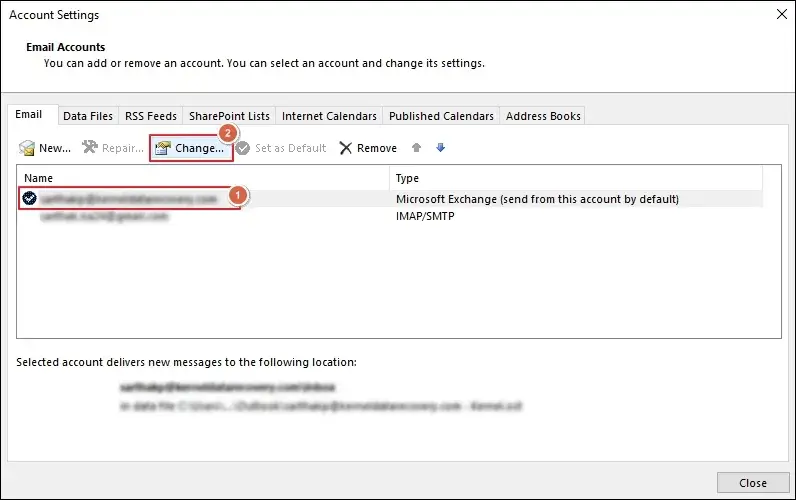
Step 4. Adjust the Download email for the past slider to:
- 3 Months
- 6 Months
- 1 Year
Select the appropriate duration and click Next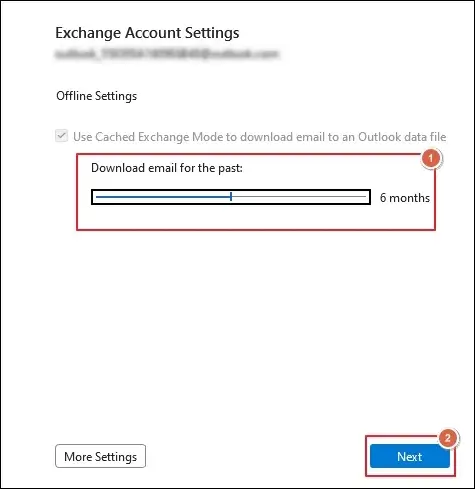 .
.
Step 5. Wait for changes to save and proceed to Done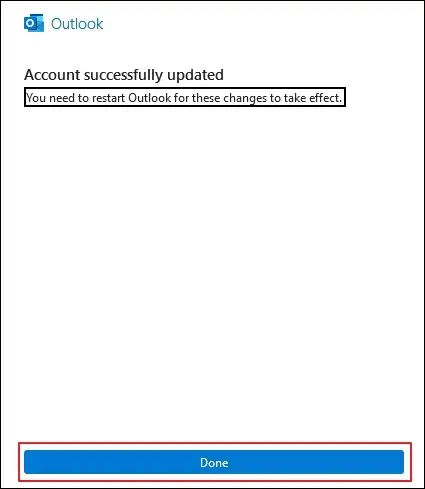 .
.
Step 6. Restart Outlook to complete it.
Method 5. Empty Deleted Items & Junk Email Folder
You can reduce the size of an OST file by deleting the Empty Deleted Items & Junk Email folders. Here are the steps:
A. Empty Deleted Items Folder
Step 1. Go to the Deleted Items folder.
Step 2. Review all the available emails.
Step 3. Select and right-click on them.
Step 4. Click on Empty Folder to proceed.
Step 5. Confirm the deletion, and it’s done.
B. Empty Junk Email Folder
Step 1. Access the Junk folder.
Step 2. Review the email messages.
Step 3. Delete the unnecessary emails to empty the folder.
Try the Direct Approach to Split Oversized OST Files
The above-mentioned methods can certainly help in reducing the size of your OST files but can fall short if your data files are corrupted. Large sized OST files are often the most vulnerable to data corruption which may lead to data loss. Since OST files contain essential mailbox data of users, corruption in these files can become a cause of worry for the users.
Try taking the help of an automated tool, Recoveryfix for OST to PST Converter, to split large OST files to multiple PST files without worrying about data loss. The software can also retrieve data from corrupt OST files with ease and save it in multiple formats like DBX, MSG, EML, TXT, etc., apart from PST.
Concluding Thoughts
The blog highlighted different ways to reduce the size of an OST file using manual methods. You can use the structured approach to split OST files and manage size-related issues.
However, the native ones were only able to reduce the file size, but failed to split them. So, going with the recommended solution (OST converter) is the obvious choice to escape from data vulnerabilities.
FAQs: Get Instant Answers
Q- Can You Really Split OST Files in Outlook?
A- No. Outlook doesn’t provide a built-in feature to split oversized or large OST files into smaller parts. But there are some alternative ways like file compress,mailbox archive, disable folder synchronization, reduce Offline settings, and empty Deleted Items & Junk folder.
Q- When should I reduce the size of an OST file?
A- Break your OST files if you are experiencing these signs:
- Search results appear slowly.
- Application freezes suddenly.
- Slow send/receive operations.
- Mailbox synchronization errors.
- Outlook takes longer than usual.