How to Convert OST to DOC Format? – A Detailed Guide

Updated On - August 13, 2026
OST files are bound to Outlook profiles and restrict users from accessing the mailbox content apart from the source one. This creates issues because you may need to share emails that contain valuable business discussions, contracts, project updates, and records within the organization.
So, a question comes to your mind: how to share and access emails with ease?
“Microsoft documents (DOC)” is the answer you are looking for. They are easy to read, edit, print, and share emails with your fellow mates. Here, we will go through practical solutions to convert OST files to DOC format with the best available methods.
Potential Benefits: Why Perform Outlook OST to MS Word Conversion?
Here is the list of benefits that you can get by converting your emails into DOC format.
|
Benefits |
Explanation |
|
Documentation |
Create official records of important email conversations. |
|
Legal |
Present emails for verification or authenticity. |
|
Shareable |
Share email messages with users who don’t use Outlook. |
|
Printable |
Make printable versions of your email communications. |
|
Editable |
Manage emails easily (add annotations, comments, and additional notes). |
|
Archive |
Backup OST files to keep long-term email records. |
|
Reports |
Showcase email conversations in project reports and audits. |
What are the Free Manual Methods to Convert OST to DOC Format?
We haven’t found many solutions available for the manual conversion of OST files. But the methods below are the most effective ones.
Note: Remember, your OST-associated profiles must be active and configured in the Outlook application to apply the listed solutions.
Remember, your OST-associated profiles must be active and configured in the Outlook application to apply the listed solutions.
Method 1. Save Emails in HTML & Convert to Word Document
The basic approach to execute this conversion is to save emails into HTML and later convert them into DOC format.
Step 1. Launch Outlook on your system.
Step 2. Access the email message and click on File tab.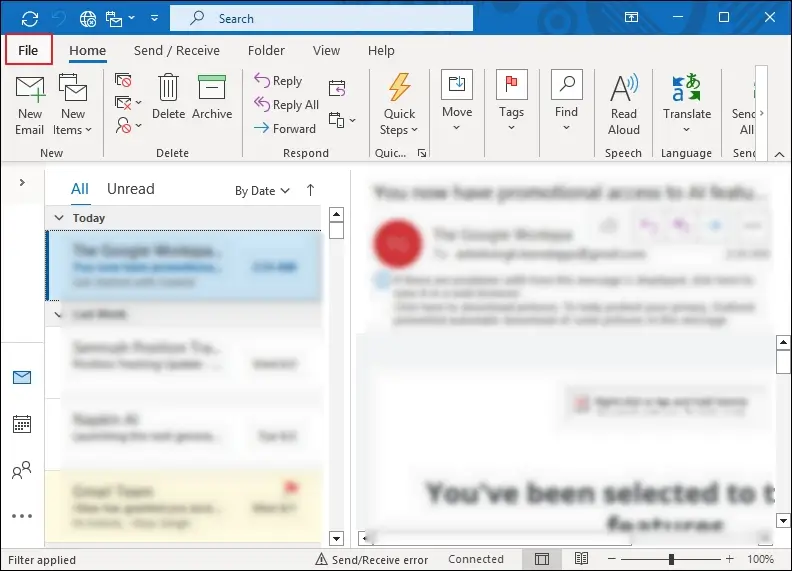
Step 3. Tap on Save As option to proceed.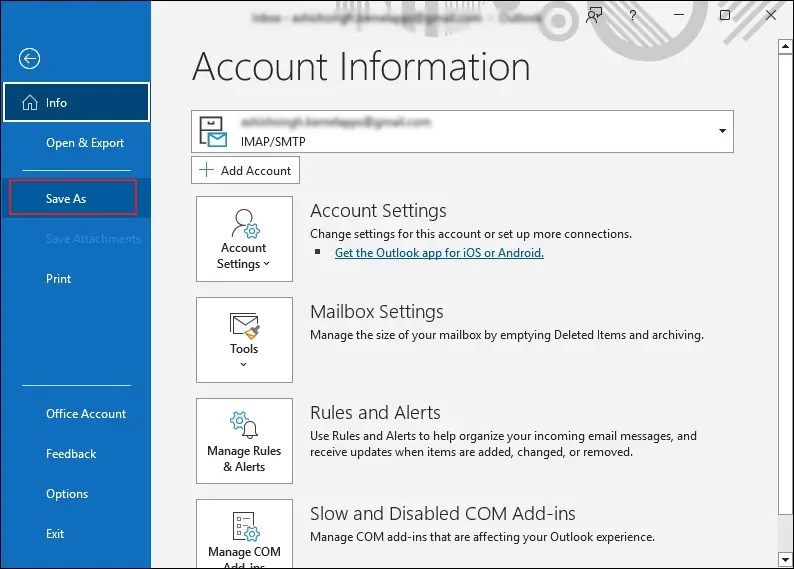
Step 4. Choose HTML format using the dropdown list to Save.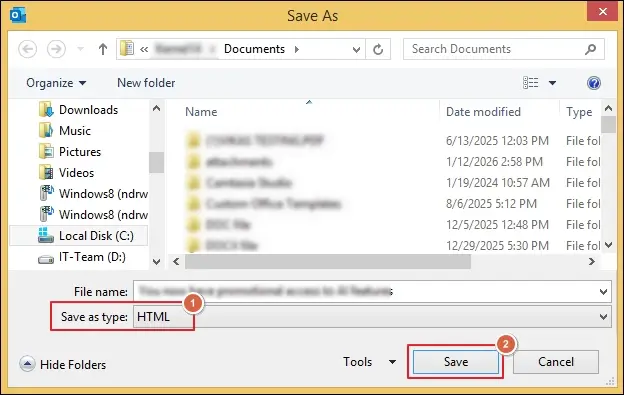
Step 5. Navigate to the saved folder location.
Step 6. Select the saved HTML Open with Word to continue.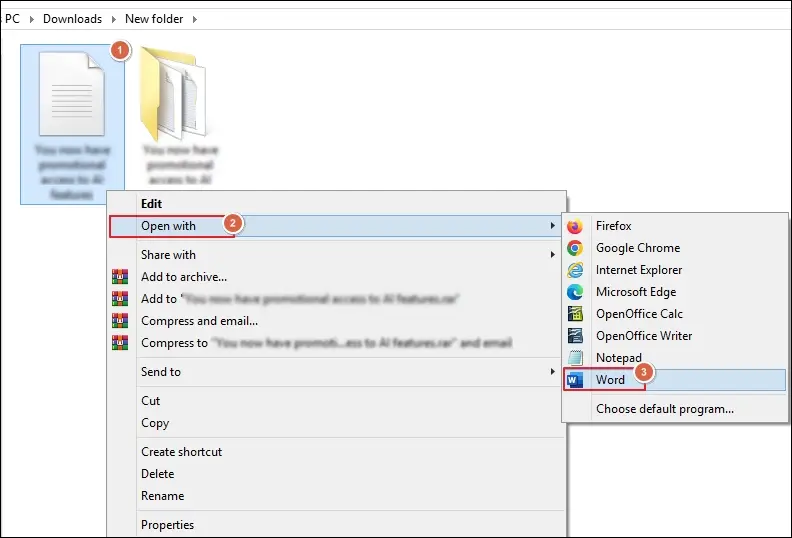
Step 7. Once opened, go to File tab in Word.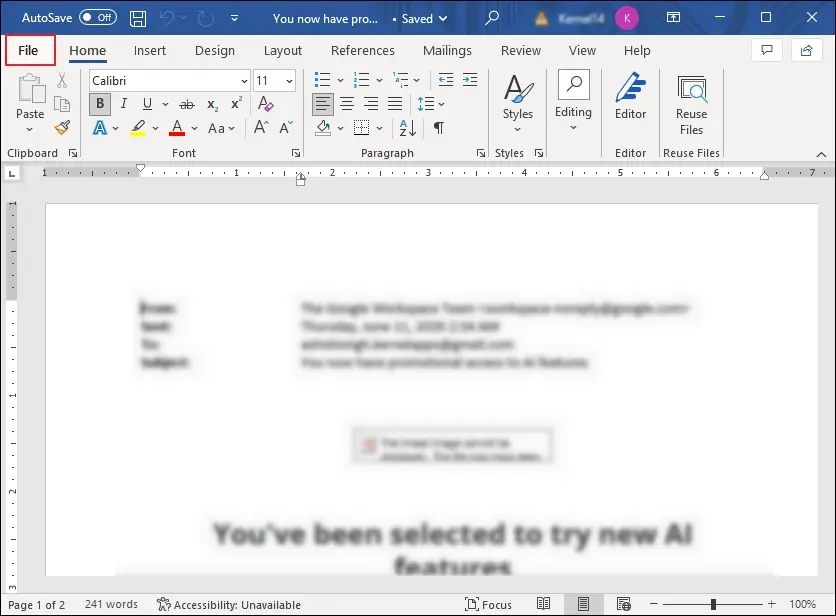
Step 8. Click on Save As to proceed further.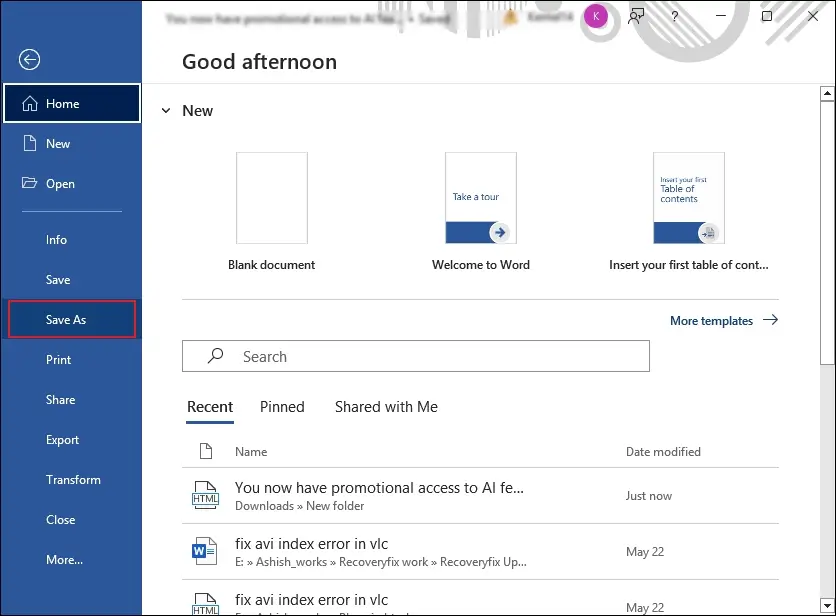
Step 9. Choose the Word Document from the dropdown to Save.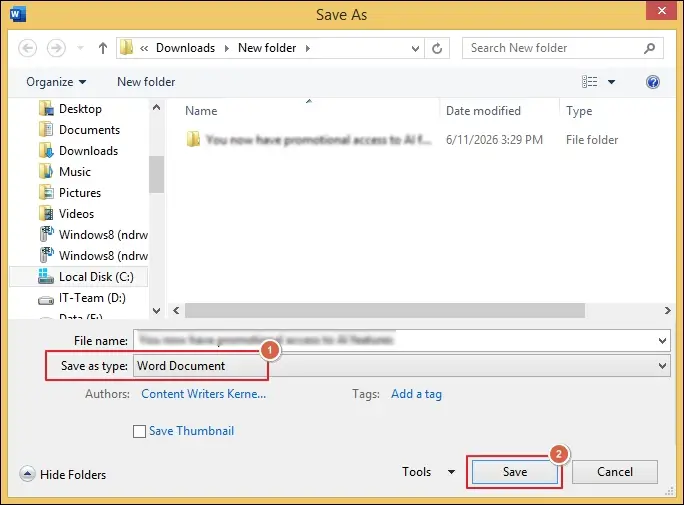
Step 10. This will convert OST to Word Doc.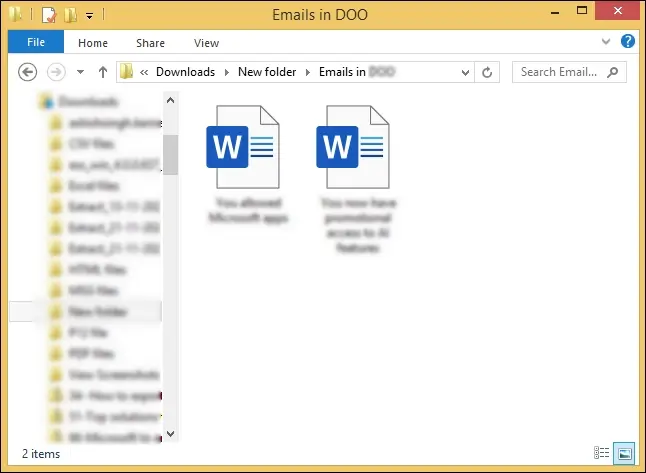
Method 2. Copy and Paste Emails into Microsoft Word
You can use the steps below to save OST emails to DOC format. Here’s how to do the same.
Step 1. Access the email message that you want to export.
Step 2. Press Ctrl+A keys to select all the content.
Step 3. Then, copy the emails by pressing Ctrl+C keys.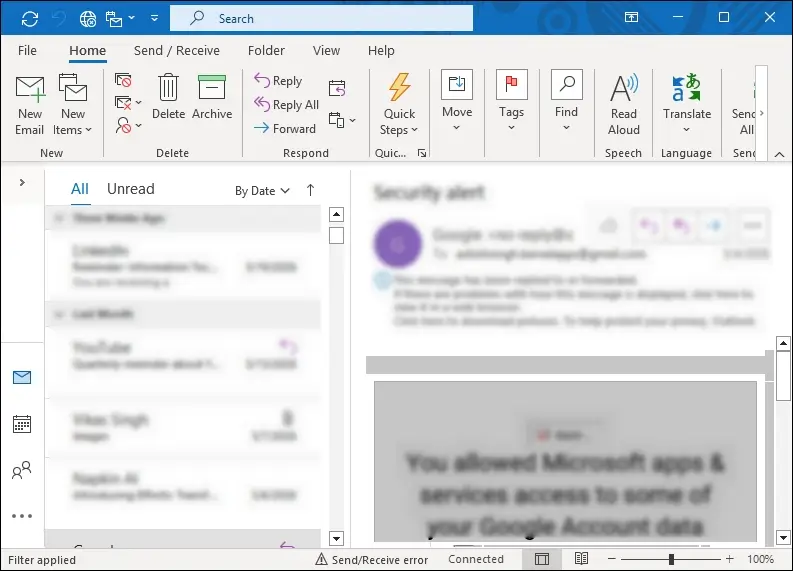
Step 4. Create a Blank document to proceed.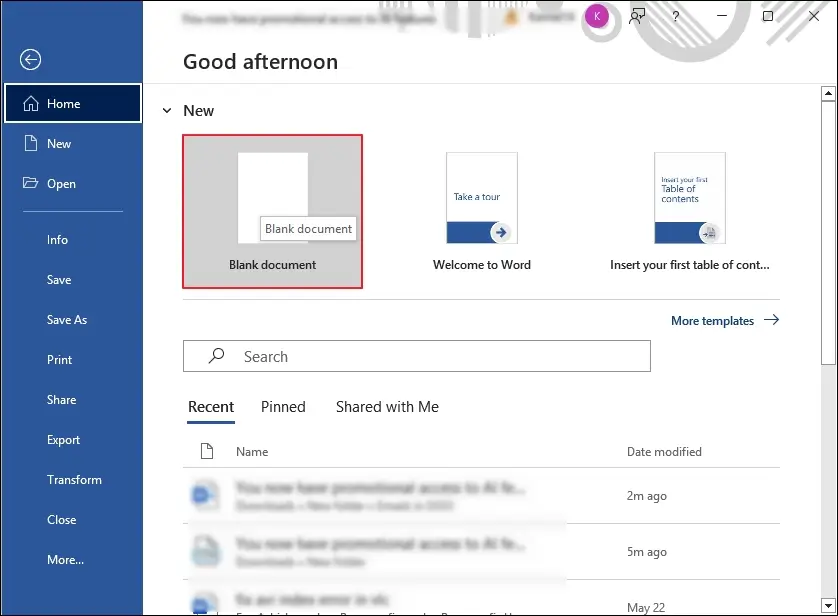
Step 5. Paste the copied content by using Ctrl+V keys.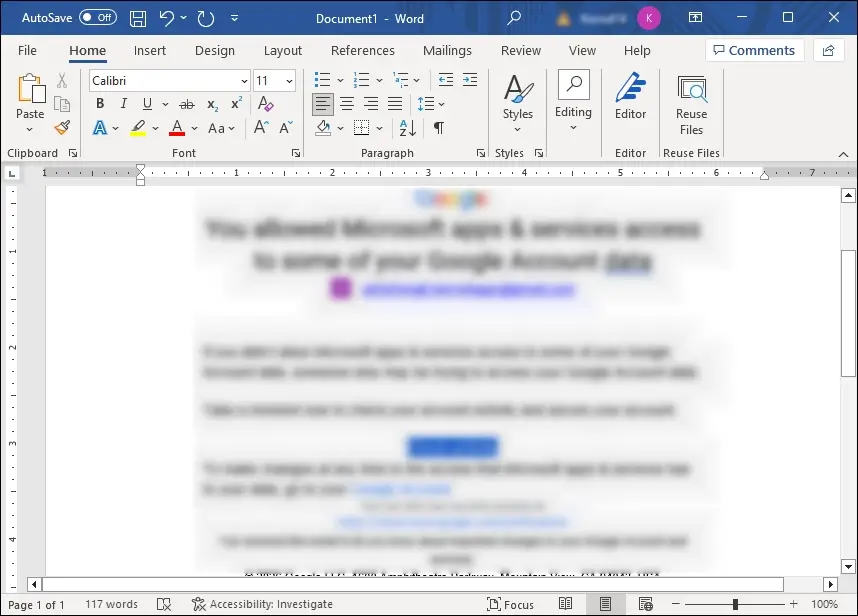
Step 6. Save the file to Word document format.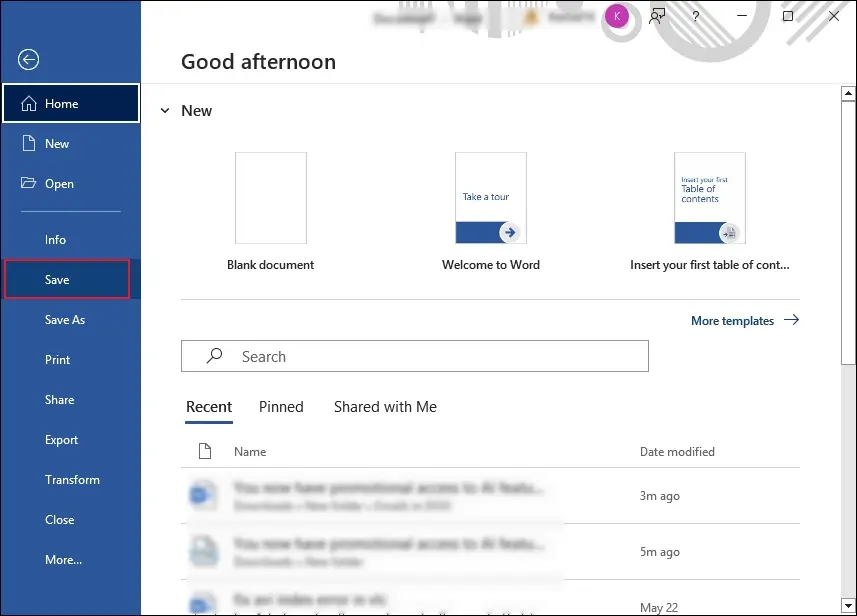
Involved Risks & Challenges With Manual Conversion Ways
The native solutions may appear simple at first, but things change with the mailbox size. Let’s see the challenges you may face when you convert OST to DOC format manually.
- Copying & pasting manually can cause errors.
- Loss of important details like sender, recipient details, time stamps, and email headers.
- Individual email message export is very difficult for organization-level conversion.
- Formatting issues as complex email structure, images, hyperlinks, and tables, may not transfer properly.
Try the Risk Free Way to Export OST Emails to DOC in Bulk
Manual methods can be considered until you have to migrate OST to Microsoft Word document in bulk. Also, these methods completely fail to access and convert email messages contained in the orphaned or disconnected OST files.
As a result, you may face several challenges when proceeding with the native solutions. So, choosing professional tools like Recoveryfix is the preferred and ideal choice in this case. The OST to PST Converter tool helps to convert multiple OST files into DOC and other formats quickly.
Key Takeaways
Here, we have highlighted the detailed solutions to convert OST files to DOC format. You can use either manual or automated solutions for email message conversion.
However, native methods work only for a handful of emails and become inefficient with large mailboxes. So, go with the recommended solution for large-scale conversion. The software even helps you extract contacts from OST files with ease.