How to Migrate Hover Mail to Microsoft 365 Outlook? [Detailed Steps]

Published On - April 7, 2026
- Outlook Application Import/Export: A personally tested method works fine in the case of limited mailbox migration.
- Exchange Admin Center: I used to migrate data directly from Hover Mail to Office 365.
- Professional Solution: Fast and reliable solution to migrate emails on a large scale.
Hover Mail is a domain-based service that is best for basic email management. But it’s limited integration, collaboration, and storage, which can impact productivity. So, moving towards a powerful and scalable email environment like Microsoft 365 is the best option. However, users often worry about data loss and technical errors that discourage them. The guide will help you to migrate Hover Mail to Microsoft 365 Outlook using the proven methods. Explore them now.
Why Migrate Hover Mail to Microsoft 365 Outlook? – Top Benefits
You will get several benefits by migrating your Hover Mail data. Here they are:
- Better collaboration with integrated Microsoft 365 apps.
- Flexible scaling is ideal for growing teams and businesses.
- Access emails at any time from anywhere with cloud flexibility.
- Enhances security with built-in protection against phishing and malware.
- Provides advanced features like smart inbox, scheduling tools, and automation.
Important Points You Must Adhere to Before Migration
Prepare the following checklist before you migrate from Hover to Office 365 account.
- Domain ownership must be verified.
- Enable IMAP settings in Hover Mail.
- Backup Hover Mail data for additional safety.
- Requires an active Microsoft 365 subscription.
- Must have admin access to both Hover Mail and Microsoft 365.
Best Manual Solutions to Migrate Hover Mail to Office 365
I have tried both given solutions by myself, and they both have worked for me. You can try them to find a suitable method for data transfer.
Way 1. Migrate Hover Mail to Microsoft 365 Outlook
The steps below will help you out to migrate data from Hover Mail account. Here’s how:
- IMAP Server: imap.hover.com
- Port: 993
- Encryption: SSL
- SMTP Server: smtp.hover.com
- Port: 465 or 587
- Encryption: SSL/TLS
Part A. Configure Hover Mail Account & Export Data File
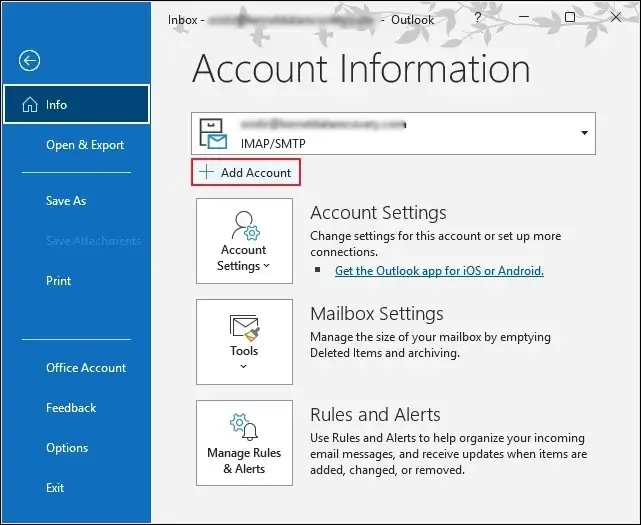
- Go to the File tab and proceed to Add Account.
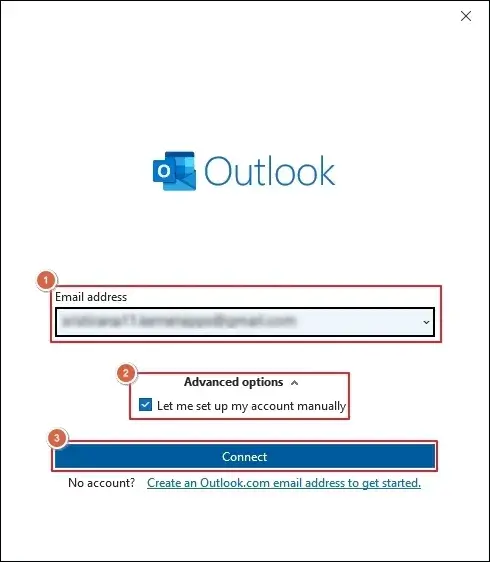
- Type your Email address and check mark the Let me set up my account manually option.
- Then, tap on Connect to proceed.
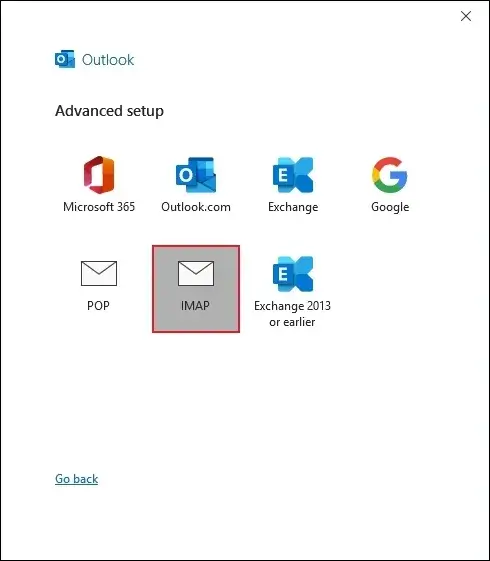
- Select the IMAP option under Advanced setup.
- Complete the process by following the on-screen instructions.
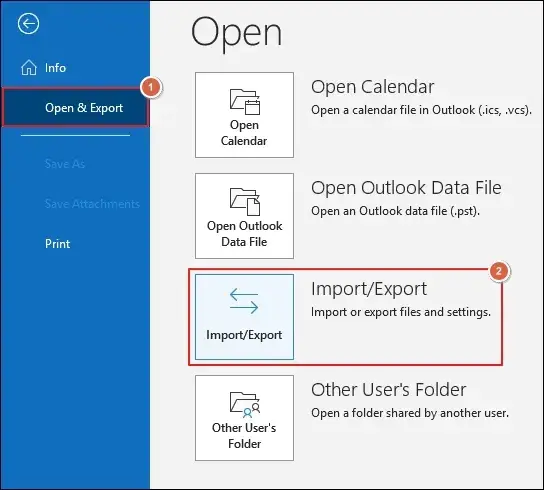
- Navigate to Open & Export and click on Import/Export.
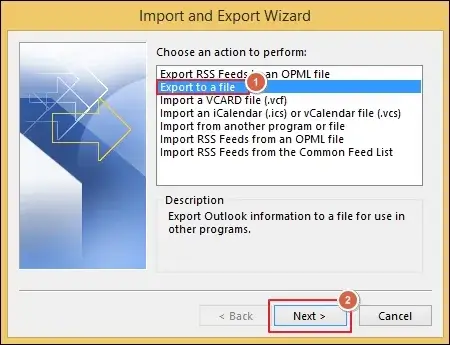
- Choose Export to a file and proceed to Next.
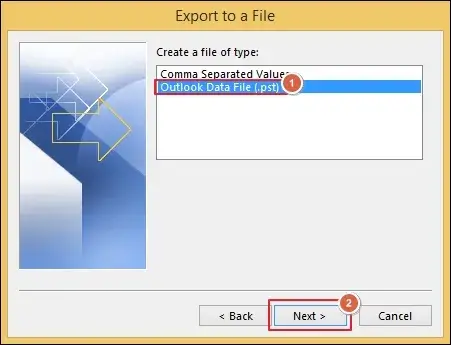
- Select Outlook Data File (.pst) and click Next.
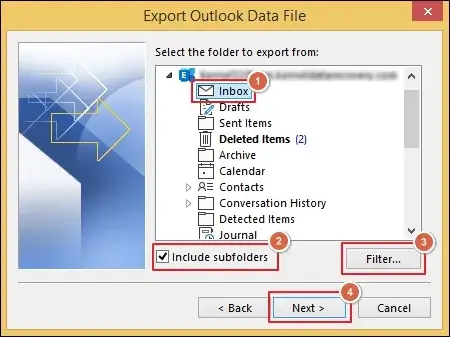
- Choose the required folder and check mark Include subfolders.
- Filter data for precise output and hit Next.
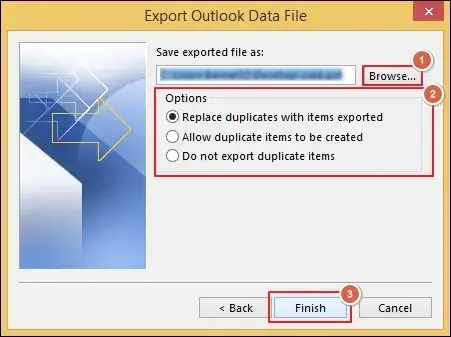
- Browse to provide the location.
- Select from different Options and click Next.
Part B. Import the PST File Data to the Outlook Application
- Click on the Import/Export option.
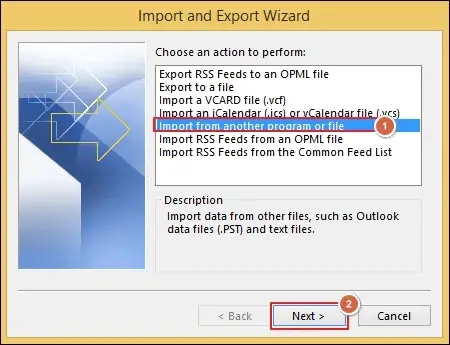
- Select Import from another program or file and tap on Next.
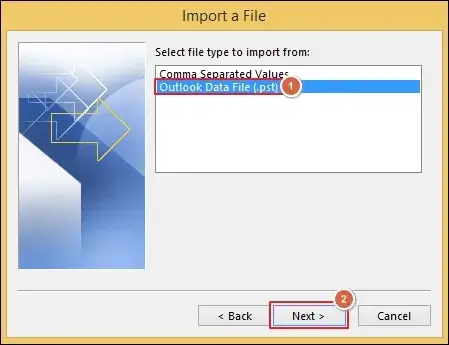
- Choose Outlook Data File (.pst) and click Next.
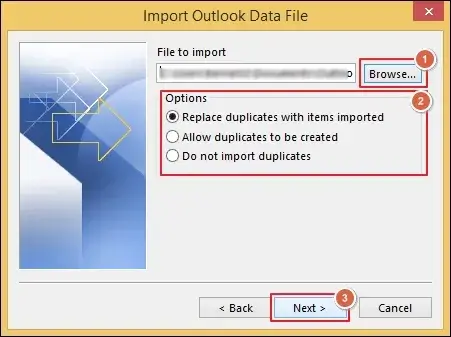
- Browse to select the data file.
- Select the appropriate Options and proceed to Next.
- Choose and Open the file to continue further.
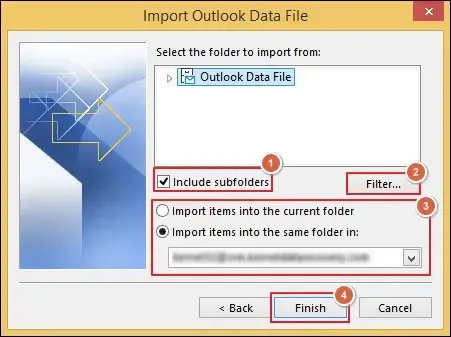
- Check mark the Includer subfolders option and Filter unnecessary data.
- Select Import items into the current or same folder and click Finish.
Way 2. Use EAC to Migrate From Hover to Office 365 Account
Here are the detailed steps to import emails from Hover to Office 365.
Note: A built-in solution to migrate data to different Microsoft 365 user mailboxes.
- Log in to Microsoft 365 Admin Center.
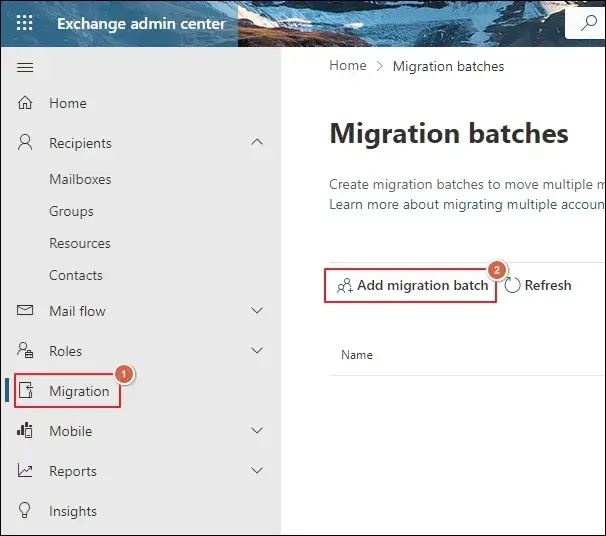
- Go to Exchange Admin Center and click on the Migration tab.
- Then, Add migration batch to proceed further.
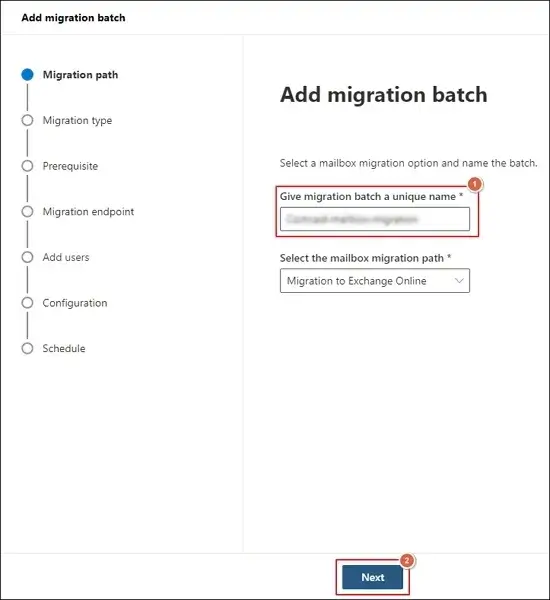
- Provide the migration batch name and hit Next.
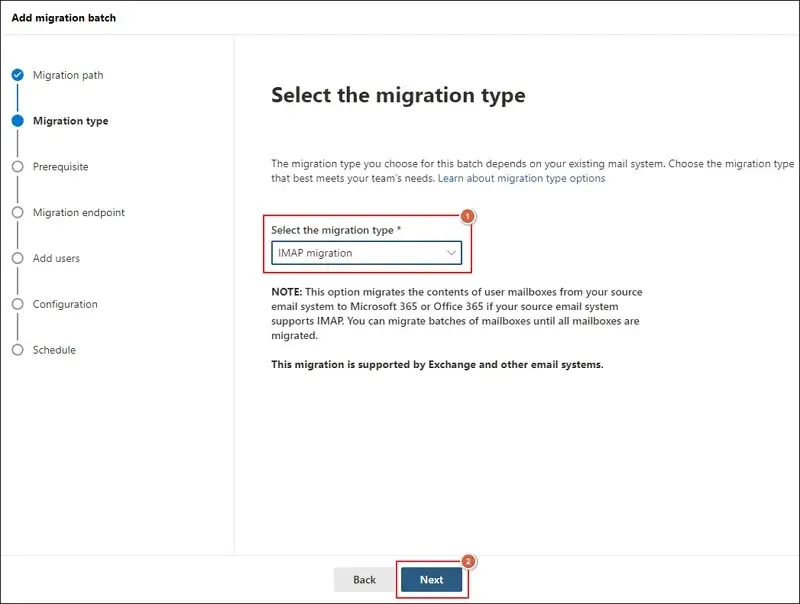
- Choose the IMAP migration type and click Next.
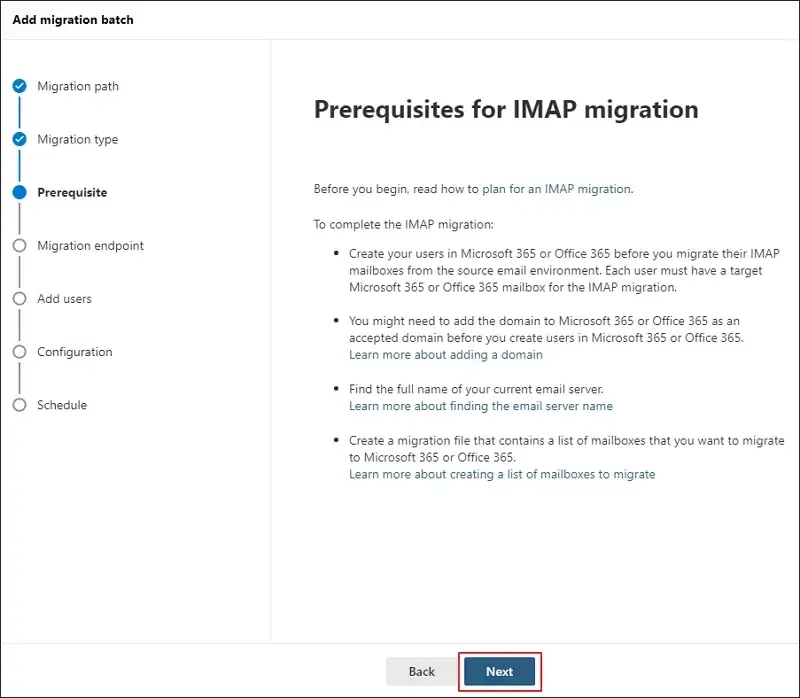
- Complete all the prerequisites and proceed to Next.
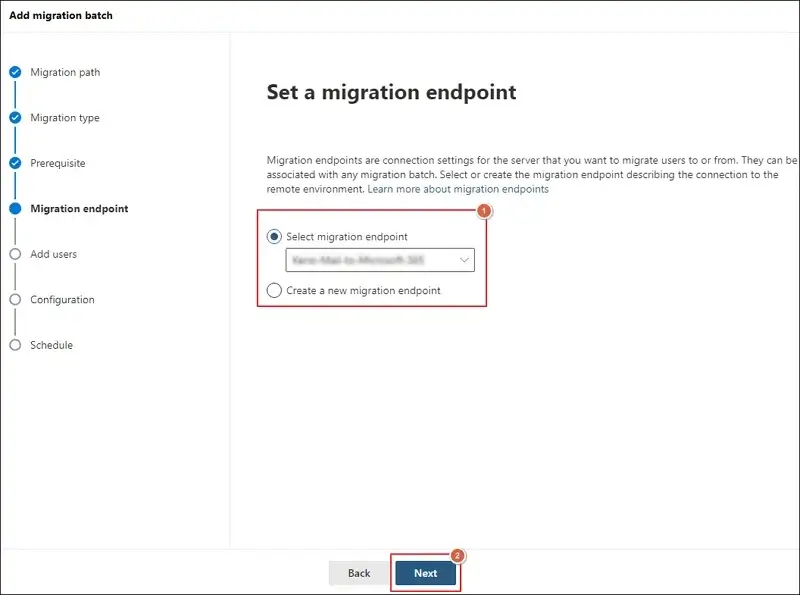
- Create or select migration endpoint and tap on Next.
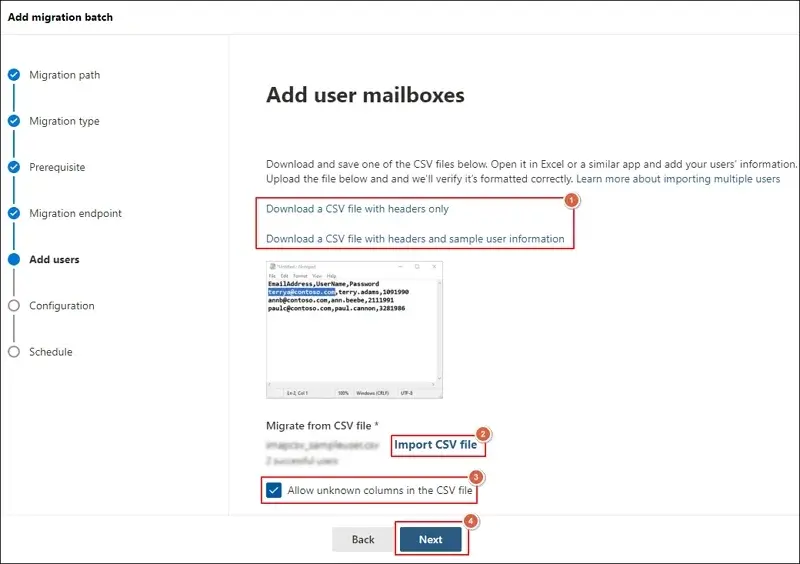
- Download sample CSV file to map the users properly.
- Then, Import CSV file and click Next.
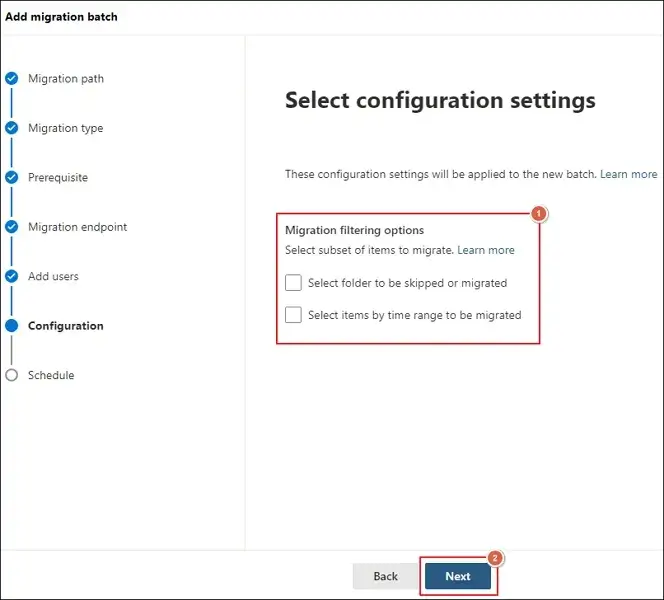
- Use the Migration filtering options if needed and hit Next.
- Schedule batch migration and Save it.
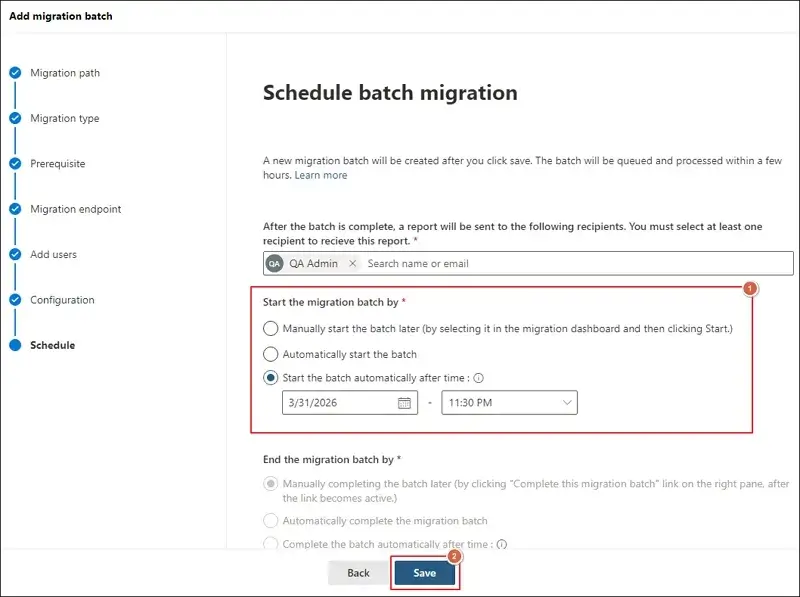
- Track status and verify migrated emails after the process completion.
Are You Looking For Instant Solutions? – Try the Advanced One
Manual solutions are able to deliver results, but it requires careful execution. Also, it comes with these limitations:
- Not suitable for beginners.
- Bulk migration is very difficult.
- Prone to data loss and migration errors.
- Original structure or metadata not preserved.
- Multiple execution steps make it more lengthy.
All these constraints of native solutions make them a second priority when you are looking for direct and reliable solutions. In this scenario, considering professional tools like Recoveryfix is the best choice. The IMAP to Office 365 software eliminates all limitations and simplifies the migration process.
Final Verdict
We have classified the different solutions to migrate Hover Mail to Microsoft 365 Outlook. You can get the details of both manual and automated approaches in this single blog. As per our advice, use the native ones for small-scale data migration and the recommended solution for large-scale migration. The automated tool keeps the data structure intact throughout the entire process.
FAQs: Top Users Queries
Q. Is it possible to migrate Hover Mail without IMAP settings?
A. No, you have to enable IMAP and know all the required configuration settings.
Q. Do manual methods contain data loss risk?
A. Yes, but you can easily avoid them by data backup and careful execution of each step.
Q. Which method is suitable for migrating enterprise emails?
A. Automated tools like Recoveryfix [IMAP to Office 365]are the best to migrate data at the organization level.
Q. How can I access Office 365 user mailboxes in OWA?
A. Yes, you can access by the following ways:
- Sign in with your office account.
- Add the mailboxes to the folder list to access them easily.
- Use the account icon to view shared or delegated mailboxes.