How to Migrate Horde Emails to Office 365 [Updated Guide]

Published On - December 4, 2025
Horde Webmail was shut down on 4 April 2023 and is no longer available on the servers. Outdated PHP 7.4 and security vulnerabilities are the main reasons behind it. As a result, users have to rely on Roundcube or App Suite to view and access their mailbox data.
Now, many users are planning to migrate from Horde Webmail to Microsoft 365 for better email management services. But lost messages, broken threads, and unexpected downtime risks stop them.
Thus, the guide will help you find practical solutions to transfer emails with proper planning and clear steps.
Horde Webmail to Microsoft 365: Why Migrate Emails?
Office 365 makes daily communication easier and stress-free with long-term stability. Apart from that, it provides several other benefits:
- Modern Interface & Better User Experience: Microsoft 365 offers a faster email experience with an intuitive user interface.
- Advanced Security: It comes with built-in threat protection, multi-factor authentication, spam filtering, and enterprise-grade security.
- More Storage Space: Larger mailbox and cloud storage compared to typical Horde hosting limits.
- Collaboration Tools: Real-time with Microsoft Teams, OneDrive, SharePoint, and other applications.
- Multi-Device Support: Sync perfectly across Windows, Android, and iOS devices.
- Regular Updates & Support: It provides regular improvements and security patches with a dedicated support team.
Check the To-Do List: Before You Start Migration!
It is necessary to prepare a complete migration checklist before migrating from Horde Webmail to Microsoft 365. Here is the list of some essential ones:
- Audit Existing Horde Mailbox: It consists of the total email count, folder structure, attachments, contacts, calendar entries, and tasks.
- Prepare Microsoft 365 Tenant: Make sure the mailbox exists with the proper license assigned and the Domain is added if applicable. Also, keep Office 365 credentials ready and update MX & DNS in case of custom domains.
- Backup Horde Mailbox: Always keep a backup file in a safe location for easy data recovery when migration fails.
- Decide the Suitable Method: You can choose between native or automated solutions to transfer Horde emails to Office 365.
How to Migrate Horde Emails to Office 365 Manually?
We have come up with the two best native solutions to export Horde email to Outlook 365. You can try them individually to find the most suitable one for yourself.
Method 1. Transfer Emails via Thunderbird Application
It is the most appropriate solution for all users who have already extracted their mailbox data from Horde Webmail. Here’s how to transfer Horde emails to Office 365 using the Thunderbird application.
Note: If not, you can export/import mailbox data using the Roundcube web email client.
Step 1. Configure your Office 365 account in Thunderbird application.
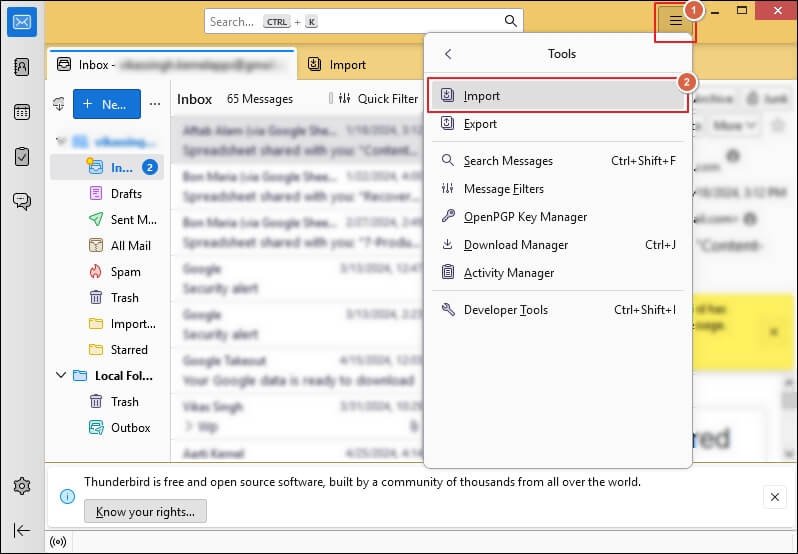
Step 2. Go to Thunderbird Menu>Tools>Import.
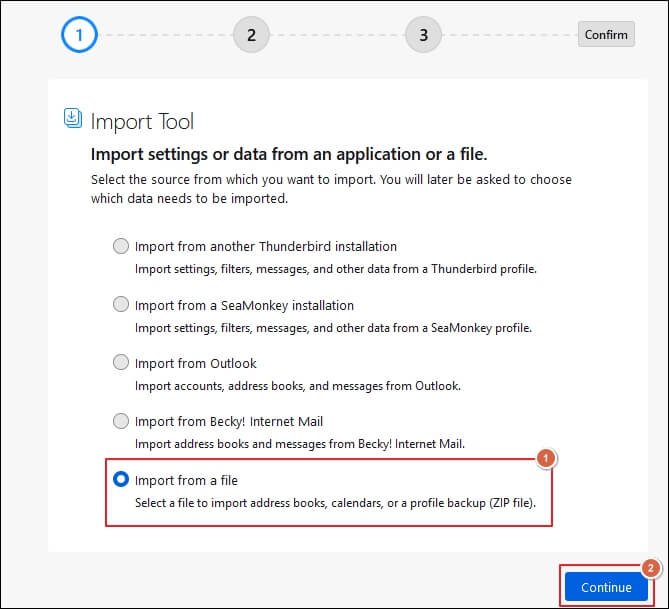
Step 3. Choose the Import from a file option and proceed to Continue.
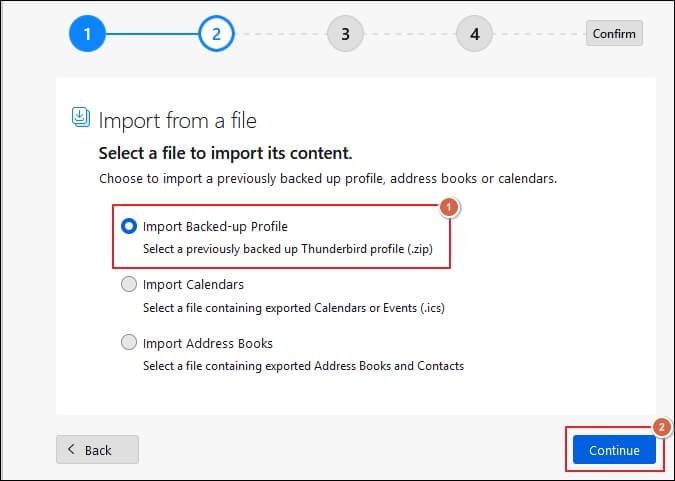
Step 4. Select the Import Backed-up Profile option. Then, click Continue.
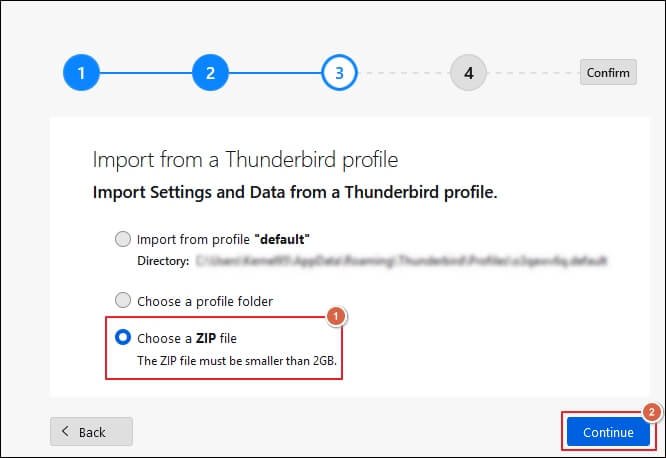
Step 5. Choose a ZIP file to add the Horde emails and press Continue.
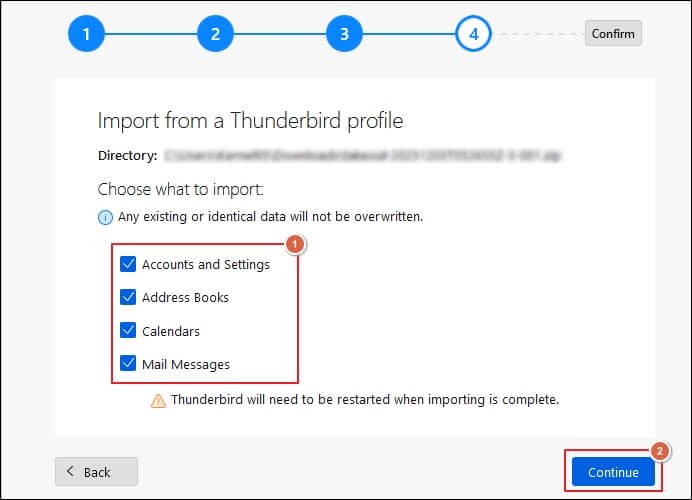
Step 6. It will show the contents of the added file. Check the required ones and proceed to Continue.
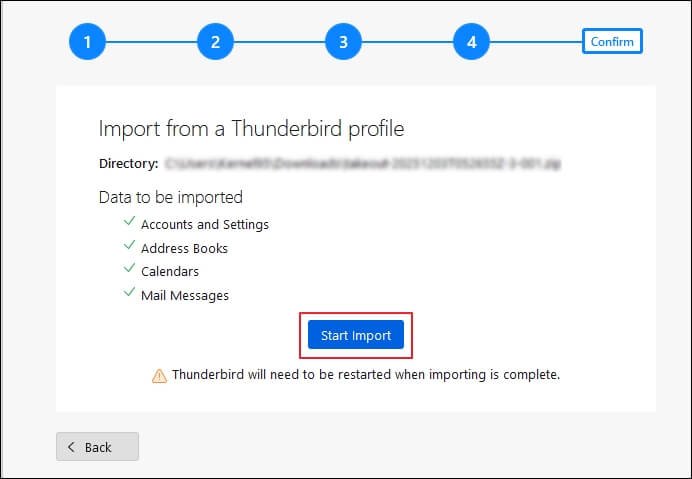
Step 7. Tap on Start Import to begin the migration process.
Method 2. Migrate Data using the Outlook Application
Use this solution to migrate Horde emails to Office 365 user mailboxes with precision. We have simplified the entire process by breaking it into parts:
Section 1. Export Horde Emails in PST Format
Configure your Horde Webmail account in the Outlook application to import mailbox data into PST format. Follow the given steps to do so:
Step 1. Launch the Outlook application and set up your email account.
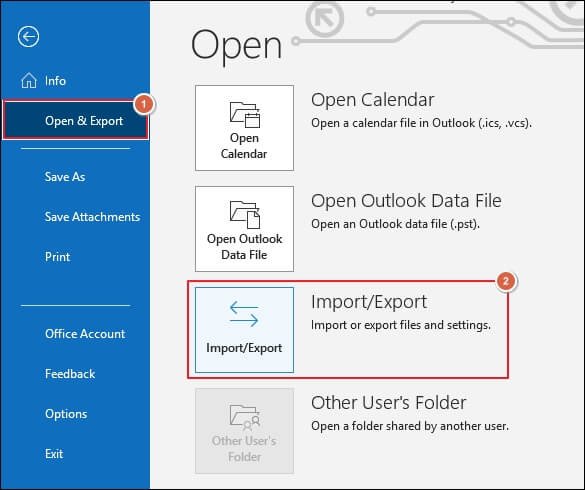
Step 2. Once done, go to File> Open & Export> Import/Export.
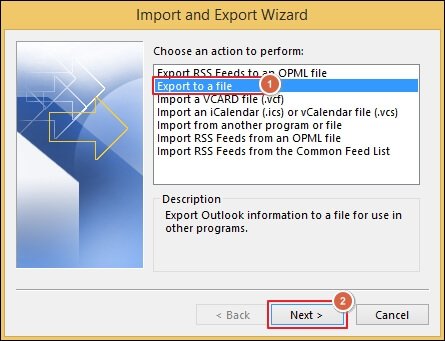
Step 3. Tap on Export to a file option and proceed to Next.
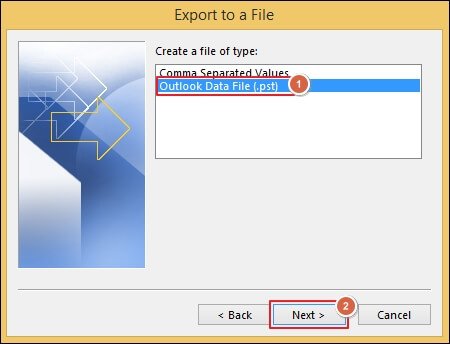
Step 4. Select the Outlook Data File (.pst) and click Next.
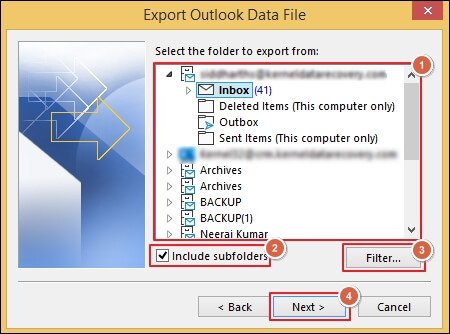
Step 5. Choose the required mailbox folder and Include subfolders if needed. Then, Filter data to avoid unnecessary items and click Next.
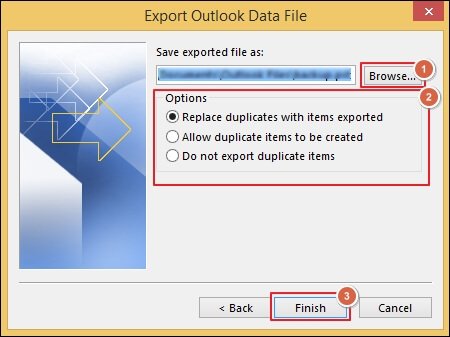
Step 6. Browse to provide the saving location and select the appropriate Options. Then, click Finish.
Section 2. Transfer Horde Emails to Office 365 using Network Upload
Network upload is a built-in feature that allows users to migrate bulk PST files to different Office 365 user mailboxes. Here are the steps:
Step 1. Copy the SAS URL to a safe location and download the Azure AzCopy tool.
Step 2. Use the AzCopy tool to upload the PST files.
Step 3. Install the Microsoft Azure Storage Explorer tool to verify the uploaded list of PST files.
Step 4. Create a new CSV file and map user mailboxes with the PST files.
Step 5. Go to the Import Service of Microsoft 365 to create the PST Import job.
Step 6. Filter out unnecessary data and start the PST Import job.
Common Migration Issues: Best Tips to Avoid Them!
You may encounter several errors during the Horde Webmail to Office 365 migration. Here is the list of the most common ones with their appropriate solution to fix them:
|
Error |
Solution |
| Duplicate emails | Use filters to refine output. |
| Missing folders | Enable “Show All Folders” in Horde Webmail. |
| Lost metadata | Try advanced migration tools. |
| Calendar data not migrated | Export ICS files separately. |
| MAP login failures | Verify server and port settings. |
| Slow migration | Split folders or schedule migration during less peak hours. |
Direct Approach: Instant Migration with Professional Tool!
You can use the above-mentioned solutions to transfer Horde emails to Office 365. However, users may encounter data loss, incomplete migration, and login failures if proper steps are not followed.
To avoid this, you can opt for the Recoveryfix Email Migration tool for a smooth migration. The Email Migration Software helps you to directly migrate data from one email server to another with ease.
Final Thoughts
We have covered a detailed guide to migrate Horde Webmail to Microsoft 365 using manual solutions. You can choose the best applicable method according to your requirements.
If native solutions fail to migrate emails or show errors, then go with the recommended solution. It eliminates complex setups or procedures and makes the complete process easy for all users.