Fix YouTube Videos Not Playing in Chrome [Effective Ways]

Published On - March 16, 2026
In most cases, using Chrome for watching videos comes with a smooth experience, especially on platforms like YouTube. But in some instances, users encounter a frustrating issue like videos not playing in Chrome. In this issue, the video may keep buffering, display a black screen, show playback errors, or fail to load completely.
YouTube playback issues on Chrome can occur due to different reasons, including network issues, browser settings, etc. But you can handle it by using simple & workable solutions. This guide will help you with all the information needed about the concern, along with the practical methods.
Common signs for YouTube videos not playing in Chrome
Check out the symptoms that can help you identify the issues with YouTube playback error on Chrome browser.
- Video buffering endlessly.
- Black screen while audio plays.
- Chrome freezes while playing YouTube Videos.
- YouTube page loads, but the video doesn’t start.
- “An error occurred. Please try again later.” message.
Reasons for YouTube Videos not playing in Chrome
Know the core reasons behind the YouTube playback issues on Chrome:
- Hardware acceleration & internet connectivity issues.
- An outdated Chrome browser may lack the latest video playback.
- A conflicting browser extension can block scripts for video playback.
- Corrupted browser cache & cookies interfere with website functionality.
- Disabled JavaScript as it plays a crucial role in loading and playing videos.
- Restart the Chrome browser, as it fixes minor issues.
- Refresh the YouTube page & try to play the video again.
- Update Google Chrome to the latest version if available.
- Turn off the antivirus or open YouTube in incognito mode.
- Check internet connection & disable VPN or proxy services.
- Update your system with the latest graphics drivers & play video.
- Reinstalling the Chrome browser can resolve the video playback issues.
Top Methods to fix YouTube not playing on Chrome error
After several hits & trials, we have provided some workable solutions to fix YouTube videos not playing in Chrome.
Method 1. Clear Chrome Cache & Cookies
Corrupted browsing data, like cache & cookies, can hamper the website’s productivity, which can lead to the issue. Hence, it is noticed that clearing cached files allows Chrome to reload YouTube resources properly. Look at the steps below to understand how it works:
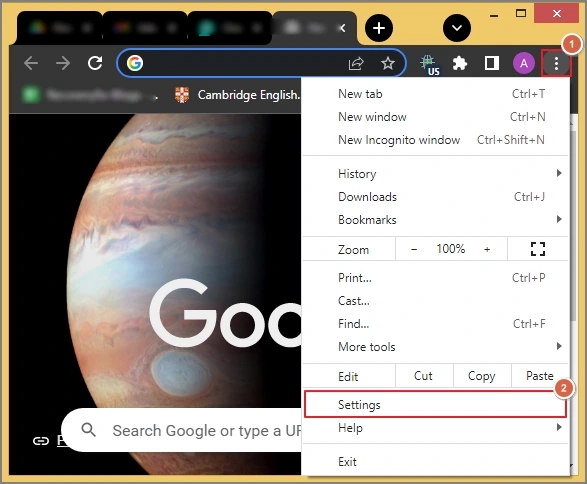
- Open the Chrome Application, tap on the three-dot menu at the top-right corner & hit Settings.
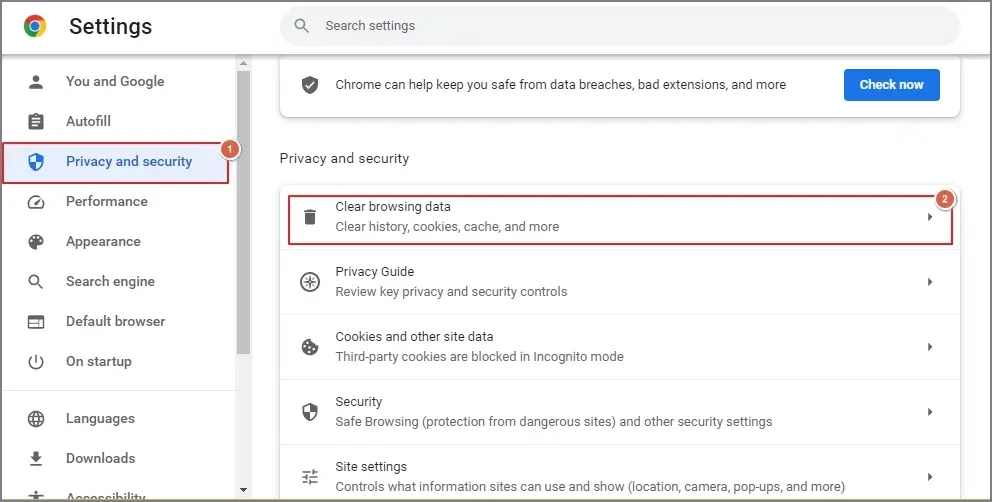
- Tap on the Privacy and Security > Clear browsing data option.
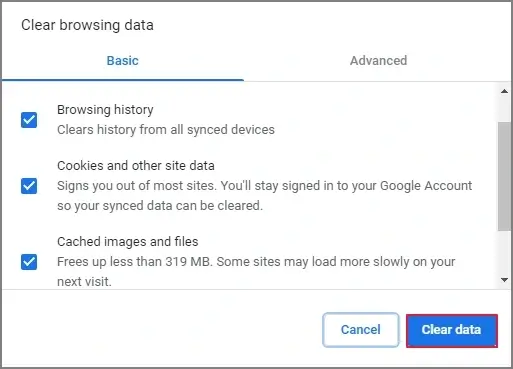
- Choose Cookies and Cached images/files. Tap on Clear data & then restart Chrome to check the status of the issue.
Method 2. Disable Chrome extensions
Extensions sometimes interfere with YouTube functionality if they are not compatible with it. So, try to disable the unwanted ones. If the video starts working after turning off the extension, then the root cause of the issue is the Chrome extension. Let’s understand with the complete stepwise approach:
- Open Chrome & hit the three-dot menu. Tap on the More Tools > Extension tab.
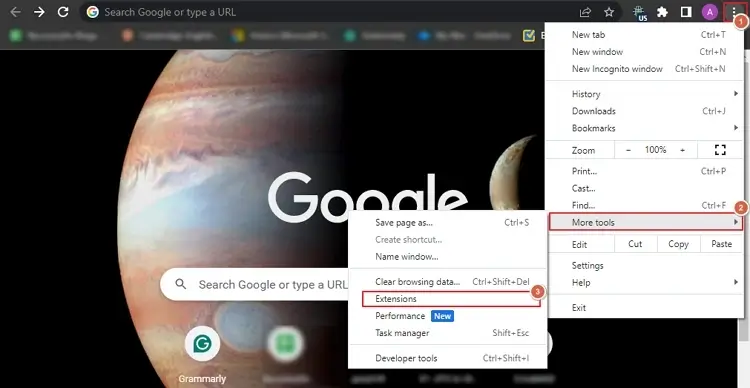
- Disable the unwanted extension one by one.
- Refresh YouTube & test playback.
Method 3. Enable JavaScript
JavaScript plays a vital role in the functionality of YouTube. It needs to function correctly. Hence, if it is disabled, enabling it will restore its functionality, which can fix YouTube not playing on Chrome error. Check out the steps below for a stepwise approach:
- Open Chrome Settings, go to Privacy and Security > Site Settings.
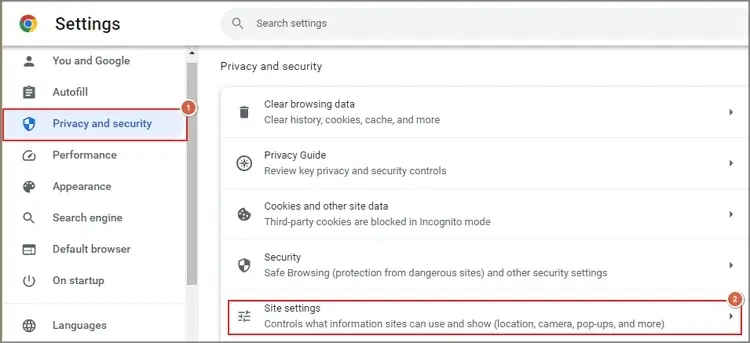
- Hit the JavaScript in the next window.
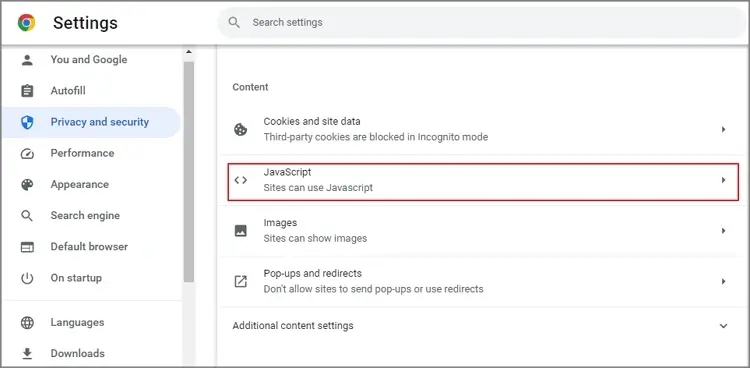
- Ensure that the “Sites can use Javascript” option is enabled.
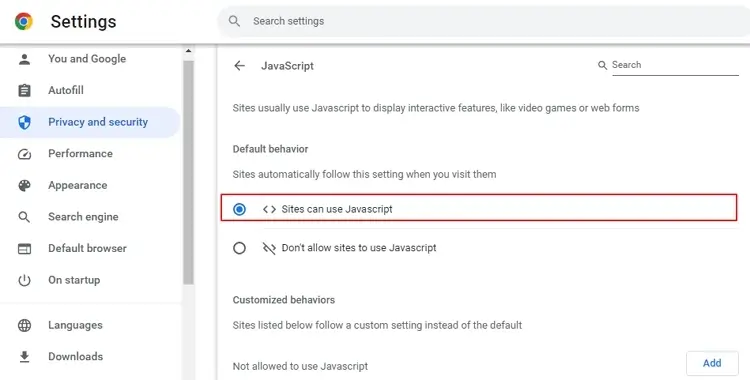
- Once it is done, reload YouTube & check the status of the issue.
Method 4. Disable Hardware Acceleration
It is seen that sometimes Chrome’s hardware acceleration features also inhibit smooth video playback, such as black screen issues. So, disabling it can avoid the conflicts & resolve the YouTube playback error on Chrome browser. Follow the steps below to implement the process:
- Open the Chrome Settings.
- Tap on the System Settings & disable “Use Hardware Acceleration when available”.
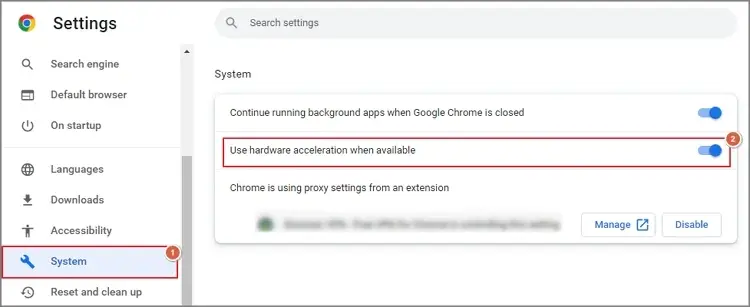
- Then, restart the application & try to play the YouTube videos again.
Method 5. Reset Chrome Settings
It can be the last possible manual recourse to fix minor bugs in Chrome by resetting its settings. It lets you set a default browser configuration that can help you to resolve videos not playing in Chrome issues. Here are the steps to reset the Chrome settings:
- Open the Chrome Settings.
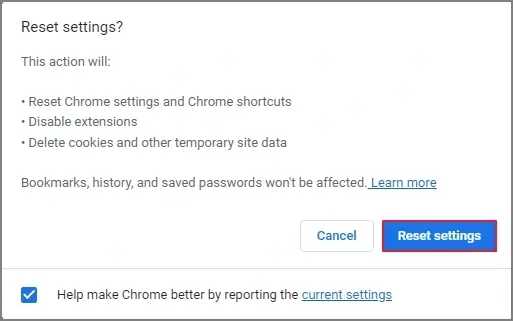
- Go to Reset and Clean Up & hit the Restore settings to their original defaults.
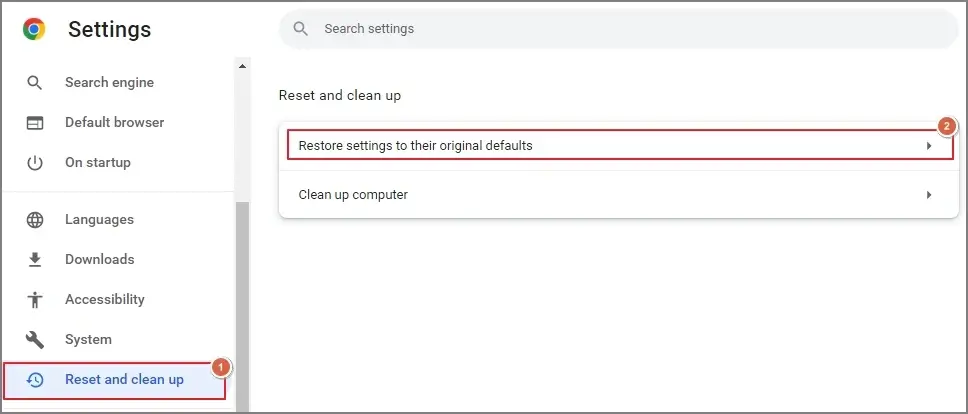
- Confirm the reset by clicking on the Reset settings. Then, restart Chrome.
Videos corrupted? Try a one-stop solution
In case of corrupted videos, no manual methods can help you to fix the issue & bring them to the original state. Besides, it can add problems like data loss vulnerability, distorted integrity, etc.
But you don’t worry, as Recoveryfix always helps its users with its advanced solutions. Its video repair tool is one such advanced one that comes with all the innovative features & filters to handle your video-related issues smoothly.
Use the tool if you are dealing with broken, corrupted, or inaccessible videos of any format. Moreover, it helps users to restore videos from any device with intact formatting & properties. It is also helpful in fixing other issues like flickering, playback shutters, blurry/jittery videos, audio & subtitle missing.
Guidelines to avoid YouTube playback issues
Check out the basic tips to avoid YouTube playback issues on Chrome in the future:
- Maintain stable internet connectivity.
- Keep your Operating System updated.
- Regularly check & clear cache/ cookies.
- Avoid installing unnecessary extensions.
- Check JavaScript status and enable it if not.
Conclusion
Fix YouTube Videos not playing in Chrome with the common fixes & the provided manual methods. Make sure that the steps are followed in the discussed manner for better results.
Besides, you can check out the recommended advanced utility to manage the corrupted videos hassle-free with zero loss of data integrity.
FAQs
Q- What should I check if YouTube keeps buffering in Chrome?
A- Check internet speed, disable VPN, close background apps, & refresh the video page for smoother playback.
Q- What can be the reasons that YouTube works in other browsers but not in Chrome?
A- Improper extensions/Chrome settings, or corrupted user profiles may prevent YouTube videos not playing in Chrome properly.