How to Fix Yahoo Email Not Working Issues? [Get Everything You Need]

Published On - December 18, 2025
“Yahoo Email Not Working” is one of the frustrating issues that users can encounter. The error leads to missed email messages, delayed replies, or lost attachments that raise some serious concerns for users. Multiple reasons can be behind the issue, which makes it more challenging to resolve the error.
However, solving the problem will be easy once you have figured out the root cause. The article will provide tested methods, practical tips, and prevention advice to fix the issue properly. Let’s go through them to restore the functionality of Yahoo Mail today.
Common Problems That Yahoo Mail Users Face!
Here is the list of frequent issues that Yahoo Mail users often encounter.
List of Common Yahoo Mail Issues
- Yahoo Mail not loading or opening
- Yahoo Mail temporarily unavailable
- Yahoo Mail not sending/receiving emails
- Yahoo Mail login not working
- Yahoo email not working on Web/Android/iPhone devices
- Yahoo Mail authentication failed error
- Yahoo Mail app crashing or freezing
Why is Yahoo Email Not Working? – Know Detailed Information!
Errors in Yahoo Mail occur due to one or more reasons. Therefore, understanding them is necessary to identify the primary cause behind the issue to apply the correct method instead of trying random solutions.
- Server Outage or Maintenance: Temporary server issues can also prevent the Yahoo Mail functionality.
- Incorrect Login Credentials: Wrong username or password blocks the account access.
- Browser or App Issues: Outdated browsers or buggy app versions often lead to several problems.
- Internet Connectivity Issues: Slow or unstable internet stops Yahoo from synchronizing data properly.
- Account Security Blocks: Suspicious login attempts may trigger temporary account access restrictions.
- Improper Email App Settings: Outdated IMAP/SMTP settings can cause send/receive failures.
- Excessive Cache and Cookies: Corrupted cache files interfere with Yahoo Mail performance.
- Third-Party App Conflicts: Antivirus or firewall software may block Yahoo Mail services.
Basic Solutions: Try them First Before Advanced Ones!
Sometimes, simple and basic methods can fix Yahoo Email Not Working issues. Try the following methods now:
Solution 1. Refresh or Restart the Browser
Step 1. Refresh the Yahoo Mail page.
Step 2. Close the application and re-open it.
Step 3. Restart your system to solve the problem.
Solution 2. Check & Fix Internet Connection
Step 1. Switch from mobile data to Wi-Fi.
Step 2. Restart the router if required.
Solution 3. Log Out and Sign in Again
Step 1. Sign out the Yahoo Mail account.
Step 2. Wait for a few minutes.
Step 3. Log in to your account again.
Solution 4. Disable VPN or Antivirus Programs
Step 1. Turn off Antivirus or VPN applications.
Step 2. Try to open Yahoo Mail again.
Manual Methods to Fix Yahoo Email Not Working Issue!
This section will provide the best manual ways to resolve the problem on different devices. Pick the appropriate method depending on the device (desktop, iPhone, or Android) you use.
A. Solve Yahoo Email Not Working Problem on Desktops
Go through the following methods to fix the Yahoo Mail issues on desktop devices.
Solution 1. Clear Browser Cache and Cookies
Stored browser cache and cookies are one of the most common reasons that lead to Yahoo Mail failures. Here are the steps to clear cache and cookies:
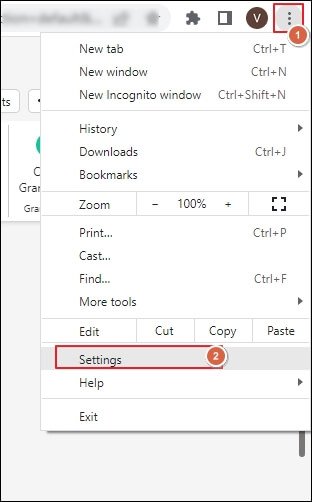
Step 1. Launch Chrome and click on the three dots. Then, go to Settings.
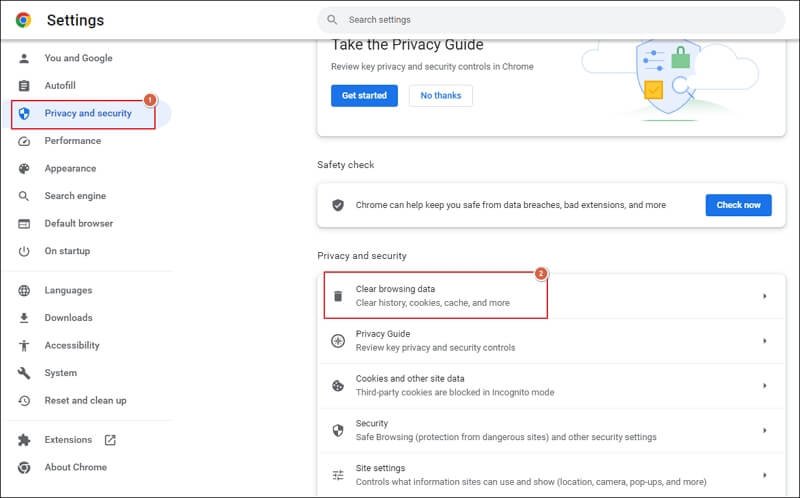
Step 2. Navigate to the Privacy and security section and proceed to Clear browsing data.
Step 3. Perform the following actions:
a) In the Basic tab
- Select the Time range.
- Check all the required boxes.
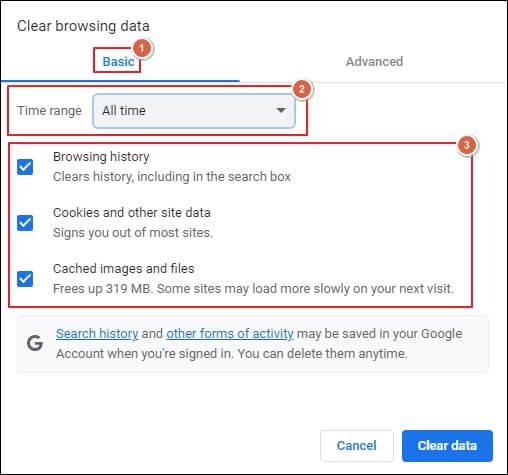
Or
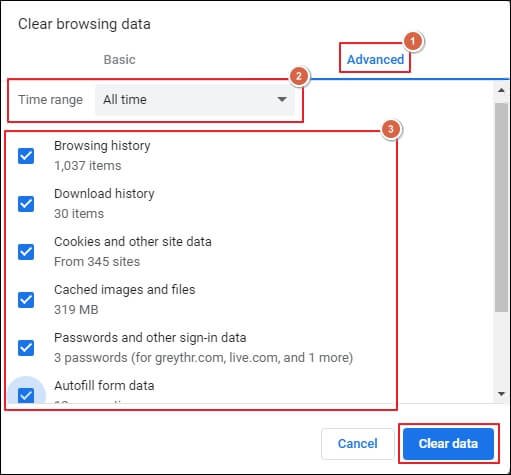
b) In the Advanced tab
- Choose the Time range
- Tick the necessary boxes to clear the data more precisely.
- Once done, tap on the Clear data option.
Step 4. Restart the browser and sign in to your account.
Step 5. Repeat the same steps for other browsers.
Solution 2. Disable Browser Extensions
Ad blockers and security extensions create hindrances in the smooth performance of Yahoo Mail. Follow the given steps to disable extensions:
Step 1. Open your default browser settings.
Step 2. Go to the Extensions or Add-ons section.
Step 3. Disable all the extensions at once.
Step 4. Refresh the Yahoo Mail website.
Step 5. Enable extensions one by one to identify the faulty one.
Solution 3. Update or Change the Browser App
Outdated or incompatible browsers may fail to load Yahoo Mail. So, try the following steps to update the browser (e.g. Chrome).
Step 1. Open your default browser.
Step 2. Click on the three dots in the top right pane.
Step 3. Locate the Help section and tap on the About Google Chrome option.
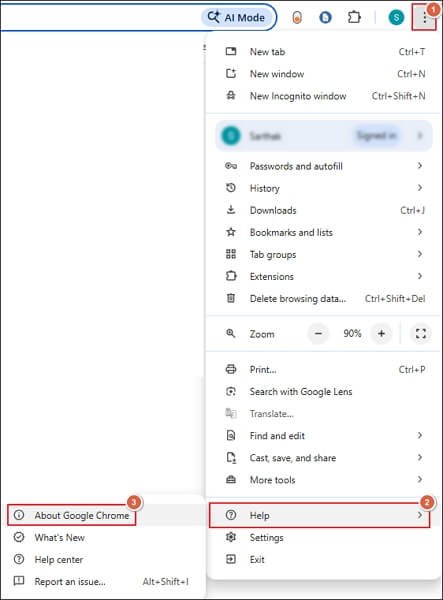
Step 4. Chrome browser will check for updates and start downloading them automatically.
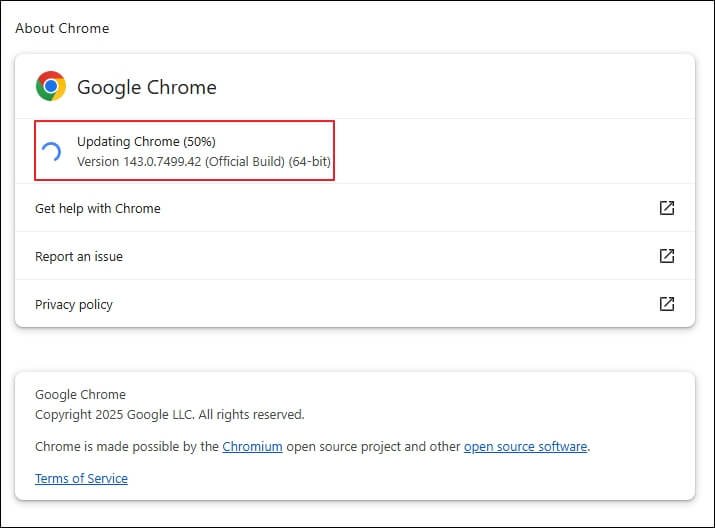
Step 5. Relaunch the browser to complete the update.
Note: Use a different browser to access Yahoo Mail if the browser update won’t work.
Solution 4. Use the Basic Version of Yahoo Mail
Try to use the basic Yahoo Mail version if the standard one doesn’t work properly. Here are the complete steps to do so:
Step 1. Open Yahoo Mail on your browser.
Step 2. Scroll to the bottom pane.
Step 3. Tap on the Mail Classic or Basic Mail option.
Step 4. Log in again and check if it is working or not.
B. Fix Yahoo Email Not Working Issues on iPhone Devices
If you are using Yahoo Mail on iPhone devices, then follow the methods below to resolve the problem.
Solution 1. Restart & Update the iPhone device
Here are the complete steps to restart and update the iPhone devices.
Step 1. Reboot your iPhone device.
Step 2. Once done, go to Settings> General> Software Update.
Step 3. If an update is available, then click on Update Now or schedule it by using the Update Tonight button.
Step 4. It will fix the minor issues or bugs.
Solution 2. Update the Yahoo Mail Application
Use the provided instructions to update the Yahoo Mail application.
Step 1. Go to the App Store and search for Yahoo Mail.
Step 2. Update the application if available.
Solution 3. Remove and Re-Add Yahoo Account
Here are the detailed steps to remove the Yahoo account from its application.
Step 1. Open the Yahoo Mail app and go to Settings.
Step 2. Navigate to Mail and click on Accounts.
Step 3. Select the Yahoo option and proceed to the Delete Account option.
Step 4. Restart your device. Then, add the Yahoo account again.
Solution 4. Sign in to Yahoo Account with App Password
Security restrictions can lead to Yahoo Email not Working on iPhone Authentication failed error. To fix it, use the given steps:
Step 1. Go to the Yahoo account security settings.
Step 2. Enable the App Password feature.
Step 3. Generate the new app-specific password.
Step 4. Use the created password in Mail settings instead of regular passwords.
Solution 5. Enable Background App Refresh
Use the following steps to turn on the app to refresh settings for Yahoo Mail.
Step 1. Access the Settings on your iPhone.
Step 2. Navigate to General and locate Background App Refresh.
Step 3. Turn it ON for the Yahoo Mail application.
C. Troubleshoot Yahoo Email Not Working Issues on Android Devices
Explore the different ways to fix Yahoo Email not working issues on Android devices.
Solution 1. Update Yahoo Mail Application
Go through the following steps to update the Yahoo Mail app.
Step 1. Open the Google Play Store on your Android device.
Step 2. Search for Yahoo Mail.
Step 3. Click on Update, if available.
Solution 2. Clear Cache Data of Yahoo Mail App
Excessive cached data can cause several performance issues. Therefore, cleaning them regularly is necessary. Here’s how:
Step 1. Go to Settings and click on Apps.
Step 2. Locate the Yahoo Mail and proceed to the Storage & cache option.
Step 3. Clear cache data and restart the app.
Solution 3. Disable the Battery Optimization
Turn off the Battery optimization settings for Yahoo Mail using the given instructions:
Step 1. Open Settings and access the Battery section.
Step 2. Locate the Yahoo Mail app. Then, remove all the restrictions for it.
Step 3. Launch Yahoo Mail to check if it is working.
Know Solutions to Resolve Frequent Yahoo Mail Errors!
This section will help you find the appropriate solutions to common errors that Yahoo Mail users face.
Problem 1. Yahoo Mail Not Receiving Emails
Follow the provided steps to remove the issue:
Step 1. Check your Spam and Trash folders.
Step 2. Go to Settings and access the Filters section. Then, Remove incorrect rules if found.
Step 3. Review the blocked email addresses properly.
Step 4. Make sure that the storage space is available.
Step 5. Enable the IMAP or POP settings in Yahoo Mail.
Problem 2. Yahoo Mail Not Sending Emails
You can take the help of the following methods to fix this issue:
Step 1. Check your internet connection.
Step 2. Reduce attachment size if it exceeds the limit.
Step 3. Verify whether the recipient’s email address is entered correctly.
Step 4. Send the email using the Web version of Yahoo Mail.
Step 5. Check and fix the SMTP server settings.
Problem 3. Yahoo Mail Login Issues
Here are the complete steps to fix the login issues of Yahoo.
Step 1. Visit the official website to access the Yahoo Sign-in Helper.
Step 2. Type the recovery email or phone number to proceed.
Step 3. Follow the on-screen verification steps to proceed further.
Step 4. Create a new password for your account.
Problem 4. Yahoo Verification Code Not Working
Follow the mentioned steps to fix the verification code issue:
Step 1. First, check the Spam folder.
Step 2. Request for a new code.
Step 3. Try the other ways to recover the account.
Step 4. Avoid multiple login attempts.
Problem 5. Yahoo Mail IMAP/POP Client Issues
Use this method when Yahoo Mail is not working on email clients like Outlook, Apple Mail, or Thunderbird.
Step 1. Sign in to your Yahoo Mail account on the web.
Step 2. Navigate to Settings and go to the Security section.
Step 3. Turn on the Allow apps that use less secure sign-in options.
Step 4. Generate the app password for easy login.
Step 5. Review and correct the IMAP/SMTP settings in the Yahoo Mail app.
Step 6. Save the changes and restart the application.
Problem 6. Yahoo Mail is Temporarily Unavailable
Follow the set of actions whenever this issue occurs:
Step 1. Wait for 15 to 30 minutes at least.
Step 2. Try to avoid multiple login attempts.
Step 3. Check the Yahoo Help pages to fix the issue.
Step 4. Use another device to access your account.
Avoid Yahoo Mail Errors: Get Pro Tips that Help!
Use the following best practices to avoid common issues and keep your Yahoo Mail error-free.
- Never use unreliable or third-party applications.
- Clear the cache and cookies data on a regular basis.
- Enable the two-step verification for additional safety and security.
- Stay updated to the latest version of the Yahoo application and browser.
Final Takeaway
We hope that you have adequate knowledge to fix the Yahoo email not working issue. You will find multiple solutions to resolve the error for Web, iPhone, or Android users. Try the methods provided to find the best applicable solution for yourself.
Also, make sure to back up your emails for additional data safety. For a direct approach, check out the Recoveryfix IMAP Backup tool. The IMAP Backup tool helps save data into PST, HTML, DOCX, PDF, and many other formats in a few clicks.