How to Fix Room Calendar Not Syncing Issue? – A Complete Guide

Published On - February 17, 2026
Room Calendar is the notable feature of Outlook on which users depend to schedule and organize meetings. But when the Room Calendar not syncing issue arises, it will start creating problems like double bookings, missed meetings, and scheduling confusion.
These sync issues delay the everyday operations for all users. Thus, the article explains the real causes behind the issue and provides ideal solutions to fix it with easy-to-follow instructions. Read now to know more.
What does Room Calendar Not Syncing actually mean?
It means the resource mailbox exists, but the data isn’t updating consistently across clients or users. Here is the list of different ways of error that appear:
- Some users see booking while others don’t.
- Meetings remain visible even after the deletion.
- Auto-accepted meeting gone missing from the list.
- Mobile and desktop apps show different availability.
- The room list shows empty, or all the rooms disappear.
- Meetings appear in Outlook Web but not in the desktop version.
- All the rooms are already booked, even though it shows available.
Top Reasons Behind the Room Calendar Not Syncing Issue
Check out the most frequent causes that lead to this error. Here they are:
- Corrupted profile or OST files.
- Resource mailbox processing failure.
- The address book is not updated properly.
- Users don’t have permissions to access the calendar.
- Local copy stops updating in Cached Exchange mode.
- The new shared calendar breaks the legacy configurations.
- Exchange Server takes more time to process booking rules.
Basic Solutions: Fix Room Calendar Not Syncing Issue
Use the given solutions first before applying the advanced troubleshooting methods. Here is the list:
- Restart or update the Outlook application.
- Confirm whether the time zone is correct or not.
- Wait for at least 10-15 minutes after booking.
- Check the calendar by opening it in Outlook Web.
- Verify that the meeting was accepted by the recipients.
Note: If your Outlook Web shows the information correctly, then the problem is with the local system.
Manual Methods to Fix Room Calendar Not Syncing Issue
After analyzing different methods, we have found that only the given ones are working for us. So, go through them to find the best-suited method for yourself.
Solution 1. Identify the Platform Where the Problem Exists
The first and foremost step is to identify the platform where the problem exists. Here are the things that you must check to avoid unnecessary changes:
- Outlook Desktop: If an issue exists, then it must be due to the cache or profile.
- Everywhere (Outlook Web, Desktop, or Mobile): Incorrect server settings can be the reason behind the problem with different platforms.
- Error Shown to Only One User: Necessary permissions or profile configurations can lead to the Room Calendar Not Syncing error.
Solution 2. Update the Room List
Sometimes, the Outlook application doesn’t refresh the entries of the directory. Here’s how to update the room list:
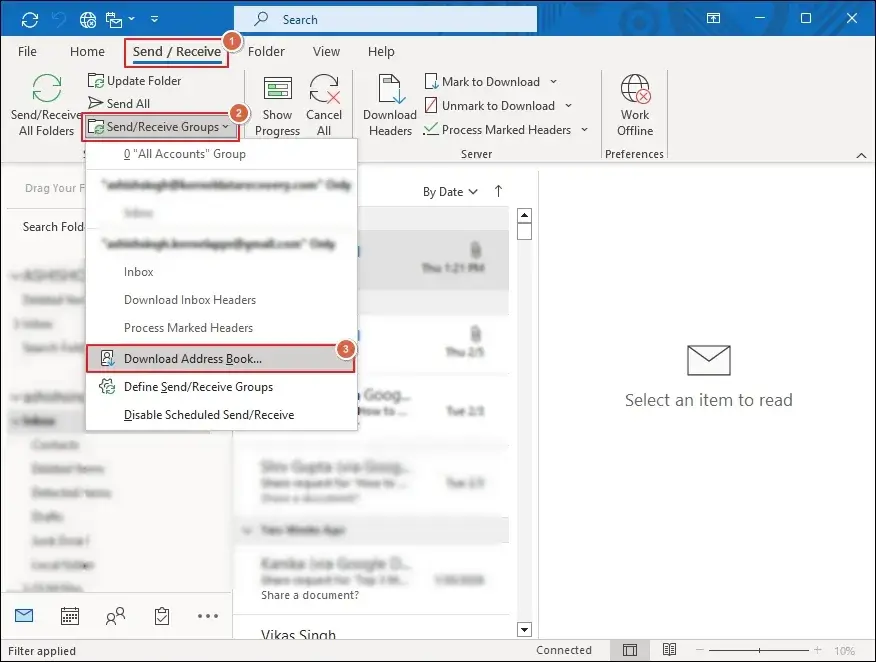
- Navigate to the Send/Receive tab in Outlook.
- Expand the Send/Receive Groups and Download Address Book.
- Remove the list and restart the Outlook application.
- Re-add the room calendar to update the list.
- This will fix the Room Calendar not syncing issue.
Solution 3. Disable Cached Exchange Mode
The cached data of Shared calendars is stored locally and may not update correctly in some cases. So, use the given steps to resolve the issue:
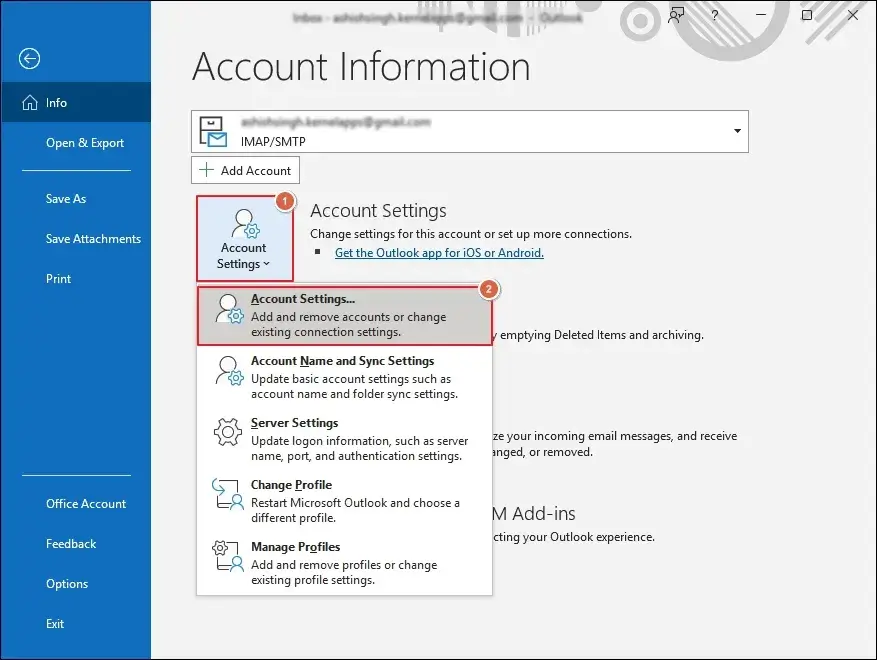
- Launch Outlook and go to the File menu.
- Expand the Account Settings> Account Settings.
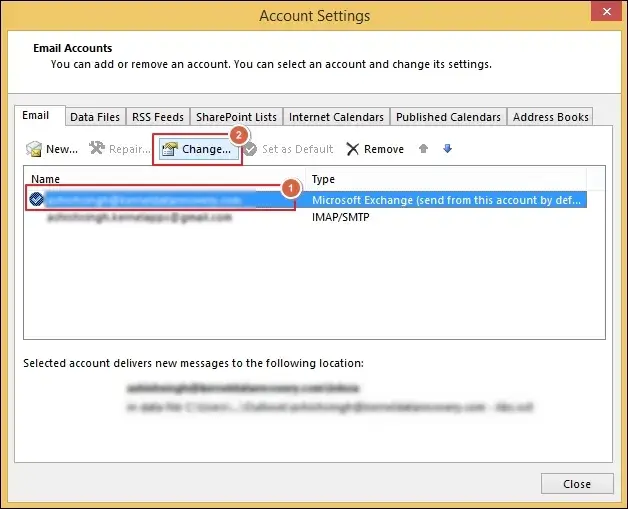
- Select the Exchange account and tap on Change.
- Tap on More Settings to proceed further.
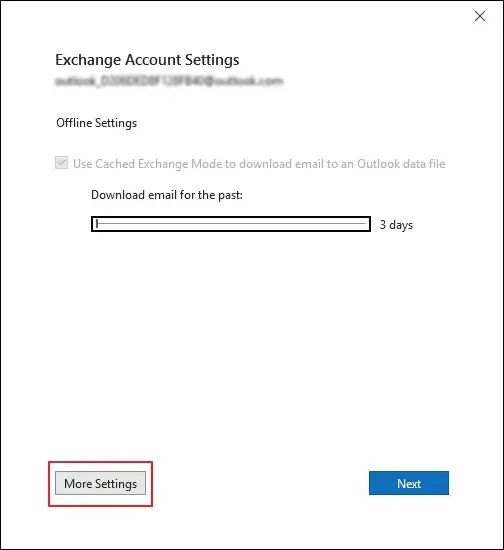
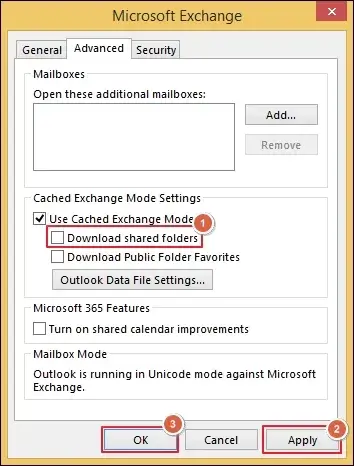
- Locate the Advanced tab and uncheck Download Shared folders.
- Apply the changes and click OK.
- Restart the Outlook application.
Solution 4. Reset the Outlook Profile
A misconfigured or corrupt profile can also lead to this syncing error. Use the given steps to reset the Outlook profile.
- Close the Outlook application if running.
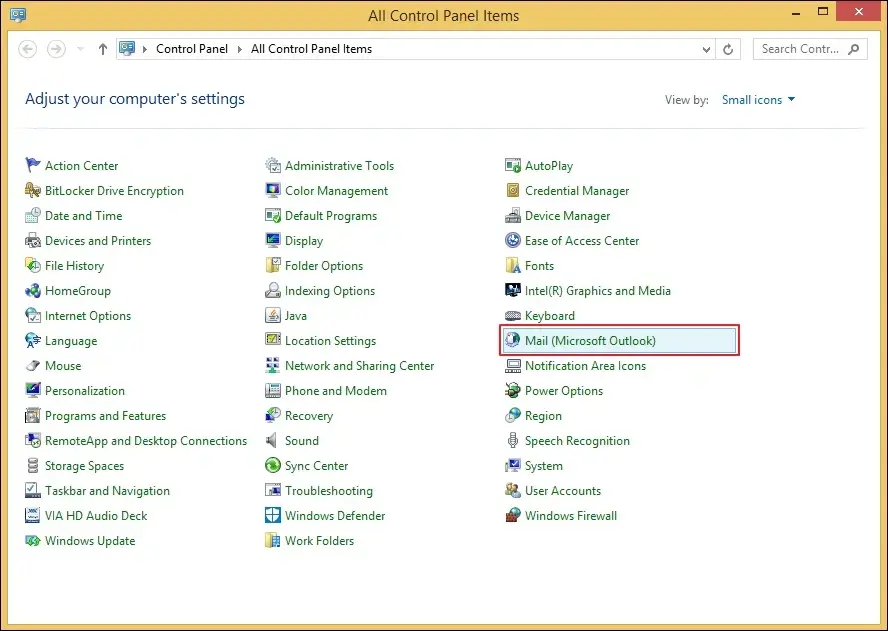
- Access the Control Panel and choose Mail (Microsoft Outlook).
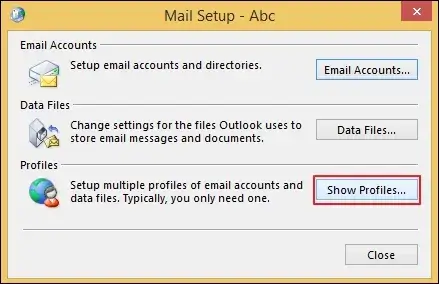
- Click on Show Profiles to proceed.
- Remove the problematic account.
- Re-configure the account again by clicking on the Add option.
- Set the new profile as default and click OK.
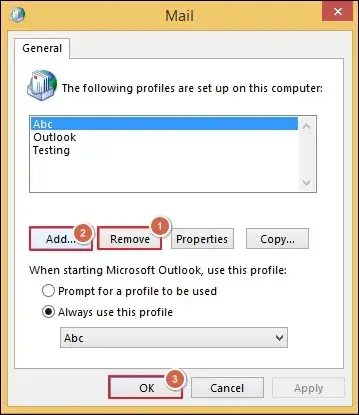
- It will resolve the Room Calendar not syncing issue in Outlook for most users.
Solution 5. Recreate the OST file
Follow the detailed steps to rebuild the OST files and fix the Room Calendar not syncing issue:
- Go to the Data Files tab to find the OST file location.
- Select the OST file and Open File Location to proceed.
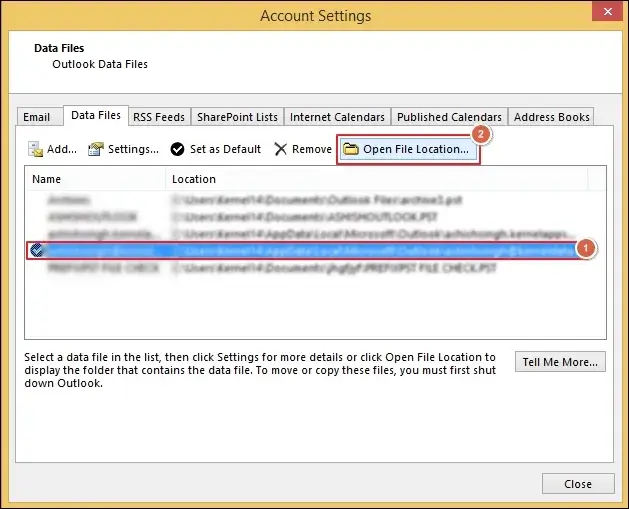
- Rename the Outlook data file.
- Open Outlook, and it will recreate the new OST file automatically.
Solution 6. Correct Mailbox Processing Settings
Check the following things to resume the auto-processing bookings. Here is the list:
- Auto accept enabled
- Booking window valid
- Conflicts allowed
- Delegates are configured properly
Important to know: Bookings won’t appear if processing is off.
Solution 7. Fix the Calendar Permissions
Users must have access to the Calendar folder along with the mailboxes. Here are the recommended permission levels to use the calendar properly:
- Reviewer (view only)
- Editor (manage bookings)
Users have to re-add the room calendar after changing the required level of permissions.
Solution 8. Turn Off Shared Calendar Improvements
The new sharing architecture sometimes breaks the older room setups. So, disable the calendar improvements with these steps:
- Go to the File menu and expand Account Settings.
- Click on Account Settings again and select your Exchange account.
- Then, tap on Change and go to More Settings.
- Navigate to the Advanced tab and uncheck Turn on shared calendar improvements.
- Apply changes and click OK to proceed.
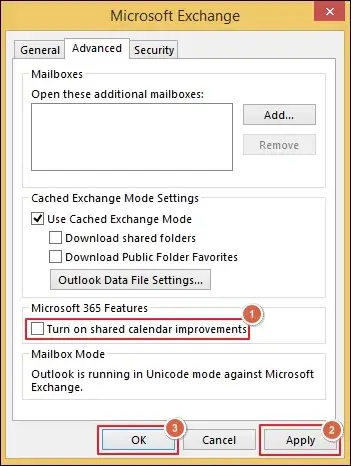
- This will resolve the Room Calendar not syncing issue in Outlook.
Solution 9. Recreate the Room Mailbox
You can use this method to fix Room Calendar not syncing issue when the metadata becomes corrupted.
Note: Export the bookings and remove the resource mailbox before proceeding.
- Sign in to Microsoft 365 and access the Admin Center.
- Locate Resources and click on Rooms & equipment.
- Tap on + Add resource to add a new room.
- Fill in the necessary details like Type, Name, Email, and Capacity/Location. Then, click Save.
- Do the following actions once the mailbox recreation is done:
- Assign the necessary permissions.
- Set up booking settings as per your needs.
Important to know: The new room will take up to 24 hours to reflect in the Global Address List (GAL) and Room Finder.
Solution 10. Change Domain After Migration
The cached references remain the same after the migration. Change them now to fix the issue.
- Rebuild the profiles as per the new environment.
- Re-publish the room lists that align with the current setup.
- Clear the autodiscover cache to avoid any potential conflicts.
Special Room Calendar Sync Cases & Their Fixes
Below, we have mentioned the solutions to fix some unusual calendar sync errors that you may face.
| Special Cases | Solutions |
|---|---|
|
Room shows available but are booked already. |
Wait for a few minutes or refresh the free/busy data. |
|
Meeting accepted but missing. |
Calendar assistant stuck issue from the server side. Wait till it’s fixed. |
|
Mobile application not syncing. |
Remove the account and re-add it in the phone application. |
|
Only one user was affected. |
Fix profile or OST corruption. |
|
Issue in the New Outlook App |
Use classic mode to fix the compatibility issue. |
Smart Tips to Avoid the Room Calendar Not Syncing Issue
Follow the given best practices to avoid the potential causes and keep your meetings secure.
| For IT Admins |
|---|
|
|
| For Individual Users |
|
|
Key Takeaways
The Room Calendar Not Syncing issue is rare and only appears when it falls into one of these three categories:
- Local Outlook Cache.
- Permission misconfiguration.
- Resource mailbox processing failures.
You can use the provided information given in the blog to identify the causes and fix them instantly with the clear step-by-step instructions. However, if you are still facing the same issue, then it clearly means the mailbox data is damaged or corrupted.
So, use the Recoveryfix professional solution to resolve the issue within minutes. The OST to PST Converter tool repairs the inaccessible OST files and restores the mailbox data to its original state in just a few clicks.