How to Fix Operation Cannot be Performed Because the Message has been Changed?

Published On - April 13, 2026
You are trying to send, delete, or move messages, but it fails. Then, Outlook shows this frustrating message suddenly:
“Operation cannot be performed because the message has been changed.”
It is unexpected and interrupts your workflow at the worst possible moment. The issue occurs due to minor glitches and synchronization conflicts.
However, the lack of a clear explanation makes the entire scenario more frustrating for users. Here, we have listed all the relevant solutions to fix the issue immediately.
What Does This Error Really Mean? – Explain Me Now
The “Operation cannot be performed because the message has been changed” pops up when Outlook detects modified or out-of-sync mailbox items. The app sees that you are accessing a different file from the original one.
This happens due to a conflict between:
- Synchronization process.
- Local Outlook cache (OST file)
- Mail server (Exchange/Office 365)
Note: Outlook blocks any action to avoid data inconsistencies when the data doesn’t match the original one.
Why Are You Facing The Outlook Error? – Find Common Reasons
The listed causes may be responsible for the “Operation cannot be performed because the message has been changed” error.
- Poor synchronization of mailbox items.
- Damaged Outlook data files create issues.
- Multiple users accessing the same mailbox.
- Corrupted or outdated profile causing errors.
- Interference of add-ins or antivirus programs.
- Cached Exchange Mode is generating data inconsistencies.
Quick Solutions: Try Them First to Fix Outlook Error
Use these simple steps before going to the detailed solutions:
- Restart Outlook or your system.
- Check your internet connection.
- Sign out and sign in back to your account.
Manual Methods to Fix the Outlook Error [Detailed Ways]
If the issue persists, move to the methods below to fix the “Operation cannot be Performed because the Message has been Changed” error.
- Change Mail Settings in Outlook Options: Fix message and reply handling issues.
- Clear Outlook Cached Data Files: Eliminates Sync conflicts.
- Turn off Cached Exchange Mode: Bypass local cached issues.
- Update Outlook application: Fix bugs and improve synchronization.
- Disable installed Add-ins: Identify conflicting extensions.
- Create New Outlook Profile: Establishes a new connection.
- Repair Outlook Data Files: Resolve internal file errors.
- Fix the Office 365 installed program: Repair damaged program files.
Solution 1. Change the Important Settings in Mail Outlook Options
You may be able to resolve the issue by changing these two necessary settings. Here they are:
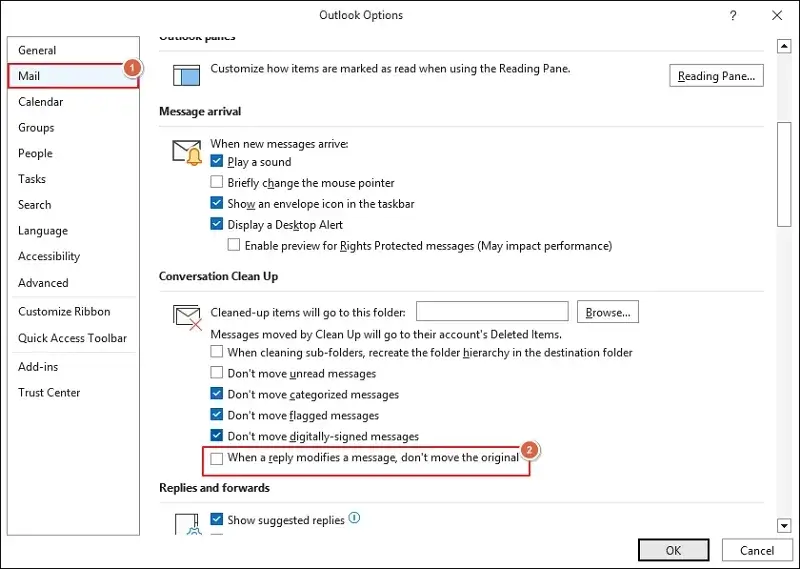
A. Modify the Conversation Clean Up Settings
- Open Outlook and go to the File tab.
- Click on Options and locate the Mail section.
- Search for Conversation Clean Up and uncheck the When a reply message, don’t move the original option.
B. Alter the Save Messages Settings
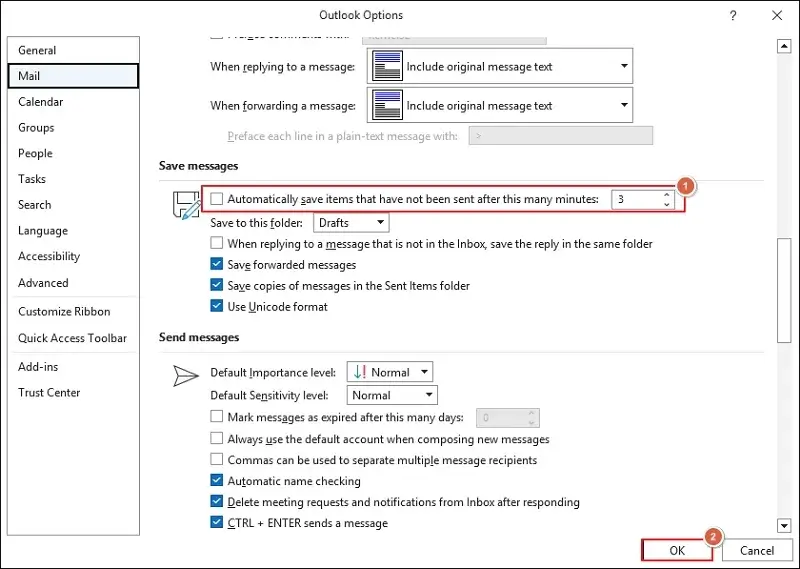
- Scroll down to the Save messages section.
- Either uncheck the Automatically save items that have not been sent after this many minutes option or increase the delay time.
- Click OK to save the made changes.
Solution 2. Clear the Cached Data of Outlook
Use this method to resolve most sync-related issues by rebuilding the local data file. Here’s how:
- Close the Outlook application.
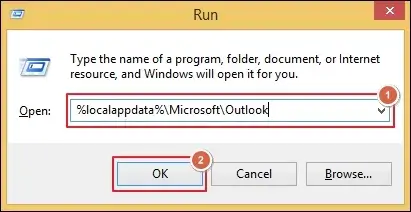
- Access the Run wizard and type %localappdata%\Microsoft\Outlook.
- Then, click OK to proceed.
- Locate the OST file and delete it.
- Restart the Outlook application.
Solution 3. Disable the Cached Exchange Mode
Sometimes, Cached Exchange Mode creates synchronization issues. Follow the provided steps to turn it off.
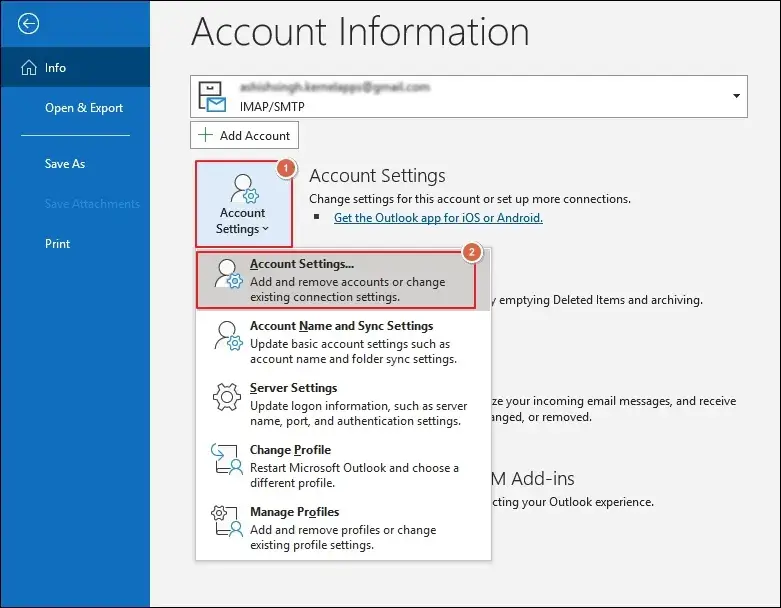
- Launch Outlook and go to Account Settings > Account Settings.
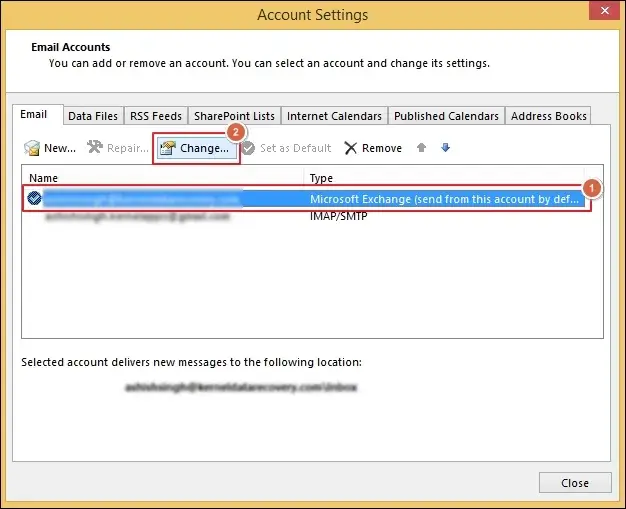
- Select your Exchange account and hit Change.
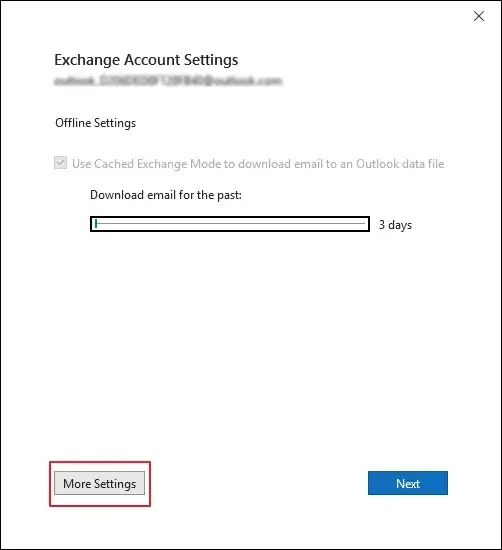
- Click on More Settings to proceed.
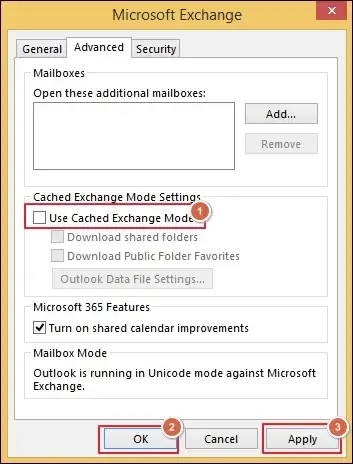
- Uncheck the Use Cached Exchange Mode option and Apply changes.
- Then, click OK and continue to Finish.
- Re-open Outlook and check if the issue is resolved or not.
Solution 4. Update the Outlook Application
If you haven’t updated your Outlook yet, then it is the right time. Here’s how:
- Go to the File tab in Outlook.
- Navigate to Office Account.
- Expand the Update Options.
- Update Now to fix bugs or sync instabilities.
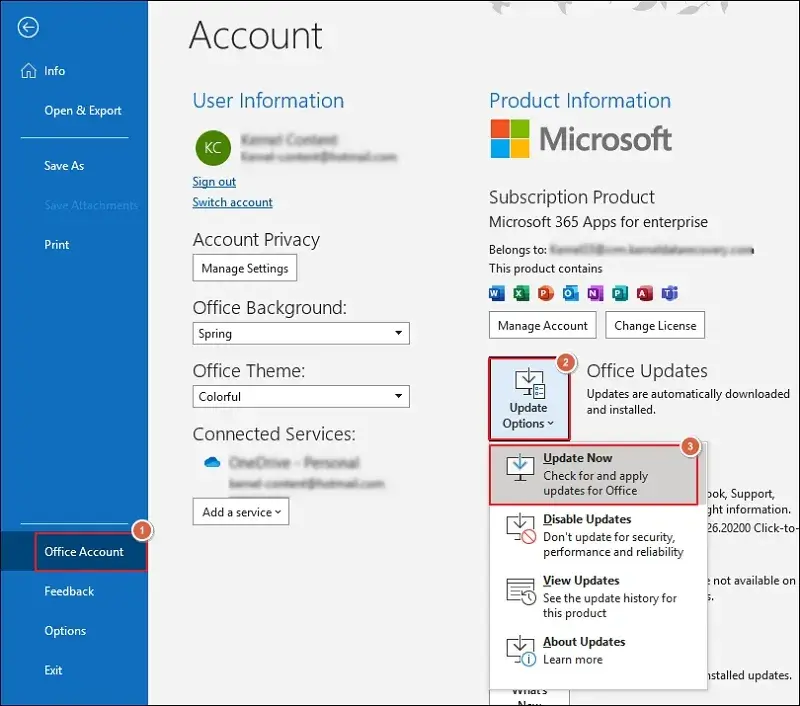
- Restart Outlook to apply the changes.
Solution 5. Remove the Outlook Add-ins
Outlook extensions can sometimes interfere with the operations. So, disable them individually to find the problematic one:
Note: Don’t forget to access Outlook in Safe Mode before proceeding to the listed steps.
- Tap on the File menu and proceed to Options.
- Navigate to Add-ins and Go to Com Add-ins.
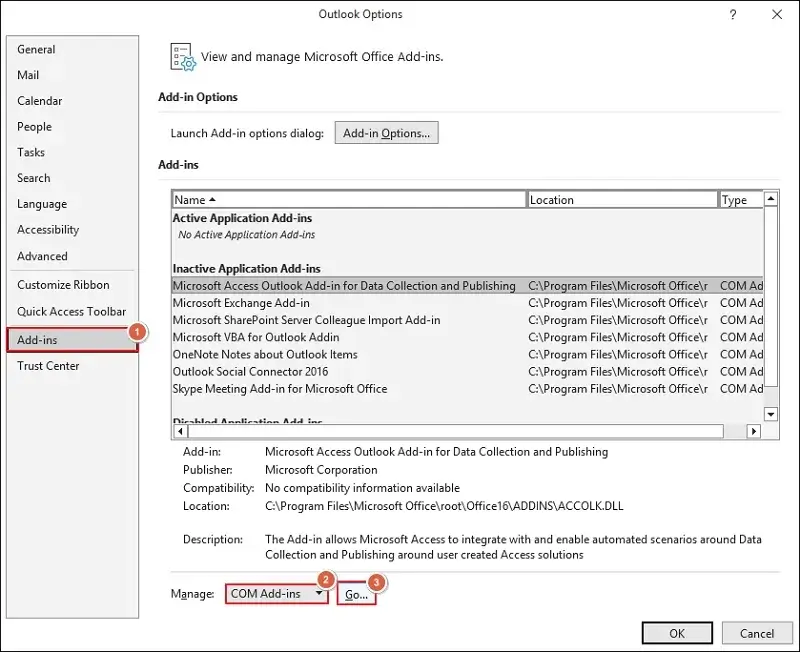
- Disable all of them at once and click OK.
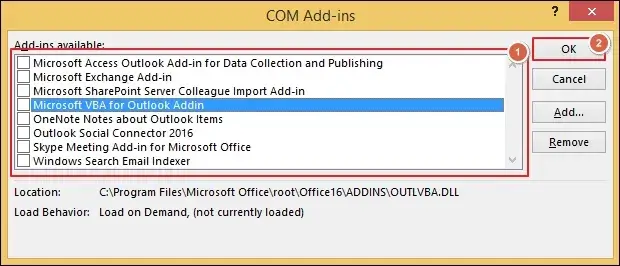
- Then, enable one-by-one to identify the faulty one.
- Tap on OK to save the made changes.
Solution 6. Create A New Outlook Profile
You can use this method to create a new profile to establish a fresh connection between Outlook and the server. Here’s how:
- Access the Control Panel and go to Mail (Microsoft Outlook).
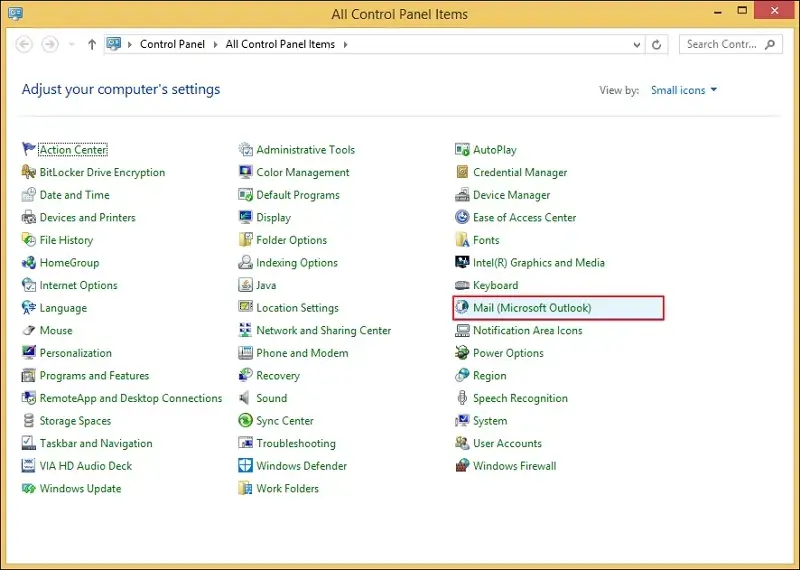
- Tap on Show Profiles to continue.
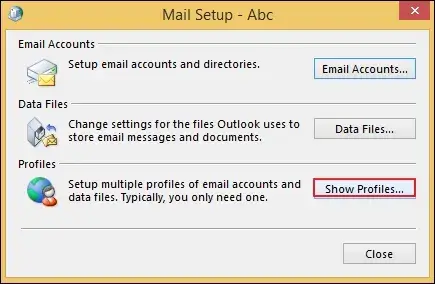
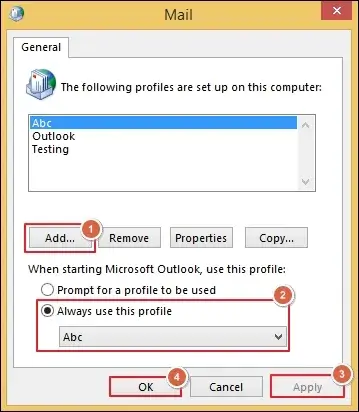
- Add the new Outlook profile by setting up your email account.
- Select Always use this profile and click Apply.
- Then, proceed to OK.
Solution 7. Repair Outlook Data Files
A damaged or corrupted data file can cause message inconsistencies. So, use the Inbox Repair Tool to correct the flaws using the steps below:
- Close the Outlook application.
- Find and Open the SCANPST tool on your system.
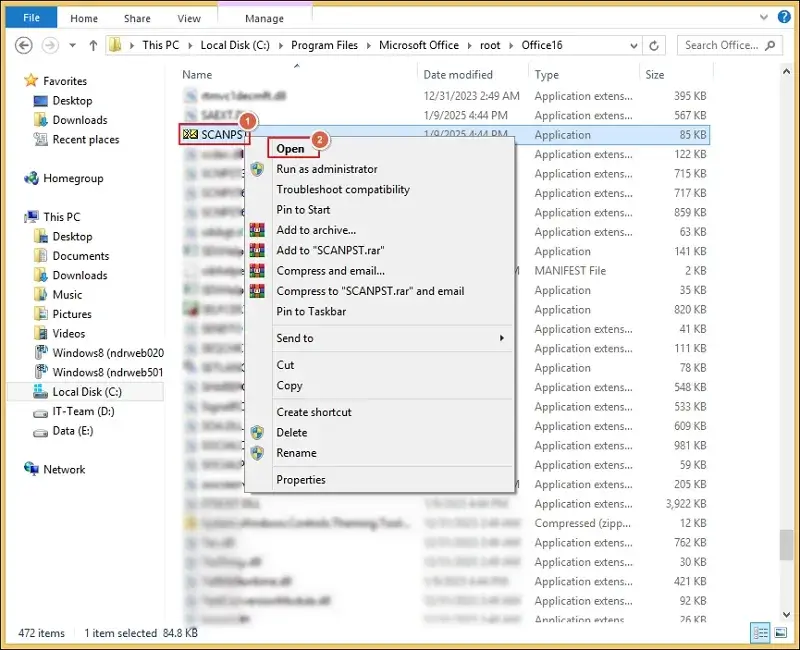
- Browse to add the data file and Start the process.
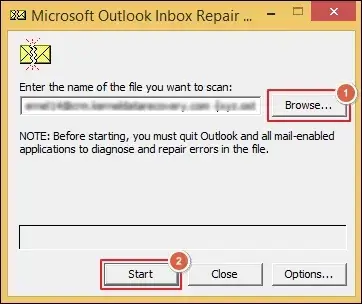
- Once scanned, Repair the file inconsistencies.
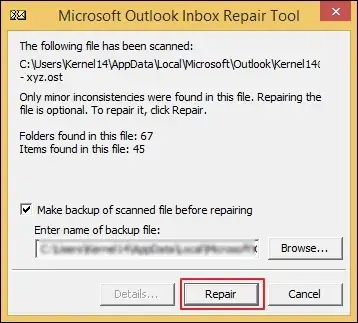
- Wait for the process completion and click OK.
Important to Know: The SCANPST tool will help you resolve minor corruption issues. But, if the file is severely damaged, then you must rely on professional tools like Recoveryfix. The PST Repair tool helps you repair damaged Outlook data files instantly.
Solution 8. Repair Microsoft 365 Program
Corruption in the Office 365 installed program can also affect the Outlook behavior. Fix it now with the given steps:
- Go to Control Panel > Programs and Features.
- Select Microsoft 365 and tap on Change.
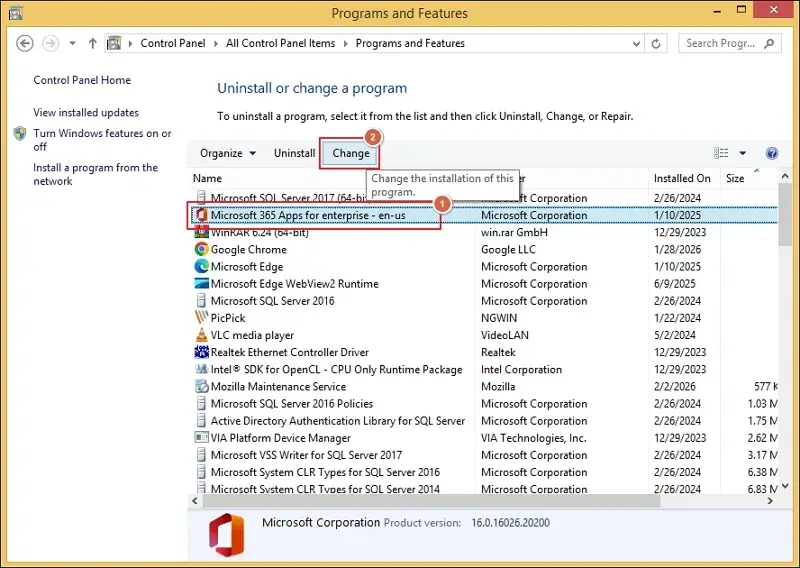
- Choose from Quick Repair & Online Repair options as needed.
- Then, click on Repair and follow the on-screen instructions.
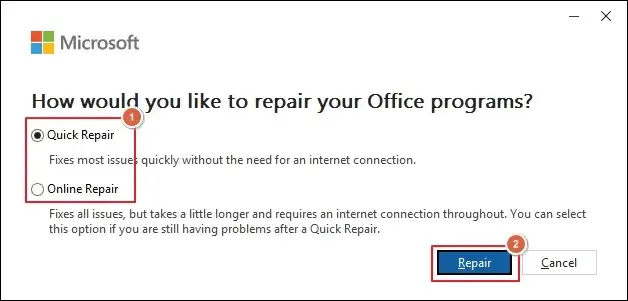
- Restart the system after the completion.
The Final Conclusion
We hope that you will be able to fix the “Operation cannot be Performed because the Message has been Changed” error using the highlighted method. You can use them to fix the error till the data file is working properly.
But, if the corruption occurred, use the Inbox Repair tool for minor ones and the recommended solution for severe ones. The advanced solution also addresses issues like oversized PST files smoothly.
FAQs: Resolve Queries Instantly
Q. When do I face this error in Outlook?
A. You can encounter the error while deleting emails, moving folders, opening messages, sending emails, or editing calendar entries.
Q. Is it really safe to delete the Outlook data files?
A. Yes, the Outlook application will recreate the file when you open it after file deletion.
Q. Can I access my emails on OWA until I resolve the issue?
A. Yes, you can access your emails in OWA until you fix the error.
Q. How can I prevent myself from facing this error again?
A. You need to follow the provided instructions to avoid future occurrences:
- Keep only the required add-ins.
- Backup mailbox data at a regular interval.
- Avoid multiple user access at the same time.
- Stay updated with the latest Outlook version.