How to fix OST is not an Outlook data file error?

Published On - February 4, 2026
“Cannot start Microsoft Outlook. Cannot open the Outlook window. The set folders cannot be opened. The file C:\Users\OwnerName\AppData\Local\Microsoft\xyz@testing.ost is not an Outlook data file (.ost).”
I need to resolve it asap. Can you help me with this?
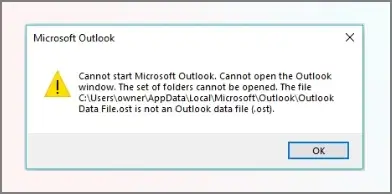
The blog will provide you with complete information about the error, along with a suitable approach to fix it.
Microsoft Outlook creates an OST file to store users’ mailboxes that can be accessed even offline. Although it works smoothly, sometimes users face errors like OST is not an Outlook data file.
The error indicates that Outlook is not able to recognize or read the OST file associated with a specific email profile. As a result, it prevents Outlook from accessing your mailbox data, which can disturb your daily workflow. Let’s understand the concern in detail.
Note: This issue usually happens in the Outlook desktop version. So, the provided solutions are focused on that.
When does this error happen? Common situations
Common scenarios that can trigger the OST is not an Outlook data file error:
- Open Outlook after a system crash.
- Look to reconfigure an email account.
- Use the outdated or older Outlook profile.
- Access Outlook after mailbox migration.
- Open Outlook with the damaged or orphaned OST file.
Know the major reasons for the error
The root cause can help users fix OST is not an Outlook data file error. Let’s understand them:
- Mailbox deletion or server-side changes.
- The OST file is exceeding its storage limit.
- Outlook profile corruption or misconfiguration.
- Working in a bad or improper internet connection.
- Sudden Outlook or system shutdown or crash.
- Bad sectors of the hard drive also affect file integrity.
- Synchronization conflicts between Outlook & the Exchange Server.
Checks before applying any fixes: Save Efforts
Follow the checks below before the real solutions to save your efforts to resolve the OST is not an Outlook data file error:
- Maintain stable internet connectivity.
- Check whether Outlook is fully closed or not.
- Verify correct email account credentials.
- Update your Outlook or Microsoft account.
- Restart the system & then check the error status.
- Perform disable & enable cached exchange mode practice.
Ways to fix OST is not an Outlook data file error
Resolve the OST is not an Outlook data file error by using the practical solutions. Make sure all the steps are followed carefully.
Way 1. Rebuild the OST file [Recommended One]
It is the safest & most effective method because OST files are replicas of mailbox data stored on the Exchange server. So, when you rename or shift the old OST file, Outlook will automatically recreate or resync the new OST file from the server. Follow the steps below to execute the method:
Step 1. Close the Outlook application completely.
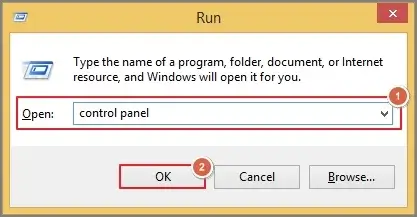
Step 2. Press Windows + R, type Control Panel, & hit OK.
Step 3. Search for Mail & click on the Show Profiles option.
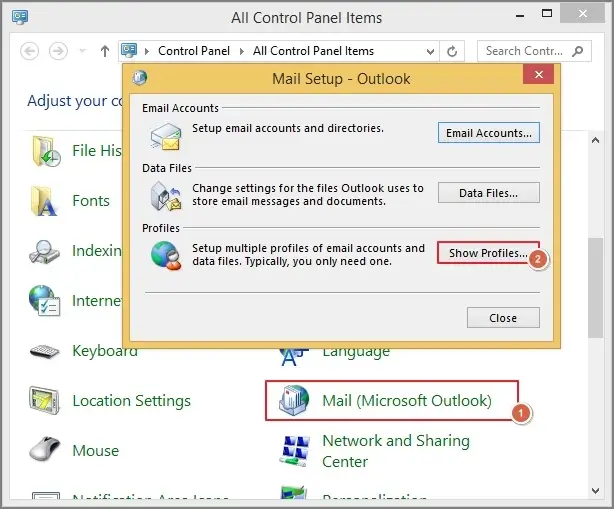
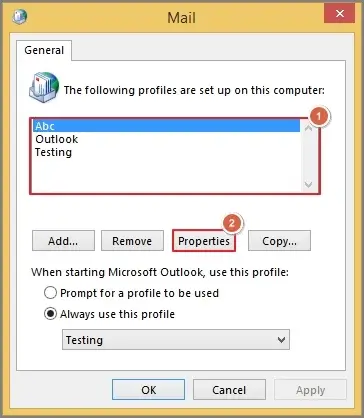
Step 4. Select the Outlook profile & choose Properties.
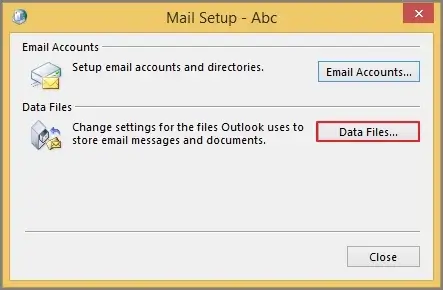
Step 5. Click on Data files under the Mail Setup window.
Step 6. Select the desired file & click on the Open File location option.
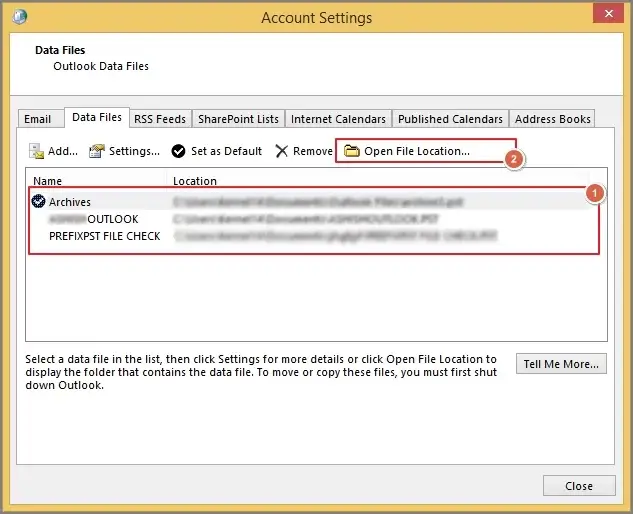
Step 7. Now, locate the same OST file & rename or move it accordingly. Then restart Outlook to check the status of the error.
Way 2. Create a new Outlook profile
Working with a corrupted or damaged Outlook profile can also cause the OST is not an Outlook data file error. Hence, creating a new Outlook profile can handle the profile-level corruption.
Let’s understand how:
Note: Repair Outlook profile by going to Account Settings> Account Settings> Email, choose the profile & click on the Repair > Finish option.
Step 1. Open the Control Panel.
Step 2. Choose Mail & then hit Show Profiles.
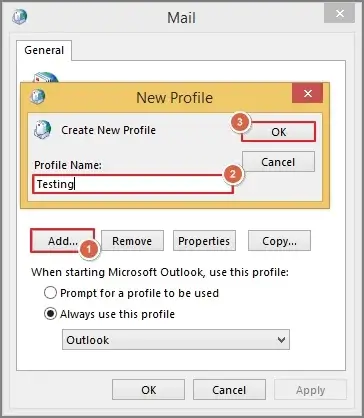
Step 3. Tap on Add, provide the name of the new profile & hit OK.
Step 4. Configure your email account with the created profile.
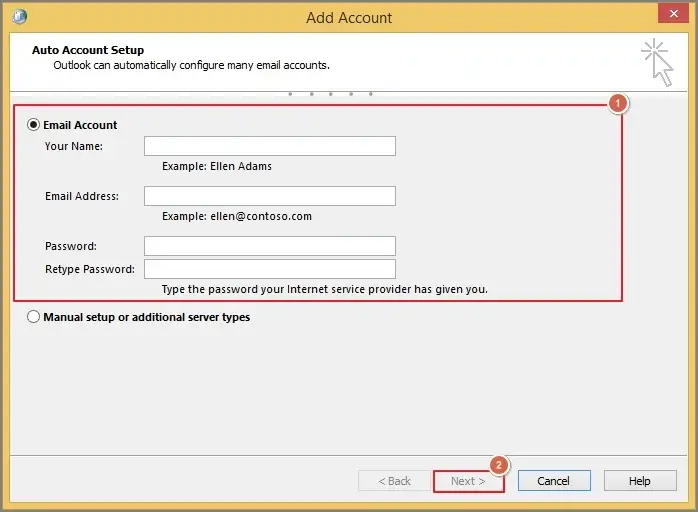
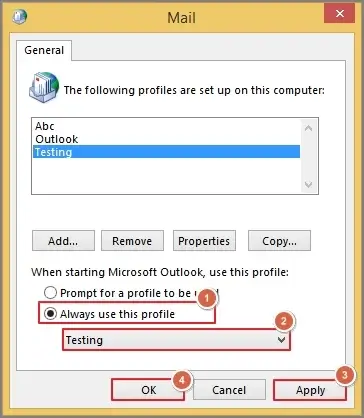
Step 5. Make this profile the default one by clicking on the Always use this profile> created profile> Apply> OK option. Then open Outlook with the new one.
Way 3. Verify Outlook account settings
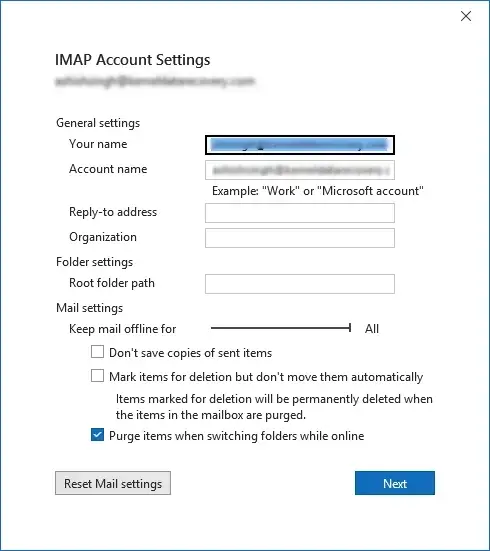
Incorrect or outdated account settings may cause Outlook to fail while reading the OST file. So, let’s address this issue now because accurate settings can make smooth synchronization. Follow the steps below to verify it:
Step 1. Launch the Outlook application & hit the File menu.
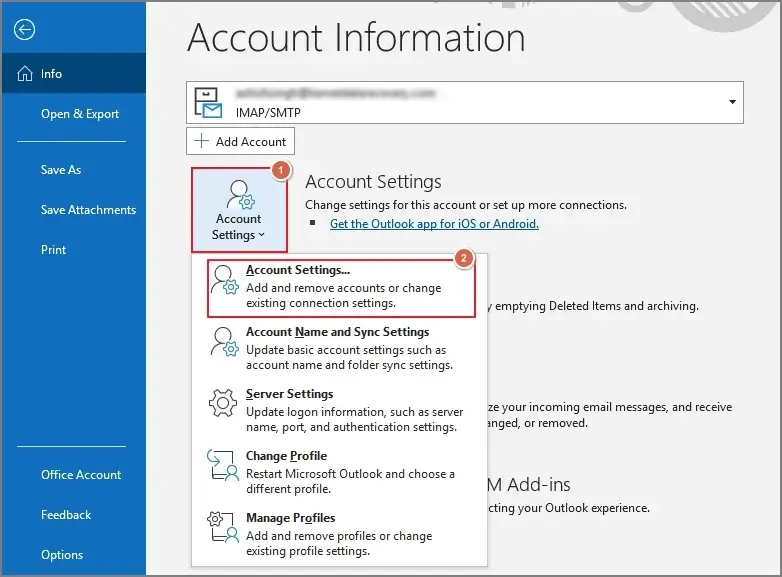
Step 2. Click on the Account Settings> Account Settings option.
Step 3. Choose the desired account & select Change.
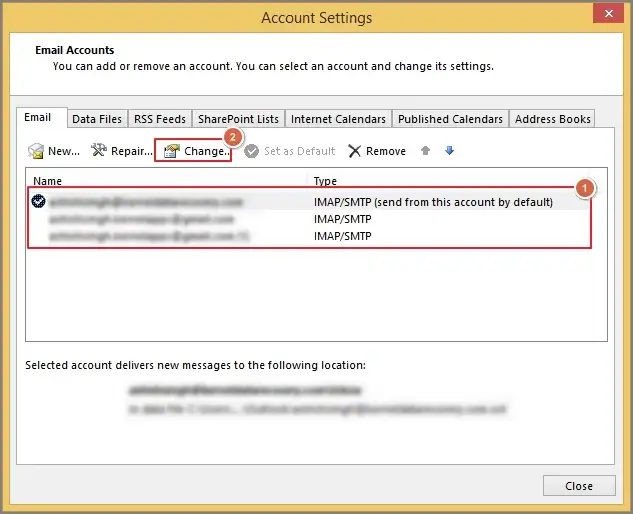
Step 4. Verify General settings & Mail settings. Save Changes & restart Outlook to check whether the error is resolved or not.
Way 4. Run Outlook in safe mode & disable the faulty add-ins
With new updates, some add-ins may not be compatible with the system configuration. It can lead to errors, including “OST is not an Outlook data file”.
Running Outlook in Safe mode helps users identify the faulty add-ins as it turns off all the add-ins. Check out the steps to get more clarity:
Step 1. Press Windows + R, type Outlook.exe/safe & click OK.
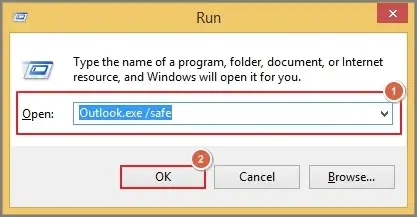
Step 2. If Outlook opens up, it implies that the causes are faulty add-ins.
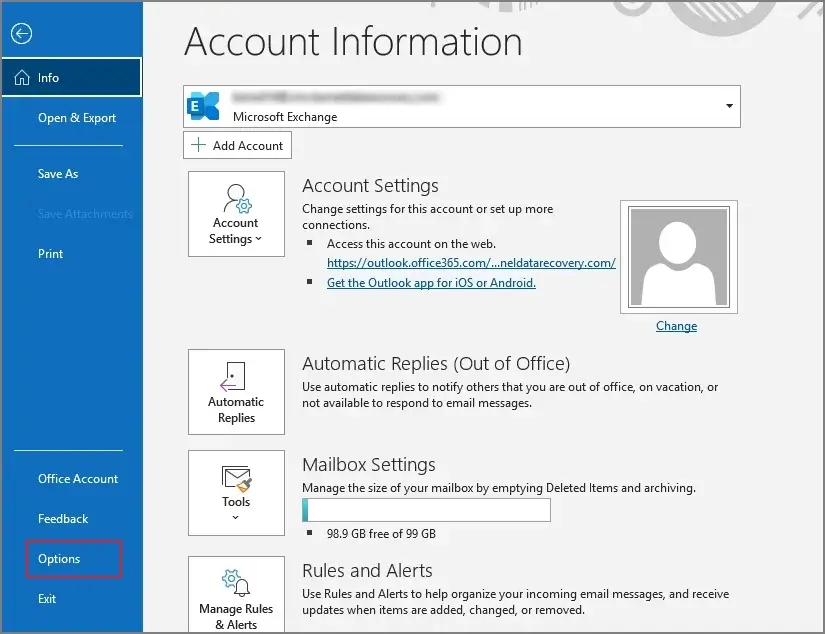
Step 3. Restart Outlook & go to the File menu.
Step 4. Tap on Options in the next wizard.
Step 5. Tap on Add-ins, navigate to COM Add-ins & hit Go.
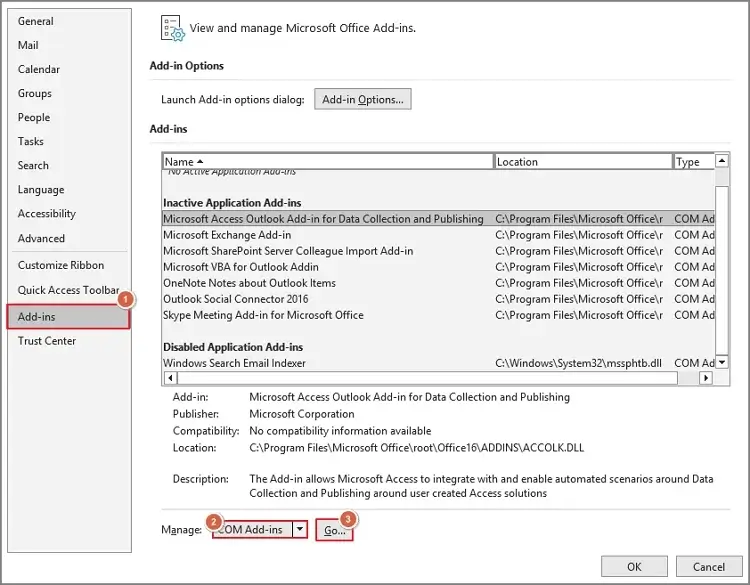
Step 6. Enable one, click OK & check the status of the error.
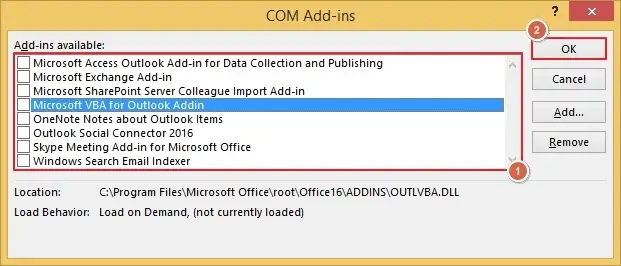
Step 7. Identify the faulty one by repeating the same process. If found, disable it.
Way 5. Repair Microsoft Outlook installation
If the OST file is damaged or corrupted, it can prevent proper OST file recognition. This method can be helpful as it repairs the core Outlook component without affecting data. Explore the steps below to resolve the OST is not an Outlook data file error:
Step 1. Open Control Panel & go to Programs & Features.
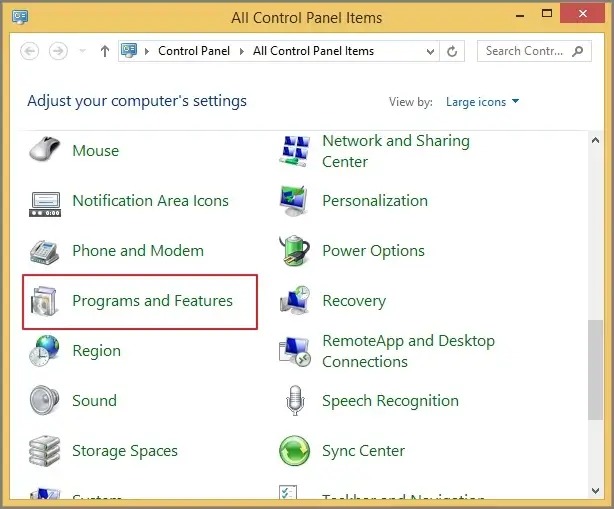
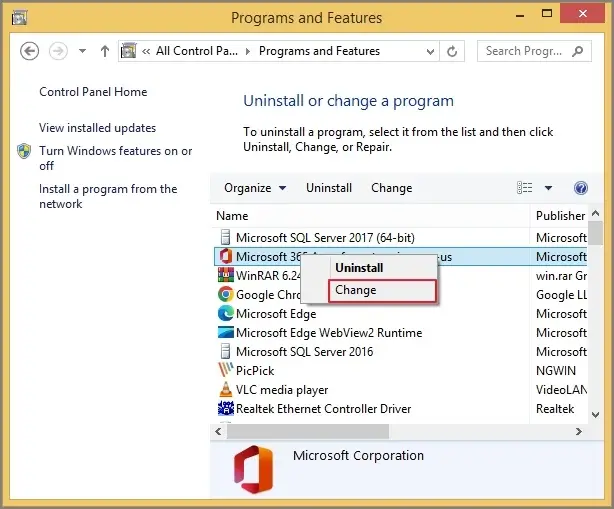
Step 2. Choose Microsoft Office & click on the Change option.
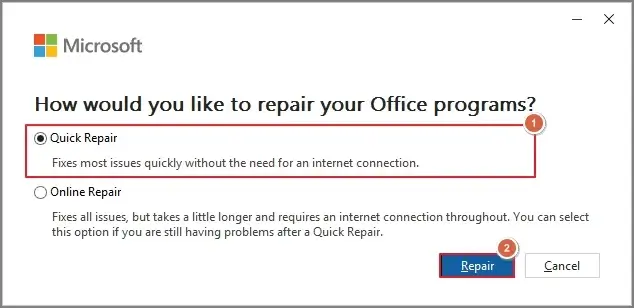
Step 3. Hit on the Quick repair > Repair tab. Then restart the Outlook application.
- Run system disk error checks regularly.
- Avoid forced shutdown while running Outlook.
- Make sure that you have sufficient free disk space.
Want a one-stop solution? Try the automated one
All the discussed methods can help you to fix the issue, but they can’t help you with its future prevention. In that case, the problem still exists.
But you can minimize these errors if you convert the OST file to PST, as it helps in easy accessibility or shareability, unlike OST files. As a result, it makes it quite easy to manage the OST data.
Free ways are available to execute the conversion. But due to their inherent limitations, like time-consuming, complex steps, they are not recommended over the automated ones.
While considering the advanced option, Recoveryfix stands out among others with its innovative OST to PST converter. It helps users tackle all OST-related issues with no data loss. Its enhanced capabilities with an intelligent framework make it a must-have tool for IT experts.
Main features of an advanced tool
- Convert OST data into 10+different formats, like PST, MBOX, etc.
- Load bulk OST files automatically & support bulk conversion at once.
- Helps to transfer OST data to email servers like Office 365, IBM, etc.
- Apply advanced filters for structured output at the desired location.
- Permits you to run the tool independently on any Windows version.
- Allows easy extraction of email addresses & attachments separately.
Conclusion
The OST is not an Outlook data file error usually indicates OST corruption or profile-level issues instead of permanent data loss. With the help of the provided solution, you can easily fix this issue. But to safeguard yourself from these issues in future, OST conversions are needed. You should go with the recommended software to make it smooth, instant, and error-free.
FAQs
Q-1 Does the OST is not an Outlook data file error mean my email is lost?
A- No. Since the OST file syncs data from the Mail server, emails can be restored once you recreate the new one.
Q-2 Can I manually open the OST file in a different Outlook account?
A- OST is exclusively associated with specific Outlook profiles. If you want to access it on another account, you need to perform an OST conversion.