How to Fix Excel Merge Cells Is Not Working Issue? – Know All Info!

Updated On - February 9, 2026
The Merge Cells option of Excel seems simple until it suddenly becomes unavailable or greyed out. Facing this issue while preparing the report or organizing spreadsheets data can disrupt work operations. A common yet annoying issue that arises from hidden settings or merge conflicts. So, the article will explain the common Excel merge cells errors, why they occur, and provide clear steps for effective solutions to fix them.
Excel Merge Cells Feature Explained: A Quick Overview!
Excel’s Merge Cells feature combines two or more adjacent cells into a single cell. Here are the different merge options that Excel provides:
- Merge & Center – This function merges cells and aligns the content in the center.
- Merge Across – It helps to merge the selected cells row-wise.
- Merge Cells – Combines the cells without changing alignment.
Important to Know: The merge option is useful for heading and formatting. But it will affect sorting, filtering, and formulas, so Excel applies certain restrictions.
Why Excel Merge Cells Is Not Working? – Common Problems & Fixes!
Read this section carefully to know the possible causes and their practical solutions to fix them. Here they are:
1. The Excel File is Shared or Co-Authored
The Excel application restricts certain formatting features including merging cells for shared or co-authored files. It leads to:
- The error may disable merge options.
- Create merge conflicts during multiple file access.
- Excel prevents structural layout changes.
Solution:
Step 1. Open Excel and access the workbook.
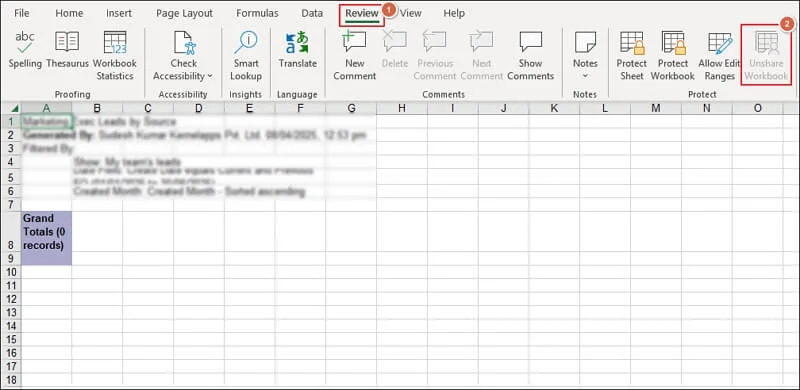
Step 2. Go to Review and click on Unshare Workbook.
Step 3. It will disable file sharing and then save the file.
Step 4. Try to merge the file again.
2. Cells Are a Part of an Excel Table
You can’t merge cells inside a structured table. The common signs are:
- Merge & Center button is greyed out.
- Formatted data with the filtered arrows.
- The Excel table uses automatic formatting.
Solution:
Step 1. Click anywhere inside the table.
Step 2. Go to Table Design and select the Convert to Range option.
Step 3. Confirm to proceed and retry merging cells.
3. Merge & Center Button is Greyed Out
It indicates that the Excel has detected a structural or permission based restriction. Following are the reasons behind it:
- Protected worksheet or workbook.
- Data has active filters or sorting.
- Invalid Selection of the cells.
- Shared workbook mode is enabled.
Solution:
Step 1. Unprotect the workbook or worksheet.
Step 2. Remove active filters or sorting from the data.
Step 3. Check that you have selected the cells properly.
Step 4. Disable Shared workbook mode if turned on.
4. Cell Selection is Incorrect
You can only merge the adjacent cells in a workbook or worksheet. If not, the Excel application shows errors when:
- You select non-adjacent cells.
- Selected the entire rows or columns incorrectly.
- Hidden rows or columns exist in the selected cells.
Solution:
Step 1. Select only the adjacent cells.
Step 2. Make sure there are no hidden rows or columns in the selection.
Step 3. Avoid selecting the entire column.
5. Protected Worksheet or Workbook
The protected worksheet or workbook restricts formatting actions like merging the cells. Here is the list of common scenarios:
- You can open the file in read-only mode.
- Workbook received from another user.
- Applied protection intentionally or accidentally.
Solutions:
Step 1. Open the workbook in the Excel app.
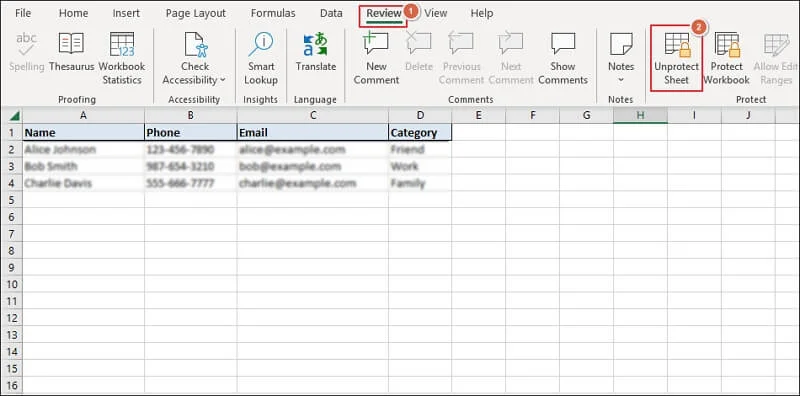
Step 2. Go to the Review tab and click on Unprotect Sheet.
Step 3. Enter the password to remove the protection.
6. Applied Filters, Data Validation, or Formatting
You can’t merge cells during the active filters or validation rules in an Excel Workbook. It is due to:
- Excel maintains data integrity.
- Merging cells can disrupt the original structure.
Solution:
Step 1. Launch Excel to open a workbook.
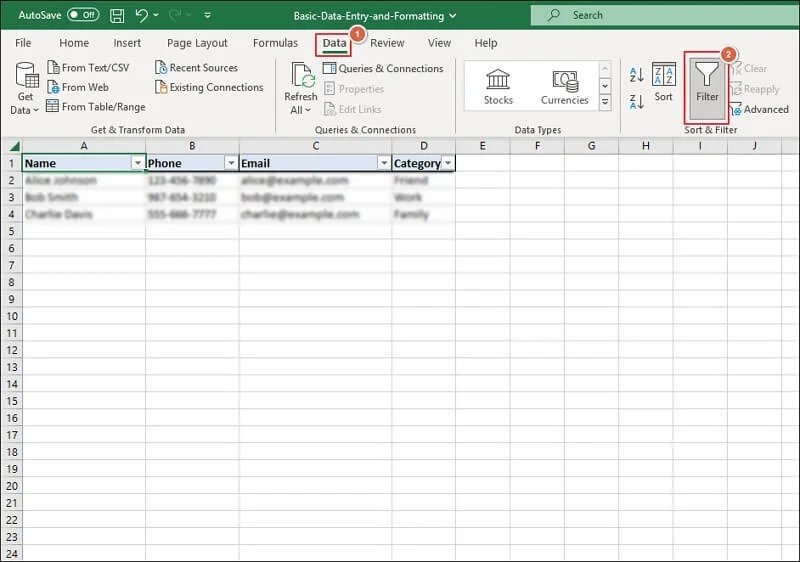
Step 2. Go to the Data tab and turn off the Filters option.
Step 3. Remove data validation if necessary.
7. Already Merged Cells are Creating Conflicts
Excel restricts the merging of new cells in case of partially merged cells. Mixed merged cells can’t be merged further within your selection.
Solution:
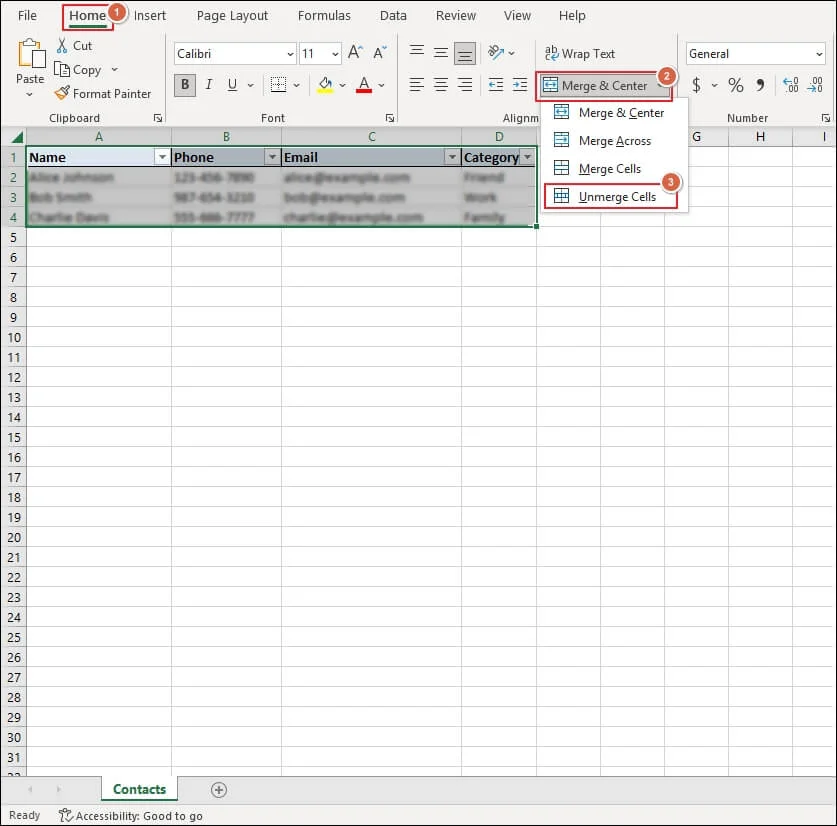
Step 1. Select the affected area and Unmerge Cells.
Step 2. It helps in clean selection of cells.
Step 3. Re-select the cells to merge the new cells among the existing ones.
8. Excel Online or Mobile App Limitations
Excel Online or mobile versions do not support all the features. Here are the common limitations:
- Merge option may not work properly.
- Some of the merge options are unavailable.
- Changes may not be saved due to poor connection.
Solution:
Step 1. Open the Excel file in the desktop version.
Step 2. Try to merge the cells in it.
Replace Merge Cells with The Best Alternative [Recommended One]
Excel professionals or frequent users avoid the merger cells option due to layout issues. Instead, try the better alternative now:
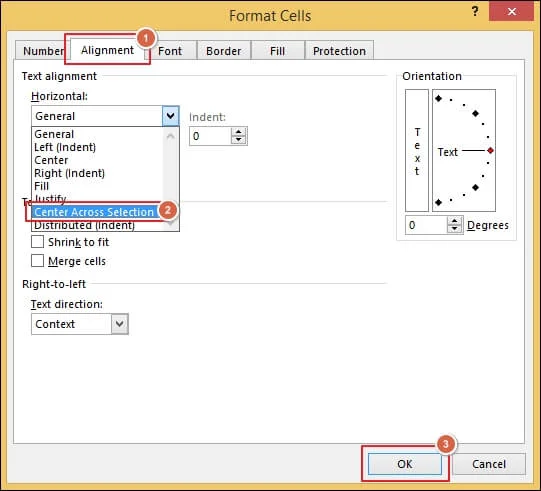
Center Across Selection
- Provides the same visual result.
- Doesn’t break the sorting or formulas.
Steps to use it:
Step 1. Go to the Format Cells tab by pressing Ctrl + 1 keys.
Step 2. Navigate to Alignment and choose the Center Across Selection.
Bonus tips: You can also use the Alignment and Formatting or Wrap Text instead of the merge cells function.
Ending Note:
“Excel Merge Cells is not working” clearly means it’s a glitch or the application is protecting your data structure. By knowing the restrictions, you will be able to fix the issue by applying the suitable solutions. For more clarity, you can refer to the provided causes and their relevant solutions.
Moreover, if you want to merge Excel workbooks, then check out the advanced solution of Recoveryfix. The Excel Merger tool helps to add multiple XLS or XLSX files without hampering the original data structure.