How to Convert OST to MBOX format? – One Stop Guide

Published On - March 27, 2026
OST files are great for working even when the connection is lost. However, certain situations require users to access the same content on other platforms. These situations create challenges for users because OST files are restricted to only the Outlook platform.
When users try to convert OST files to MBOX format without proper guidance, it often leads them to formatting issues, incompatibility, or data loss.
Hence, the blog will guide you with practical approaches that keep the email data safe and intact. Read to access your emails without any platform restrictions.
OST Vs MBOX Files: Find The Basic Difference Between Them
Check out the representation below to know the fundamental discrepancies between the two files:
|
Parameters |
OST File |
MBOX File |
|---|---|---|
|
Compatibility |
Works only with Outlook & Exchange environment. |
Supported by many clients. |
|
Accessibility |
Accessible only with the associated Outlook profile & Exchange account. |
Easily accessible across multiple email platforms. |
|
Flexibilty |
Restricted to Microsoft ecosystem. |
Highly flexible with broad compatibility. |
|
Portability |
Difficult to move. |
Easy to transfer. |
|
Dependency |
Requires Outlook & Exchange configuration. |
Works without server dependency. |
|
Ease of Migration |
Not suitable for migration. |
Ideal for email migration. |
|
File Structure |
Stores mailbox data tied to specific Outlook profiles. |
Stores emails in a simple and organized structure. |
|
Shareability |
Complex sharing process. |
Quickly share MBOX files. |
|
Usability |
Mostly used in Corporate Exchange environments. |
Widely used in personal, professional, and open-source email systems. |
|
Overall Advantage |
Limited outside Outlook ecosystem. |
More versatile, portable, and compatible. |
Important Points That You Must Know Before Conversion
Here is the important information that you need to understand before the conversion of OST file to MBOX format.
- Some methods may require prior technical knowledge.
- Direct accessibility of orphaned OST files is not possible.
- Manual methods come with the risk of data loss or formatting issues.
- OST files are associated with the Outlook profile & Exchange account.
- The Outlook application doesn’t support direct OST to MBOX conversion.
Best Manual Methods to Convert OST Files to MBOX Format
Go through the following section to explore the most effective ways to perform the OST file conversion manually. Here they are:
Way 1. Migrate OST File to MBOX format Using the Built-In Option
You can import the Outlook emails into Thunderbird directly with the help of built-in options. Here are the detailed steps:
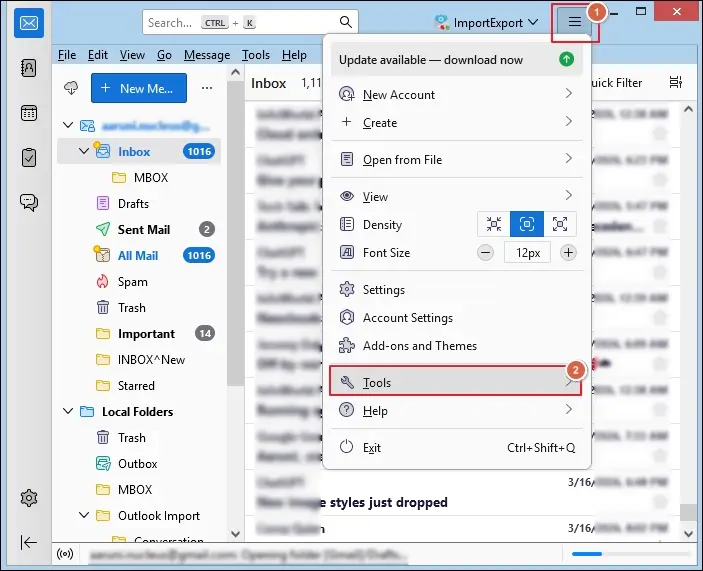
- Click on the Menu icon and proceed to Tools.
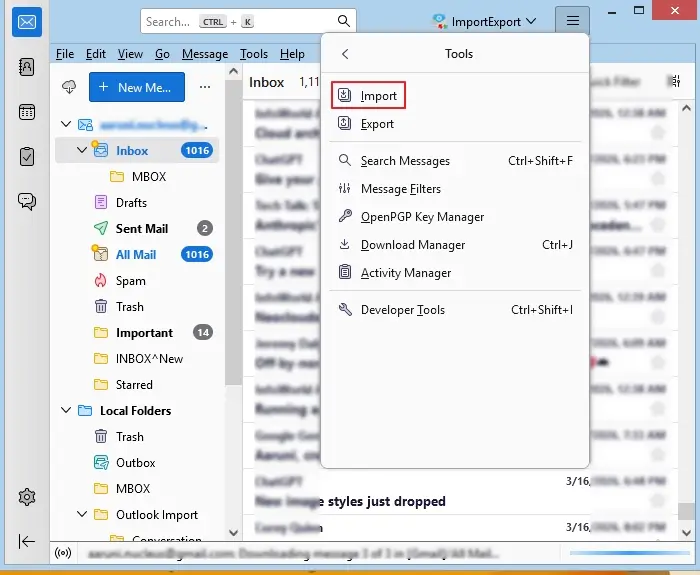
- Select the Import option under the Tools wizard.
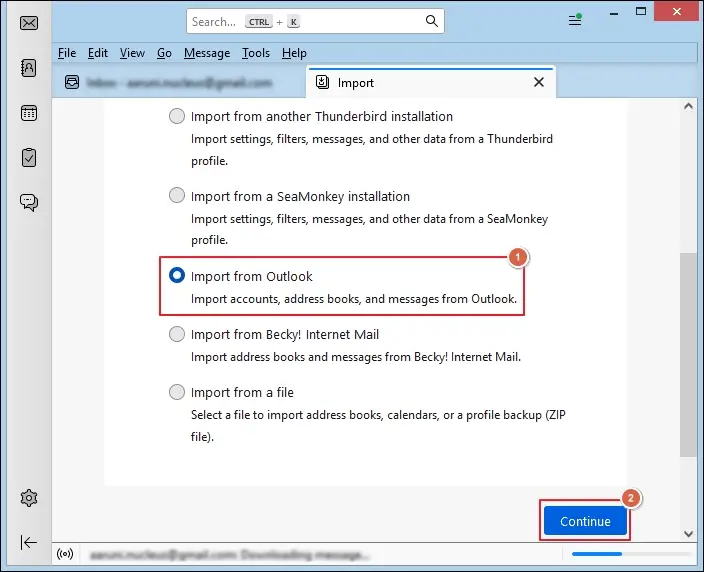
- Choose the Import from Outlook option to Continue.
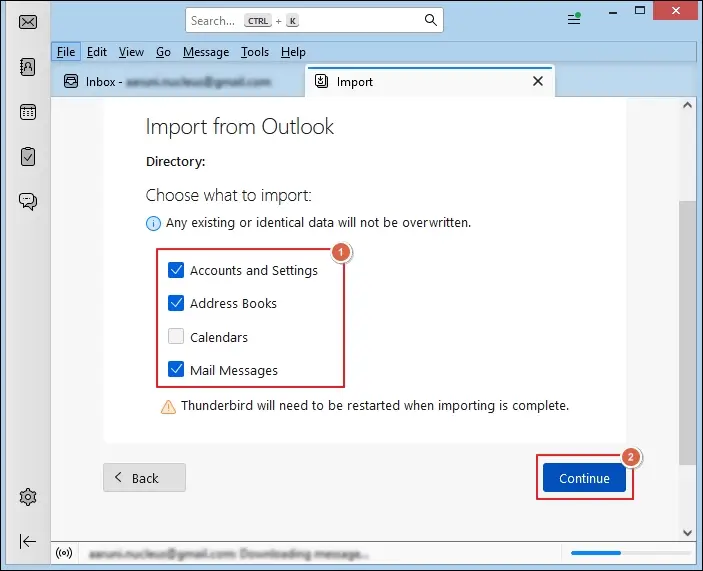
- Select the data you want to import and Continue further.
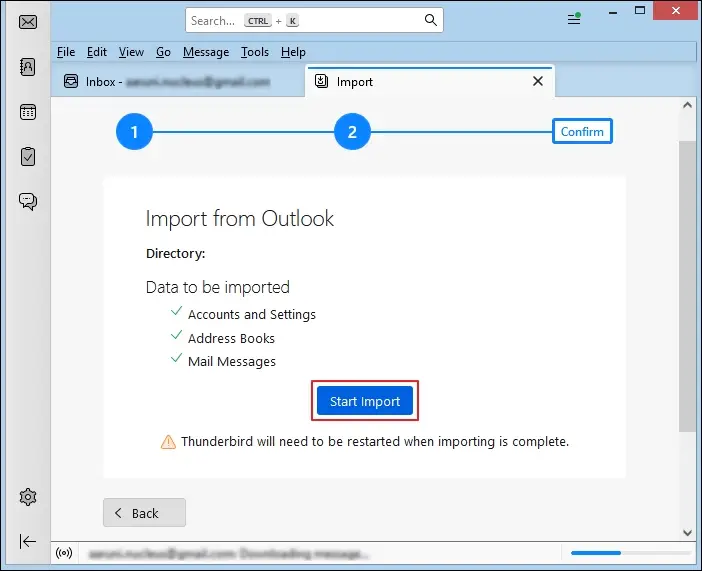
- Verify the chosen data and click on Start Import.
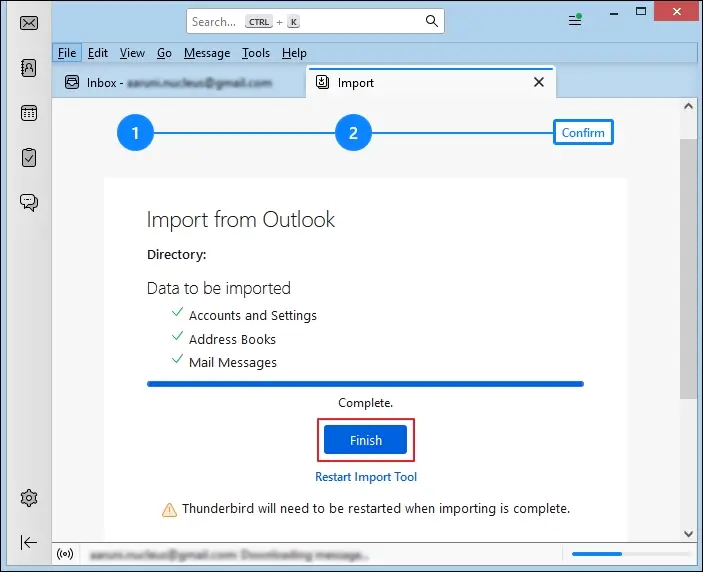
- Restart the Thunderbird application once the process is completed.
Way 2. Export OST to MBOX Files Using IMAP Synchronization
Try this method when your email account is active and accessible to export data. Here’s how:
- Open your email account and enable the IMAP settings.
- Configure the same account in the Thunderbird application.
- Wait for all emails to sync completely.
- Go to Menu and proceed to Tools.
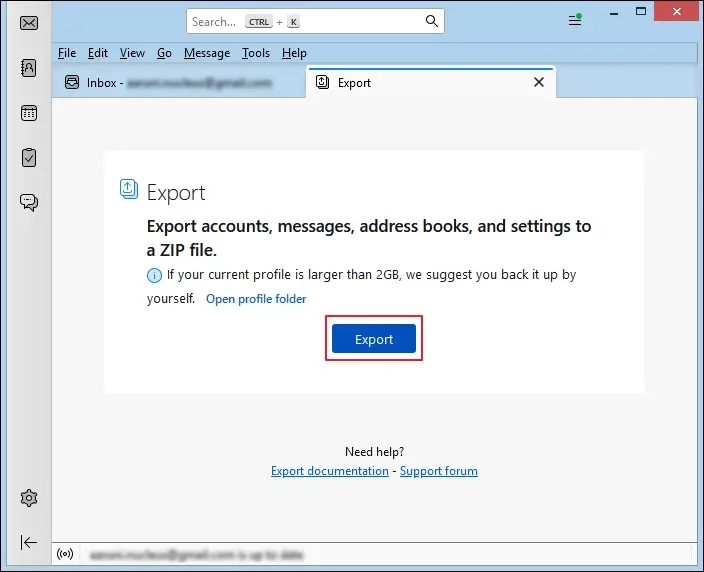
- Tap on the Export> Export option to continue.
- Select the desired folder location and click Save.
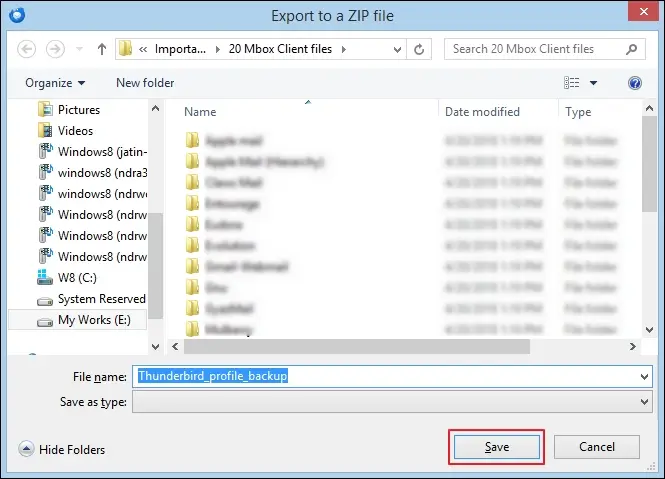
- It will save the emails in MBOX format.
Way 3. OST to MBOX Conversion on Mac Operating System
Here are the complete steps for OST file conversion on Mac operating system.
Note: First, make sure that your account is active and IMAP is enabled.
- Launch Apple Mail and go to the Mail tab.
- Click on Add Account to configure the same email account.
- Enter your email credentials to proceed.
- Select IMAP as an account type.
- Then, follow the on-screen instructions to complete the setup.
- Wait for the emails to sync completely.
- Choose the mailbox folder and tap on Mailbox.
- Export Mailbox to your preferred location.
- It will save the file in MBOX format.
Way 4. Convert OST to MBOX Files on Linux Devices
Use the Readpst CLI tool to convert OST files on Linux systems. Here’s how:
- Press Ctrl+Alt+T keys to launch the terminal.
- Install the pst-utils package using the following command.
- Execute the given command to locate the directory where OST files are stored.
- Run the provided command to convert OST files.
- Use the ls command to list the contents of the directory and verify the conversion.
sudo apt update && sudo apt install pst-utils
cd /path/to/your/ost/folder
readpst -r -u filename.ost
Try Advanced Solution to Convert Orphaned OST to MBOX Files
Now, you have a clear idea of how to convert your OST files using the manual solutions. But the native solutions failed when you need to convert orphaned OST files. So, finding better alternatives that will remove the restrictions of manual methods is the foremost priority of users. In such scenarios, professional tools like Recoveryfix come out as a perfect solution.
The OST To MBOX Converter tool allows you to convert multiple OST files without Outlook. Also, it helps you to transfer data from OST files to different email servers or clients in a few clicks.
Pro Tips for Safe Conversion of OST File to MBOX Format
Follow these best practices to avoid data loss or errors during the file conversion process:
- Make sure to have sufficient disk space.
- Always backup OST file data before conversion.
- Try to avoid the in-between interruptions while converting files.
- Use reliable tools when important data is involved for the best results.
Closing Remarks
The blog has highlighted different solutions to convert OST to MBOX format manually. You can use the native solutions for small-scale conversions, but come with multiple steps and limitations.
Along with that, they won’t work when you have to convert orphaned OST files. So, go with the recommended solutions to eliminate all the uncertainties. The software helps to extract attachments and email addresses separately.
FAQs: Users Queries, Instant Resolution
Q. Can I convert OST files to MBOX format directly?
A. No, Outlook does not support direct conversion of OST files. You can use manual or professional solutions for file conversion.
Q. Do manual methods require Outlook for conversion?
A. Yes, the native solutions require Outlook, but professional tools do not.
Q. Which methods are best to keep my attachments and formatting intact?
A. Automated solutions are the best for conversions as they keep metadata and structure intact throughout the process.
Q. Can I convert multiple OST files at once?
A. Yes, but with the help of advanced tools because manual ones don’t support bulk conversions.