Troubleshoot Common Errors In Thunderbird – Master 2026 Guide

Published On - March 30, 2026
Imagine you are about to use Thunderbird, but it shows errors just like the above user. Situations like these can be stressful as they don’t know the real reasons behind the issues. The blog will help you find possible causes and allow troubleshooting Thunderbird issues with the appropriate methods. Let’s restore the normal email functionality without losing any important messages.
Why Does Thunderbird Stop Working? – Find Common Reasons
It is important to understand the root causes to apply the suitable fixes. Most issues arise due to:
- Oversized mailbox folders.
- Corrupt profile data or folders.
- Incorrect configuration settings.
- Firewall or antivirus interference.
- Outdated version of the application.
- Conflicts between add-ons or extensions.
Basic Solutions: Try Them Before the Advanced Ones
Sometimes, simple fixes can help you in troubleshooting common Thunderbird errors. Here they are:
- Update Thunderbird to its latest version.
- Remove add-ons or extensions from Thunderbird.
- Temporarily disable the Antivirus or Firewall programs.
- Check the internet connection or switch to a stable network.
- Restart the application to fix temporary glitches or memory issues.
Advanced Solutions: Fix Common Thunderbird Errors [Commonly Reported]
Checkout the following sections to find the appropriate solutions of frequently reported issues by users. Explore them now:
Error 1. Thunderbird Not Responding or Freezing
The issue generally arises due to a large mailbox size, corrupt folders, or add-on conflicts. Fix Thunderbird email client issues with the steps below:
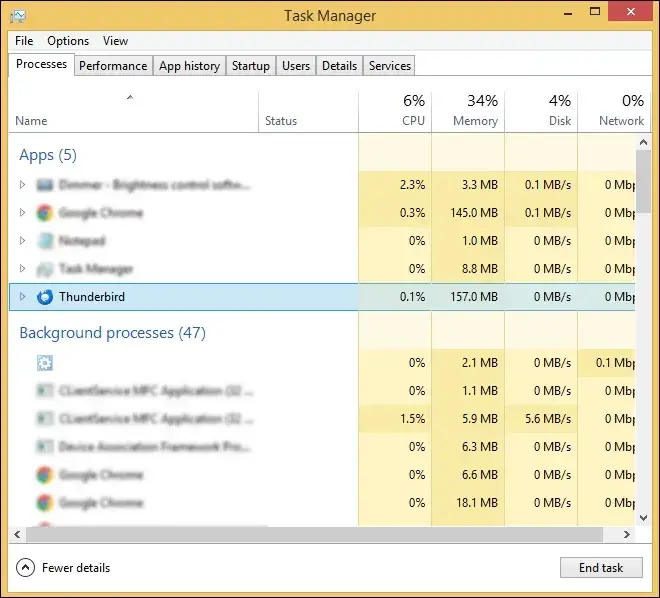
- Open Task Manager by pressing Ctrl+Shift+Esc.
- End the Thunderbird application process.
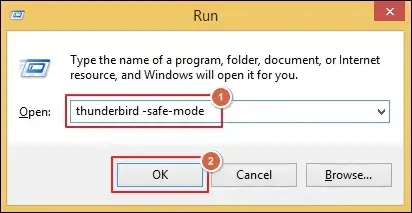
- Restart the application in Safe Mode by using the Run wizard.
Thunderbird -safe-mode
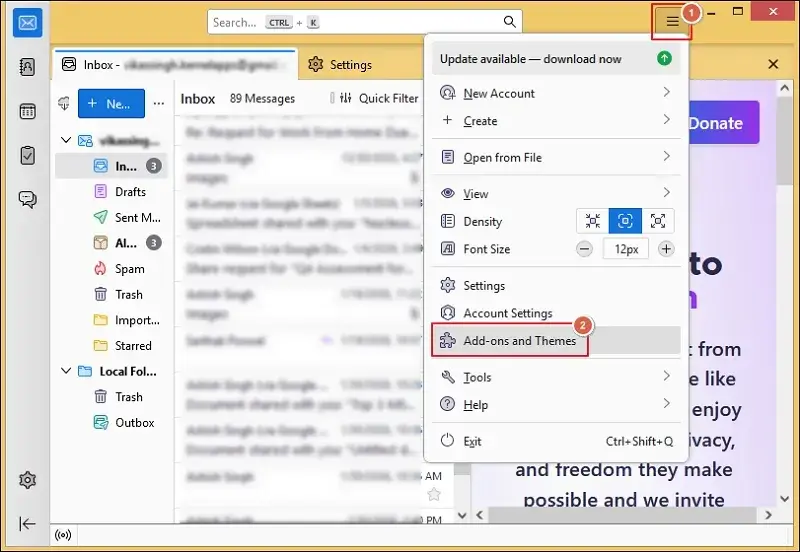
- Go to Add-ons and Themes and disable the unnecessary ones.
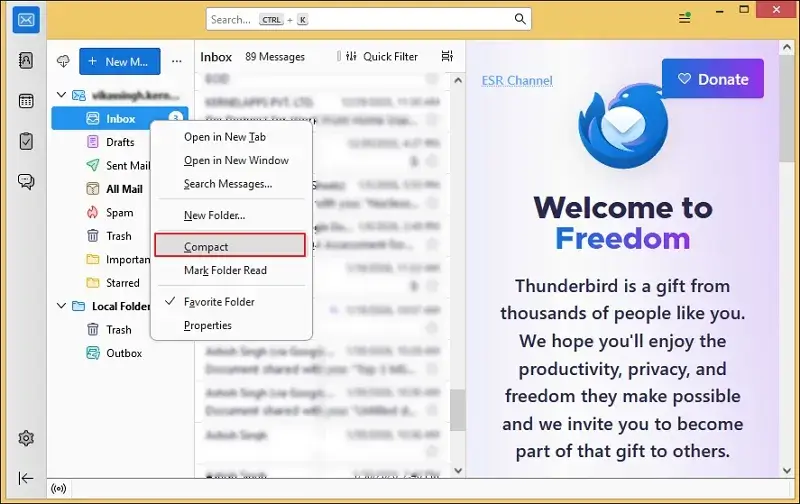
- Right-click on mailbox folders and select Compact them individually.
Error 2. Not Receiving Emails in Thunderbird
It occurs due to incorrect server settings, sync errors, or blocked ports. Here’s how to fix it:
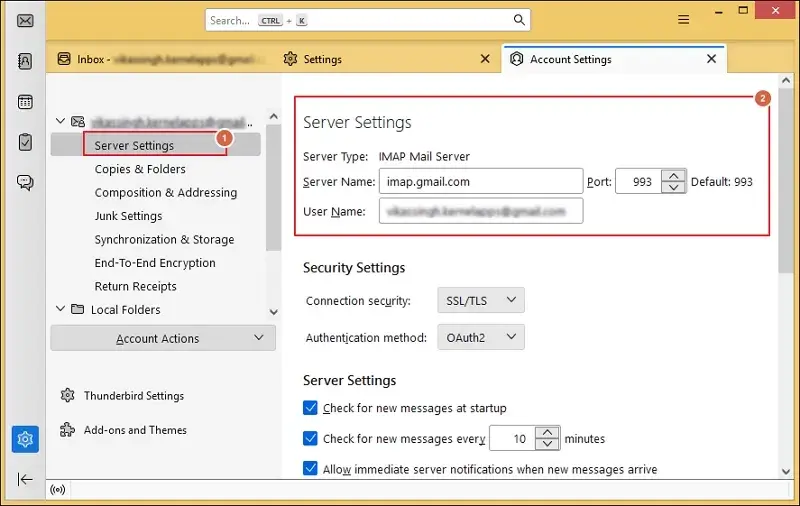
- Go to Account Settings> Server Settings.
- Verify the incoming server details.
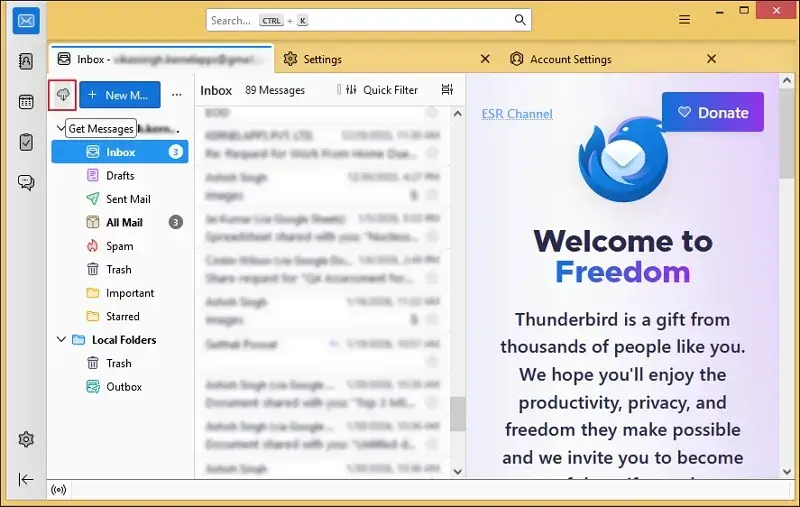
- Tap on the Get Messages option to download them manually.
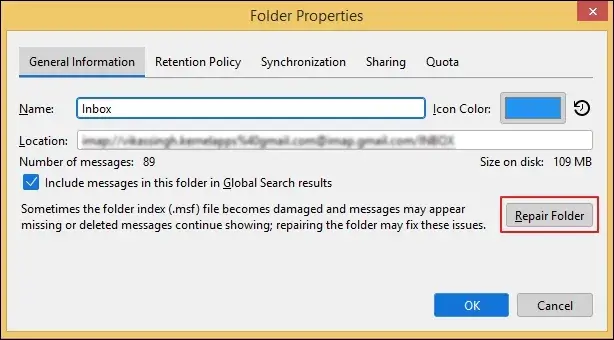
- Right-click on Inbox folder and click Properties.
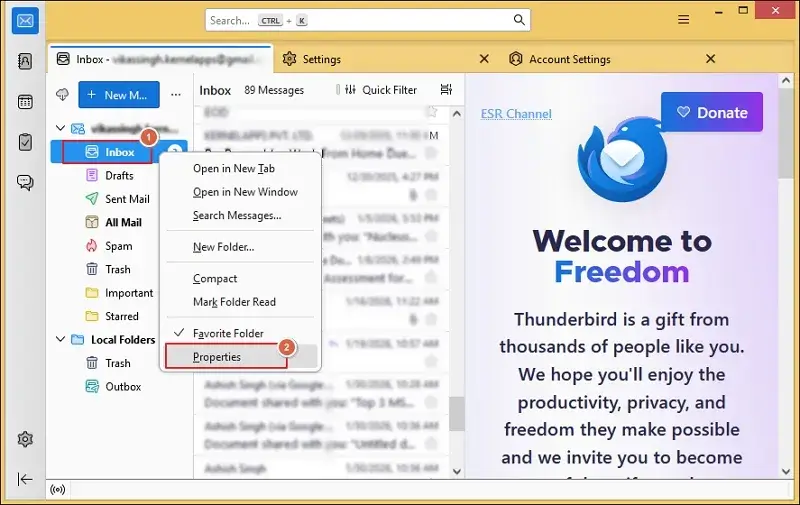
- Locate the General Information tab and proceed to Repair Folder.
Error 3. Thunderbird Not Sending Emails
Check for SMTP configuration and authentication to fix Thunderbird email not working issues. Here are the detailed steps:
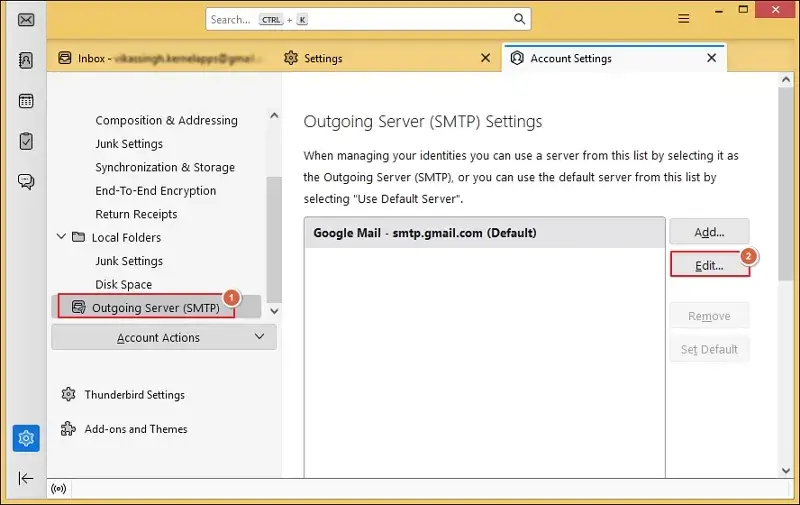
- Click on Account Settings and verify Outgoing Server (SMTP). Then, go to Edit menu.
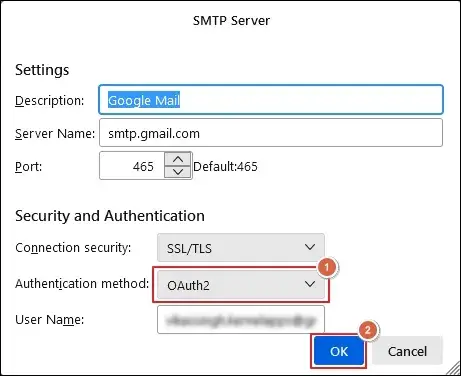
- Enable the Authentication method and tap on OK to save the changes.
- Try to send a new email message.
Error 4. Thunderbird Not Working After Update
Corrupt update files and incompatible add-ons are the primary causes behind the error. Fix them now with the given steps:
- Start Thunderbird in Safe Mode.
- Turn off all the installed add-ons.
- Restart the application normally.
- If the issue persists, then uninstall the app.
- Reinstall the latest version on the system.
Error 5. Thunderbird Not Displaying Message Content
Sometimes, rendering issues or corruption in the messages index can lead to the error. You can fix it with these steps:
- Restart Thunderbird after closing it.
- Right-click on the associated mailbox folder.
- Go to Properties and proceed to Repair Folder.
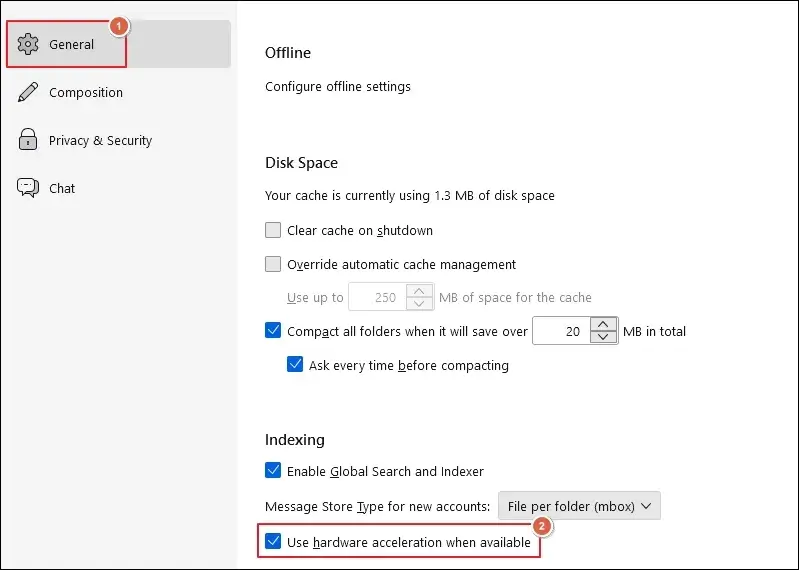
- Navigate to Settings and click on the General tab.
- Uncheck the Use hardware acceleration when available option.
- Then, launch the application again.
Error 6. Thunderbird “New Message” Button Not Working
Interface glitches or add-ons conflicts may be the possible causes behind the issue. Here are the steps to fix it:
- Launch Thunderbird application in Safe Mode.
- Disable all the added extensions from the app.
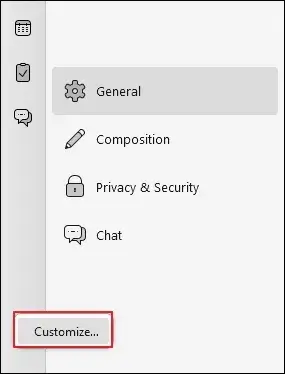
- Then, right-click on toolbar and tap on Customize.
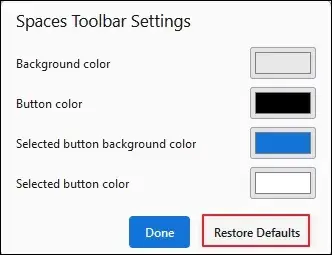
- Click on Restore Defaults options.
Error 7. Thunderbird Profile Corruption
The problem often arises due to sudden system shutdown or disk errors. Fix them now with these steps:
- Close the Thunderbird application.
- Access the Run wizard and type thunderbird.exe -p.
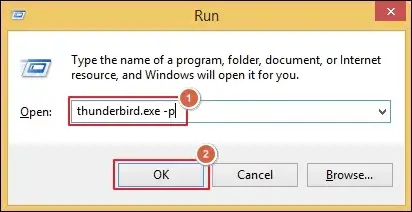
- Then, click OK to proceed.
- Create Profile and Start Thunderbird.
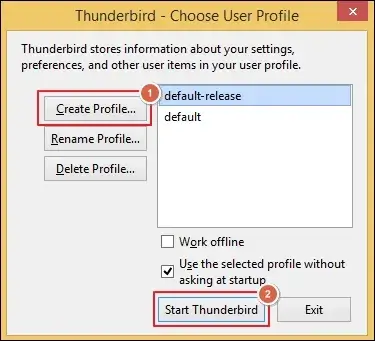
- Set up your email account again.
Error 8. Import Process Failed Unexpectedly
Corrupt files or unsupported formats are the possible reasons behind the error. Use the given steps to resolve it.
- Verify the file compatibility.
- Retry the import process.
- Import data in small batches.
- Rely on a reliable conversion tool if dealing with an unsupported format.
Best Practices to Avoid Future Thunderbird Issues
You can prevent Thunderbird from future issues by following these simple tips:
- Keep the Thunderbird up to date.
- Maintain a stable internet connection.
- Make sure to backup Thunderbird profile.
- Try to avoid installing unnecessary add-ons.
- Compact mailbox folders at regular intervals.
Ending Note
Thunderbird is a powerful and reliable email client, but like any other software, it can occasionally run into issues. Here, we have provided different methods to diagnose and fix common Thunderbird errors. However, if you want to migrate data to another email client, use professional tools like Recoveryfix. The MBOX to OST Converter allows you to access the mailbox data on different platforms in a few clicks. It supports all the different versions of MBOX files.
FAQs:Queries Resolved In Seconds
Q. How to start Thunderbird in Safe Mode?
A. Here are the different ways in which you can start Thunderbird in Safe Mode:
On Mac
- Open Thunderbird by holding the Shift key or Option key.
On Windows
- Go to Menu>Help>Troubleshoot Mode.
- Execute the Thunderbird -safe-mode in the command prompt.
Q. What are the different ways to manage Thunderbird Mailbox data?
A. You can compact the mailbox folders and remove unnecessary emails to manage the mailbox data.
Q. When should you use professional tools?
A. Use the advanced software in the following scenarios:
- Migration or import keeps failing.
- Need to access data on another platform.
- Conversion of mailbox data into another format.
- Emails are gone, missing, or disrupted in structure via native solutions.
Q. How to restart the Thunderbird app properly?
A. Go to Task Manager on your system and End the task. Then, restart the application.
Q. I want to fix thunderbird not receiving emails issue. How to do that?
A. To fix the not receiving emails in Thunderbird issue, do the following:
- Check server settings
- Repair mailbox folders
- Make sure the internet connection is stable.