How to Open MDB Files? – A Complete Guide!

Published On - February 5, 2026
User Query: My colleague is still using Microsoft Access 2003 for data management and report creation. Today, he sent me a report in .mdb format, which I am unable to access. Can you guys help me with this?
Although MDB files are now considered legacy or outdated, many organizations still rely on them. But when these files are shared with other users, they face errors or compatibility issues.
One of the main reasons is that they don’t know the right tools to access MDB files. So, the blog will explain to you different ways to open MDB files safely, even without Microsoft Access.
Why You Might Be Unable to Open MDB Files?
Here is the list of common reasons that stop you from accessing the contents of MDB files. They are as follows:
- Microsoft Access setup was not installed on the system.
- Conflicts between the MDB files and the Access version.
- Damaged or corrupted MDB files can also be the reason.
- MDB file permission or security restrictions prevent access.
- Tries to open a file on macOS without the required knowledge.
Note: It is necessary to know the possible causes to select the appropriate solution based on your situation to execute MDB open file procedure.
Top 4 Manual Solutions to Open MDB Files: Detailed Steps Included!
We have listed all the methods that help you access MDB files for free. Try them now to identify the most appropriate solution for yourself.
Method 1. Open MDB file in Access 2016 or Other Versions
You can access the MDB files even in the latest versions of the Access application. Here’s how:
Note: You can also use the Access Runtime version to perform the MDB open file operation.
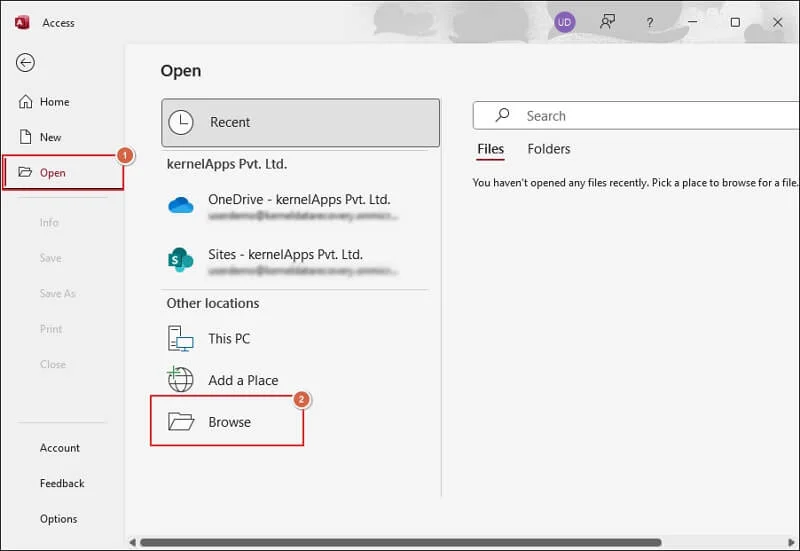
Step 1. Launch Microsoft Access and tap on Open.
Step 2. Then, Browse to choose the MDB file.
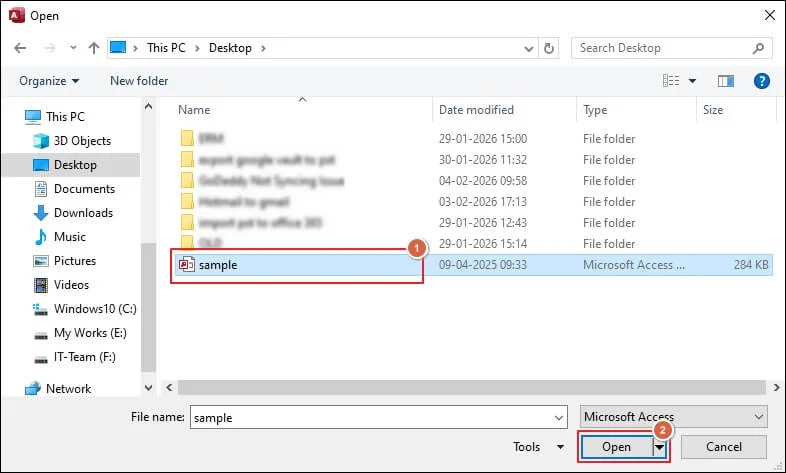
Step 3. Select the MDB file and click on Open to proceed.
Step 4. Enable content to view the files properly if security warnings are prompted.
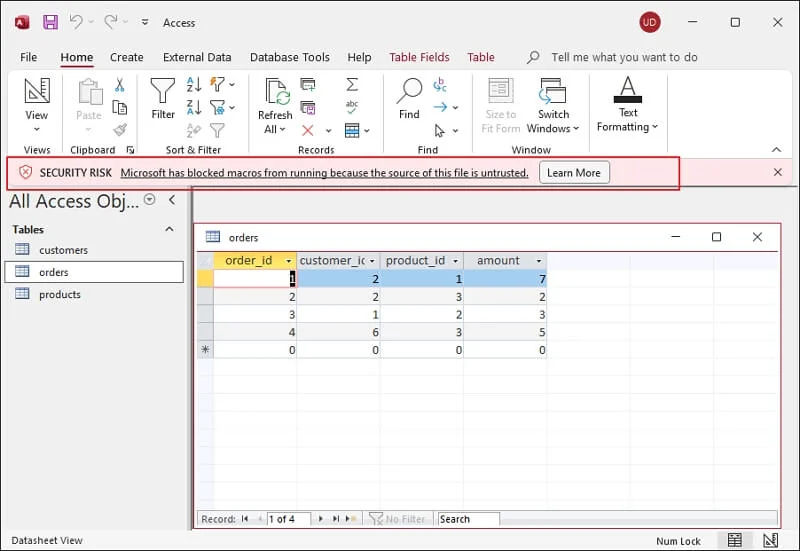
Step 5. Now access all the items of MDB files as required.
Method 2. Steps to Open MDB File in Excel
Excel cannot access MDB files directly, but it can import data from them. So, use the given step to view the contents of MDB files:
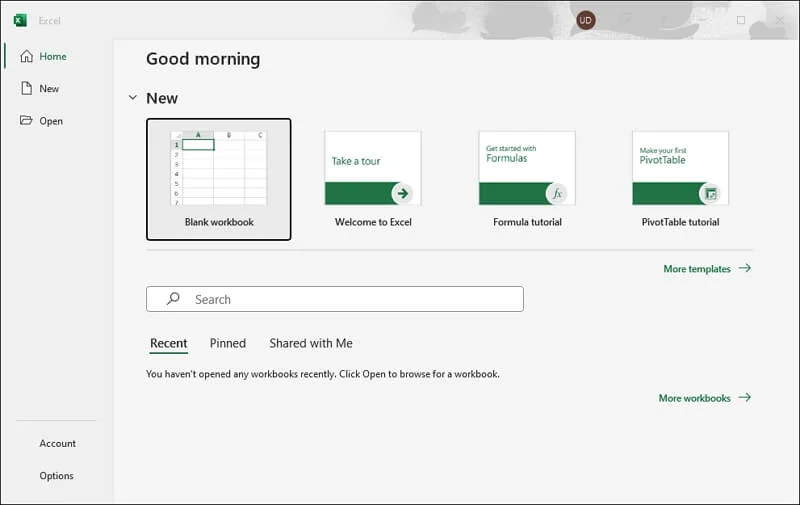
Step 1. Open Excel and create a Blank workbook.
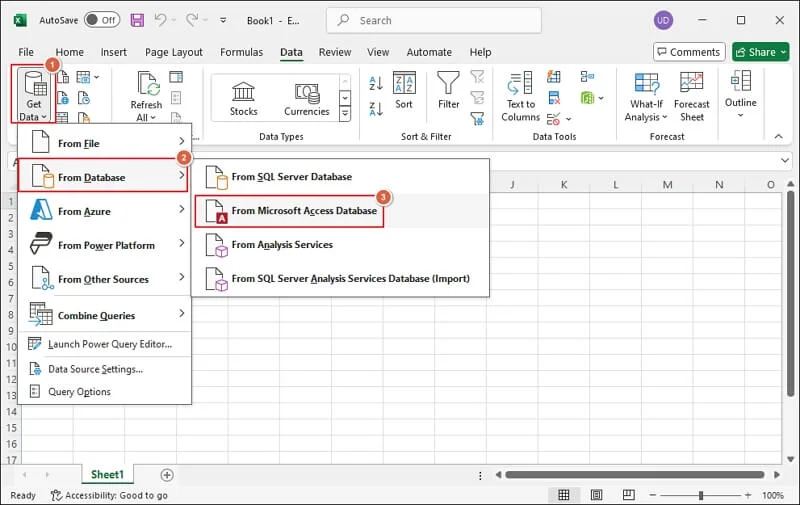
Step 2. Locate the Data tab to proceed.
Step 3. Click on Get Data> From Database> From Microsoft Access Database.
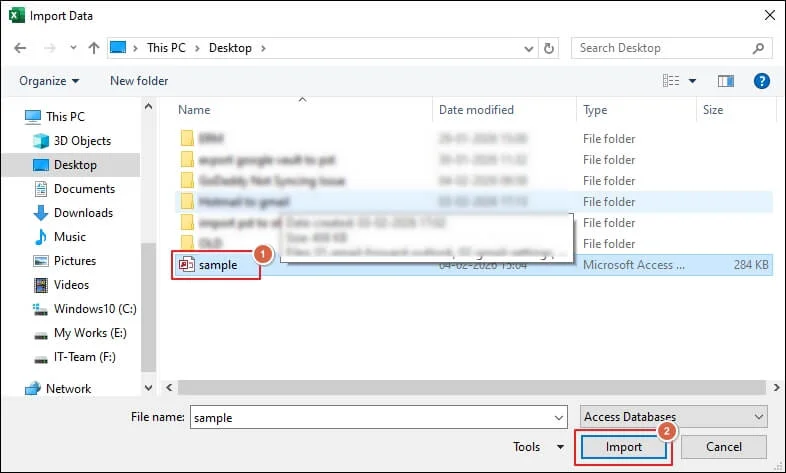
Step 4. Select the MDB file to Import data from it.
Step 5. Preview the content and Load it to Excel.
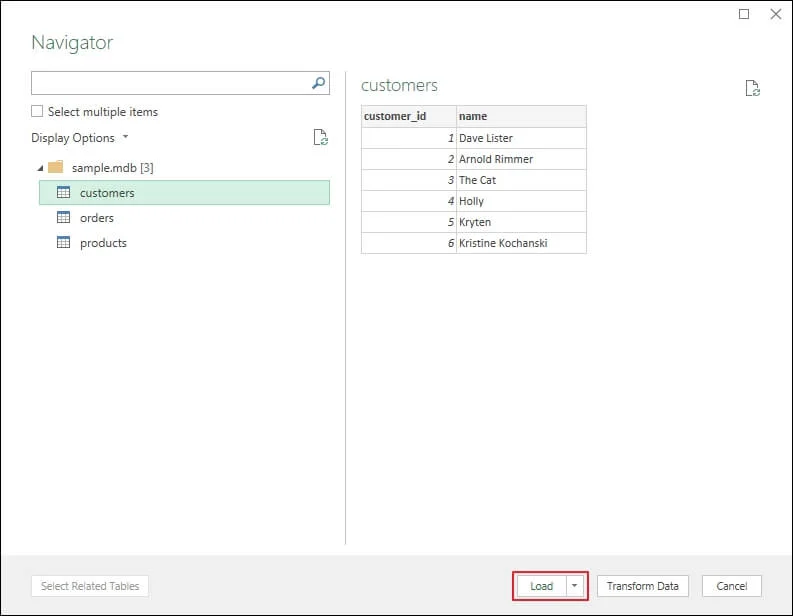
Step 6. Now, you can access MDB files in the Excel application.
Method 3. View MDB Files using Open-Source Database tools
You can also use open-source database tools to open MDB file without Access. Below, we have provided the details of the most common ones:
- MDB Tools: This open-source toolset allows you to access MDB files on Linux, Windows, and macOS.
- MDB Admin: View and edit MDB or ACCDB files with the help of this SourceForge-hosted tool on your Windows system.
- LibreOffice Base: It is a part of the LibreOffice productivity suite that allows to read MDB or ACCDB file data. But it requires the right drivers (UCanAccess or Windows Access Database Engine) to connect to the file.
- NSBase Application: Users can import MDB files to this Rapid Application Development (RAD) tool to view the file’s content.
- DBeaver Community Edition: It is a universal database management tool that helps users to view, edit, and manage data.
Method 4. Access MDB Files on the Mac Operating System
Another way is to export the MDB file data into readily accessible formats using Microsoft Access. Here’s how:
Step 1. Launch Access and open the MDB file.
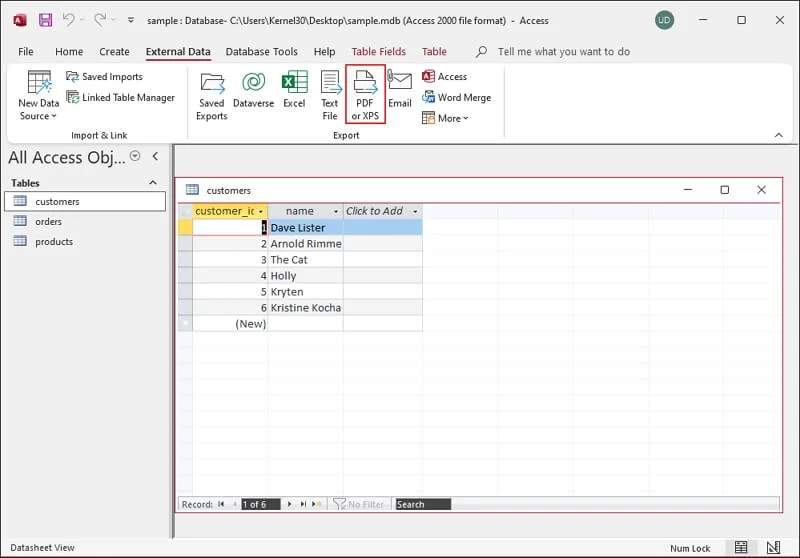
Step 2. Go to External Data tab and click on PDF or XPS.
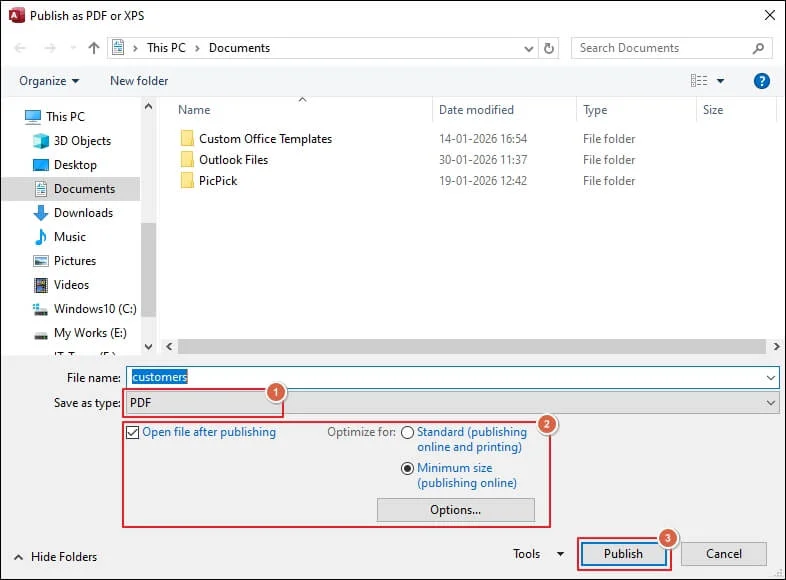
Step 3. Provide the file saving location and PDF as an output format.
Step 4. Choose the additional settings as needed and click Publish.
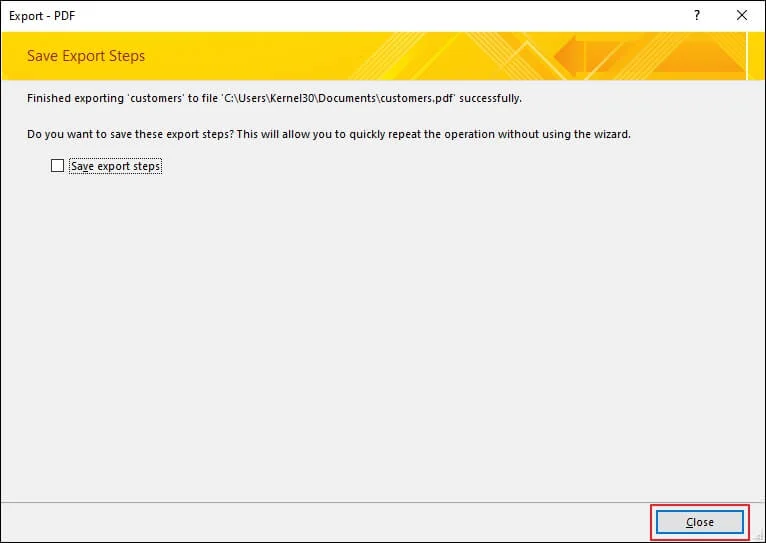
Step 5. A window will pop up once the process is completed.
Step 6. Close the window to exit the process.
Step 7. Now, send the exported file to a Mac machine to view its content.
Why Native Solutions Fail? – Find Causes & Best Alternate Method!
Now, you have adequate knowledge to perform the open MDB file operation via manual solutions. But remember, they are only applicable when certain situations are met. Also, they come with several limitations:
- Lost database formatting in other applications.
- You need to install the Access Database Engine.
- Shows security warnings when you open MDB files.
- Many solutions require Microsoft Access applications.
- Version compatibility forces you to change the format.
- Ineffective against encrypted or password-protected files.
- Lack of permissions can restrict the file to read-only mode.
- Poor implementations can lead to file corruption or data loss.
So, to avoid them, use direct solutions like Recoveryfix. The Access Repair tool helps you open healthy, corrupted, or damaged MBD files quickly. It allows you to preview and save database objects in their original structure. The software is compatible with all versions of Windows and Microsoft Access.
Closing Remarks
The blog has covered all the possible ways to open MDB file using the native solutions. No matter which platform you are working on, there is always a solution available for every scenario. You just have to understand the access level, system, and data requirements.
Besides that, we have also suggested an automated solution that eliminates the constraints of native methods and helps to access MDB file data without difficulties.