How to Migrate SmarterMail to Microsoft 365? – A Complete Tutorial

Published On - April 6, 2026
SmarterMail is designed as a cost-effective mail server. But, with the introduction of cloud-based services, it loses the upper edge since handling the server on its own is quite a challenging task. Migrating them to an affordable service like Office 365 is a viable option for organizations. Questions about email integrity, folder structure, and downtime create hesitation in users’ minds.
Here, you will get proper guidance from preparation to execution. Read the article to know the right steps of proven methods for efficient SmarterMail to Microsoft 365 migration.
Why Migrate SmarterMail to Microsoft 365? – Top Benefits Listed
You can get several benefits by moving your data to Office 365. Here they are:
- Easy scalability with the different subscription plans.
- Automatic updates remove the manual maintenance process.
- Access emails anytime or anywhere with multi-platform support.
- Built-in protection against threats for better security & compliance.
- Smooth integration with apps like Teams, OneDrive, and SharePoint.
Pre-Checklist: Important Things to Ensure Before Migration
Prepare the following to avoid potential data loss and downtime.
- Take a backup of SmarterMail data.
- Ready the list of all user mailboxes.
- Enable IMAP settings in SmarterMail.
- Switch to a stable internet connection.
- Admin access to both SmarterMail and Office 365.
- You must have an active Microsoft 365 subscription.
Manual Solutions to Migrate Emails from SmarterMail to Office 365
Check out this section to find the most appropriate solutions for SmarterMail migration. Here they are:
Way 1. Network Upload for SmarterMail to Microsoft 365 Migration
This method is quite long, but it helps you move calendars and contacts along with the emails of SmarterMail. Here are the detailed steps:
Section 1. Configure SmarterMail Account in Outlook & Export Data
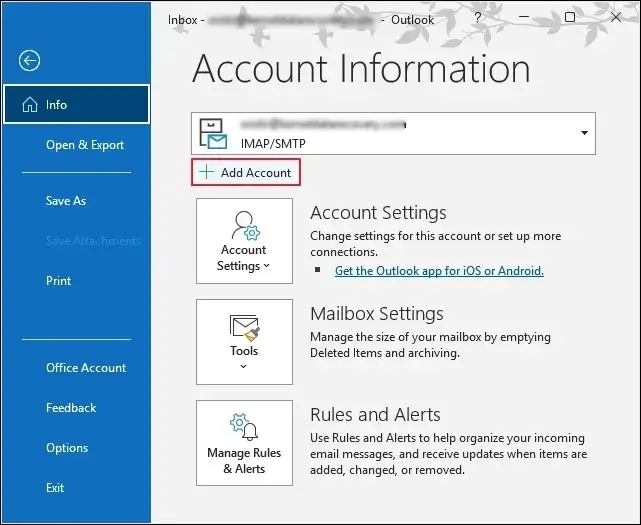
- Locate the File menu and click on Add Account.
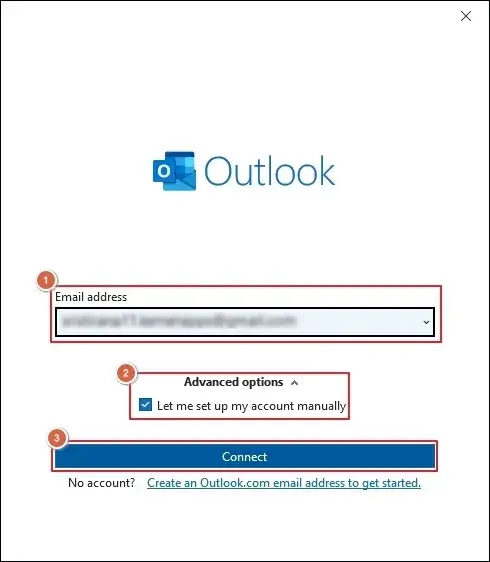
- Provide your Email address and select Let me set up my account manually.
- Then, proceed to the Connect option.
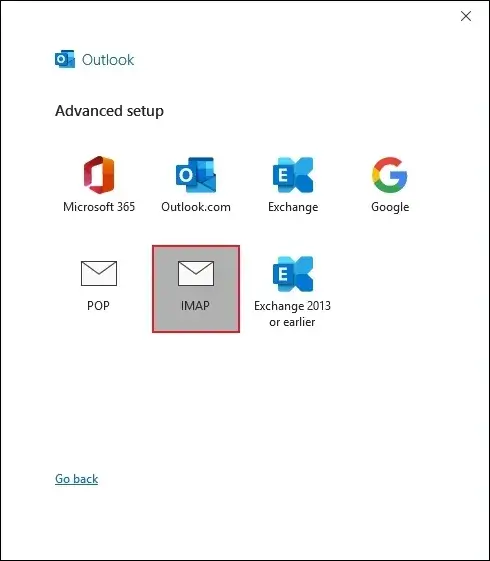
- Choose the IMAP option under Advanced setup.
- Follow the on-screen instructions to complete the process.
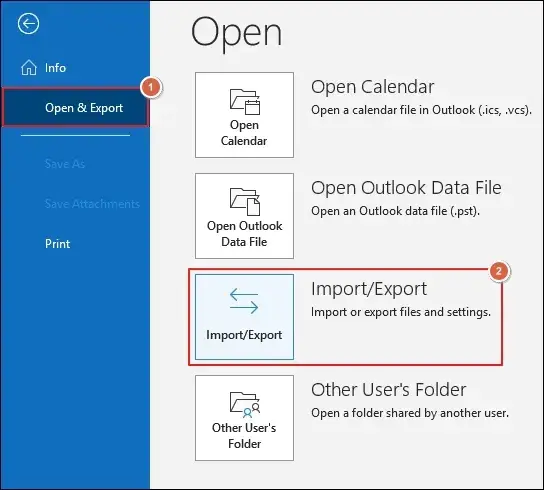
- Click on Import/Export under the Open & Export.
- Select Export to a file and tap on Next.
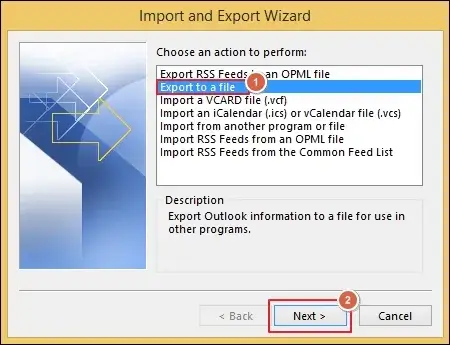
- Choose Outlook Data File (.pst) and click Next.
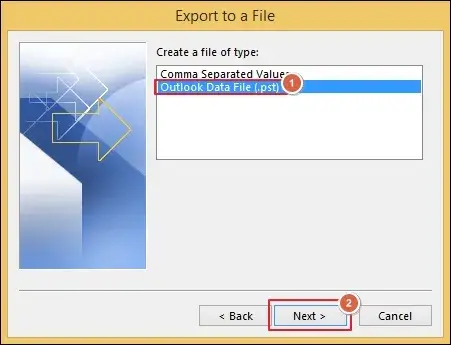
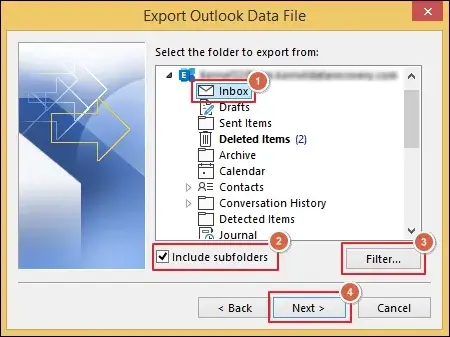
- Select the required mailbox folder and check Include subfolders.
- Filter out data if needed and click Next.
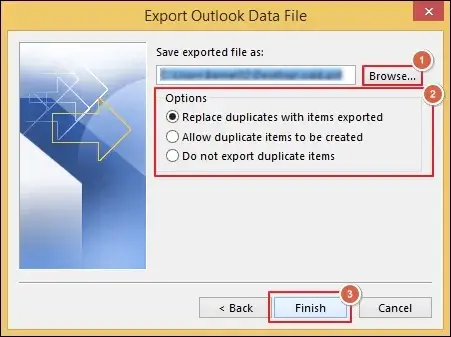
- Browse to provide the saving location.
- Choose from different Options and proceed to Finish.
Section 2. Import SmarterMail to Office 365 with Network Upload
- Copy the SAS URL to download the AzCopy tool.
- Use the AzCopy tool to upload PST files to Office 365.
- Check the uploaded PST files after the process completion.
- Create a PST Import mapping file to define the user mailboxes.
- Go to Microsoft 365 Import service to start a new PST Import job.
- Filter out data if needed and begin the PST Import job.
- Now, you can access your SmarterMail data in Office 365.
Way 2. Migrate SmarterMail to Microsoft 365 Via Exchange Admin Center
You can use the below steps to migrate SmarterMails data using the EAC portal. Here’s how:
Note: Remember, EAC only supports the migration of emails from IMAP-based servers.
- Sign in to Microsoft 365 Admin Center.
- Go to Users and click on Active Users.
- Create new users for each and assign licenses.
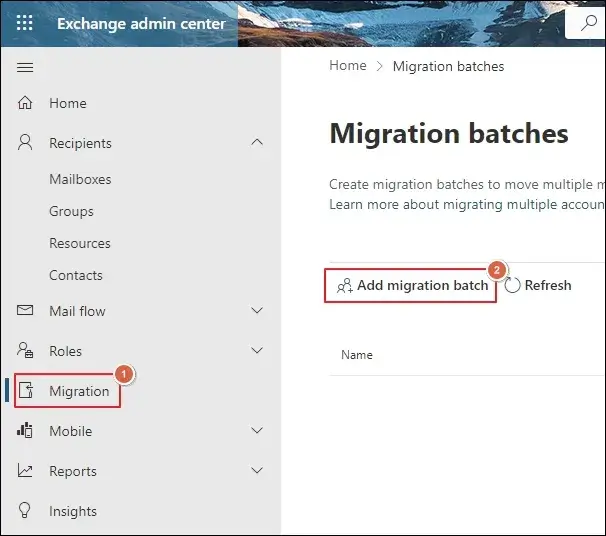
- Navigate to Exchange Admin Center and proceed to Migration.
- Then, Add migration to continue the process.
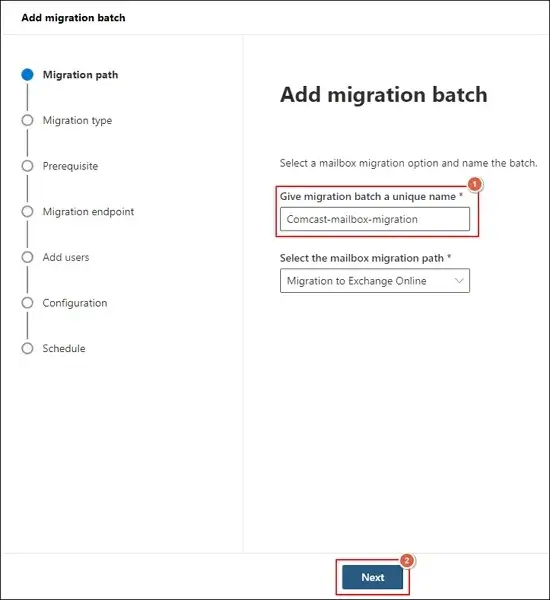
- Provide the migration batch name and click Next.
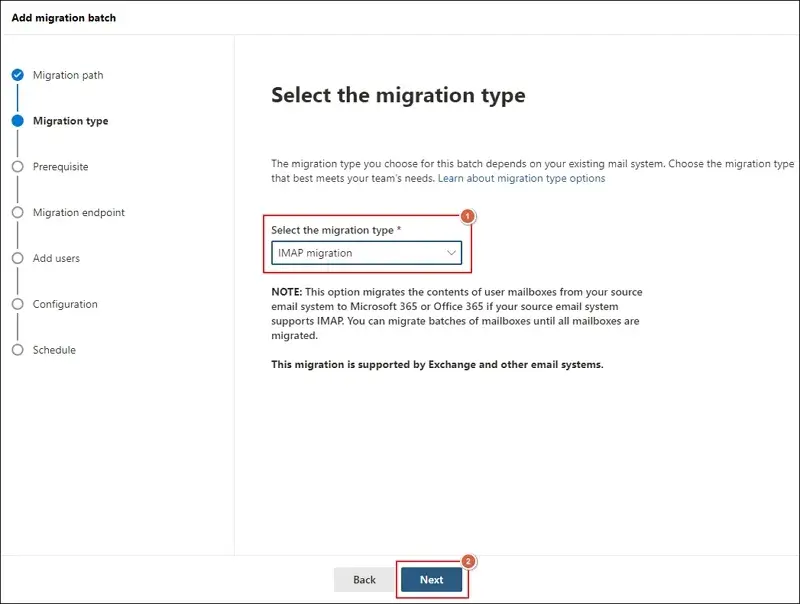
- Choose IMAP as migration type and proceed to Next.
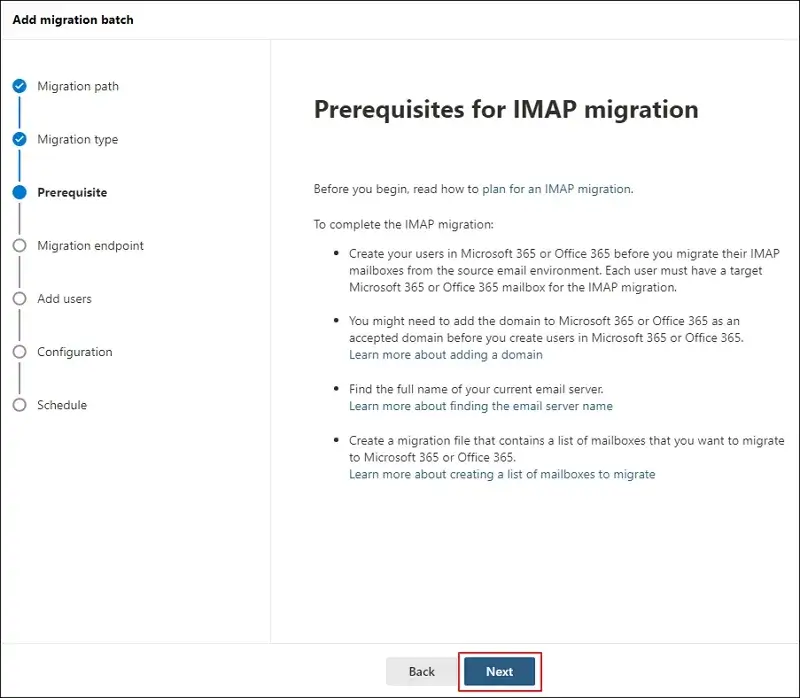
- Verify and complete all the prerequisites. Then, hit Next.
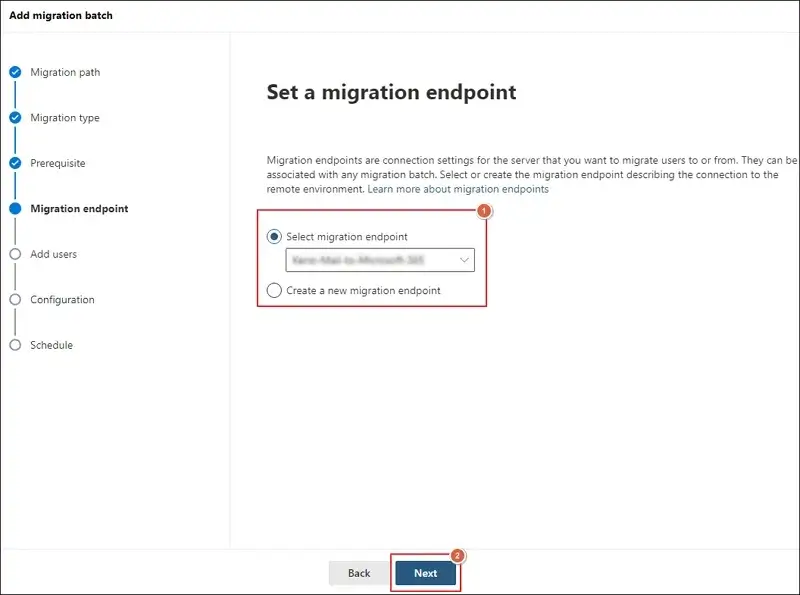
- Create or select a migration endpoint and tap on Next.
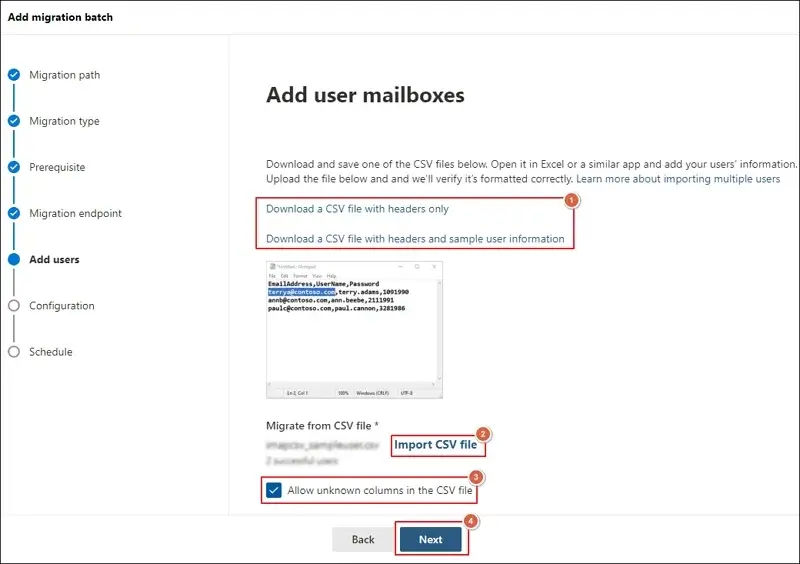
- Download sample CSV file to map users properly.
- Then, Import CSV file to continue Next.
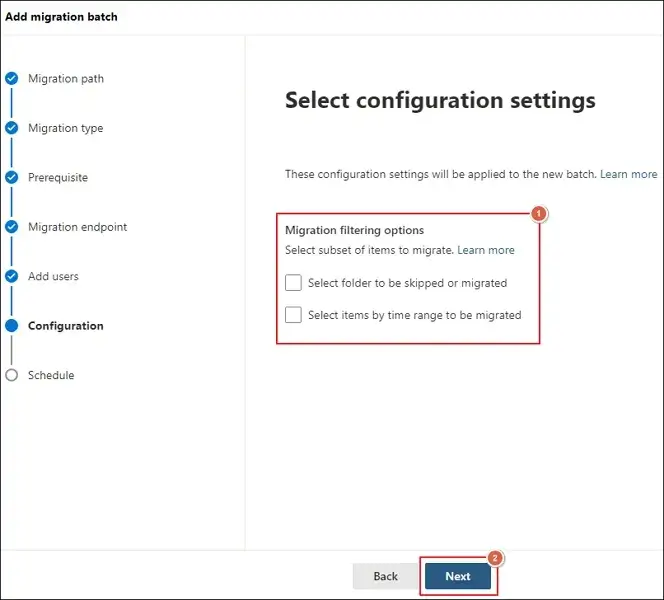
- Use Migration filtering options if needed and click Next.
- Schedule batch migration as needed and hit Next.
- Monitor the entire process from the dashboard.
- Check the migrated emails after the process completion.
Common Challenges And Fixes of Native Solutions
We have prepared a list of the most commonly occurred issues that you may face during the SmarterMail to Office 365 migration. Here they are:
|
Migration Challenges |
Solutions |
|---|---|
|
Authentication Errors |
|
|
Slow Migration speed |
|
|
Lost or Missing Emails |
|
|
Duplicate Data |
|
Why Do You Need Professional Tools When Manual Ones Exist?
You have tried the above-listed native solutions and saw the results by yourself. But the given limitations force you to find a better alternative to manual ways:
- Requires technical expertise.
- Difficult to perform bulk migration.
- Comes with the potential risk of data loss.
- Folder structure & hierarchy not maintained.
- Execute the process multiple times for desired results.
So, eliminate all these restrictions by using automated solutions like Recoveryfix. The IMAP to Office 365 tool allows you to migrate emails in a few simple steps. With this software, you can migrate single or multiple mailboxes at the same time.
Best Practices for SmarterMail to Office 365 Migration
Use the given tips to improve your migration experience and get better results.
- Migrate data during the off-peak hours.
- Inform users in advance so they can prepare.
- Always run a test migration before the actual one.
- Keep a backup of the mailbox data in a safe location.
- Verify migrated data carefully after the process completion.
Closing Remarks
The blog has outlined different solutions to migrate SmarterMail to Microsoft 365. You can use either manual solutions or the automated tool for migrating mailbox data. Manual methods work well for small-scale migrations. But to transfer data in large volumes, we recommend that you go with the professional one. The software helps you to migrate data from the source to the destination account without any hassle.