Migrate Gmail to ProtonMail: All-in-one Tutorial

Published On - March 17, 2026
Email privacy has become a growing concern for organizations & individuals nowadays. Many users are now switching to privacy-focused email platforms to protect sensitive communication. One such platform is ProtonMail, which offers end-to-end encryption & strong data protection policies.
Want to switch from Gmail to ProtonMail without data loss? Since both services are reliable, but with their different architecture, the migration process needs a structured approach.
Read the article below to get the entire information about how to move from Gmail to ProtonMail securely. It includes reasons, available methods, preparation steps, & best guidelines for smooth migration.
Why do I migrate Gmail to ProtonMail?
Explore the reasons that drive users to migrate emails from Gmail to ProtonMail:
- Strong privacy & encryption from unauthorized access.
- Maintains transparency & offers user-friendly features.
- ProtonMail doesn’t scan emails for advertising purposes.
- Better data protection with its secure servers & strict policies.
Preparation before migrating Gmail to ProtonMail
Check the following things before initiating the migration process:
- Clean up unnecessary emails & organize Gmail folders.
- Check Gmail & ProtonMail mailbox storage space compatibility.
- Back up important emails to avoid any uncertainties in the future.
- Enable IMAP access in Gmail to access & transfer Gmail messages.
Top methods to migrate Gmail to ProtonMail
This section will help you with the top manual methods for Gmail to ProtonMail migration:
Method 1. Use ProtonMail’s built-in Import utility
With ProtonMail’s built-in Easy Switch utility, users can migrate Gmail email, contacts, calendars, & other data to ProtonMail easily. It is one of the easiest & safest approaches that offer automated migration while preserving folder structure. Here are the steps to execute the process:
- Sign in to the ProtonMail email account with the required credentials.
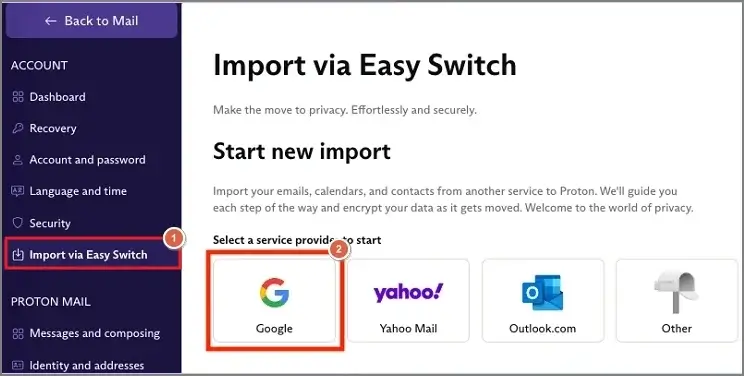
- Tap on Settings, click All Settings, & select the Import via Easy Switch. Use Google as the service provider to start in the Start new import section.
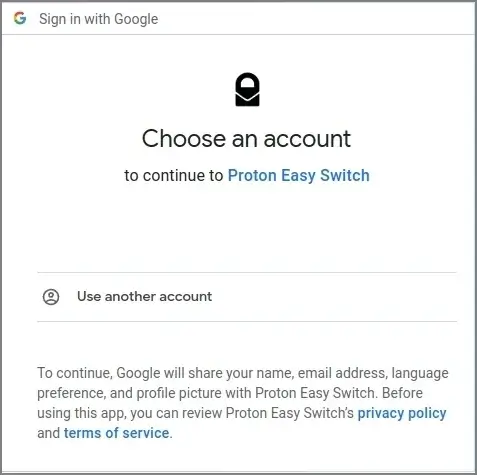
- Log in to your Gmail account with your credentials.
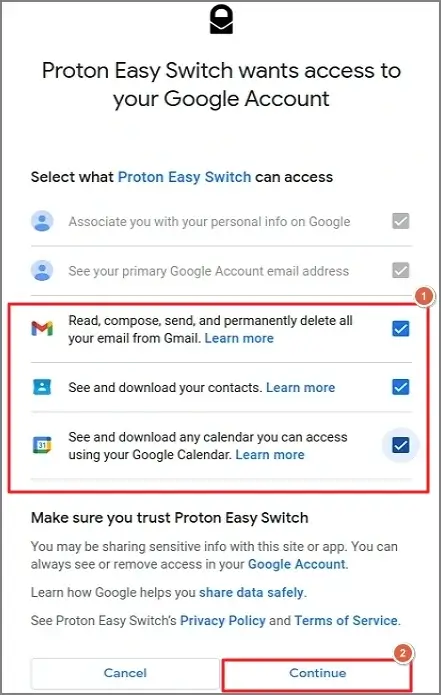
- Select the mailbox folder data that you want to import into ProtonMail. Hit Continue.
- Click on Start Import to move from Gmail to ProtonMail migration process.
Method 2. Export emails using Google Takeout & import into ProtonMail
Here is another approach to migrate email from Gmail to ProtonMail with the help of Google Takeout. It is also useful for those who used to take out the backup of Gmail emails using Google Takeout.
So, in this method, first we will take the help of Google Takeout to export the emails to the local system in the MBOX format, which you can import later easily. Let’s understand its complete stepwise approach:
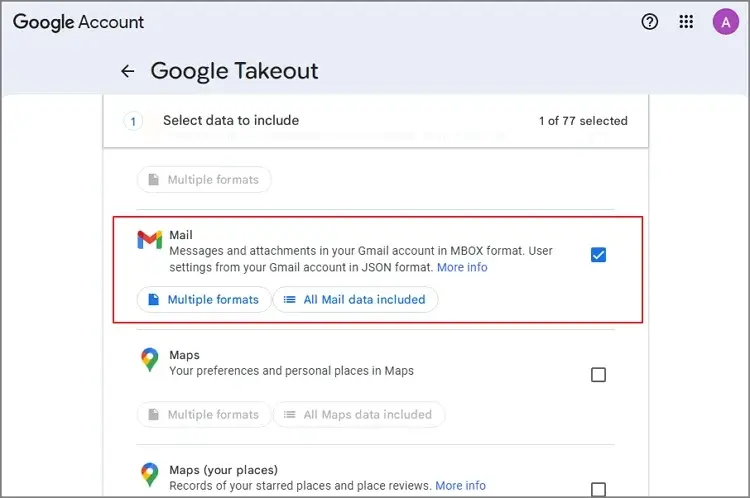
- Launch & sign in to Google Takeout using required credentials. Tap on the Mail option.
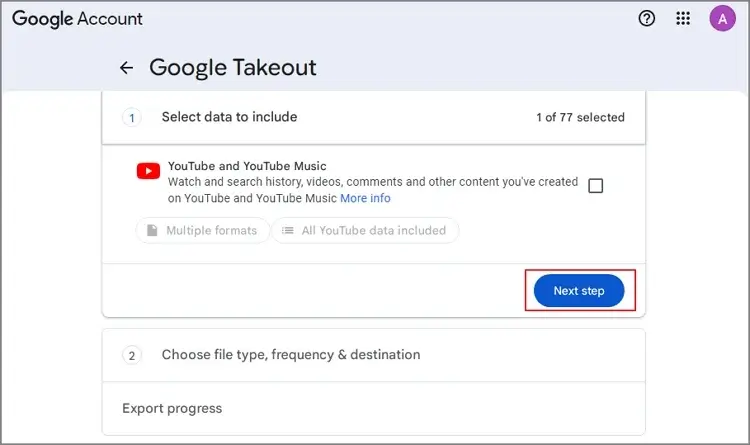
- Click on Next Step.
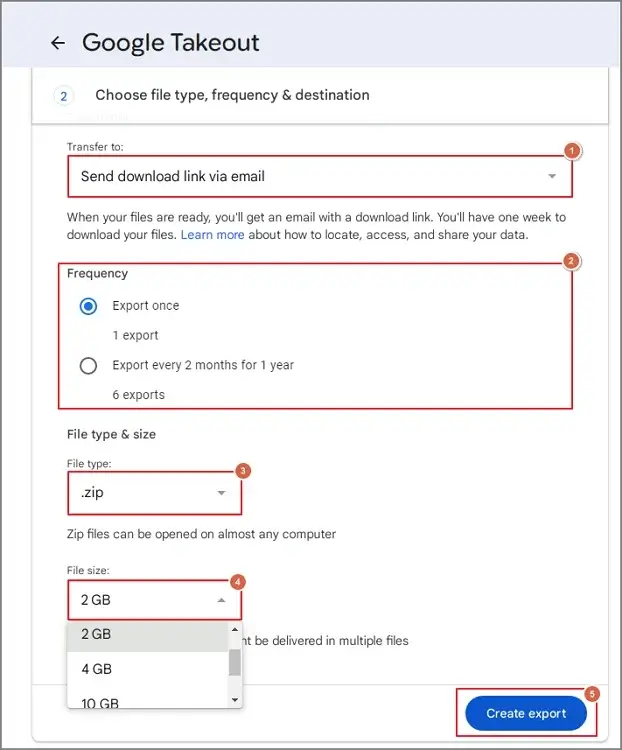
- Choose the Transfer to, Frequency, and File type & size. Hit the Create Export tab.
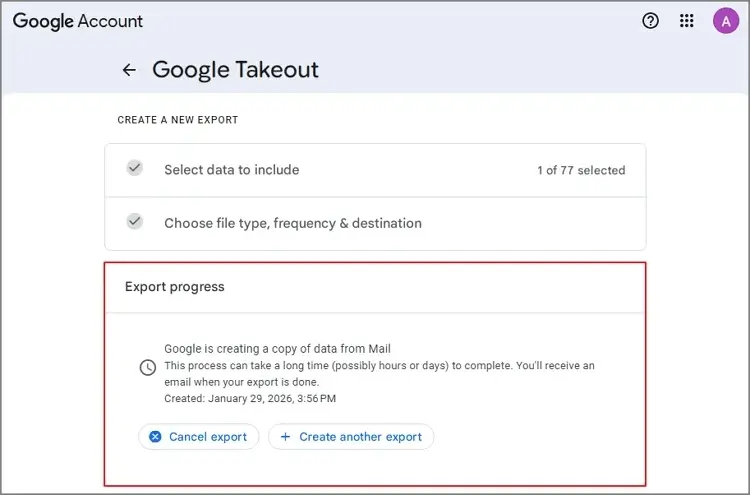
- Wait for a while till you get the email of successful export. Once you get the link, download the archive folder to the local system.
- Configure Thunderbird or another MBOX-supported email client after installing ProtonMail Bridge. Then import the file using the email client.
Method 3. Take the help of Gmail’s email forwarding feature
By using Gmail’s email forwarding feature, you can redirect your future emails to ProtonMail directly. Look at the steps to know how you can execute it safely:
- Log in to Gmail on your web browser using the needed credentials.
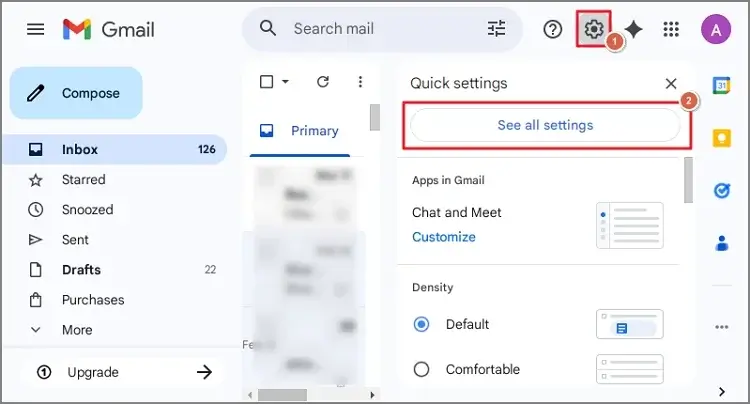
- Tap on the Gear icon & hit the See All Settings option.
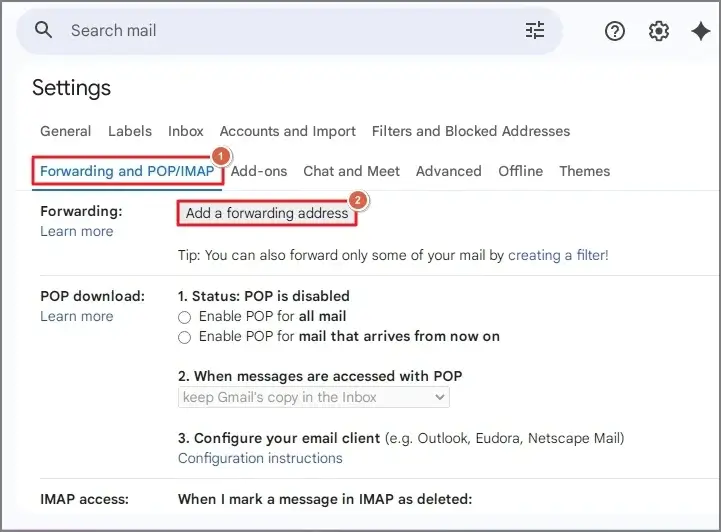
- Under the Forwarding and POP/IMAP section, hit the Add a forwarding address.
- Provide the ProtonMail email address & enter the code from your ProtonMail account to validate the forwarding request.
- Tap on Forward a copy of incoming mail & click on the Save Changes tab.
Transfer Gmail contacts separately to ProtonMail with the following steps:
- Open Google Contacts & hit the Export option.
- Choose the Google CSV option & save the file to your local system.
- Open ProtonMail & search for the Contacts.
- Hit the Import Contacts, upload the CSV file to complete the process.
Major Challenges with Gmail to ProtonMail migration
Check out the challenges that are involved in using the manual methods for migration:
- Slows migration process for large mailboxes.
- Authentication errors can disrupt the migration.
- Folder structure differences can occur at the destination.
- Unavailable storage space may restrict the large mailbox transfer.
Use the smart tool for instant & error-free results
Since you are dealing with crucial data that plays a vital role in your daily workflow, you don’t want a risk of data loss or any other inconsistencies. The inherited limitations of the manual solution can increase the chances of unwanted mishaps.
That’s why professionals recommend the advanced tool as it provides quick results with 100% data integrity & successful results. In this regard, you can try Recoveryfix, one of the most reliable & suggested utilities, i.e., IMAP Migration tool. The tool is considered a standalone utility for dealing with all the direct IMAP mailboxes smoothly. You can handle batch migration and structured migration without data loss.
Favourable guidelines for smooth migration
Follow the provided guidelines to switch from Gmail to ProtonMail migration:
- Clean up your Gmail mailbox before migration.
- Large mailboxes should be migrated in batches.
- Check the important folders or emails after migration.
- Keep Gmail access temporarily till you verify the migration.
Conclusion
To get control over email communication, users look to migrate Gmail to ProtonMail. We have provided sufficient information regarding the migration in a structured way. Try to follow the steps as provided for the successful results. If you want instant, hassle-free, automated results, you can go with the suggested solution.
FAQs: Frequently Asked Questions
Q- What are the benefits of migrating to ProtonMail?
A- You will get the following advantages:
- Encrypted email storage.
- Strong privacy protection.
- Secure communication system.
- Less exposure to data tracking.
- Improved email confidentiality.
Q- Can I stop receiving emails in Gmail?
A- You should stop automatic forwarding & close the Gmail account once you confirm that all emails are moving to ProtonMail. Moreover, you can set up an auto-reply in Gmail to alert senders of your new address.