Fix PST Import Unknown Error in Office 365: A Detailed Guide!

Published On - December 2, 2025
PST import job should be a simple process for Office 365 users. Yet many of them get an unexpected message during the process:
“Unknown Error occurred during PST Import.”
No details. No explanation. No clear reason.
This vague error makes it difficult to determine the cause or solution to fix it. As a result, migrations get delayed, and IT admins spend hours of troubleshooting without clear direction.
This guide is designed to eliminate the guesswork and break down why the unknown error happens, how to diagnose it, and what proven methods require to fix Unknown Error when importing PST files.
The “Unknown Error” – How Does It Look Like?
The “PST import failed unknown error” appears during or after the import process in different ways. It usually indicates that Office 365 could not read the PST files or process the mapping configuration.
Here is a list of the most encountered errors:
- Import job completes with “Unknown Error” even though the CSV validated successfully.
- The job was stuck at “Analysis in progress” for hours without any update.
- PST uploads appear successful in AzCopy, but the import job still reports zero items imported.
- Import log downloads don’t contain any readable information.
All these symptoms help you to understand which part of the process failed: the upload, the mapping, the file, or the mailbox.
Why Does the “Unknown Error during PST Import” Happen? – Reasons Explained!
There are several issues that affect PST import jobs that can trigger the Unknown error message. Each represents a failure in a different stage of the upload/import process. Let’s explore them:
- PST File Corruption: A damaged or corrupted PST cannot be indexed or processed by the mailbox import service.
- Oversized or Complex PST Files: Office 365 struggles to process large PST files that contain oversized attachments or deep nested folders.
- Incorrectly Formatted CSV File: The mapped CSV file instructs Exchange where each PST file should be imported. A small formatting error, like an extra space, a wrong column name, or BOM characters, can break the entire job.
- Expired SAS URL or Wrong AzCopy Version: The import job will fail if the PST files are not uploaded to the Azure storage container correctly.
- Invalid or Unprepared Target Mailbox: All the targeted mailboxes must have an active license, correctly provisioned, and have an archive mailbox enabled for archive imports.
- Network or Upload Interruptions: Instability during the upload process can lead to incomplete PST transfer and unpredictable errors.
Quick Fixes: Try These Solutions Before You Import Again!
We have created a set of primary solutions that you can use to eliminate the PST import failed Office 365 issue. Use them one by one before retrying the import job once again.
Solution 1. Repair PST Files Using the ScanPST Tool
Office 365 instantly rejects the file if corruption is found in any PST file. So, repair the file using the built-in Inbox Repair tool to fix the file structure and make it readable again. Here’s how:
Step 1. Close all Outlook instances.
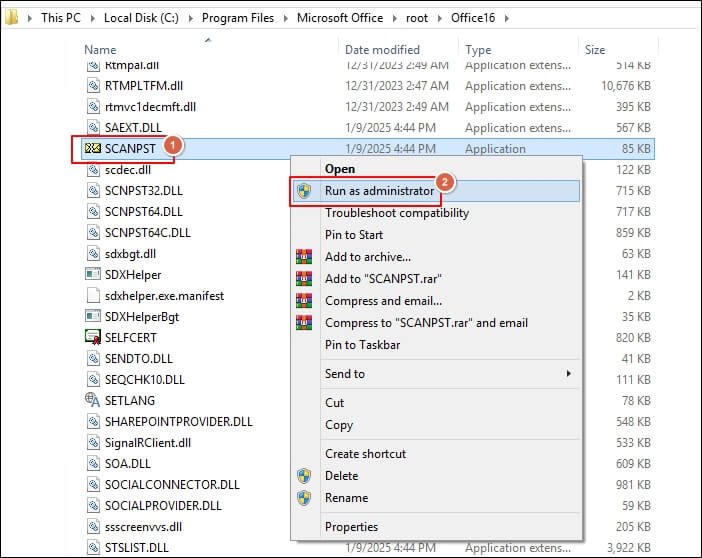
Step 2. Search for SCANPST.EXE and Run as administrator.
Step 3. Browse to select the PST file and click Start.
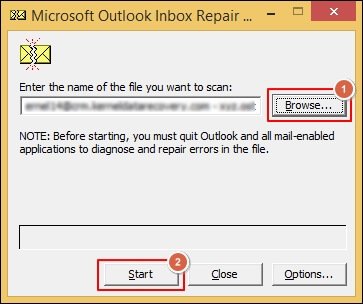
Step 4. Click on Repair if the tool detects any errors.
Step 5. Repeat scan until no errors remain.
Solution 2. Reduce Size or Split PST Files into Smaller Parts
Large PST files are the most common reasons that trigger the Unknown error or import failures. Therefore, breaking them into smaller parts can remove the load on the backend process and ensure smooth migration. Follow the given steps to split PST files:
Step 1. Launch Outlook and go to the File tab.
Step 2. Expand Account Settings>Account Settings.
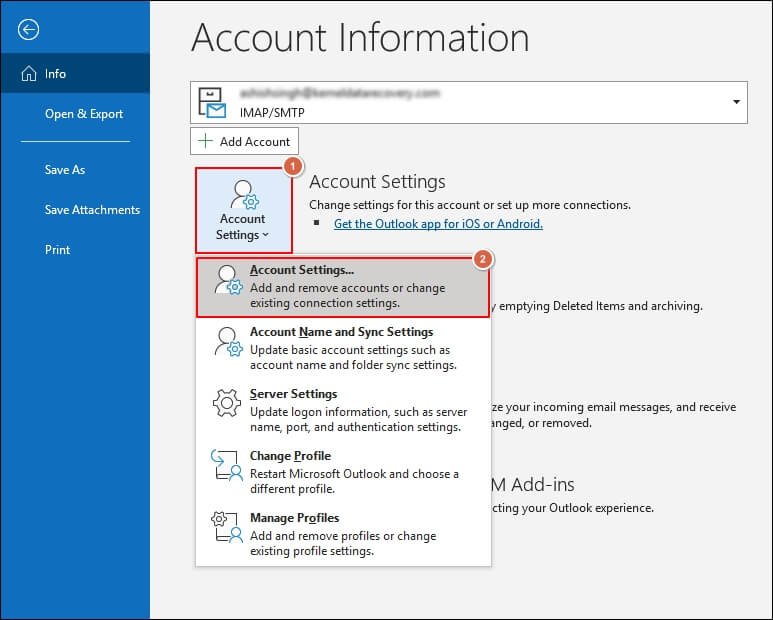
Step 3. Navigate to the Data Files section and click on Add to create a new PST file.
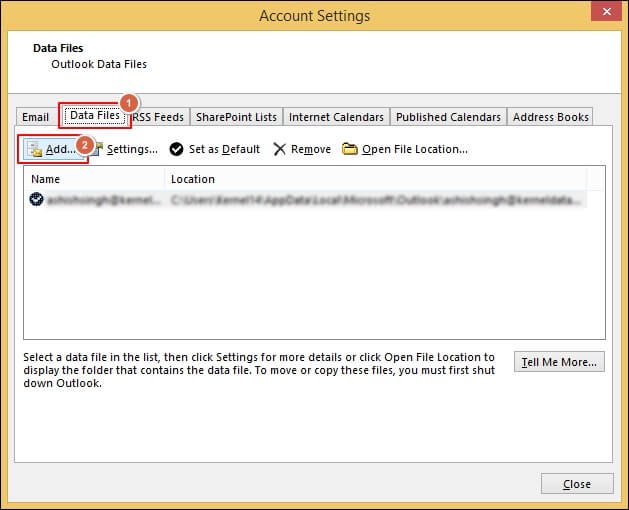
Step 4. Drag the required mailbox folders into the newly created folder.
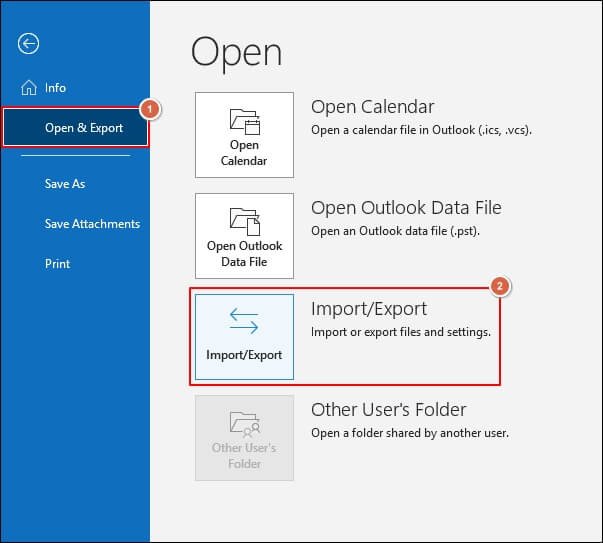
Step 5. Export the data using the Import/Export feature.
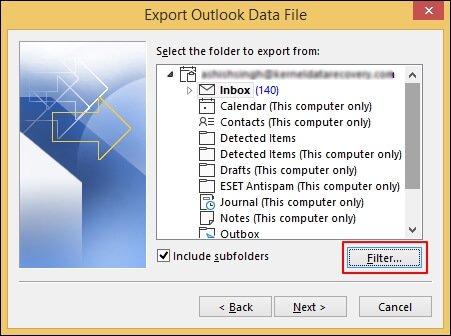
Step 6. Apply Filters to get more refined output.
Solution 3. Validate that All the Target Mailboxes are Prepared
An import job can’t succeed unless the target mailbox meets the requirements of Microsoft, like license, quota limitations, and enabled archive mailboxes. Here are the detailed steps to verify them:
Step 1. Go to the Microsoft 365 Admin Center.
Step 2. Search for each targeted user’s mailbox.
Step 3. Check that the mailbox is active and has a License.
Step 4. Make sure In-Place Archive is enabled if importing to the archive mailbox.
Step 5. If the mailbox is missing or inactive, the import job will fail.
Solution 4. Review the Mapped CSV File Carefully
The CSV file is the roadmap for the import job, and a single mistake can break the process at the validation or import stage. Therefore, fix them immediately to resolve Unknown Error importing PST files. Here’s how:
Step 1. Always open CSV in the Notepad application.
Step 2. Save as CSV file with UTF-8 (no BOM) format.
Step 3. Remove any trailing commas or blank rows.
Step 4. Strictly follow the header format of Microsoft.
Step 5. Make sure that all mailboxes are correct and licensed.
Solution 5: Refresh SAS URL & Use Correct AzCopy Version
The SAS URL acts as your secure connection to Azure storage. If it is expired or incorrect, then the import engine won’t recognize it. Here is the checklist that you need to verify:
Step 1. Make sure that the SAS URL has been recently generated.
Step 2. Use only the Microsoft-recommended AzCopy version.
Step 3. Confirm the upload went to the correct container directory.
Step 4. Avoid VPN/proxy when uploading PST files.
Step 5. Re-upload the PST files if the data is not usable.
Common Unknown Error Scenarios & Their Exact Solutions!
This section breaks down each scenario that a user may face while importing PST files. It helps you to identify the exact cause and the appropriate solution to fix PST import errors in Office 365.
Scenario 1: Job Stuck at “Analysis in Progress”
This error usually occurs when the PST file size is too large or contains corrupted folders or items. You can fix this by executing the following steps:
Step 1. Split PST into smaller parts.
Step 2. Run the ScanPST tool to remove corruption.
Step 3. Re-upload files using a fresh SAS URL.
Step 4. Retry the import process with a reduced file size.
Scenario 2: Unknown Error After CSV File Upload
If your import fails immediately after CSV validation, then the issue often lies in hidden characters or incorrect headers. Here’s how to fix it:
Step 1. Open CSV in Notepad.
Step 2. Remove hidden characters from the CSV.
Step 3. Save the file using UTF-8 (without BOM) format.
Step 4. Re-check that all the mailboxes are correctly mapped.
Scenario 3: Unknown Error Immediately After Import Starts
Errors in the SAS URL, container path, or AzCopy version can prevent the import service from accessing PST files. It typically occurs due to authentication or upload problems, which you can fix with the given steps:
Step 1. Generate a new SAS URL.
Step 2. Use the latest AzCopy version.
Step 3. Re-upload the PST files.
Step 4. Make sure that the target container path is correct.
Scenario 4: Archive Imports Failing with Unknown Error
The import job cannot deliver PST contents into the archive mailbox if the folder is disabled. This mismatch leads to a failure but is reported as an unknown error. You can fix it by using the provided steps:
Step 1. Enable the In-Place Archive feature.
Step 2. Wait for provisioning to complete the process.
Step 3. Re-run the import job once it is completed.
Scenario 5: Zero Items Imported & No Errors Message Appeared
This happens when Office 365 reads the file but rejects individual items due to large attachments, corrupted emails, or unsupported folder types. The system doesn’t throw a specific error, but it imports nothing. Fix this by using the steps:
Step 1. Export PST file data to a new file.
Step 2. Remove large attachments from it.
Step 3. Compact and re-upload the new file.
Step 4. Test the import process with a smaller PST file.
Advanced Troubleshooting Methods for Deeper Technical Analysis!
Use these advanced methods when basic ones fail to resolve Unknown Error importing PST files issue. It gives deeper visibility into mailbox status, upload integrity, and environment-level issues to diagnose in detail.
Method 1. Examine AzCopy Log Files
AzCopy creates detailed logs of uploaded PST files to Azure storage. These logs will help you identify errors that the import dashboard won’t show. Check the following things:
- Look for HTTP errors (403, 401, 500).
- Confirm that all data is completely transferred.
- Check for retry attempts that happened in the process.
Method 2. Use PowerShell to Validate Mailbox State
Verify that the destination mailbox is healthy and ready for PST import using PowerShell. Here’s how to do so:
Check if mailbox exists
Get-Mailbox user@domain.com
Check mailbox size
Get-MailboxStatistics user@domain.com
Check archive status
Get-Mailbox -Identity user@domain.com | Select ArchiveStatus
Method 3. Run Test Import Job with A Small PST File
Running a test import job with a small PST file is the fastest way to identify the problem quickly. It helps you to reveal that:
- The import system is functioning properly
- CSV file mapping is correct.
- All permissions are correctly assigned.
If a small PST imports successfully, then your main PST files require cleaning.
Contact Microsoft Support: Know the Right Time!
Reach out to Microsoft Support when all troubleshooting methods fail, and you repeatedly see the same unknown error. The support engineers help you to diagnose the problem faster.
Include the following information while raising a support ticket.
- PST import logs (both Analysis & Import logs).
- AzCopy logs with the verbose log file.
- The final mapped CSV file.
- Problematic PST file (or a trimmed version if sensitive).
It will make sure that the Microsoft Support team has everything required to replicate and understand the error properly.
Conclusion
Hopefully, we have covered all the aspects to identify the underlying causes and apply the proper troubleshooting steps to fix Unknown Error when importing PST files problem. If you are still facing the issue, you can opt for the Recoveryfix Import PST to Office 365 tool. The PST Import tool will eliminate the manual process and make the entire process smooth for everyone.