How to Fix Outlook Stuck on Loading Profile? [Get the Best Solutions]

Published On - December 16, 2025
Imagine you are about to access crucial information, but Outlook Stuck on Loading Profile that keeps on loading for hours. You tried to end the task, but it didn’t work.
If you are also facing the same issue, then this blog is for you. It will help you pinpoint the actual reasons and provide all the practical solutions to fix the issue. You can also get to know about the tips to avoid these repeated Outlook failures.
Why is Outlook Stuck on Loading Profile? – Find Common Reasons!
Several reasons cause this error, but the most frequent ones are listed below:
- A corrupted Outlook profile can lead to freezing the application.
- Oversized PST/OST files slow down the loading process of Outlook.
- Compatibility issues of older versions are also one of the reasons behind the error.
- Conflicts with faulty add-ins prevent Outlook from starting normally.
- Antivirus or firewall settings can sometimes block Outlook startup.
- Insufficient system resources (RAM/CPU) during the Outlook launch.
- Cached Exchange Mode is unable to sync the mailbox data properly.
- Office 365 multiple background processes hinder the Outlook performance.
Try the Quick Fixes, Before You Go with Advanced Solutions!
Instead of applying the advanced solutions directly, use the quick methods to resolve the Outlook is frozen on loading profile error:
- Update Outlook & Office apps to fix the bugs in the latest versions.
- Restart Outlook & system to clear temporary glitches that may freeze the loading screen.
- End the Office 365 background processes to remove the interference of other applications.
- Run Outlook as Administrator to bypass permission conflicts that prevent the profile from loading.
- Temporarily disable the Antivirus or firewall system that blocks the Outlook profile authentication process.
Manual Methods to Fix Outlook Hangs on Loading Profile Issue
We have back-tested several methods to bring the most effective ones for you. Try them individually to find the applicable solution as per your situation.
Method 1. Reset Navigation Panel Settings
Here are the complete steps to reset the settings of the navigation panel.
Step 1. Access the Run wizard by pressing Windows + R keys.
Step 2. Type Outlook.exe/resetnavpane and click OK.

Step 3. It will set the Outlook navigation panel to its default state.
Method 2. Create a New Outlook Profile
Outlook profile stores various settings that decide its performance. You can create a new profile to fix the corruption or improper settings. Here’s how:
Step 1. Access Control Panel and click on Mail (Microsoft Outlook).

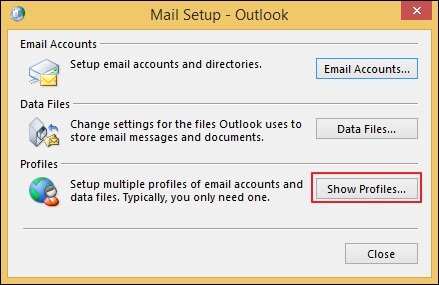
Step 2. Tap on the Show Profiles option to proceed.
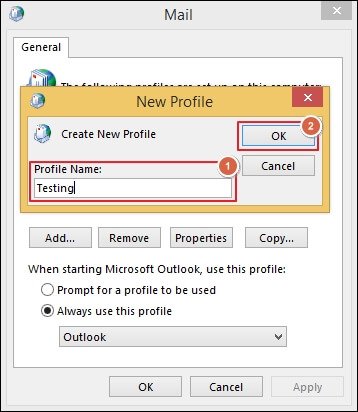
Step 3. Add a new Profile Name and click OK.
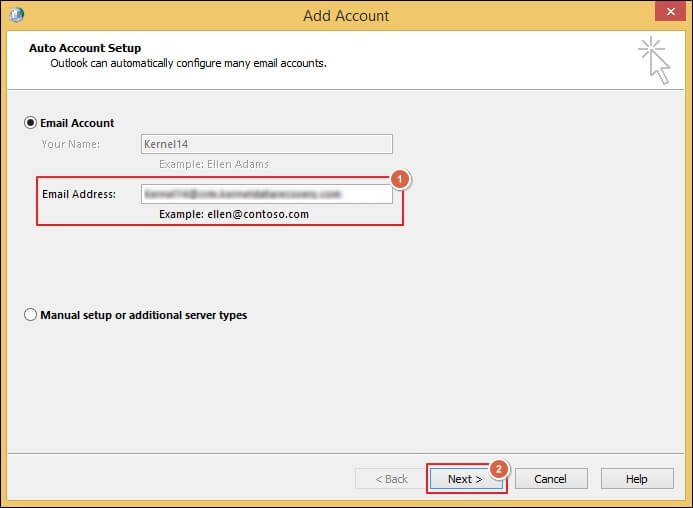
Step 4. Enter the Email Address and click Next.
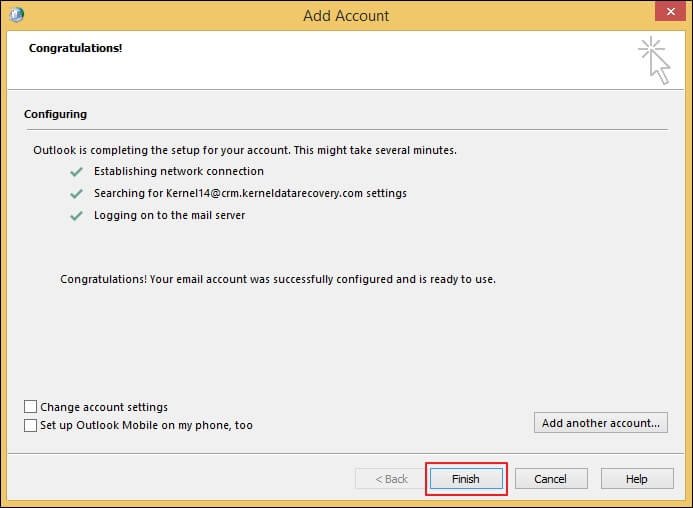
Step 5. Wait for Outlook to configure the profile completely. Then, proceed to Finish.
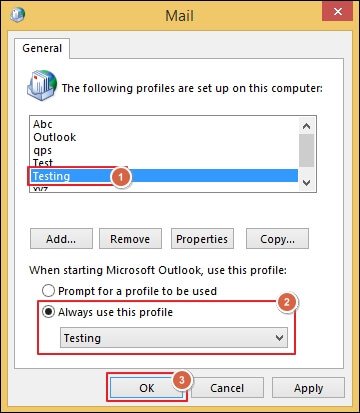
Step 6. Choose the recently created profile. Then, enable the Always use this profile option and tap OK.
Method 3. Open Outlook in Safe Mode
Sometimes, faulty add-ins of Outlook create conflicts and hinder performance. You can disable them easily after opening Outlook in Safe Mode. Here’s how:
Step 1. Press Windows + R keys to access the Run wizard.
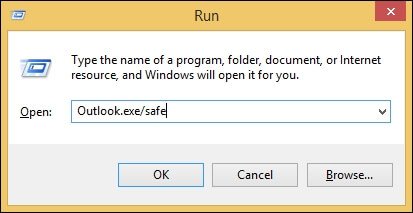
Step 2. Type Outlook.exe/safe and proceed to OK.
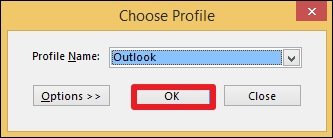
Step 3. Choose the appropriate profile and click OK.
Step 4. Go to the File tab and proceed to Options.
Step 5. Locate the Add-ins section and tap on Go.
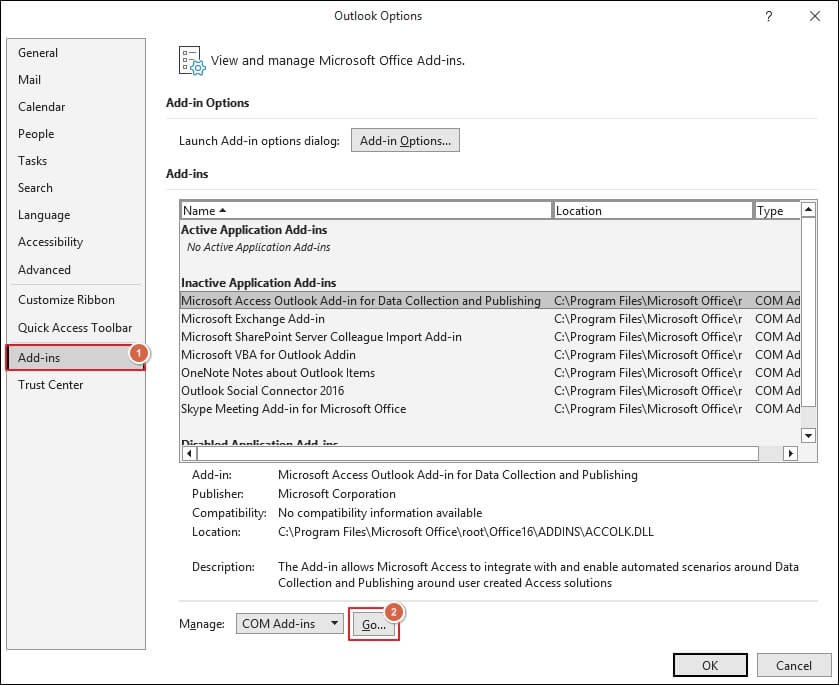
Step 6. Uncheck all the Add-ins to disable them. Then, click OK.
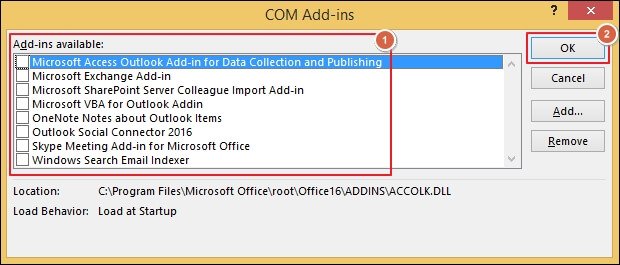
Step 7. Restart the Outlook application after it is completed.
Method 4. Disable Outlook Presence Features
You can turn off the Outlook presence features to resolve the issue. Here are the detailed steps to do so:
Step 1. Launch the Outlook application and go to File. Then, click on Options.

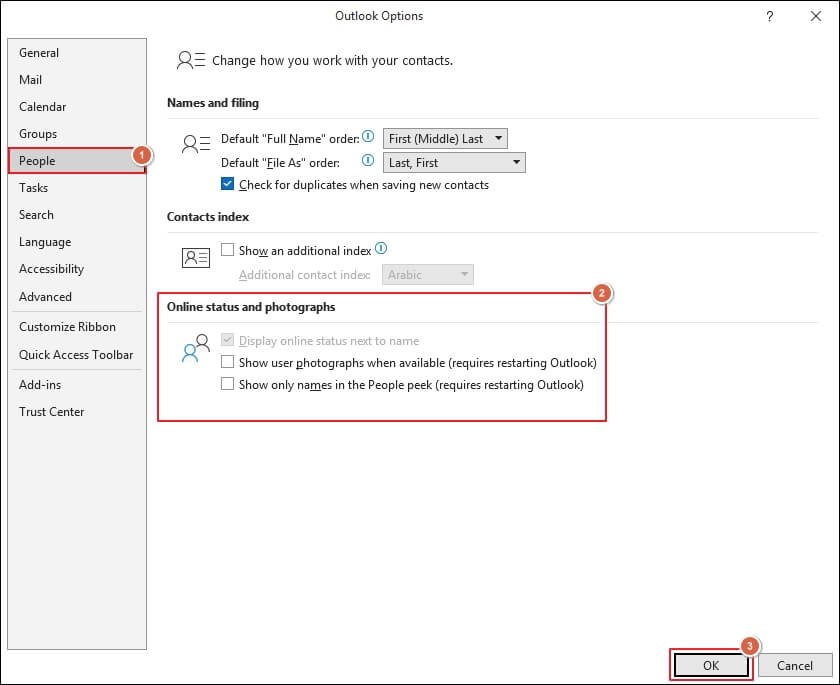
Step 2. Navigate to the People section and uncheck the following:
- Display online status next to name.
- Show user photographs when available (requires restarting Outlook)
Once done, click OK to proceed.
Method 5. Turn Off Hardware Acceleration for Outlook
Hardware issues can also lead to Outlook stuck on loading profile issue. You can disable it. Here are the complete steps to do so:
Step 1. Open the Outlook application and go to the File menu.
Step 2. Tap on Options to proceed.
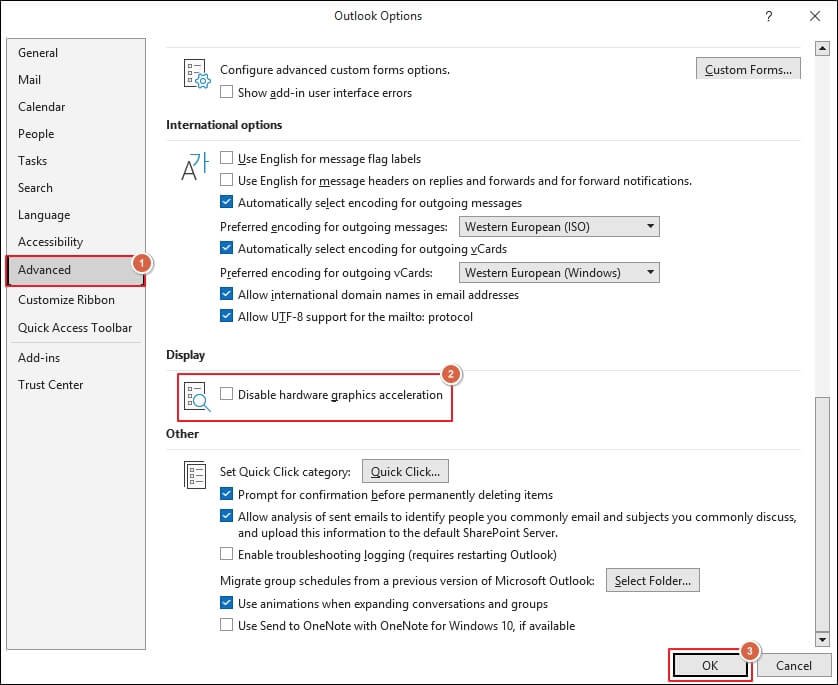
Step 3. Navigate to the Advanced tab and Disable hardware graphics acceleration.
Step 4. Tap on OK to save the changes and restart Outlook.
Method 6. Disable the Compatibility Mode
Compatibility Mode allows users to run older software or files on new operating systems by disabling new features. However, these may sometimes conflict with Outlook and cause errors. Here’s how to disable compatibility mode in Outlook:
Step 1. Locate Outlook.exe in your system.
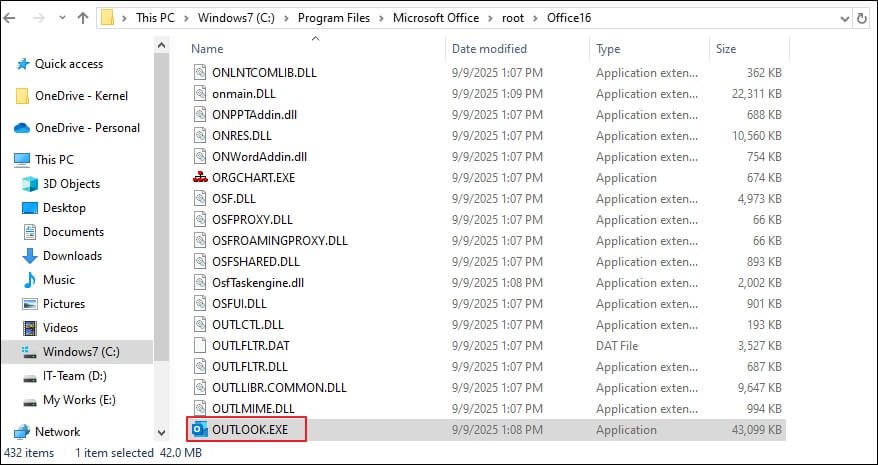
Step 2. Right-click on the executable file and go to Properties.
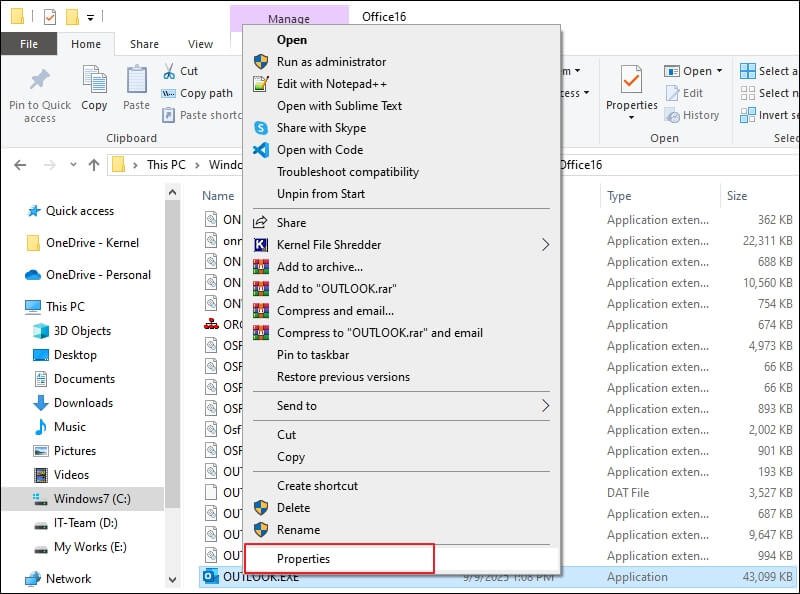
Step 3. Navigate to the Compatibility tab and uncheck the Run this program in compatibility mode for option and click OK.

Method 7. Use the Microsoft SARA tool to Fix the issue
You can take the help of the Microsoft SARA tool to diagnose and resolve the Outlook hangs on loading profile issue. Here’s how:
Step 1. Go to the Official website to download the Microsoft SARA tool.
Step 2. Run the setup file on your system. Then, choose the Microsoft product or problem to proceed.
Step 3. It will start performing a series of tests to analyze configuration and settings.
Step 4. Once it is done, you will get immediate solutions with detailed steps. Also, it provides detailed logs for further action.
Method 8. Repair Outlook Data Files with Inbox Repair Tool
Sometimes, corrupted Outlook data files lead to the Outlook is frozen or loading profile issue. You can use the built-in utility of Microsoft (the Inbox Repair tool) to fix it. Go through the following steps to repair the file:
Step 1. Close the Outlook application.
Step 2. Search and locate the SCANPST.EXE tool. Then, Run as administrator.
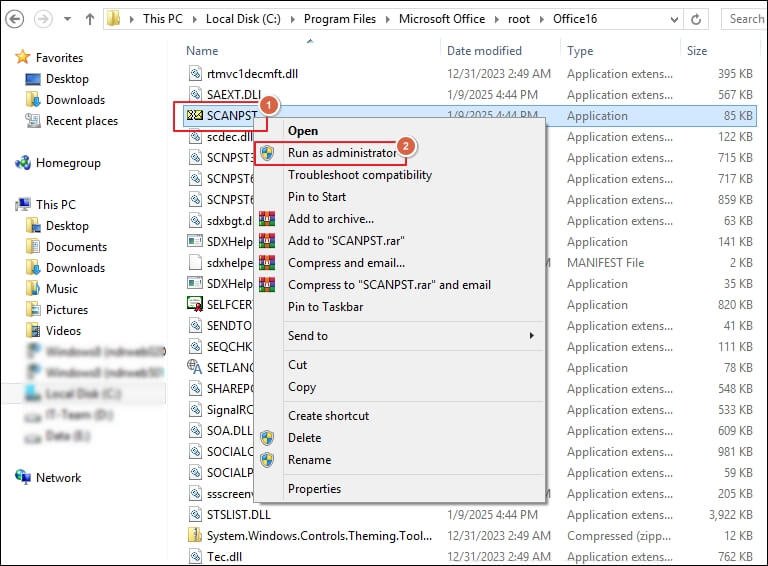
Step 3. Browse the OST/PST file and click on the Start option.
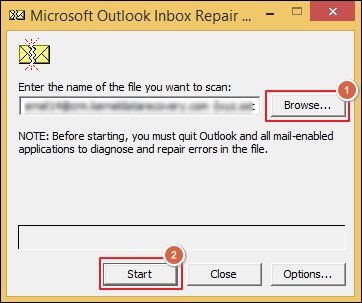
Step 4. It will start scanning the added file.
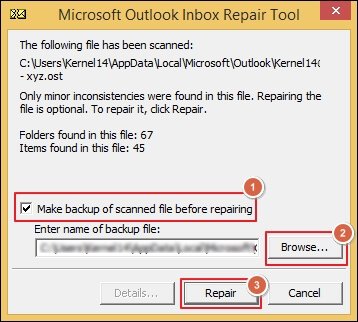
Step 5. Tick the Make backup of scanned file before repairing option and Browse to save the backup file.
Step 6. Tap on the Repair option to begin the repair process.
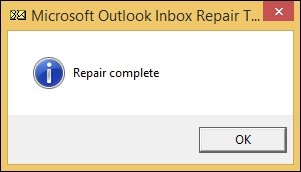
Step 7. Wait for the repair process to be completed.
Try the Professional Tool When Manual Methods Fail!
Now, you know all the possible solutions to fix the Outlook stuck on loading profile issue using the manual solutions. Still, if you are facing the same problem, then it means the Outlook data file is severely damaged or corrupted. You can use advanced tools like Recoveryfix Outlook PST Repair tool. The PST Repair Software allows you to recover deleted items from the PST files.
Avoid Future Mishaps: Get Tips & Tricks Now!
Use the given smart and preventive tips to avoid the Outlook 365 stuck on loading profile issue.
- Repair Outlook data files (OST & PST) regularly.
- Use limited number of add-ins and disable the unused ones.
- Recreate Outlook profile at regular intervals if the issue persists.
- Keep Outlook and Windows updated to avoid compatibility issues.
- Avoid oversized mailboxes by archiving old emails to a separate location.
- Always close Outlook properly instead of closing the application forcefully.
- Make sure you have a stable internet connection, especially Exchange accounts.
- Use a reliable antivirus and exclude Outlook and its files from the scanning.
Ending Note
We have highlighted the different ways to fix Outlook stuck at loading profile on Windows 11, 10, and other versions. You can choose either manual or automated solutions as per your requirements. In most cases, you will be able to resolve the issue.
But if the profile or Outlook data file is severely corrupted, then going with the recommended solution will be the best. The software helps you split the resultant PST files into smaller parts
FAQs: Get Quick Answers
Q 1- My Outlook stuck on Loading Profile even in safe mode. How can I repair it?
A- You can use the ScanPST or automated solutions like Recoveryfix to resolve the issue.
Q 2- Can I fix the Outlook Classic Stuck on Loading Profile issue manually?
A- Yes, you can use different methods to fix the issue. Here is the list of them:
- Create a new Outlook profile.
- Open Outlook in Safe Mode.
- Turn off the Compatibility Mode.
- Disable Outlook Presence features.
- Reset the navigation panel settings.
- Repair Outlook Data files with the Inbox Repair Tool.