How to Fix Outlook Spam Filter not Working Issue? [Detailed Steps Included]

Published On - March 3, 2026
Spam email messages are more than just a daily annoyance and pose security risks through phishing links & malwares. So, when the Outlook spam filter not working persists, it means the inbox is filled with unwanted emails. It becomes a serious concern for users as important messages mix with the spam ones.
Therefore, the blog will guide you through different ways to fix the issue completely. Get structured and easy to implement ways for Outlook Desktop, Web, and Microsoft 365.
Outlook Spam Filter Settings: Know How It Works?
It is necessary to understand the mechanism to fix Outlook spam filter not working issue. The application uses two different filtering systems, and here they are:
1. Local Filtering: Outlook Desktop Junk Filter
The desktop application comes with a built-in junk filter that works locally on your Outlook profile:
- Moves suspicious emails to the Junk folder.
- Allows only the Safe Senders and Blocked Senders lists.
- Provides different filtering, such as Low, High, or Safe Lists Only.
2. Server-Side: Microsoft 365 or Exchange Online Spam Filter
For Microsoft 365 or Exchange, spam filtering is primarily handled on the server before email messages reach the mailbox. Administrators can configure the following settings:
- Quarantine rules.
- Anti-spam policies.
- Anti-phishing protection.
- Mail flow (transport) rules.
Common Signs to Identify Outlook Junk Filter Is Broken
Here is the list of reported issues that users commonly face. It only indicates the problem is related to the configuration.
- Safe Senders list is not working.
- The Junk filter option is grayed out.
- Junk folder is missing or not showing.
- Spam emails are showing in the Inbox folder.
- Authorized emails are going to the Junk folder.
- Spam filtering is working in Outlook Web but not in Desktop.
- The Junk email filter is not available because you are working online.
Why Is the Outlook Spam Filter Not Working? – Find Reasons
Check out the following causes that may be responsible for the error:
- Junk Email Rule is Disabled.
- Filter is set to “No Automatic Filtering” level.
- The safe or blocked sender list is not working.
- Misconfiguration of Microsoft 365 Anti-Spam Policy.
- Outlook profile corruption interferes with filtering rules.
- Working in Online Mode makes junk filtering unavailable.
- Custom Outlook rules or Add-ins may override junk settings.
- External forwarding is enabled, which allows skipping server filtering.
Manual Methods to Fix Outlook Spam Filter Not Working Issue
Go through the following solutions in the provided order to fix the issue. Here they are:
Way 1. Enable Junk Email Options
Use the built-in options to manage unwanted spam email by adjusting different filtering levels. Here’s how:
Step 1. Open Outlook and navigate to the Home tab.
Step 2. Expand the Junk option and select Junk E-mail Options.
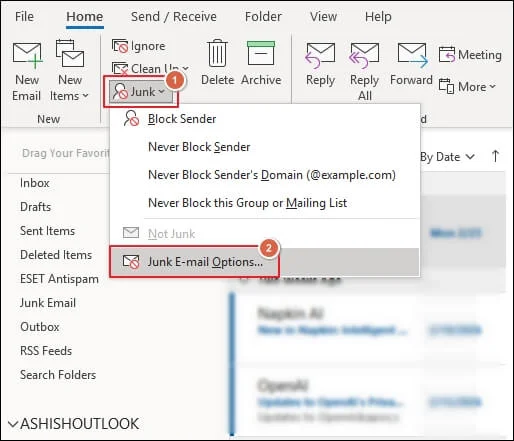
Step 3. Select from different levels as needed:
- Low (recommended for most users)
- High (stronger filtering)
Step 4. Apply the changes to save and click OK.
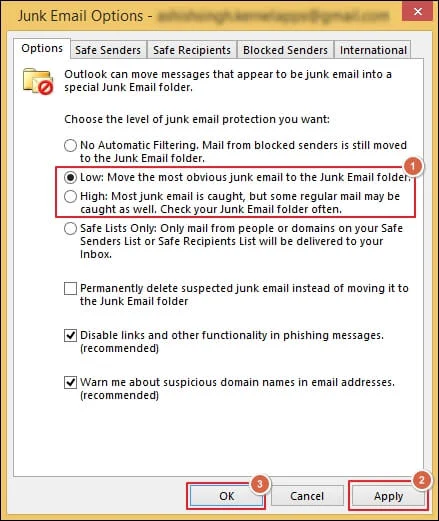
Important to Know: Don’t select No Automatic Filtering unless you are using server-only filtering.
Way 2. Check & Enable Junk Email Rule
Follow the given steps to create, edit, or delete automation rules.
Step 1. Go to the File tab and click on Manage Rules & Alerts.
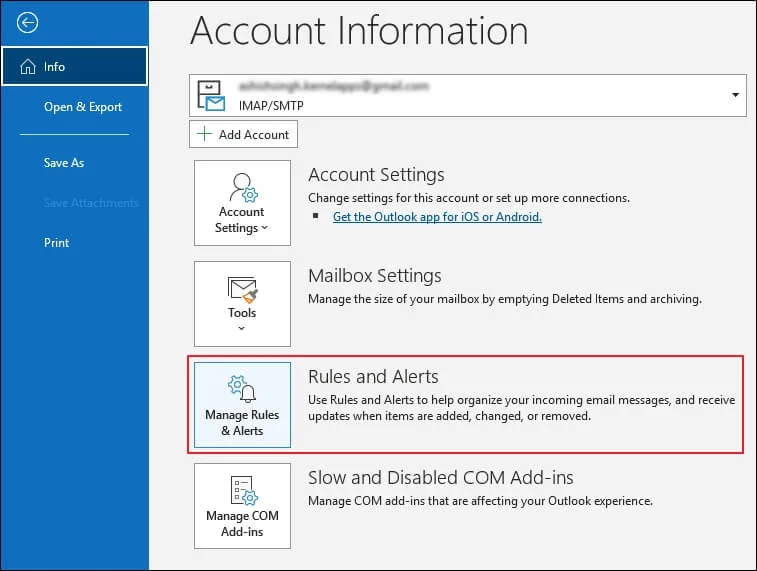
Step 2. Locate the Junk Email Rule option.
Step 3. Make sure the checkbox is selected.
Step 4. Reset junk email settings if they are missing.
Step 5. This will help the Outlook junk filter function properly.
Way 3. Clear and Rebuild Safe & Blocked Sender Lists
Over time, the sender and blocked list become large with each new addition. As a result, chances of corruption increase and lead to the ‘Outlook junk filter not working’ issue. So, use the steps below to review the list:
Step 1. Expand Junk and go to the Junk Email Options.
Step 2. Review the Safe Senders and Blocked Senders.
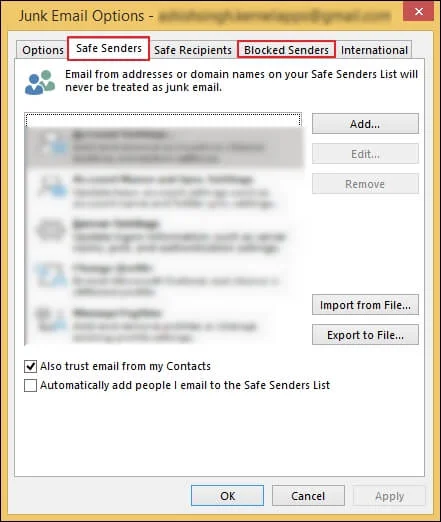
Step 3. Remove the unnecessary entries from the list.
Step 4. Restart the Outlook application once done.
Note: Rebuild the list gradually if it is too long.
Way 4. Switch to Cached Exchange Mode
The local filtering becomes unavailable when you are working online. So, enable Cached Exchange Mode to make it available again. Here’s how:
Step 1. Go to the File menu in Outlook.
Step 2. Expand Account Settings> Account Settings.
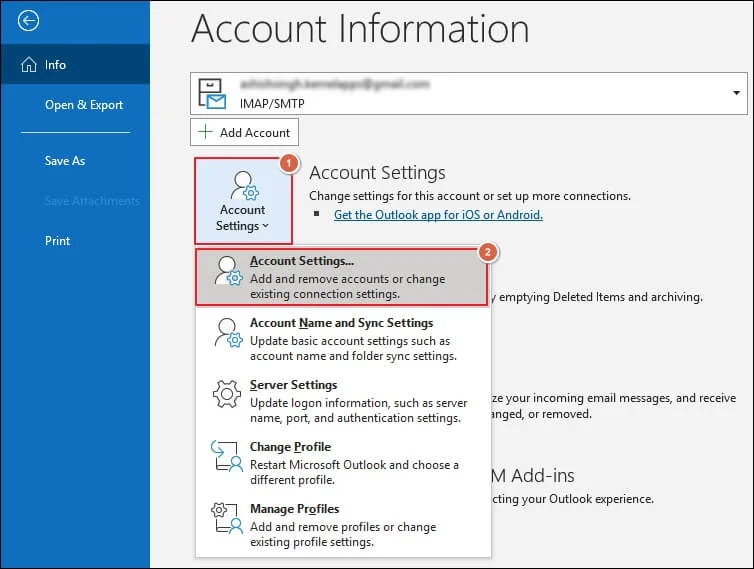
Step 3. Select the Exchange account and proceed to Change.
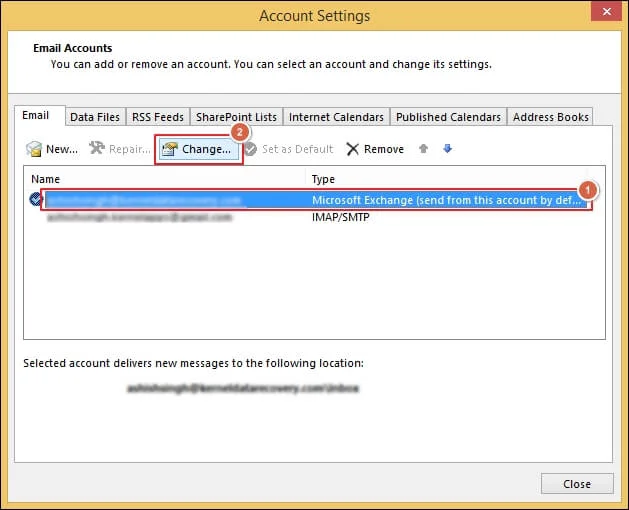
Step 4. Tap on More Settings to continue.
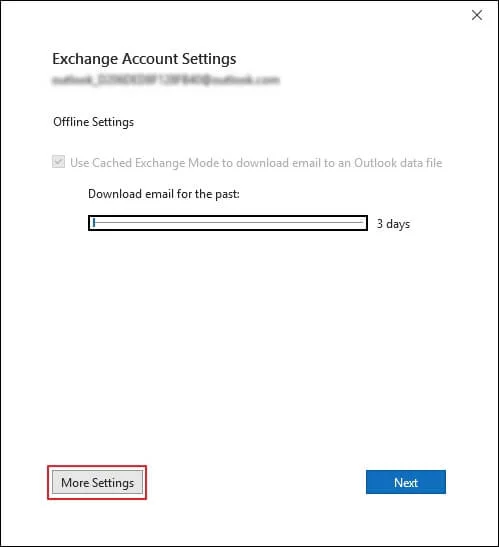
Step 5. Check mark the Use Cached Exchange Mode option.
Step 6. Apply changes and click OK.
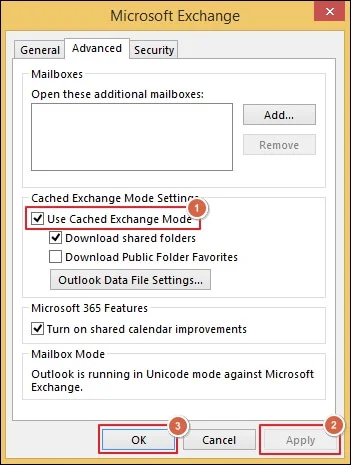
Step 7. This will restore the full functionality of Junk filtering.
Way 5. Repair the Corrupted Outlook Profile
A corrupted profile can cause multiple issues, and a spam filter not working in Outlook is one of them. Here are the detailed steps to fix it:
Step 1. Close the Outlook application.
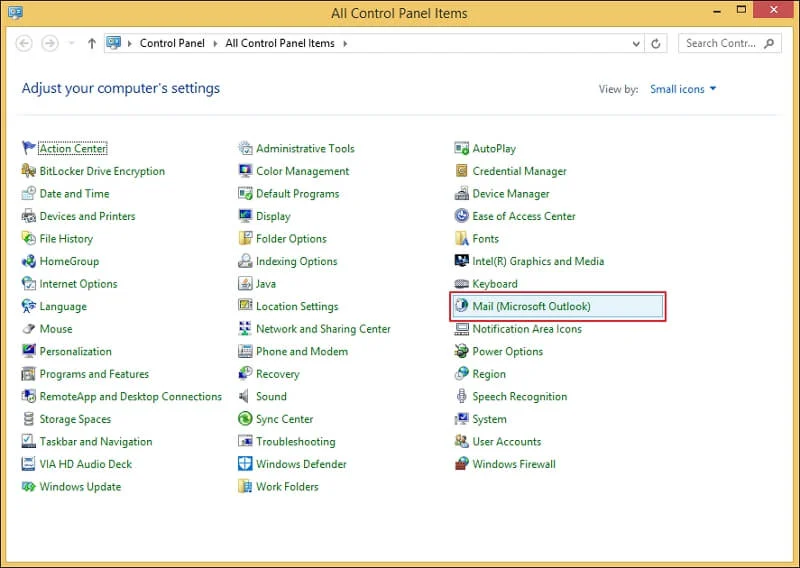
Step 2. Access the Control Panel and click on Mail (Microsoft Outlook).
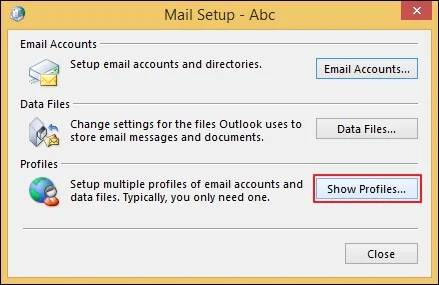
Step 3. Tap on Show Profiles to continue.
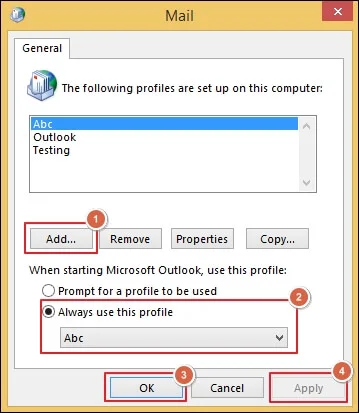
Step 4. Add to create a new profile.
Step 5. Set the new profile as default and click Apply.
Step 6. Save all the made changes by clicking on OK.
Step 7. Launch Outlook and test spam filtering.
Way 6. Repair Microsoft Office Installation Program
Use the given steps to fix the damaged components of Outlook application.
Step 1. Access the Control Panel and go to Programs & Features.
Step 2. Select the Microsoft Office and tap on Change.
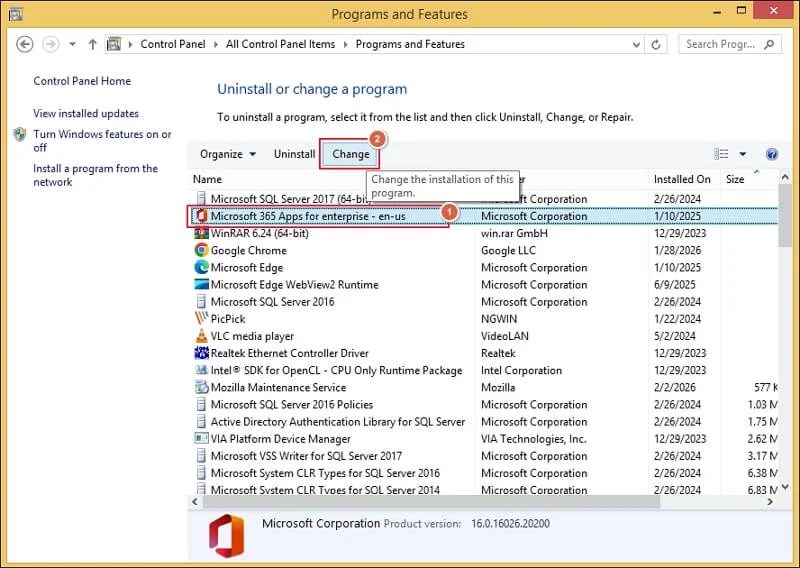
Step 3. Choose the appropriate option and click Repair.
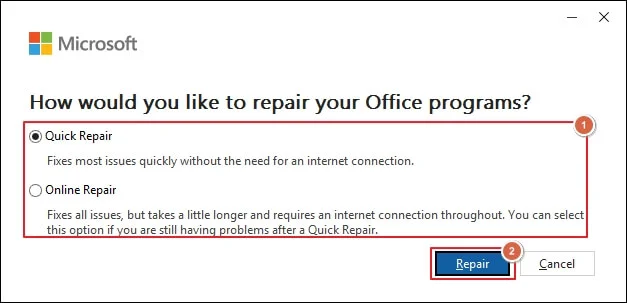
Step 4. Restart your system once the repair process is done.
Way 7. Check Microsoft 365 Anti-Spam Policies
Sometimes, new policies override older configurations. So, here are the detailed steps to fix the Microsoft Spam Filter not working issue.
Note: You must have administrator access to perform the steps below.
Step 1. Sign in to the Microsoft 365 Defender portal.
Step 2. Navigate to Policies & Rules to access Threat Policies.
Step 3. Review Anti-Spam policies and ensure mailboxes are included in protection.
Step 4. Also, check the Quarantine settings.
Way 8. Disable External Forwarding
Forwarded emails may bypass the filtering layers. So, use the provided instructions to fix it.
Step 1. Check the mailbox settings.
Step 2. Turn off the unnecessary external forwarding.
Step 3. Verify the filtering behavior for proper functionality.
Way 9. Temporarily Disable the Outlook Add-ins
Certain Outlook add-ins can interfere with the filtering rules. So, use the following steps to identify and disable them.
Step 1. Go to the File menu and click on Options.
Step 2. Navigate to the Add-ins section and tap on Go.
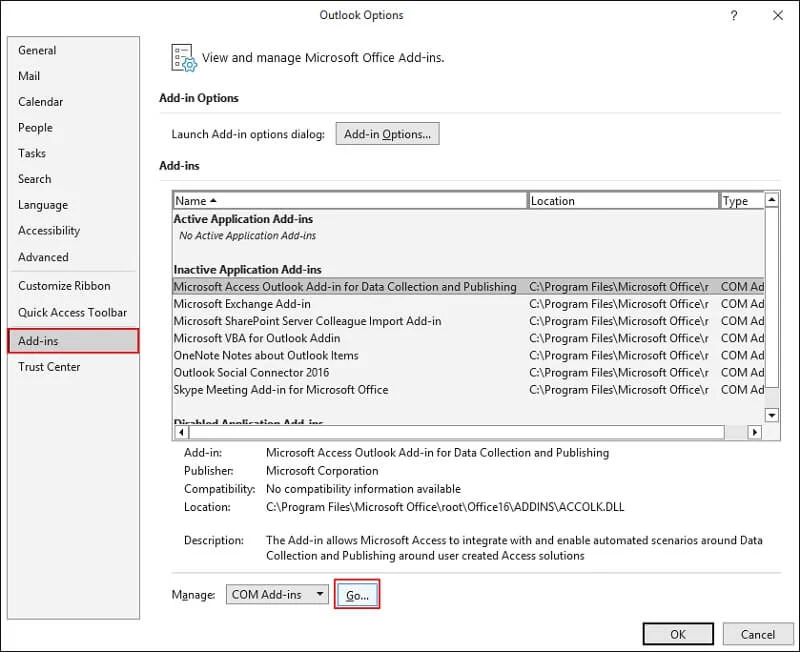
Step 3. Disable all the add-ins at once.
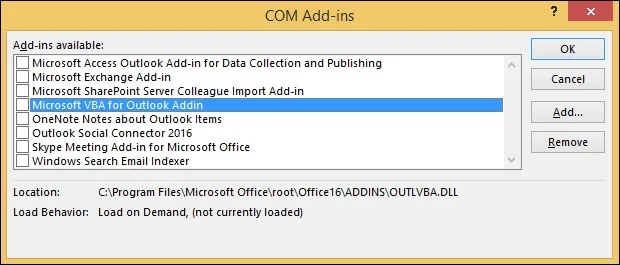
Step 4. Enable them one by one to identify the faulty one.
Step 5. Restart the Outlook application once done.
Outlook Spam Filter Not Working: All Special Cases Listed
Here is the list of some special cases that you may also encounter:
| Special Scenarios | Possible Reasons |
|---|---|
|
Spam Filter Works in Web but Not on Desktop |
|
|
Junk Folder is Missing or Not Showing |
|
|
Authorized Emails Going to Junk Folder |
|
Better Spam Filter for Outlook Users: Find Alternatives
You can explore better alternatives to handle sensitive communication for business purposes. Here they are:
- Third-party email security gateways.
- Enterprise-level spam filtering tools.
- Advanced Microsoft Defender configurations.
Best Practices to Avoid the Outlook Spam Filter Not Working Issue
Use the proven tips to keep the emails free from junk. Here they are:
- Avoid unnecessary email forwarding.
- Keep the Outlook application up to date.
- Review the Junk Folder at regular intervals.
- Verify the emails before marking them as “Not Junk.”
- Limit the mailing rules to avoid unnecessary confusion.
- Monitor anti-spam policies on the administration level.
Let’s Recap
The Outlook Spam Filter not working issue is usually caused by misconfigurations rather than system failure. In most cases, you can prevent your mailbox from receiving unwanted emails by following the structured solutions of the blog.
But when the Outlook data file is severely corrupted, these methods may fail. So, use the advanced solutions like Recoveryfix to fix them instantly. The Outlook PST Repair tool helps you repair damaged, corrupted, or broken files with 100% accuracy and precision.