Fix the Error Outlook Not Updating Inbox Folder! [Free Ways]

Published On - December 29, 2025
“Yesterday, I opened the Outlook application to check my emails. Instead of the latest email messages I have seen, the Outlook Inbox is not updating emails. So, to resolve the issue, I started looking for solutions. After long hours of research, I found several methods that work for me.”
If you are facing the same issue, then stick to the blog to get proven ways to fix the error Outlook Not Updating Inbox Folder. Here, you will know about the possible reasons and practical solutions to restore your standard email workflow.
Outlook Inbox Stops Updating Issue: Know Common Symptoms!
Go through the following list to verify the symptoms that match the situation you are facing now:
- Outlook stuck on “Updating Inbox.”
- Outlook 365 is stuck on updating the Inbox.
- Outlook Inbox not showing new emails.
- Outlook doesn’t update the Inbox Folder automatically.
- Outlook Inbox updates only after restarting the system.
- Outlook Web works, but the desktop application doesn’t.
- The Outlook app is not updating emails on iPhone or Android devices.
Why is the Outlook Inbox Not Updating Emails? – Top Reasons Explained!
Knowing the possible causes will help you find the most appropriate solutions instead of trying random solutions. Here is the list of the most frequent causes that may be responsible for the synchronization error:
- Send/Receive settings are disabled.
- Poor or unstable internet connection.
- Faulty or incompatible Outlook add-ins.
- Outlook is running in Work Offline mode.
- Corrupt Outlook profile or data files (OST/PST).
- Mobile phones are restricting the background sync.
- Synchronization issues with Cached Exchange Mode.
- Antivirus or firewall programs are blocking the syncing process.
Quick Checks: Try Initial Steps Before Advanced Fixes!
Sometimes, basic solutions may be helpful in resolving the Outlook doesn’t update the Inbox Folder error. Try them now:
Step 1. Restart the Outlook app and your device.
Step 2. Update Outlook to its latest version.
Step 3. Check emails in Outlook Web Access (OWA).
Step 4. Make sure your internet connection is good.
Step 5. Disable antivirus, firewalls, or VPNs in your system.
Important to Know: If Outlook Web shows recent emails but the app doesn’t, it means the issue is on your side.
How to Fix the Error Outlook Not Updating Inbox Folder Manually?
This section covers all the practical solutions that users can apply to restore the email sync issues in different versions of Outlook.
A. Resolve Outlook Inbox is Not Updating Emails on Desktop (Windows & Mac)
Check out the following methods to resolve the issue on your desktop devices:
Method 1. Disable Work Offline Mode
Outlook stops synchronizing emails when the Work Offline mode is on. So, use the given instructions to disable this feature.
Step 1. Launch the Outlook application on your system.
Step 2. Navigate to the Send/Receive tab and check if Work Offline is highlighted or not.
Step 3. If yes, then click on it once to turn it off.
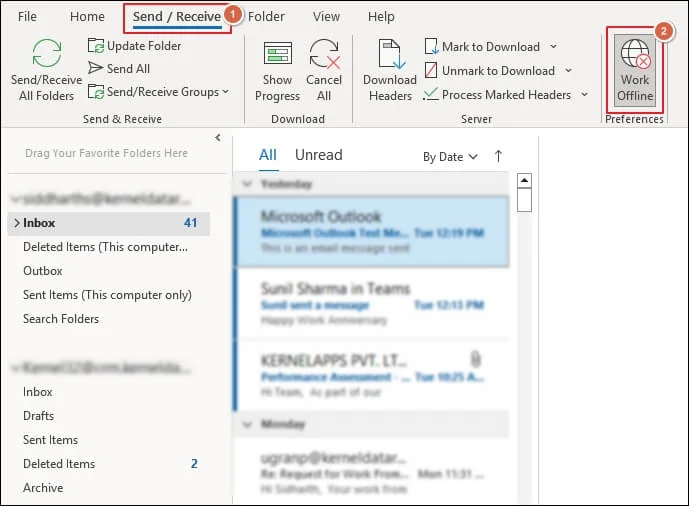
Step 4. Then, wait for Outlook to reconnect and sync emails properly.
Method 2. Refresh Send/Receive Manually
Sometimes, Outlook is unable to fetch emails in the Inbox Folder automatically. Use the mentioned steps to begin the syncing process manually:
Step 1. Open Outlook and go to the Send/Receive tab.
Step 2. Click on Send/Receive All Folders to refresh manually.

Step 3. Also, press the F9 key to force the manual sync.
Step 4. Check if emails have appeared or not.
Method 3. Check the Send/Receive Group Settings
For many users, Group Settings may be disabled. Check and enable them using the following steps:
Step 1. Go to Send/Receive and expand Send/Receive Groups.
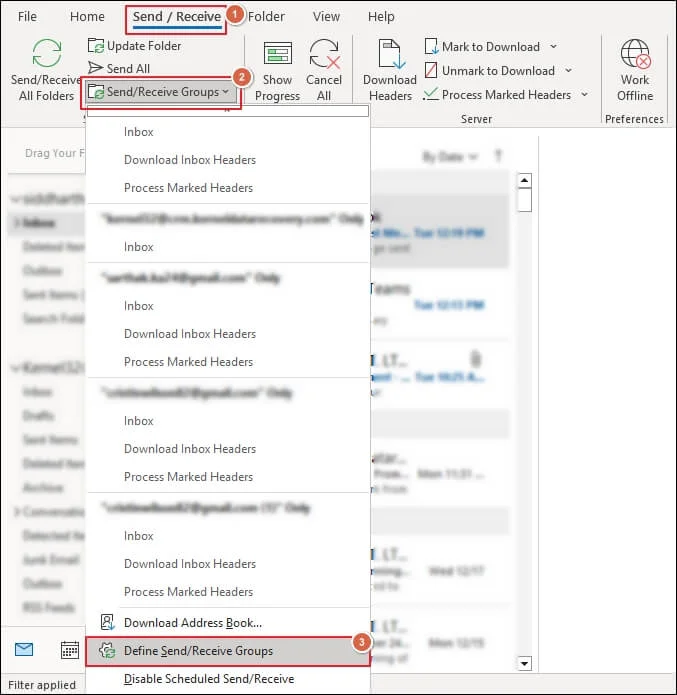
Step 2. Click on Define Send/Receive Groups to proceed.
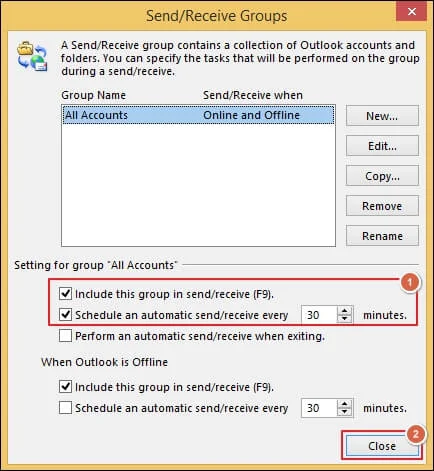
Step 3. Make sure the following two settings are enabled:
- Include this group in send/receive (F9).
- Schedule an automatic send/receive every 00 minutes.
Step 4. Close the Group Settings and restart Outlook.
Method 4. Disable Problematic Outlook Add-ins
Here are the detailed steps to disable add-ins in the Outlook application.
Step 1. Access the Run wizard using the Windows + R keys.
Step 2. Type Outlook.exe/safe and click OK.
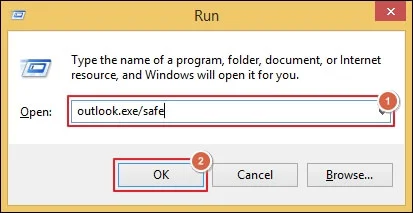
Step 3. If the Inbox updates are working, then add-ins are likely to be the problem.
Step 4. Navigate to File and click on Options.
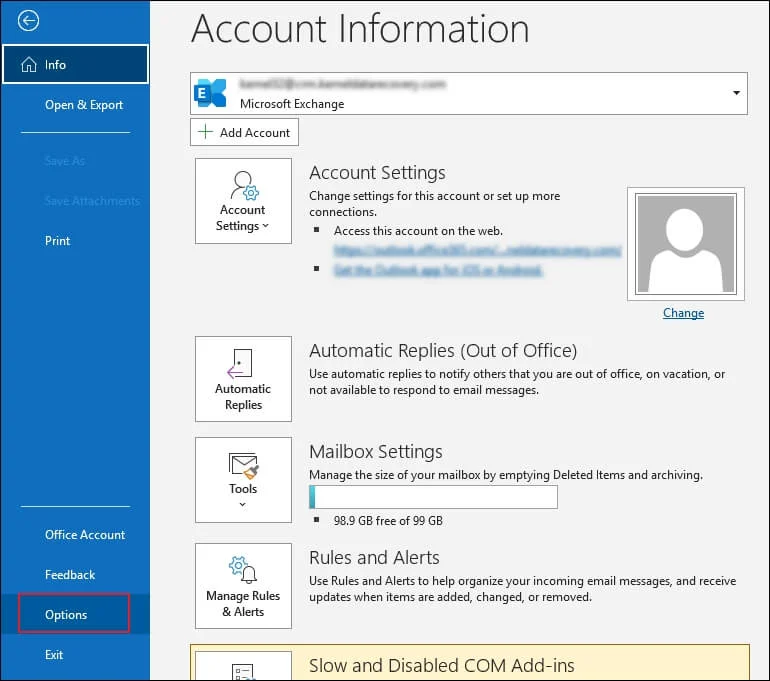
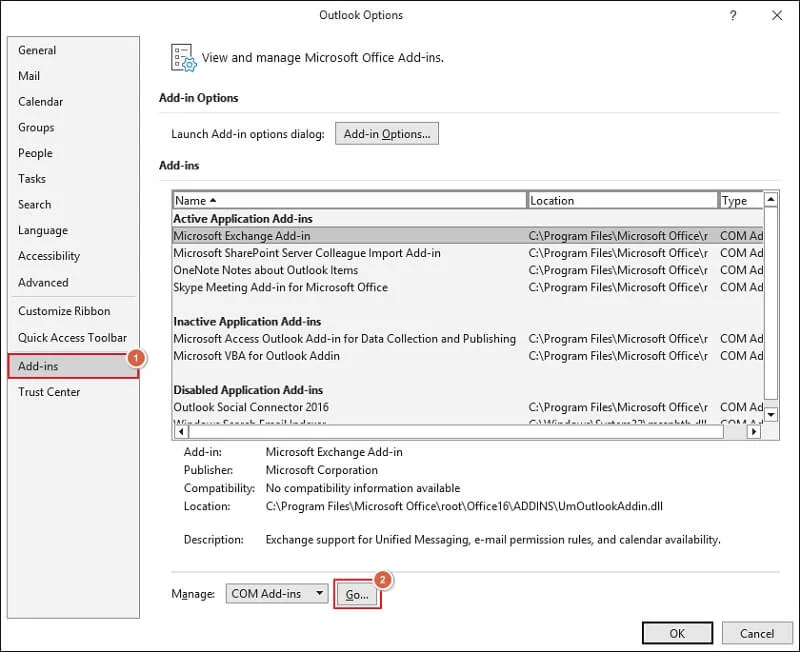
Step 5. Locate the Add-ins tab and tap on the Go option.
Step 6. Uncheck all the add-ins and proceed to OK.
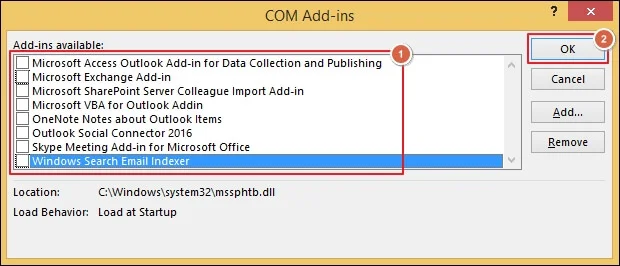
Step 7. Restart the Outlook application.
Step 8. Enable the add-ins one by one to identify the faulty one.
B. Fix the Error Outlook Not Updating Inbox for Outlook 365
We have highlighted the different ways to resolve the issue for Outlook 365 users.
Method 1. Disable Cached Exchange Mode
Sometimes, Cached Exchange Mode causes conflicts that result in mailbox synchronization issues.
Step 1. Launch Outlook and go to the File menu.
Step 2. Expand the Account Settings> Account Settings.
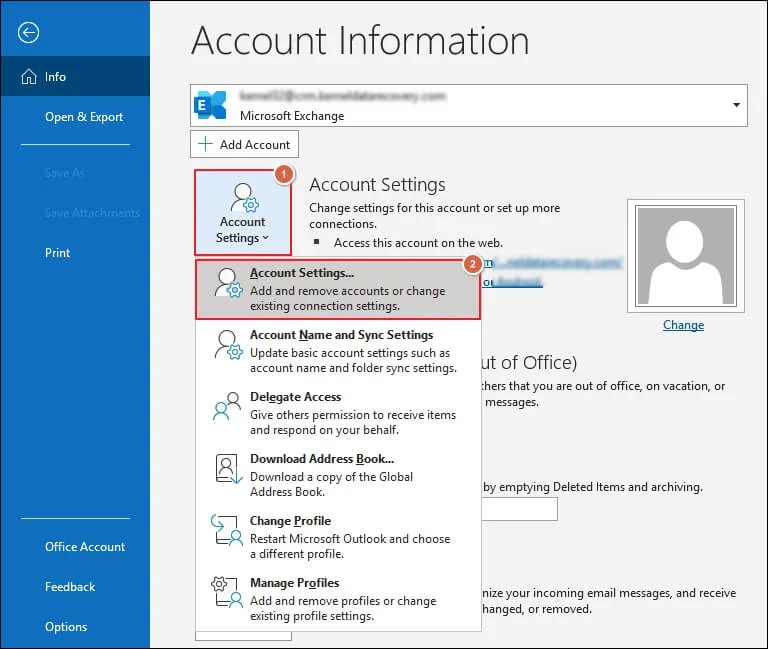
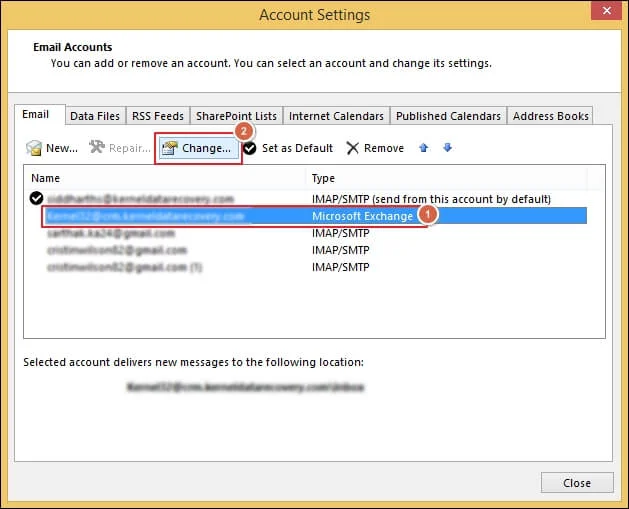
Step 3. Choose your Exchange account and click on Change.
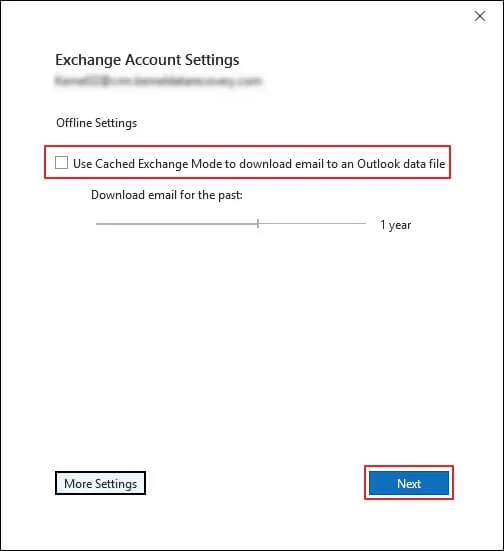
Step 4. Unmark the Use Cached Exchange Mode to download email to an Outlook data file option. Then, proceed to Next.
Step 5. Restart the application to check if it is working or not.
Method 2. Rebuild the Outlook OST file
Follow the provided instructions to rebuild the OST file and fix the Outlook doesn’t update the Inbox Folder issue.
Step 1. Close the Outlook instances if opened.
Step 2. Locate the OST file’s default location:
C:\Users\YourUsername\AppData\Local\Microsoft\Outlook
Note: The default location depends on the Outlook version. So, check your Outlook version first.
Step 3. Locate the OST file and rename it.
Step 4. Re-open the Outlook app to create a new OST file.
Method 3. Check Mailbox Size & Cleanup Tool
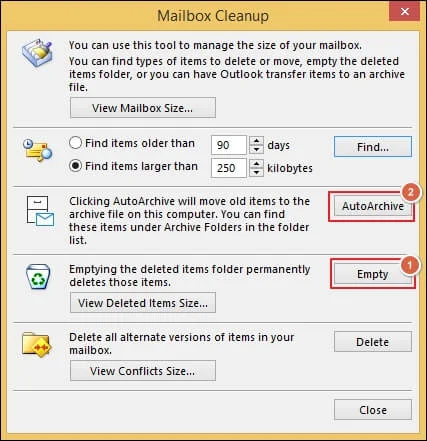
You can use the Mailbox Cleanup tool to reduce the email storage by removing unnecessary items.
Step 1. Navigate to the File menu and proceed to Tools.
Step 2. Click on the Mailbox Cleanup tool.
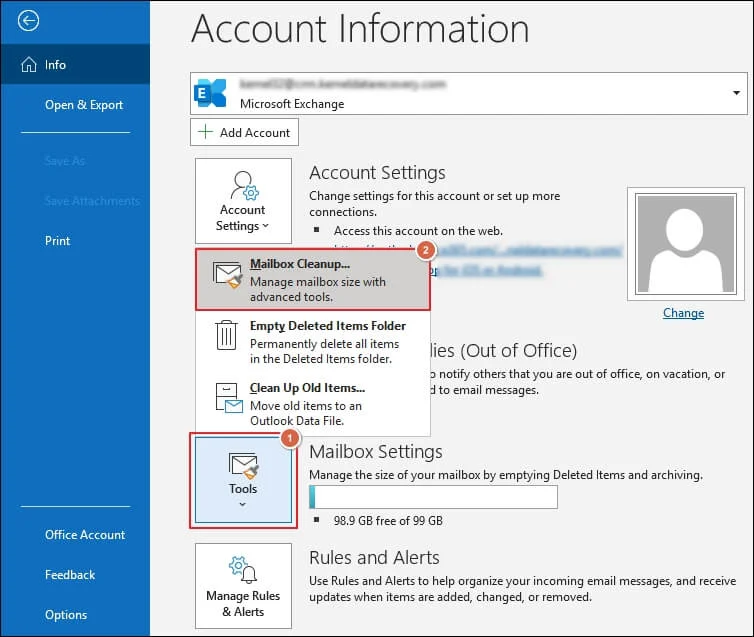
Step 3. Empty Deleted Items to free up storage space.
Step 4. Archive old emails and restart Outlook.
C. Troubleshoot the Outlook Inbox Not Updating Automatically (Office 365 & New Outlook)
The new version of Outlook mostly depends on background sync, so restarting it often fixes the issue. Here’s how to do so:
Step 1. Restart the Outlook application.
Step 2. Toggle the Sync Settings off and on.
Step 3. Refresh the Outlook app manually.
Step 4. Log out and sign in to your account.
Step 5. Lastly, update Outlook to its latest version.
D. Resolve the Outlook Inbox Stops Updating Issue on Mobile Devices
You can use the provided solutions to fix the Outlook sync issues on mobile devices.
For iPhone Devices
Step 1. Go to Settings and locate the General section.
Step 2. Enable the Background App Refresh settings for Outlook.
Step 3. Later, navigate to Mail> Accounts.
Step 4. Remove and add the Outlook account again.
Step 5. Update the Outlook application if available.
For Android Devices
Step 1. Open Settings> Apps> Outlook.
Step 2. Locate the Storage section and Clear Cache data.
Step 3. Disable the Battery optimization for Outlook.
Step 4. Launch the Outlook application and go to Settings.
Step 5. Then, set the Sync Frequency to Automatic.
E. Mitigate Outlook Doesn’t Update the Inbox Folder Due to Profile Issues
A corrupt Outlook profile often causes sync failure issues. You can fix it by using the following steps:
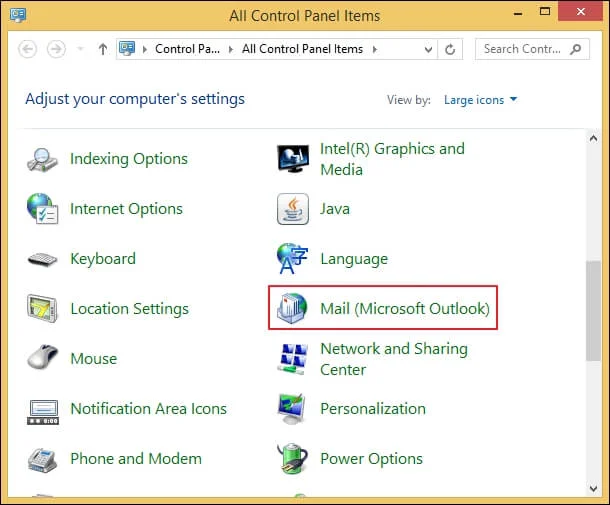
Step 1. Go to Control Panel and select the Mail (Microsoft Outlook) option.
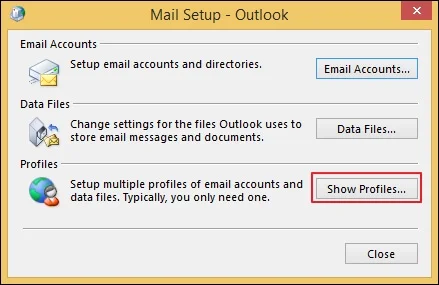
Step 2. Click on Show Profiles to continue.
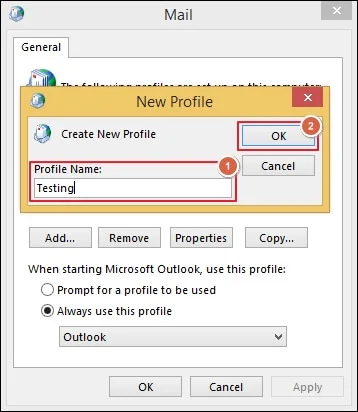
Step 3. Enter the Profile Name and proceed to OK.
Step 4. Type the Email Address and click Next.
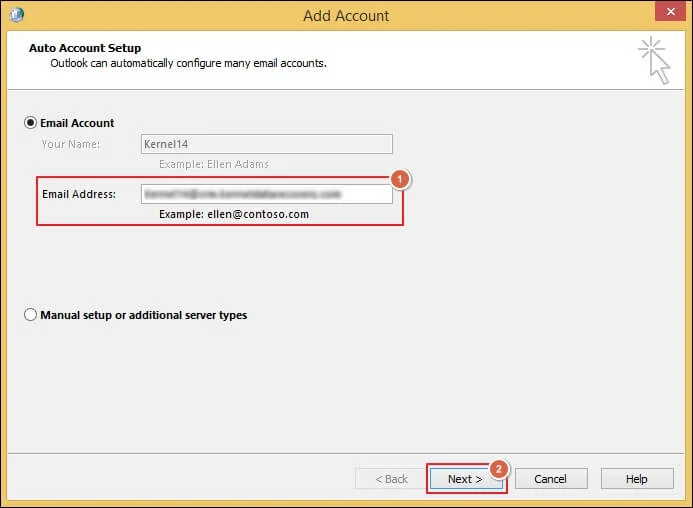
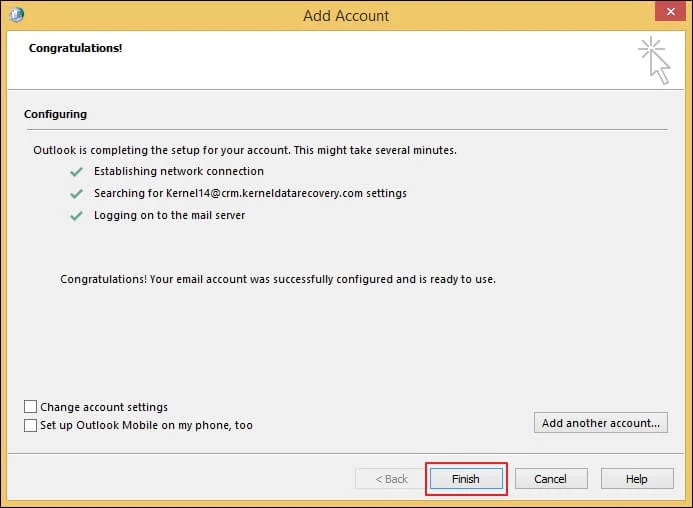
Step 5. Tap on Finish once the configuration process is completed.
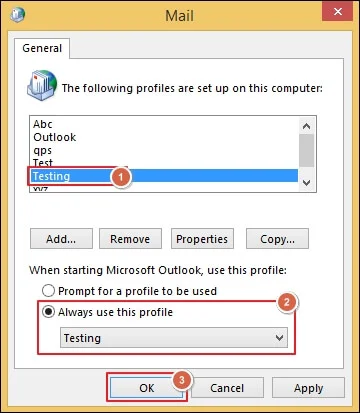
Step 6. Select the newly created profile and enable the Always use this profile option.
Step 7. Then, click OK to proceed further.
Smart Tips to Avoid Outlook Inbox Sync Issues in the Future!
Use the given best practices to avoid future occurrences of the error:
- Keep Outlook and Windows OS up to date.
- Compact Outlook data files at regular intervals.
- Disable the unnecessary add-ins from Outlook.
- Always use high-speed internet with good stability.
- Avoid oversized mailboxes and their associated problems.
Expert Method to Resolve Persistent Outlook Inbox Problems!
You have tried all the given solutions, but are unable to fix the error Outlook not Updating Inbox folder. This only means that the Outlook data file is severely corrupted or damaged. For this, you can use our Recoveryfix PST Repair tool to repair the Outlook data files with 100% accuracy. The PST Repair software allows you to recover even deleted items from the added files.
Let’s Recap
We hope that you get all the required information to fix the error Outlook not Updating Inbox folder. You can pick the best-suited method to resolve the issue based on your situation and device.
If manual methods fail to fix the error, then the Outlook data file is likely to be damaged or corrupted. So, go with the recommended solution to repair the file and start using Outlook just like before.