How to Fix Outlook Has Exhausted All Shared Resources? – [2026 Guide]

Published On - February 25, 2026
Imagine you have opened Outlook and instead of working, it shows this error message:
The error usually occurs when you access the address book, open shared mailboxes, or even when sending emails. Heavy mailbox usage or configuration issues limit the internal resources of the Outlook applications.
In some instances, the error is accompanied by:
- Outlook system resources are critically low
- Something is wrong with your data files
- Outlook is freezing or crashing unexpectedly.
The good news is that you can fix the issue with the right methods. So, read the blog carefully to know possible causes and appropriate solutions with clear instructions.
What Does “Outlook Has Exhausted All Shared Resources” Mean?
The error means that Outlook has run out of system resources or handles that are needed to function properly. As a result, Outlook blocks further operations when it cannot allocate additional resources. These resources may include:
- RAM
- Windows system handles.
- Cached Shared mailbox data.
- Limits access to PST or OST files.
- Component Object Model (COM) object.
- Using large PST or OST files.
- Several add-ins are active in Outlook.
- Limited system memory or resources.
- Multiple shared mailboxes are connected.
- The Outlook application is installed in 32-bit mode.
Why Does Outlook Show This Error? – Know Top Reasons
Check out the possible reasons that may be responsible for the Outlook has exhausted all shared resources error. Here they are:
- Faulty Office installation or updates.
- Large or corrupted Outlook data file.
- Automation Scripts or Bot Integration.
- Multiple Shared mailboxes or calendars.
- Misconfigured or damaged Outlook profile.
- Memory limitation of the 32-bit Outlook application.
- Increased memory consumption due to excess add-ins.
Basic Solutions: Try these Quick Solutions First
Apply these quick fixes before you go with the advanced solutions:
- Restart Outlook and the system.
- Disable antivirus email scanning temporarily.
- Check the memory utilization from Task Manager.
- Close background apps (Teams, Skype, and other apps).
Manual Methods to Fix Outlook Has Exhausted All Shared Resources Error
If the above basic solutions failed, try the provided ones to resolve the error. We have crafted the list of best applicable methods that can give you the expected results.
Method 1. Start Outlook in Safe Mode
Use this method to open the Outlook application in Safe Mode to identify whether the issue is caused by faulty add-ins or not. Here’s how:
Step 1. Access the Run wizard by pressing Win+R keys.
Step 2. Enter the outlook.exe/safe and click OK.
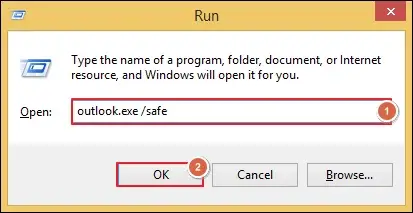
Step 3. This will open Outlook in Safe Mode.
Step 4. If Outlook works normally, then the problem arises due to faulty add-ins.
Method 2. Disable the Unnecessary Add-ins
Follow the given steps to disable the add-ins once you have identified that the issue is due to faulty ones.
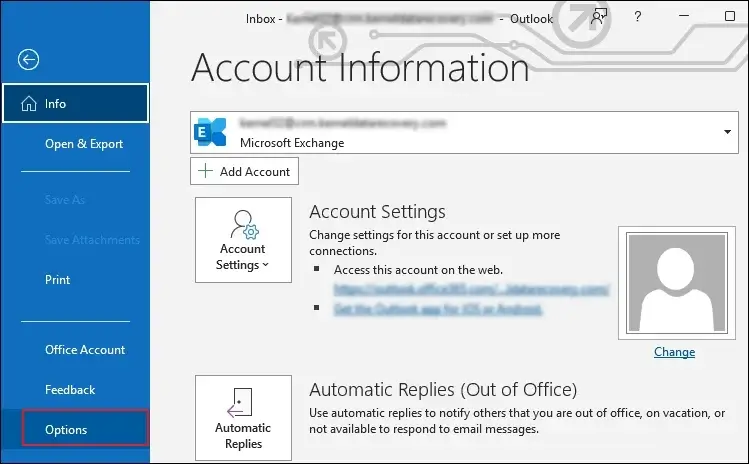
Step 1. Launch Outlook and click File and go to Options.
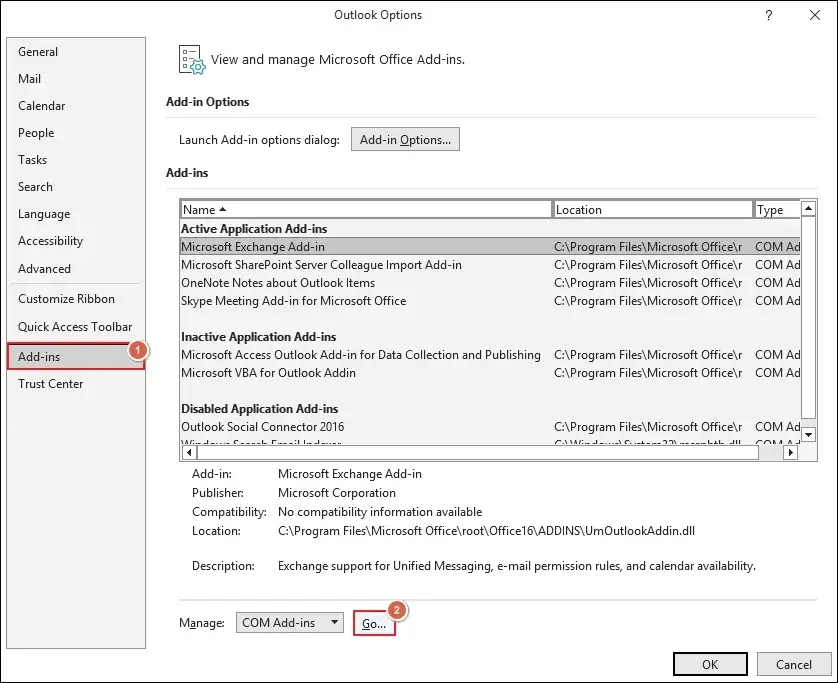
Step 2. Locate the Add-ins section and tap on Go.
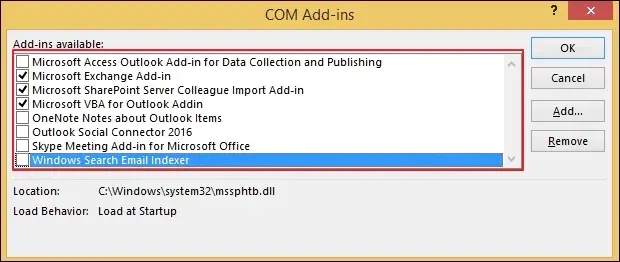
Step 3. Disable all the add-ins and enable one by one to find the problematic one.
Step 4. Restart the Outlook application.
Method 3. Reduce the Shared Mailbox Load
Here are the detailed steps to reduce the Shared load on system memory.
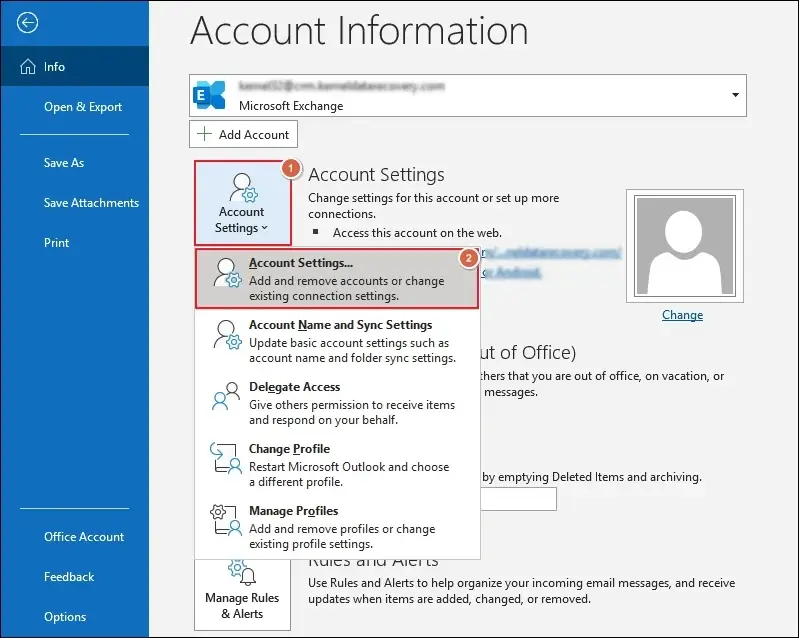
Step 1. Expand the Account Settings> Account Settings.
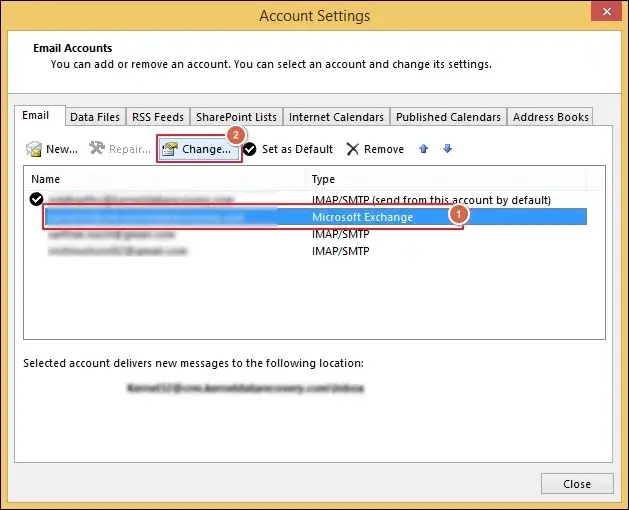
Step 2. Choose the Exchange Account and click Change.
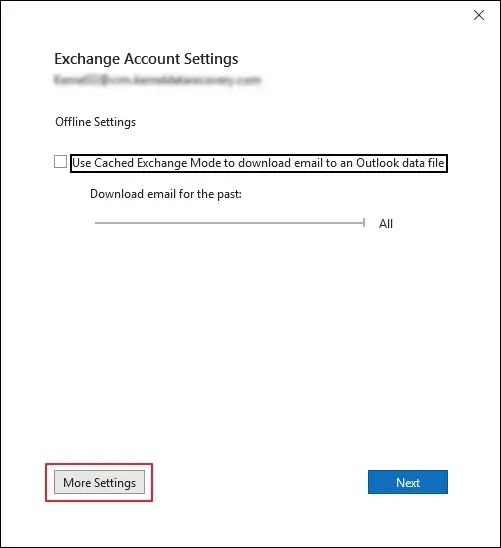
Step 3. Go to More Settings to continue further.
Step 4. Uncheck the Download shared folders and click OK to Apply changes.
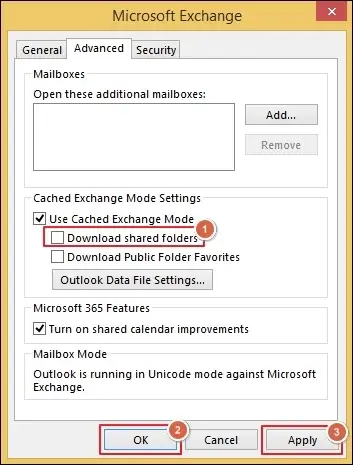
Step 5. This will reduce the memory consumption significantly.
Method 4. Repair Outlook Data File With ScanPST Utility
Repair the Outlook data file if it is corrupted or damaged. Here are the steps to do so:
Step 1. Locate the SCANPST.EXE file and open it.
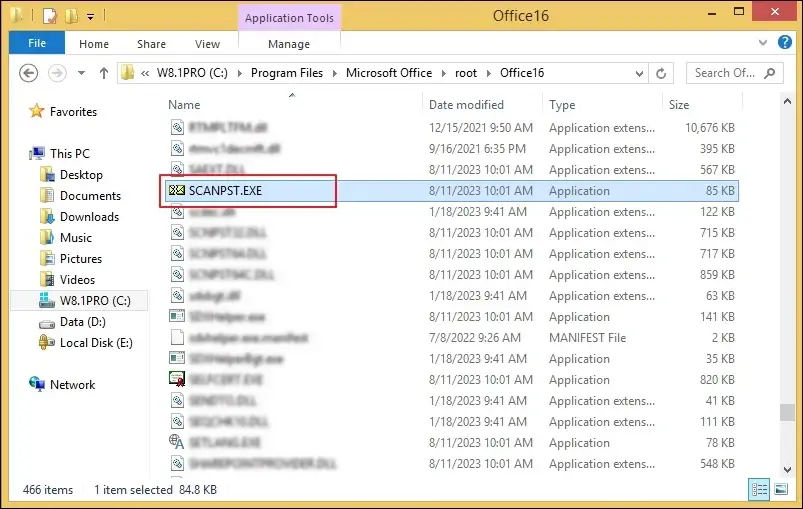
Step 2. Browse to select the file and click Start.
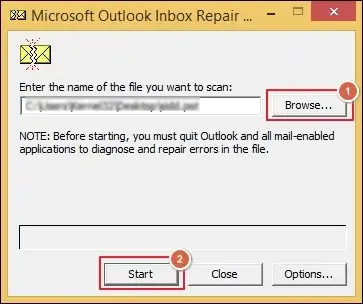
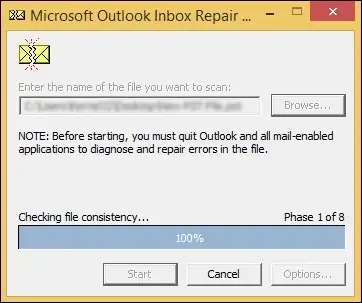
Step 3. It will start checking the errors in the added files.
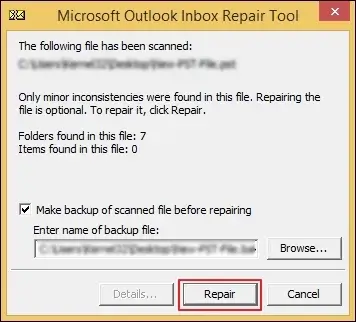
Step 4. Once the file has been scanned, tap on the Repair option.
Step 5. A pop-up message will appear on the screen after the repair process is completed.
Method 5. Create A New Outlook Profile
A corrupted profile is one of the common causes that leads to the ” Outlook has exhausted all shared resources’’ error. So, use the given steps to add a new profile:
Step 1. Close the Outlook application.
Step 2. Access the Control Panel and tap on Mail (Microsoft Outlook).
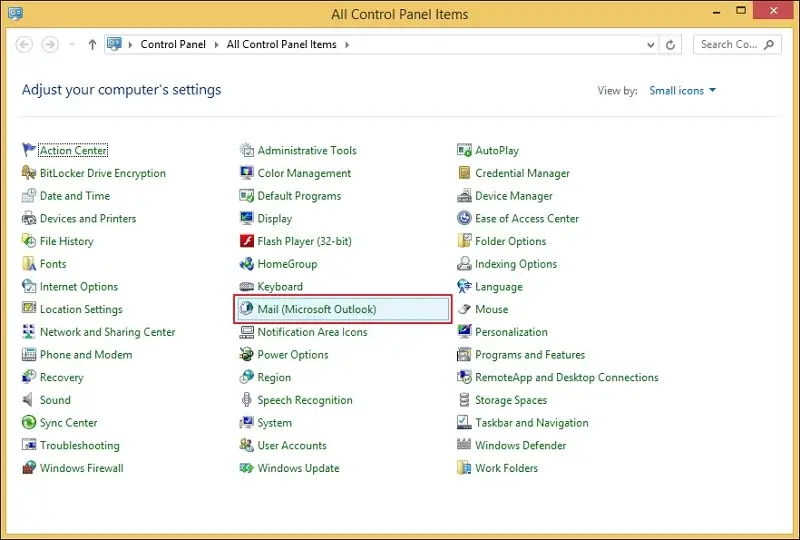
Step 3. Click on Show Profiles to proceed.
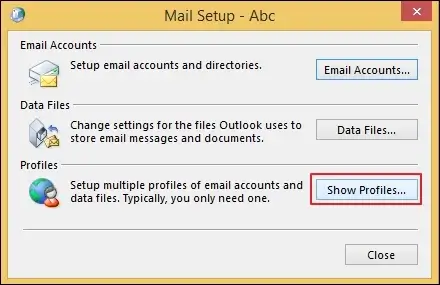
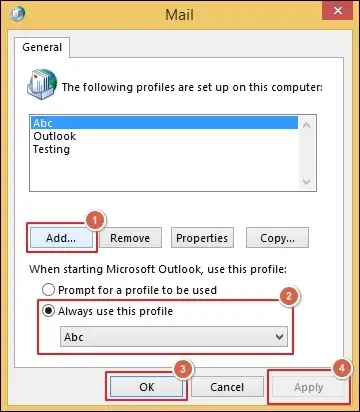
Step 4. Add a new profile and set it as the default one by clicking OK.
Step 5. Finally, save the changes by clicking on the Apply option.
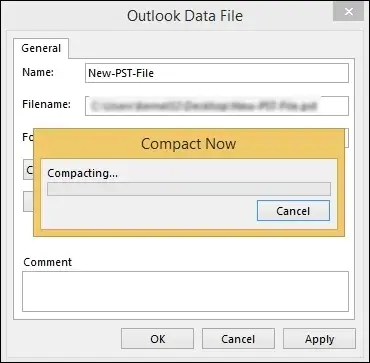
Method 6. Compact the Outlook Data File
Reduce the load on system resources by compacting the Outlook data file size. Here’s how:
Step 1. Expand the Account Settings and select Account Settings.
Step 2. Go to Data Files tab and double-click on file.
Step 3. Tap on Compact Now and proceed to OK.
Step 4. Then, Apply to save all the recent changes.
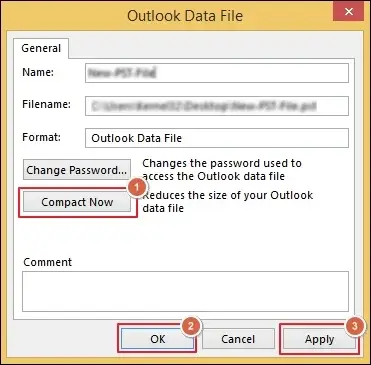
Step 5. It will start the compacting process.
Method 7. Repair Microsoft Office Installed Program
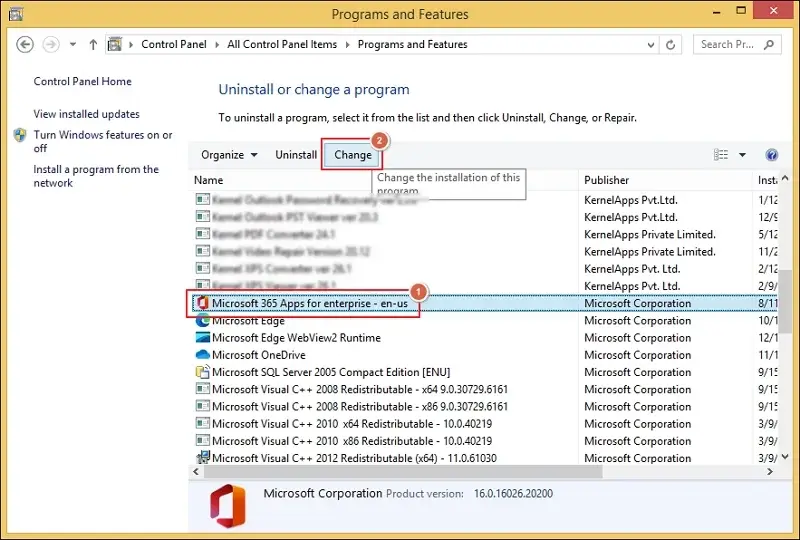
Here are the detailed steps to repair minor errors in the Microsoft Office installed program.
Step 1. Access the Control Panel and select Programs and Features.
Step 2. Select the Microsoft Office and tap on Change.
Step 3. Choose the appropriate option to Repair.
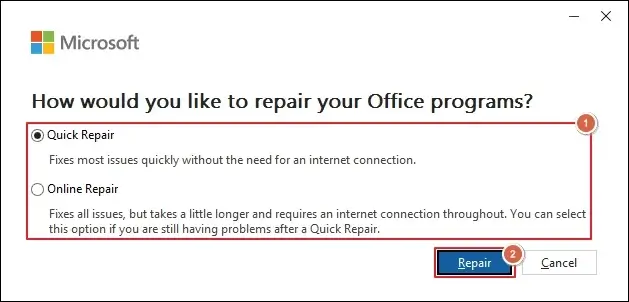
Step 4. Wait for the process to complete.
Method 8. Increase Virtual Memory of the System
The systems that have low memory need a large paging file to function properly. Here’s how to increase it.
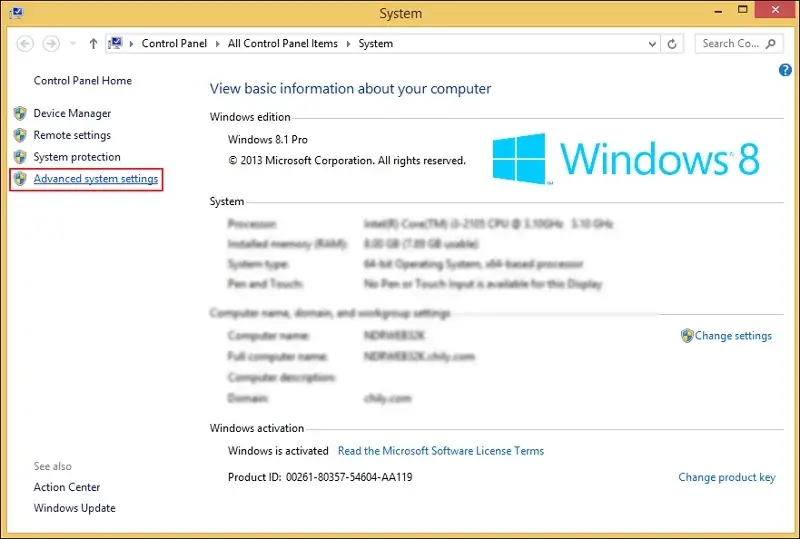
Step 1. Access the System Properties.
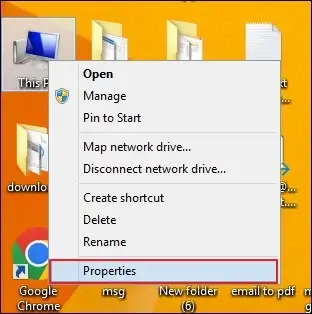
Step 2. Go to Advanced system settings.
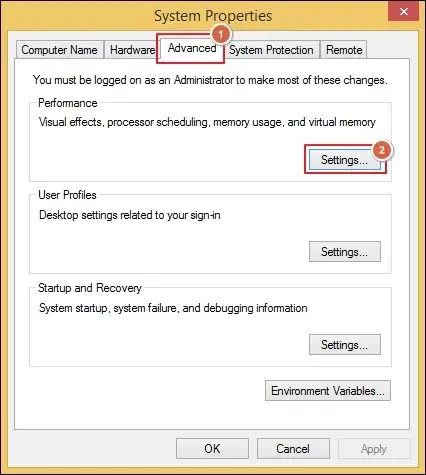
Step 3. Navigate to Advanced tab and click on Settings.
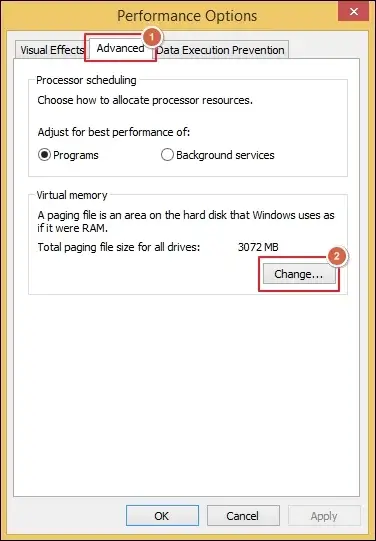
Step 4. Tap on Change option under the Advanced tab.
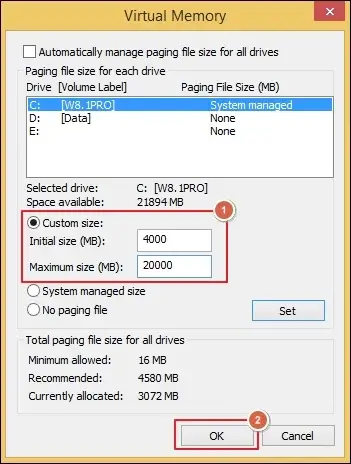
Step 5. Customize size as needed and click OK to save them.
Step 6. Restart the system to apply all the changes properly.
Method 9. Reset Navigation Pane for Outlook
Sometimes, the improper navigation settings can also be the reason behind this error. Reset the navigation pane to fix it immediately with the following steps.
Step 1. Press Win+R keys to access the Run wizard.
Step 2. Type outlook.exe/resetnavpane and click OK to proceed.
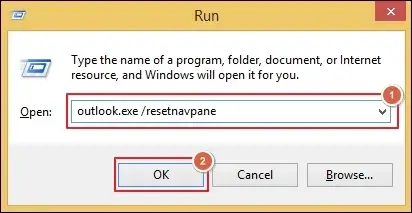
Step 3. Wait for its completion.
Step 4. Check whether it is resolved or not.
Method 10. Upgrade to 64-bit Outlook Setup
Your organization is currently using 32-bit setups for handling large mailboxes and multiple shared accounts. So, upgrading them to 64-bit setups will remove the memory limits and fix the Outlook has exhausted all shared resources error. Remember, consult all the scenarios with your IT team before upgrading or making any changes.
Try The Advanced Solution When Native Ones Failed
All the above methods will help you fix the error in most cases. However, if the issue persists, then it clearly means:
- The PST file is severely corrupted.
- Improper or damaged Registry settings.
- Outlook profile conflicts may be deeply rooted.
In such cases, taking the help of professional solutions like Recoveryfix will be the most appropriate approach. The Outlook PST Repair tool helps you repair broken, damaged, corrupted, or inaccessible PST files with 100% data accuracy. It supports all PST files generated by different versions of the Outlook applications.
Smart Tips to Avoid The Occurrence of The Error
Here are the best practices that help you prevent facing the error again.
- Monitor memory usage closely.
- Rely on 64-bit Outlook for heavy usage.
- Limit the Shared Mailbox caching process.
- Archive Outlook emails at regular intervals.
- Maintain the PST file size under 20 to 30 GB.
- Avoid the unnecessary sessions of automation.
- Remove unwanted or less-used add-ins from Outlook.
Sum Up
At first, the “Outlook has exhausted all shared resources” seems difficult to resolve. However, you can fix the error by systematically analyzing the root cause and applying the provided solutions in the blog.
Try all the native methods individually and identify the most suitable one for yourself. Additionally, go with the recommended solution in case you have damaged or corrupted PST files.