Outlook Classic not Opening Windows 11: Complete Info in One Guide

Published On - March 25, 2026
Email clients remain an essential medium for communication & business productivity. Outlook is one such medium that most users rely on, especially its traditional version, i.e., Classic. With the help of this email client, users easily manage emails, contacts, calendars, & tasks.
But some users encounter an issue where ‘Outlook Classic not opening Windows 11’ pops up. It prevents them from accessing their crucial mailbox data that can indirectly affect daily work.
Go with this easy walkthrough to understand the causes behind the issue & get the relevant fixes for Outlook Classic not opening Windows 10/11 issue.
A traditional desktop version of Outlook is included with the Microsoft Office or Microsoft 365 subscription. It offers compatibility with enterprise email environments & powerful email management capabilities.
Basic Symptoms for Outlook Classic Not Opening on Windows 11
Here is the list of the most common symptoms that users may experience when Outlook Classic fails to open on a Windows 11 system.
- Outlook does not launch when clicked.
- Outlook freezes on the loading screen.
- An error message appears during startup.
- The application opens briefly & then closes.
- Outlook Classic crashes immediately after launch.
Possible Causes for ‘Outlook Classic not Opening Windows 11’ Issue
Check out the possible causes of the Outlook Classic not opening on laptop issue to implement the best possible methods to fix it.
- Faulty add-ins.
- Outdated software.
- System file corruption.
- Damaged Outlook profile.
- Corrupted Outlook data files.
- Incomplete Office installation.
Important to know: Ensure that your system has sufficient memory & storage.
Outlook Classic Not Opening: Try Easy Methods
Try easy Outlook Classic troubleshooting methods to resolve the issue & restore its functionality as earlier.
Method 1. Restart the system
The method can be considered as the most common check that you can try, as it can fix minor & temporary bugs. It often resolves temporary startup problems. Try the following steps to restart the system:
- Click on the Start tab.
- Choose the Power > Restart option.
- Once rebooting is done, try to open Outlook Classic again.
Method 2. Run Outlook in safe mode & remove faulty add-ins
Outlook’s safe mode helps users to launch the Outlook application without add-ins or custom settings. As a result, there is a possibility that the Microsoft Outlook Classic bug can be resolved. Go with the following steps to execute the process:
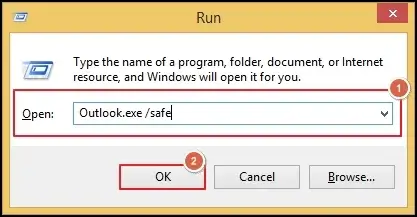
- Press Windows + “R” keys, type outlook.exe/safe, & hit OK.
- Check whether the Outlook Classic is running successfully or not.
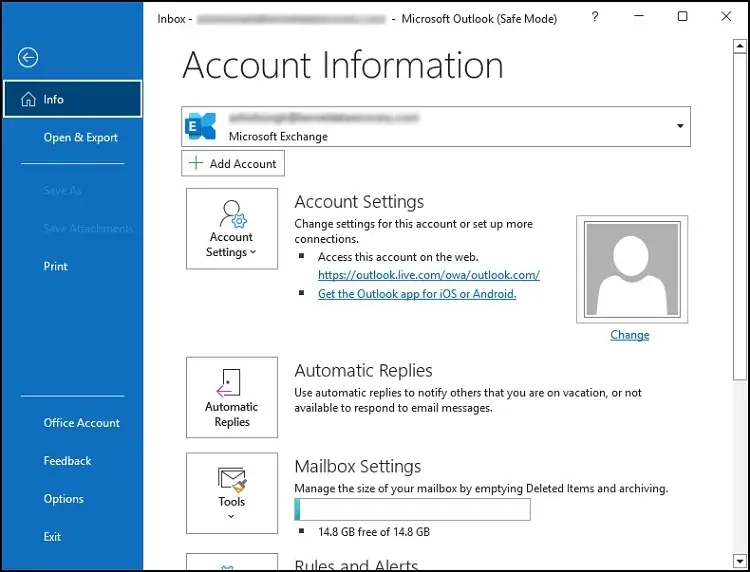
- If it works, then the issue is likely related to add-ins. Restart the Outlook application & click on the File > Options tab.
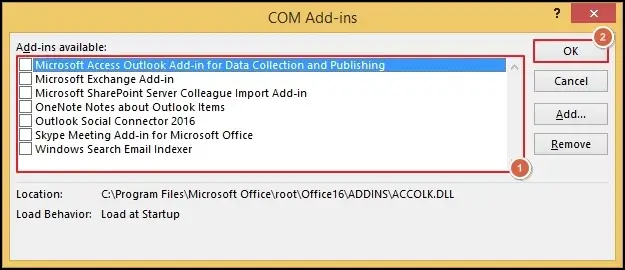
- Choose the Add-ins > Manage COM Add-ins & hit Go.
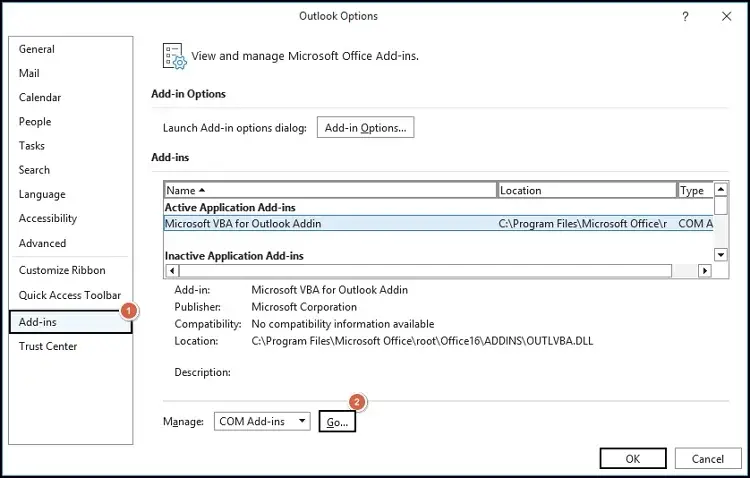
- Disable all Add-ins & run Outlook normally.
- Then, enable add-ins one by one to verify the problematic one.
Method 3. Repair Outlook data file
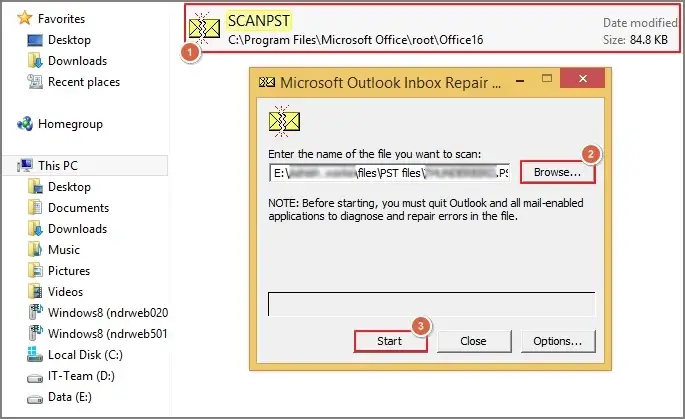
If Outlook Classic is not opening in safe mode, then it is possible that you are dealing with a corrupted or damaged Outlook data file. To fix the issue, you can go with the Outlook built-in tool, i.e., ScanPST.exe [Inbox Repair Tool]. Here are the steps to run this built-in tool safely:
- Close the Outlook application. Locate the ScanPST.exe on your system. Browse the disturbed file & hit the Start tab.
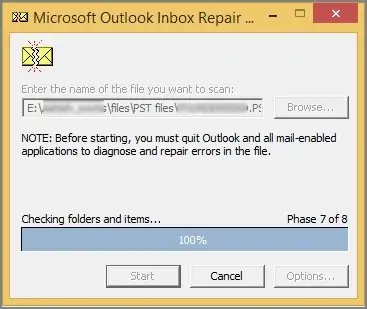
- It will start to scan the file & prompt you with the results of the file.
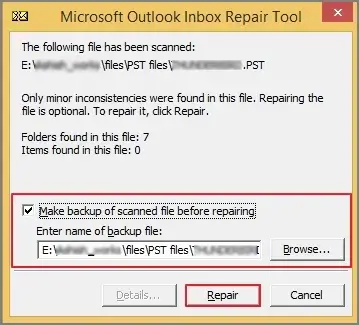
- If it finds an error, then click on the Repair tab to fix the issue. Once the process is completed, try to run Outlook to check the status of the error.
Note: If the corruption state is severe, then using the ScanPST.exe tool might not be helpful. You can take help of the Recoveryfix tools, as its Outlook PST repair tool stands out in this category with its advanced & high-tech features.
Method 4. Repair Microsoft Office Installation
If Outlook files are corrupted, repairing Microsoft Office can also be helpful in resolving the issue. It restores missing or damaged Office components. Check out the following steps to repair it successfully:
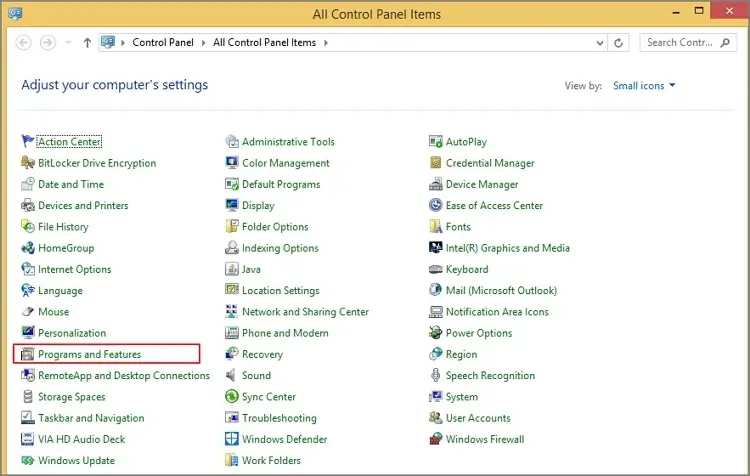
- Open the Control Panel. Hit the Programs & Features tab.
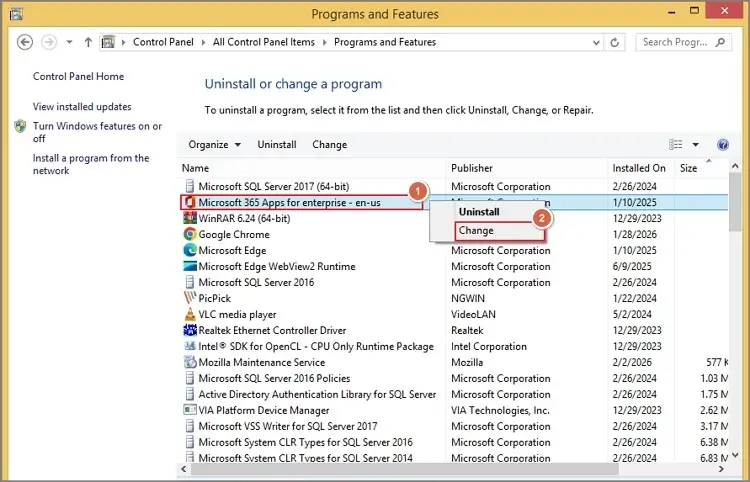
- Search for Microsoft, right-click on it & select the Change option.
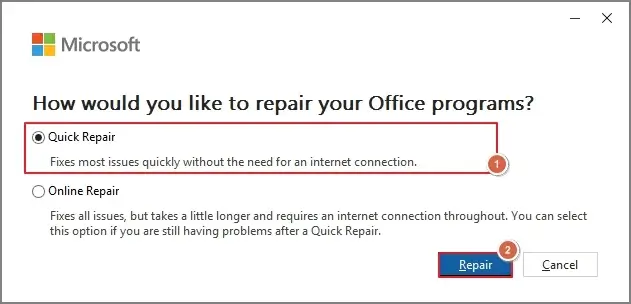
- Tap on Quick Repair & start the process by hitting the Repair tab.
Method 5. Update Microsoft Outlook & Windows
This one is a more crucial & overlooked method. Working with outdated Outlook or Windows versions can also inhibit users from using the complete features of the application. Let’s understand how you can check the latest version of the application:
For Microsoft Outlook:
- Open any Office application [Word, Outlook, Excel, etc]
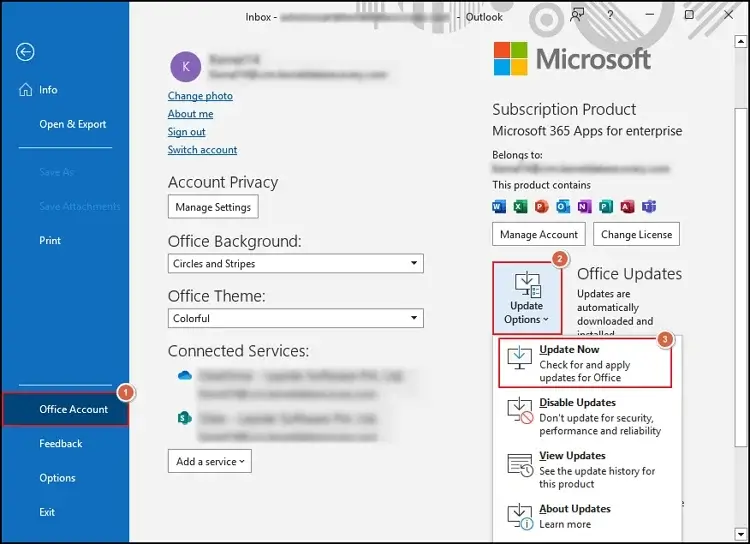
- Choose the File > Office Account tab.
- Click on the Update Options > Update Now.
For Windows:
Method 6. Fix the issue by creating a new Outlook profile
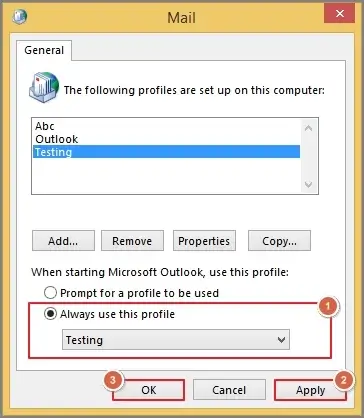
Since it is seen that a corrupted or damaged profile prevents Outlook from opening, recreating a new one can fix the issue. It creates a fresh configuration for Outlook. As a result, ‘Outlook Classic not opening on Windows 11’ issue can be resolved. Follow the steps below for successful results:
- Press Windows + R key, type control panel, & hit OK.
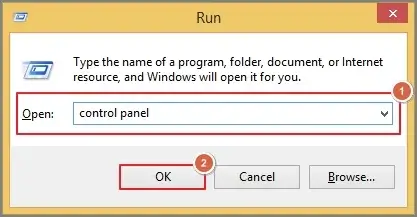
- Select the Mail > Show Profiles tab.
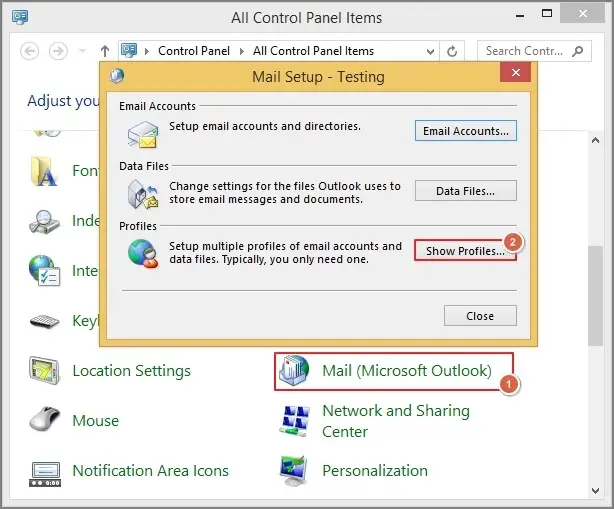
- Hit the Add option, provide the new name of the profile, & click on OK.
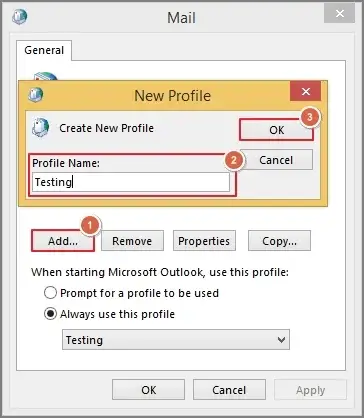
- Complete the further steps for a fresh configuration.
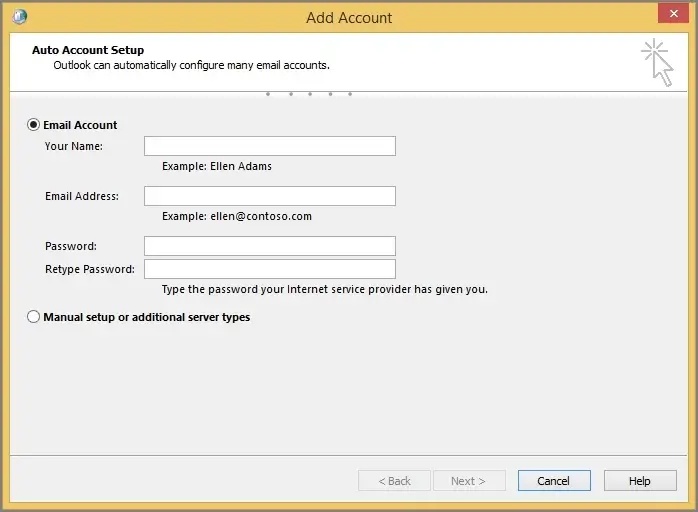
- Once created, make it the default one & hit Apply > OK.
Method 7. Check for the Corrupt System Files [SFC Scan]
Windows system file corruption can also hamper the application performance. So, with the SFC scan, you can fix the damaged Windows system files that can help you resolve the Outlook Classic not opening Windows 10/11 issue. Here are the steps for successful execution:
- Open Command Prompt As Administrator.
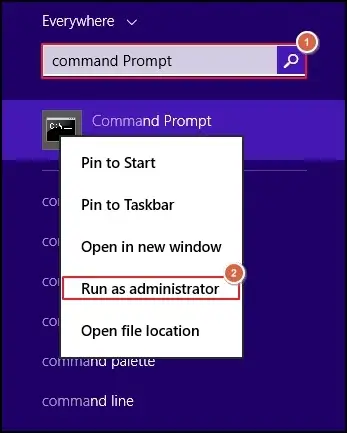
- Run the command: sfc /scannow.
- Wait for the scan to complete.
- Then, restart your system & check the status of the issue.
Method 8. Check Compatibility settings
Incorrect compatibility settings may affect the Outlook functionality. So, check compatibility settings with the following steps & launch Outlook again to verify the error.
- Locate Outlook.exe, right-click, & select the Properties.
- Open the Compatibility tab & ensure that “Run this program in compatibility mode for” is unchecked.
- Hit the Apply option to save the changes.
Method 9. Reinstall Outlook/Microsoft Office
If all the methods fail, re-installing the Outlook application can be the last resort. It will replace the corrupted program files. Check out the steps below for successful execution:
- Open Control Panel, go to Programs and Features.
- Uninstall the Microsoft Office & restart the system.
- Reinstall Office from the Official source & verify the issue.
Know advanced tips to fix Outlook Classic startup issue
Here are some advanced troubleshooting tips for Outlook Classic errors.
- Check the mailbox server connectivity.
- Remove leftover Office registry entries.
- Verify event logs in Windows Event Viewer.
- Ensure Outlook is not running in the background.
- Temporarily turn off antivirus or third-party software.
Take Outlook Classic support from Microsoft if:
- Outlook crashes repeatedly.
- Data files are severely corrupted.
- Mailbox access fails after various repair attempts.
- The same issue occurs across multiple systems.
Preventive Measures to Avoid Future Issues with Outlook
By following the preventive measures, the chances of having these errors can be reduced.
- Keep a backup of your Outlook data.
- Avoid adding or installing unnecessary Add-ins.
- Perform regular disk cleanup & antivirus scans.
- Keep your software updated to the latest version.
- Regularly check the status of the Outlook data file with ScanPST.exe.
Ending thoughts
Till now, we have discussed all the possible scenarios to fix the issue, from preliminary checks to advanced tips & preventive measures. Hopefully, it has helped you in fixing the ‘Outlook Classic not opening Windows 11’ issue. Make sure you have followed the steps as provided for the desired results. Moreover, do follow the provided tips & preventive measures to avoid these issues in the future.
FAQs
Q- If Outlook is running in the background, how can I close it?
A- Press Ctrl + Shift + Esc to open Task Manager, search for Outlook, right-click on it & tap on the End task option.
Q- Is there any way to fix “Cannot Start Microsoft Outlook” in Windows 10/11?
A- Repair Office by going to Control Panel > Programs & Features. Search for Microsoft Office, right-click on it, and hit Change > Repair.