[Easy Ways] Fix OST Errors that Occurred Due to ILL-Configured Registries

Published On - February 10, 2026
An OST file stores Outlook mailbox data locally that depends on several Windows Registry entries. It defines how Outlook manages data, including size limits, cache behaviour, and synchronization settings.
So, in case these registries get misconfigured due to any reason, like manual edits, corrupted updates, file size limits or conflicts points, it can lead to OST file errors.
Check out this easy walkthrough to understand the concern completely in an easy-to-understand way. Besides, it will help you to provide safe practices to fix errors due to ill-configured Outlook registries.
Why do ill-configured registries cause OST errors?
When the registry values are misconfigured, Outlook may lead to the following situations:
- Failed to start or load mailbox data.
- Show errors related to file limits or corruption.
- Crash unexpectedly during send/receive cycles.
- Failed to synchronize changes once the connection is restored.
Key registry includes: MaxFileSize, WarnFileSize, MaxLargeFileSize, & WarnLargeFileSize. It helps to determine how large OST files can grow before Outlook stops writing data
Know the symptoms of Registry-related OST errors
If registry limits are set too low or improperly configured, Outlook may touch the threshold early & lead to errors. Here are a few symptoms of the error due to ill-configured Outlook registries:
- OST file refusing to open.
- OST file exceeding file size limits.
- Notifications about OST file corruption.
- Outlook performance slows down during sync.
- Outlook fails with an OST synchronization error.
- Close Outlook completely. Then press Windows + R, type regedit, & hit OK to open the Registry Editor.
- Tap on File> Export, & select the safe location to backup the full registry.
Safe ways to fix OST errors that occurred due to ill-configured registries
Check out the section to know safe ways to fix OST errors due to ill-configured Outlook registries.
Way 1. Verify & correct OST file size limits
Outlook uses registry values to set OST file size limits. Hence, if they are misconfigured, synchronization fails: Let’s verify & configure the size limit:
Step 1. Open the Registry Editor & search for the:
HKEY_CURRENT_USER\Software\Policies\Microsoft\Office\
Step 2. Verify the following entries, as they exist & are set at reasonable values:
MaxFileSize- Maximum allowed size
WarnFileSize- Warning size limit
MaxLargeFileSize- Unicode size limit for newer Outlook versions.
WarnLargeFileSize- Warning size for large files.
Look at the table for reference:
| Name | Type | Valid Data Range | Default |
| MaxLargeFileSize | REG_DWORD | 0x00000001 – 0x0000C800 | 0x0000C800 51,200 (50 GB) |
| WarnLargeFileSize | REG_DWORD | 0x00000000 – 0x0000BE00 | 0x0000BE00 48,640 (47.5 GB) |
| MaxFileSize | REG_DWORD | 0x001F4400 – 0x7C004400 | 0x7BB04400 2,075,149,312 (1.933 GB) |
| WarnFileSize | REG_DWORD | 0x00042400 – 0x7C004400 | 0x74404400 1,950,368,768 (1.816 GB) |
Note: Usually, WarnFileSize should be 95% of MaxFileSize. [Approx]
Way 2. Delete or reset problematic registry entries
If OST errors persist, you can try out this method, as it can help to fix OST errors that occurred due to ill-configured Outlook registries. Know how:
Step 1. Open the Registry Editor & identify the problematic entries you backed up earlier.
Step 2. Rename them by adding .bak at the end. It can help you to restore defaults without immediate deletion.
Step 3. Restart the Outlook application as it will recreate the appropriate registry values.
Pro tip: Avoid deleting keys except if you are sure that they are the source of the error.
Way 3. Recreate the OST file
If managing the registry editors won’t help, then deleting & creating the new OST file can work. After this, Outlook uses the correct registry values & builds a new cache of mailbox content that can be helpful in handling the errors.
Let’s understand the steps to implement it correctly:
Step 1. Close the Outlook application completely.
Step 2. Navigate to the OST file location:
C:\Users\User_Name\AppData\Local\Microsoft\Outlook
Note: You can also check with the File> Account Settings> Account Settings> Data Files options in Outlook. Then select the file & hit the Open File location tab.
Step 3. Delete or rename the old OST file.
Step 4. Restart Outlook as it will generate the new OST file.
Way 4. Create a new Outlook profile
It is seen that corrupt registry entries are often linked to a damaged Outlook profile. Hence, creating the new one can help to fix errors due to ill-configured Outlook registries. Check out the steps to know its functionality:
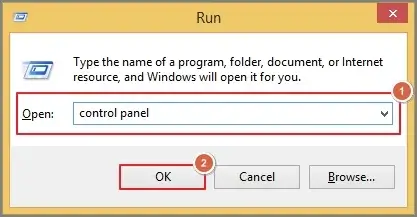
Step 1. Press Windows + “R” keys, type Control Panel, & hit OK.
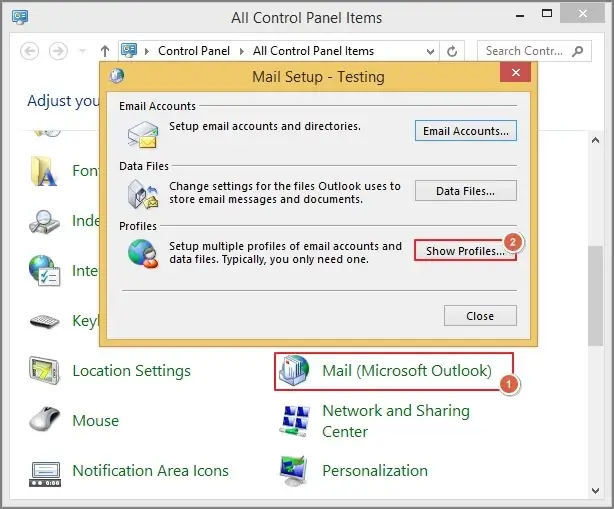
Step 2. Choose the Mail > Show Profiles option.
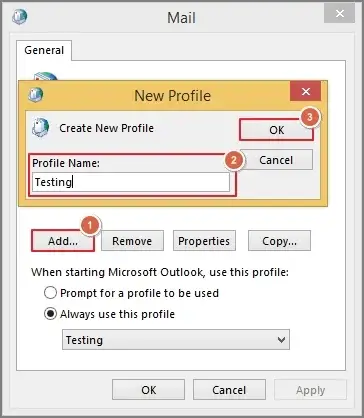
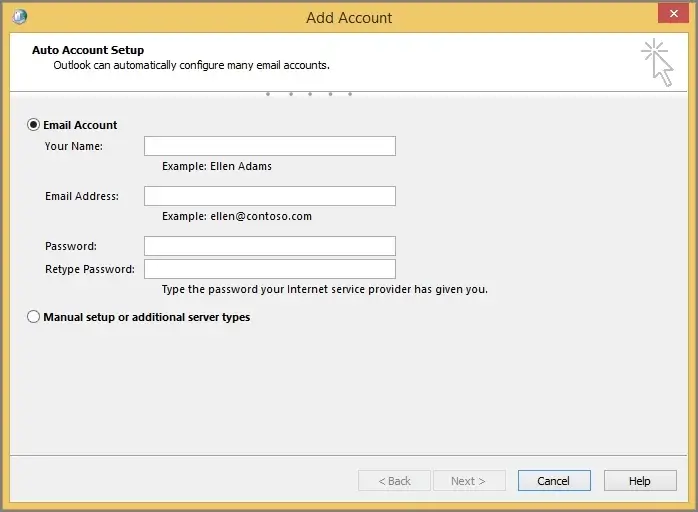
Step 3. Tap on Add, provide a profile name, and click on the OK option.
Step 4. Configure your email account by following the further instructions.
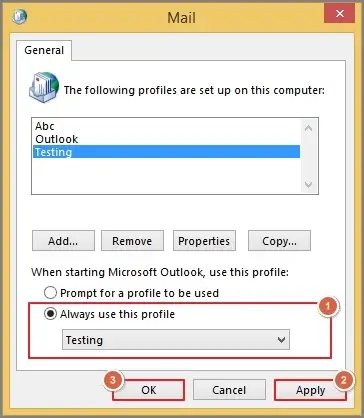
Step 5. Now, set the new profile as the default one, hit Apply > OK tab.
- Outlook & Windows are fully updated to avoid minor bugs.
- Check Outlook add-ins conflicts & disable them if they cause the issue.
- Maintain sufficient free space & error-free drives for smooth syncing.
Want a perfect resolution? Try the one-stop solution
We know you are thinking that OST errors are frequent during their usage. It may be due to ill-configuration, file size limits, corruption, etc.
What can be the most suitable option to remove all this stress completely?
It is the OST to PST conversion because PST overpowers the OST file in many aspects, like easy accessibility, shareability, and a smooth archiving process. But don’t know how?
Recoveryfix always comes first to address the users’ concerns, irrespective of the corruption state. Its advanced OST to PST converter makes the Outlook users’ life easy in handling the OST files.
The tool handles bulk OST files without data loss. It even helps in different operations like export in 8+ formats, migrate OST to servers, & extract attachments and email addresses.
Precautions for Registry-related OST issues
Look at the list of precautions that you need to follow to avoid registry-related OST issues.
- Regularly check the OST file size.
- Avoid manual registry editing unless necessary.
- Maintaining healthy Outlook profiles is a good practice.
- Take a backup of registry settings before system changes.
- If the OST file size tends to touch the threshold value, compact it.
Ending thoughts
Fix OST errors that occurred due to ill-configured registries with the provided solution in this easy write-up. Follow the provided stepwise approach & precautions correctly for the best output. Apart from this, you can also take help of the recommended option to handle all the OST-related issues hassle-free.
FAQs
Q- I Do the incorrect registry settings permanently damage the OST file?
A- Not always. The error prevents access, but the mailbox data remains safe.
Q-2 Can I make changes in the registry by myself?
A- Yes. But the condition is that you are comfortable & always doing it after creating a backup.