Top ways to fix missing H.264 codec error

Updated On - March 16, 2026
Video playback errors are frustrating, irrespective of the nature of the error, as they create a hindrance in the smooth processing of videos.
Missing H.264 codec is one of them that prevents videos from playing correctly & displaying errors like:
- “This file requires the H.264 codec.”
- “Cannot play video due to missing codec.”
- “Unsupported video format”
- Blank screen with audio only
- The video is not playing.
- The media player is crashing.
Don’t know about H.264 codecs? This easy guide will help you give all the useful insights on the concern. Besides, you will get the best possible ways to fix missing H.264 codec error with suitable preventive measures.
H.264 Codec [Advanced Video Coding]: Video compression format used to store & transmit video efficiently with complete data intactness. It acts as a decoder that helps your media player to understand & display video files properly.
Major causes of the missing H.264 codec error
Here we have compiled the significant causes of the error that can help you to decode the H.264 stream error:
- Video files are corrupted or damaged.
- Incorrect or improper encoding settings.
- Working with the outdated graphic drivers.
- Video files having an unsupported file container.
- Lack of H.264 decoder in your default media player.
- Using an outdated or old version of the media player.
Best methods to fix missing H.264 codec error [Easy-ones]
The section will help you with the best manual solutions to fix the H.264 codec error.
Solution 1. Install & update H.264 codec pack
In most cases, the cause of the issue is that some decoding components are missing. So, installing a codec pack can resolve the issue as it will add the missing ones required for video playback. Here are the steps to install the codec pack:
- Download a trusted codec pack [like K-Lite] from the official website.
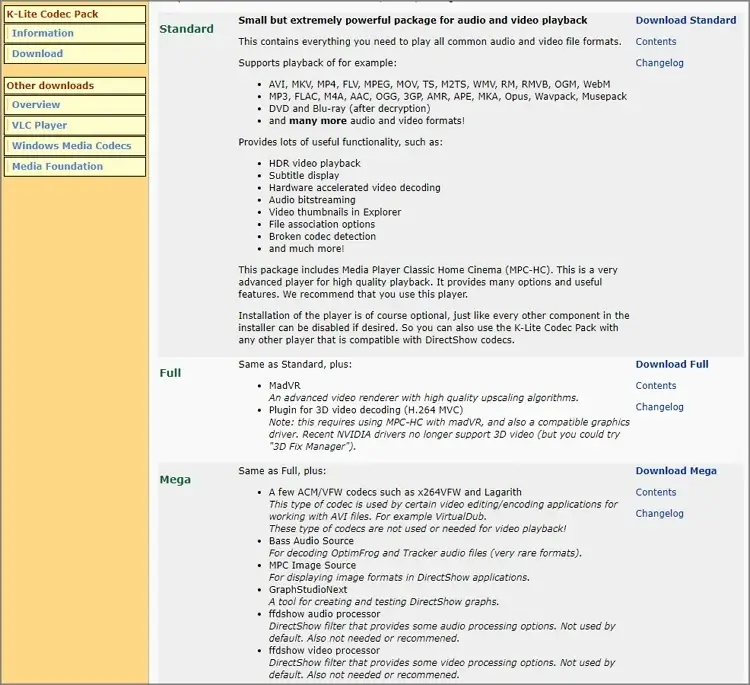
- Run the installer & manage the installation settings accordingly.
- Once the installation is completed, restart your system.
- Now, try to play the video & check the status of the error.
Solution 2. Try to play the video on a different media player
In today’s times, there are other media players that come with built-in codecs, including H.264. So, try one of them, like VLC media player, to troubleshoot the H.264 stream error. It will remove the need for external codec installation. Download & install the VLC media player, open the video with it, & verify whether the issue is with the media player or not.
Note: You can also update your default media player with new codec versions. It can align media player compatibility with the playing video format.
Solution 3. Convert the video file into a compatible format
The cause sometimes is due to unsupported settings that are used to encode videos. Changing the video file into a universal format can be a suitable option to fix the H.264 codec error, as it will re-encode the video format.
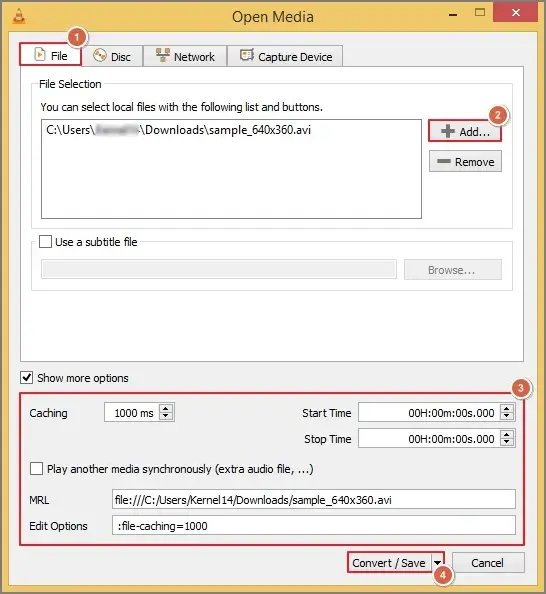
Here, we will take the help of VLC media player to convert a video file into the MP4 format. Follow the steps below:
- Open the VLC Media Player.
- Go to the Media > Convert / Save…. option.
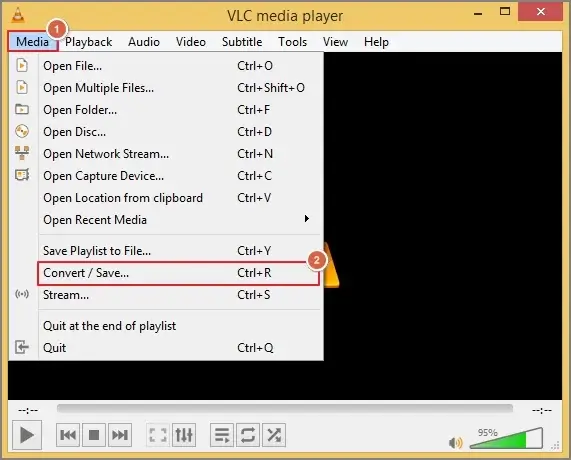
- Add the desired video file, choose the filters like start time, stop time, etc. Then, click on the Convert / Save tab.
- Now, select the file format & destination folder. Click Start to initiate the conversion.
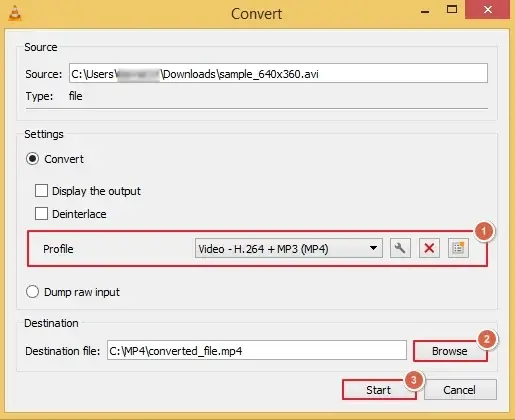
Optional: You can also add a subtitle file permanently while video transcoding.
Solution 4. Update Graphic drivers
Graphic drivers are one of the key factors in processing video files. Using the outdated or old ones can also lead to several issues, including a missing H.265 codec error. Let’s update the drivers with the following steps, as it will improve video decoding compatibility:
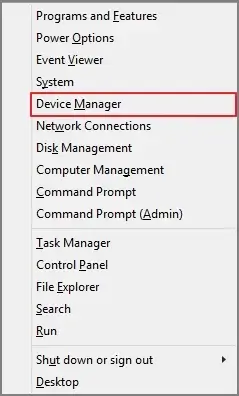
- Press Windows + X key & click on the Device Manager option.
- Go to Display adapters & expand it. Right-click on the graphic drivers & select Update Driver Software.
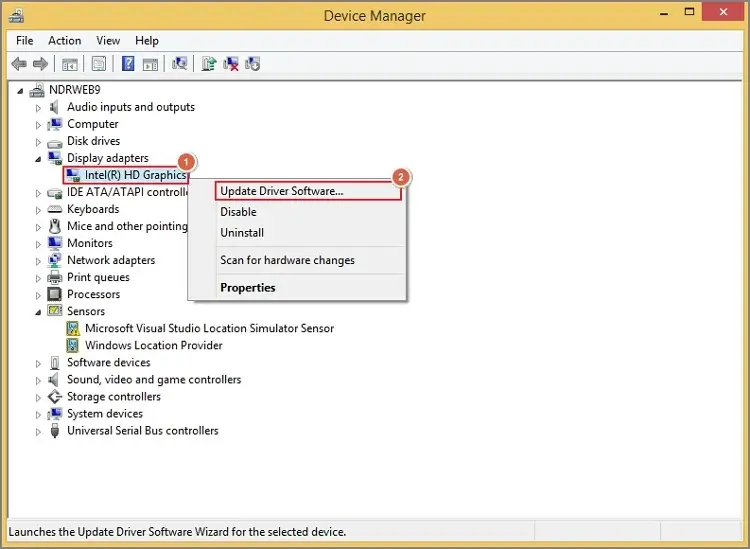
- Once the drive is updated, restart the system & check the status of the error.
Solution 5. Repair a corrupted video file
If the cause is video file corruption, then repairing is the last recourse. The section will help you with the manual method to repair the corrupted video file to some extent.
Here, we will take the help of the VLC Media player. But the condition is that the file format it supports is AVI for repairing. So, you need to change the extension of the other video file format to .avi, then follow the steps below:
- Open the VLC media player & go to the Tools > Preferences tab.
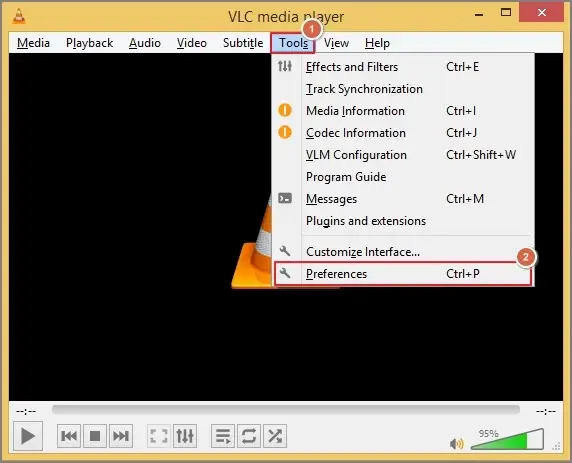
- Choose the Input / Codecs, browse the file, set Always fix under Damaged or incomplete AVI file section & click on Save.
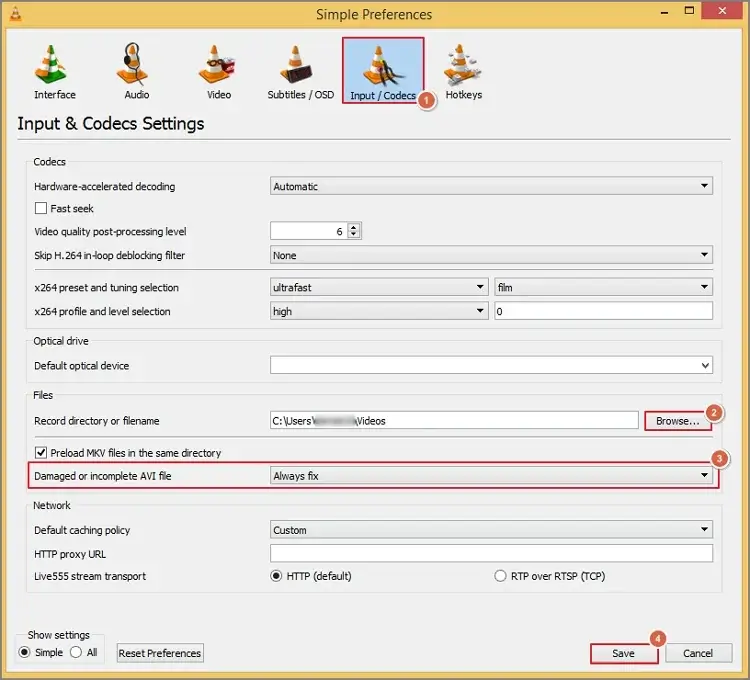
- Play the video file again when the process is completed.
If the issue is not resolved, check out the advanced resolution
All the provided manual methods can help you fix missing H.264 codec error if the cause is improper settings or misconfiguration. But if the case is severe corruption, then they might not help provide hassle-free results.
Don’t need to worry! With the range of features & filters, Recoveryfix stands out in this category with its advanced Video repair tool. It can bring your video file back to the original state, irrespective of corruption. You can repair bulk video files of any format, like MP4, MOV, MPEG, MJPEG, MTS, AVI, MKV, WMV, FLV, DIVX, 3GP, AVCHD, etc., with complete intactness. The tool also comes with its free trial version through which you can save the repaired video upto 30 seconds.
Preventive measures to avoid H.264 codec error
You should follow the provided precautions to avoid these errors in the future:
- Avoid interrupting video transfers.
- Keep your graphic drivers updated.
- Avoid using unreliable sources.
- Always use the updated media player.
- The Operating system should be updated.
Ending thoughts
Fix missing H.264 codec error with the discussed manual & advanced solutions. Make sure that you have followed the correct steps. If you want to prevent it in the future, consider the suggested preventive measures. Apart from this, check out the recommended advanced solution to tackle all the video-related issues smoothly.