Fix Eufy Camera Not Recording Events [Trusted Ways]

Published On - March 16, 2026
Smart security cameras play a crucial role in monitoring homes & offices.
Eufy camera is one of them, which is known for its reliable performance & easy integration with mobile apps. But users sometimes face a frustrating issue where the Eufy camera fails to record events, even when motion is detected.
Facing the issue implies that it defeats the primary purpose of the camera, i.e., to capture the moment for future review. The guide will explain complete information about the topic, including its signs, common reasons, & effective solutions to fix Eufy camera not recording events.
Common signs for Eufy camera missing events
Here are common signs you can take as a signal that your Eufy’s camera is not recording events:
- Motion occurs, but no recording is saved.
- Notification appears, but video clips are missing.
- The Eufy smart camera stopped recording suddenly.
- The camera detects the activity but doesn’t save the event.
- The Eufy outdoor cam failed to record events during specific times.
Reasons behind the Eufy camera missing events
Know all the possible reasons for the Eufy camera fails to record events:
- Insufficient storage space.
- Motion detection is disabled.
- Running a camera on a low battery.
- Set up an incorrect recording mode.
- Using an outdated or buggy firmware.
- Working in an area with weak internet connectivity.
- Lights & weather are not suitable for the camera.
- Activity zones are configured in an improper way.
Fix Eufy Camera not Recording events: Quick Ones
Try quick fixes before the major ones to handle the issues instantly:
- Maintain a stable internet connection.
- Ensure that your camera has a sufficient battery.
- Restart the camera, as it can fix temporary glitches.
- Uninstall & re-download the Eufy Security application.
- Change the position of the camera for precise motion detection.
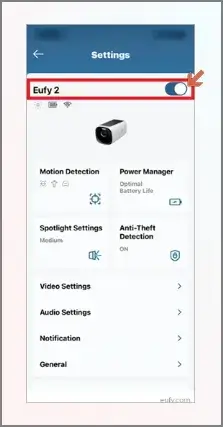
- Check whether the Eufy camera is activated in the Eufy Security App.
Ways to Fix Eufy Camera Not Recording Events [Full Fledged]
Take the help of the following methods to resolve the Eufy smart camera stopped recording events issue.
Method 1. Check Motion Detection Settings
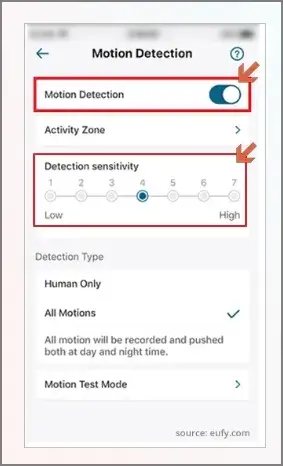
If the motion detection mode is inactive in the Eufy security app, then the “Eufy camera is not recording events” issue can arise. Let’s understand how you can turn on motion detection manually in the app:
- Launch the Eufy Security App & search for the Devices option.
- Go to the Eufy camera > Gear icon. Tap on Settings & click on Motion Detection. Enable it & then add sensitivity if needed. Now, check the status of the issue.
Method 2. Adjust Activity Zones Accordingly
With the incorrect activity zones, the Eufy camera may not perform well. As a result, it can lead to issues like the Eufy outdoor cam failed to record events. Correct activity zones help to capture the relevant motion. Follow the steps below to adjust the zone settings:
- Open the camera settings in the Eufy Security App.
- Set Activity Zone & check whether the selected zone covers the monitoring area or not. Then, save the changes.
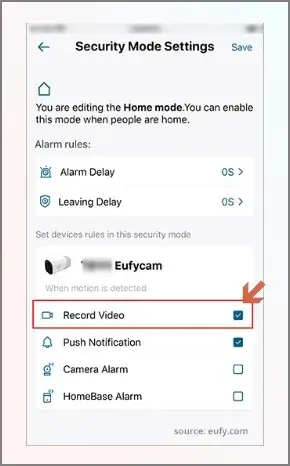
Method 3. Verify Recording Mode
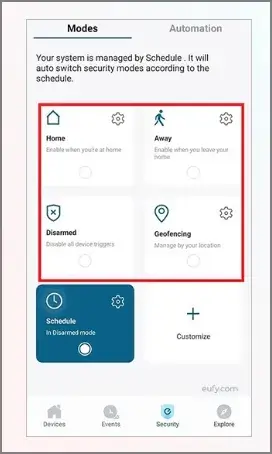
It is seen that some camera modes [Like Disarmed] limit recording. So, let’s verify & manage them with the following steps. It ensures that the camera records clips when motion is detected.
- Open Security Mode Settings in the application.
- Verify the mode [Home, Away, Geofencing, Disarmed]. If it is Disarmed, change it.
- Check whether the Record Video is enabled or not. Then, save the changes.
Method 4. Check Storage Availability
The recording will not be saved when the storage device is full. Check out the following steps to free up the storage because it will allow you to record & save the new events.
- Open the Camera device settings.
- Tap on the Storage Management, manage storage space [Deleted unnecessary ones].
Method 5. Update the camera firmware
Using the updated firmware ensures a stable operation & even fixes performance-related issues. Here are the steps to know how you can update the camera firmware:
- Open the Camera settings in the application.
- Tap on the Device Info > Firmware Update tab.
- Check the available updates & install the latest one.
Important to know: You can also reset the Eufy camera if none of the provided methods are able to handle the concern. Press & hold the Sync button for 10 seconds [Till you get the sound of two beeps ]. It will restore your camera to the default settings.
What if the video is not playing, deleted, or corrupted?
The discussed methods can’t help you if your video is severely corrupted, accidentally deleted, or damaged. Moreover, they can lead to other consequences like lossy compression artifacts, generation loss, & packet loss in transmission.
In those scenarios, going with the advanced solution can be the most suitable option. Recoveryfix is the one name that prevails in this category with its smart video repair tool. It supports repairing of all the available video formats, like MP4, 3GP, MOV, AVI, FLV, M4V, WEBM, etc., in bulk of any size.
Irrespective of issues like blurry, flickering, playback stutters, slugging, jittery, and audio & subtitles missing, the tool fixes them within a few steps. You can explore all the core features of the tool with its free trial version upto 30 seconds.
Tips to prevent Eufy Camera Missing Events
Check out the following tips to ensure future safety with camera-related issues:
- Clean camera lenses & sensors.
- Keep the Eufy camera firmware updated.
- Monitor the camera battery level regularly.
- Adjust motion detection sensitivity appropriately.
- Regularly monitor the camera’s storage capacity.
End thoughts
Leaving the “Eufy camera fails to record events” issue for a long time can compromise the effectiveness of your home security system. That’s why we have tried to provide all the needed info properly. Follow the provided solution correctly & do not forget the quick fixes as well. But if the concern is corrupted or unplayable video, check out the recommended advanced option.
FAQs: Frequently Asked Questions
Q- How do I check if my Eufy camera actually saves detected events?
A- Check that event recording is enabled & the camera isn’t set to the Disarmed mode in the Eufy Security app.
Q- Why are my Eufy camera events missing even when notifications appear?
A- Incorrect activity zones, or low motion sensitivity, can trigger alerts without saving complete recordings.