How to Fix Access Runtime Error 7960? – Get Complete Info

Published On - February 13, 2026
Access Runtime Error 7960 can appear unexpectedly and interrupt your database tasks at the worst possible time. It prevents you from accessing the database objects and shows this error message:
Runtime Error 7960: There was an error compiling this function.
When it happens, users struggle to identify the real cause and end up facing repeated failures. So, the guide provides a structured approach to diagnose and fix the error with practical solutions. Read the blog now to get clear instructions.
Access Runtime Error 7960: A Quick Overview
The error occurred when Microsoft Access could not compile a function or procedure in the VBA project of the database. Access error 7960 is often related to:
- Broken references
- Corrupted VBA code
- Database corruption
- Version incompatibility
- Missing object libraries
- Office installation issues
This knowledge will help you fix the error more efficiently.
When Does Access Runtime Error 7960 Occur? – Common Scenarios
Here are the frequent situations in which users encounter this error.
- Working on the Access Runtime version.
- Execution of VBA functions, actions or recordsets.
- Appears during form initialization in Microsoft Access.
- Trying to open a created database on another system.
- An error occurred just after the Microsoft Office update.
- Migration of the database from a 32-bit to a 64-bit environment.
Fix the Runtime Error in Access Manually [Detailed Steps Included]
Go through this section to find the most effective solutions to fix the error in logical order.
Method 1. Check and Fix Missing References
It is one of the primary methods that fix Microsoft Access Runtime errors. Here’s how to perform this:
- Open the database in the full version of Microsoft Access.
- Press Alt + F11 keys to access VBA Editor.
- Locate the Tools tab and click on References.
- Look for the items marked as “MISSING”
- Uncheck the missing references to proceed.
- Select the correct version from the available list. Then, click OK.
- Navigate to the Debug option and Compile VBA Project.
- Save the database and close Access.
- Reopen the database and check if the error is fixed or not.
Method 2. Manually Compile the VBA Project
Sometimes, VBA codes compile the database partially or leave unresolved errors. So, manually compile the database using the given steps:
- Open the database in Access.
- Press Alt+F11 keys to access VBA Editor.
- Go to Debug and Compile VBA Project.
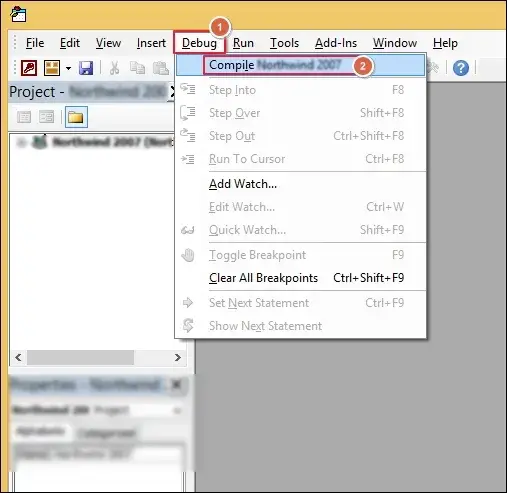
- Fix the shown errors to proceed.
- Repeat the same process until no errors remain.
- Save and close the database.
- Reopen the database to check.
Method 3. Decompile the Access Database
Use the provided steps to decompile the VBA project state and rebuild it properly. Here’s how:
- Close the Microsoft Access if opened.
- Access the Command Prompt and Run as Administrator.
- Execute the following cmdlet in it.
- It will open the database in Access.
- Press Alt+F11 keys to open VBA Editor.
- Locate the Debug tab and Compile VBA Project.
- Save changes and tap on the Compact & Repair option.
- This will resolve the hidden corruption inside VBA modules.
“Path\To\MSACCESS.EXE” “Path\To\Database.accdb” /decompile
Method 4. Compact and Repair the Database
Use the Compact & Repair utility to resolve the database structural corruption issues. Here are the detailed steps:
- Open Access and go to the File tab.
- Navigate to the Info section and tap on Compact & Repair.
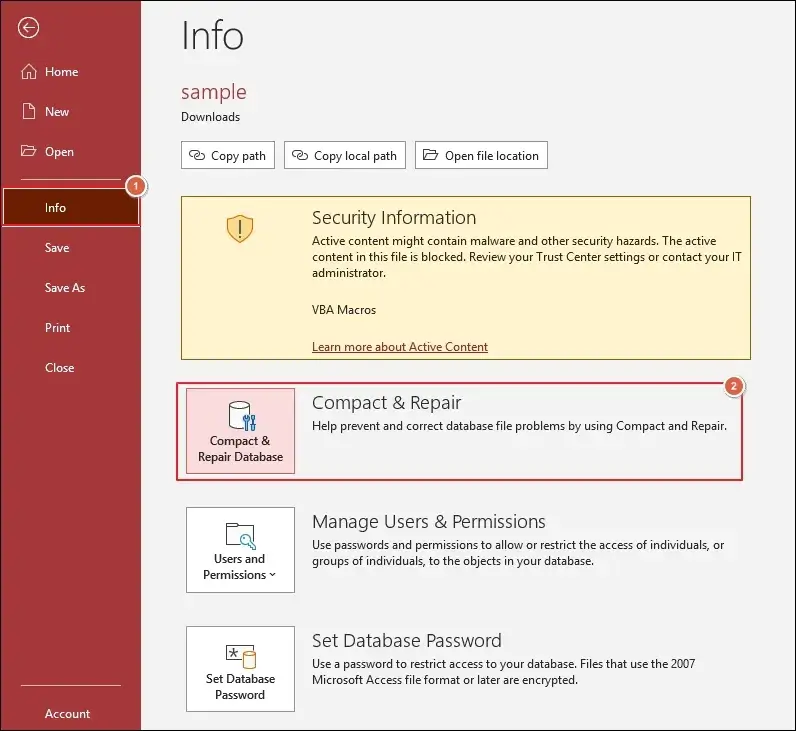
- Wait for the process to complete.
- Once done, reopen the database.
Method 5. Resolve Version Compatibility Issues
Mismatched environments are also responsible for the compilation errors. So, check and follow the mentioned instructions to fix the Runtime Error 7960 in Access:
- Verify the Microsoft Office versions on both systems.
- Make sure both are 32-bit or 64-bit.
- Check if the installed version is a full or a runtime version.
- Reinstall the correct version to remove compatibility issues if needed.
Method 6. Repair Microsoft Office Installation Programs
Try to repair the Microsoft Office installation if none of the above methods works. Here’s how:
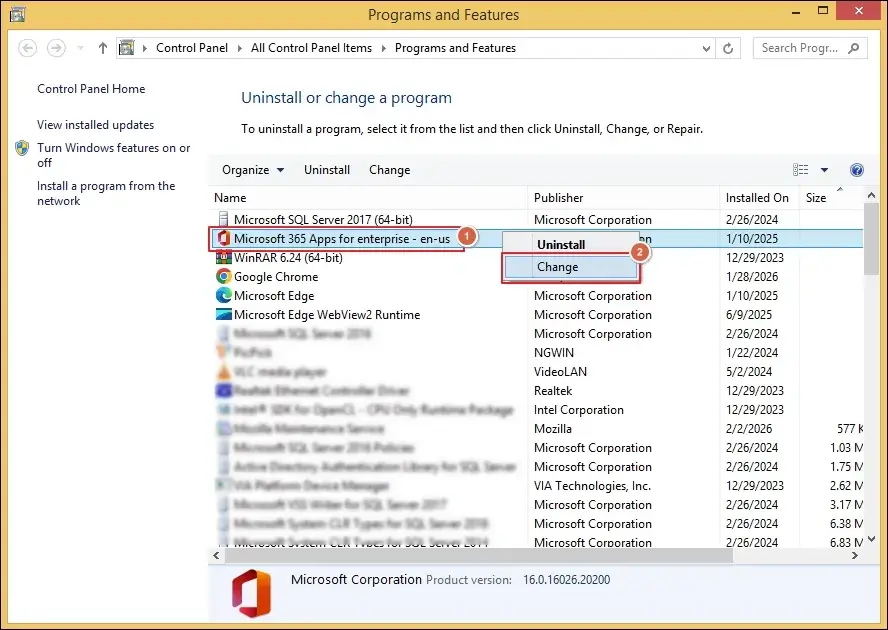
- Access the Control Panel and go to Programs and Features.
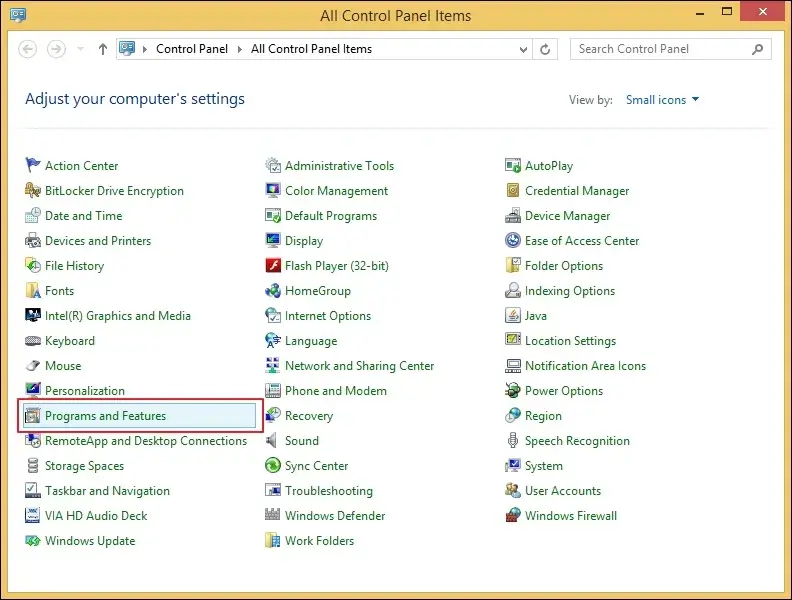
- Locate the Microsoft Office and Right-click on it. Then, proceed to Change.
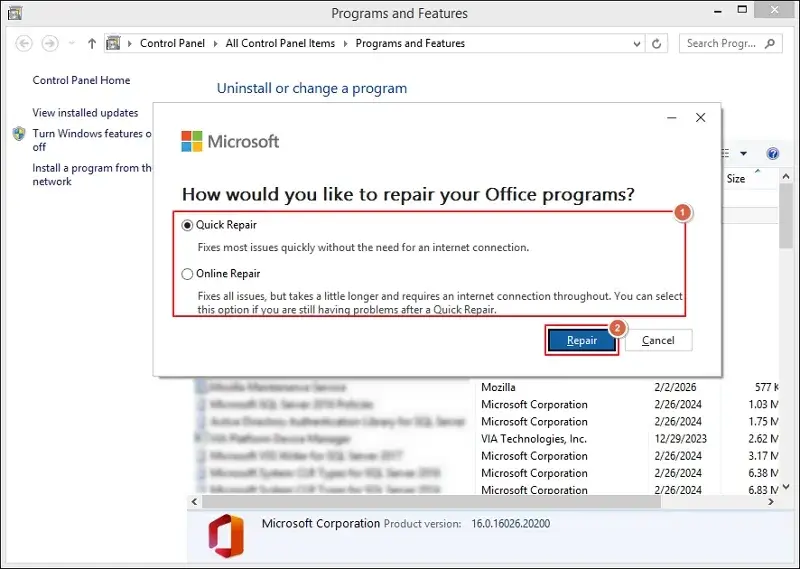
- Select the appropriate repair option and tap on Repair.
- Wait for the process to complete.
- After completion, check if the issue is resolved or not.
Method 7. Import Objects to New Database
You can import the objects to a new database if the above methods fail and the issue persists. Here are the detailed steps to import objects and fix Microsoft Access Runtime errors.
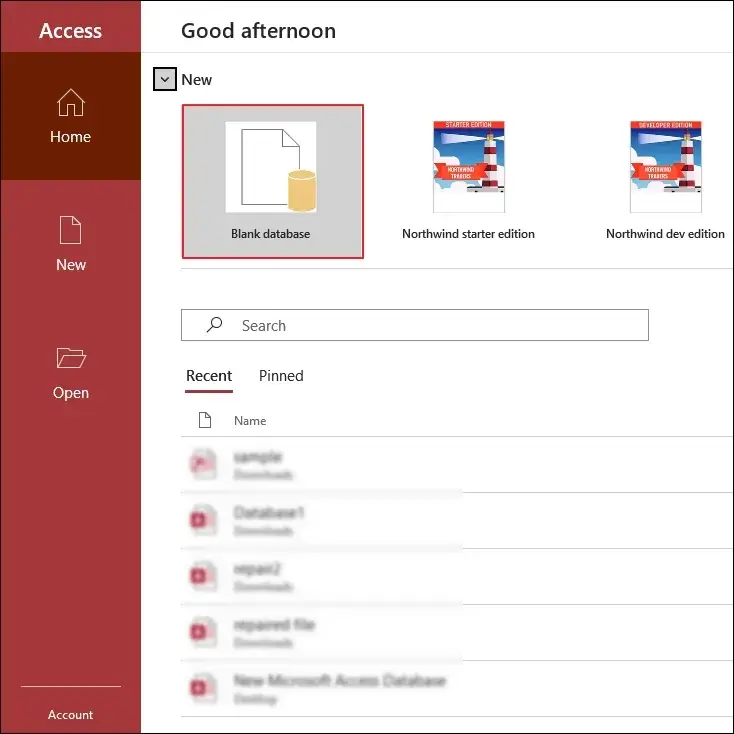
- Open Access and create a Blank database.
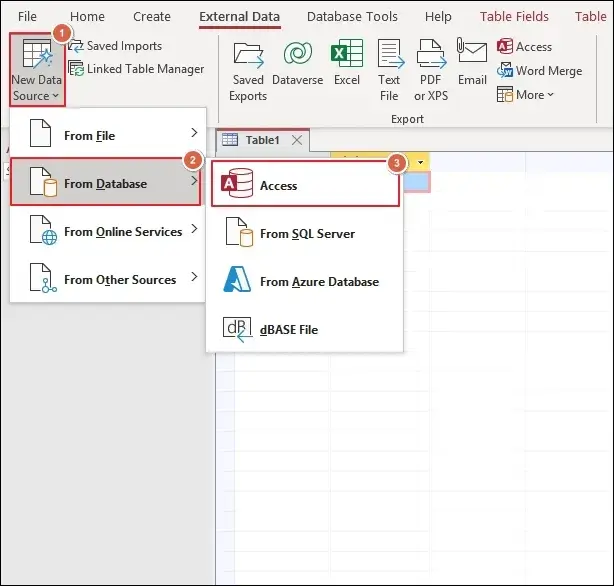
- Go to the External tab and expand New Data Source.
- Select From Database and tap on Access.
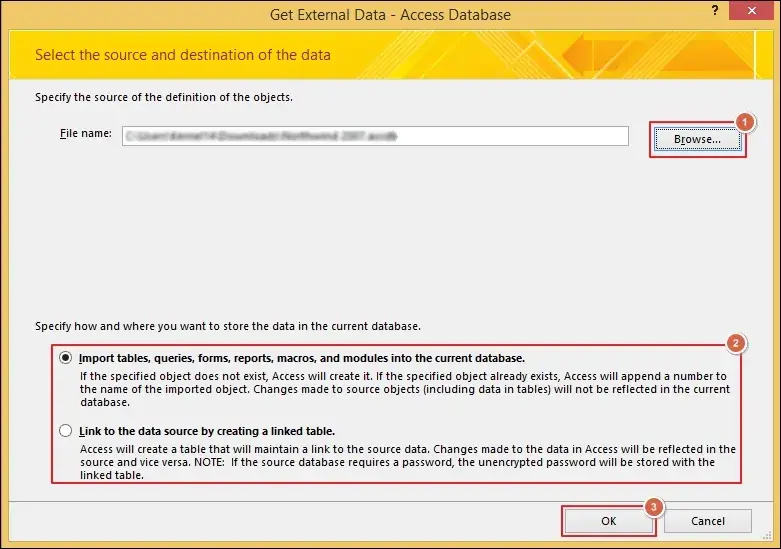
- Browse to choose the database files and proceed with the appropriate option.
- Then, click OK to continue.
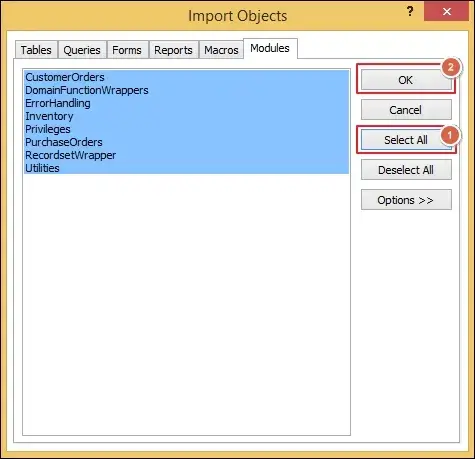
- Select All or specific objects to import and tap OK.
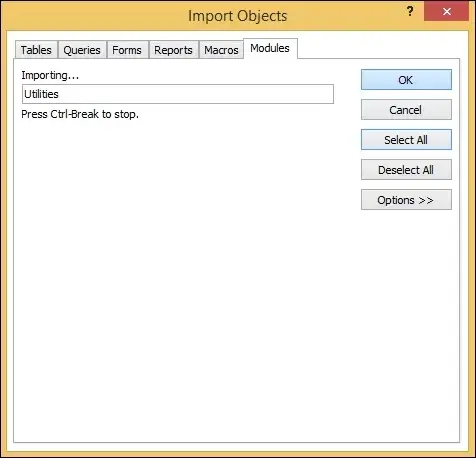
- It will start importing the objects.
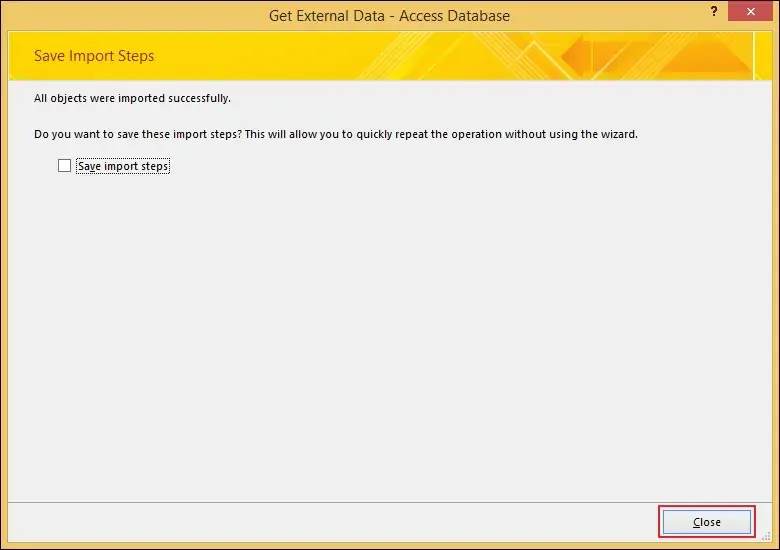
- Wait for the process completion and Close.
Preventive Tips to Evade Access Runtime Error 7960 in the Future
Go through the listed practices to avoid the possibility of getting the Access error 7960 Archives again. Here they are:
- Skip unnecessary library references.
- Perform Compact & Repair operation periodically.
- Always compile the database before deployment.
- Regulate the same Office versions on all systems.
- Decompile the database during development cycles.
- Make sure to backup the database at regular intervals.
- Avoid the coexistence of 32-bit and 64-bit environments.
Closing Insights
We hope the blog has covered all the necessary aspects to fix Access Runtime error 7960. The issue occurred due to missing references or version mismatches in most cases. By using the provided solutions, you will be able to resolve the error without any assistance.
If the corruption issue is severe, then try our Recoveryfix professional solution to fix it. The Access Repair tool supports the recovery of database objects from both MDB and ACCDB files in their original state.