Best Methods to Fix Access Database Form Opening Blank Issues

Published On - February 16, 2026
With forms, tables, queries, & reports, Microsoft Access is used to manage structured data. Forms are used extensively among them to interact with data easily. The improper settings, queries, filters, or minor database corruption create issues in which the Microsoft Access form goes blank.
It has many consequences, like no control, a white screen, etc., that can hamper your daily workflow or productivity. Facing the same issue & need reliable solutions? Don’t panic. This complete guide will surely benefit you to fix Access database form opening blank issues. Let’s cover each point one by one.
Microsoft Access form goes blank means:
Forms open but show no data.
Only headers & footers appear.
The form opens completely white.
Incompatibility of forms across systems.
Controls (text boxes, labels) appear, but fields are empty.
Reasons for the Access database form opening blank issue
Out of all the possibilities, we have provided some noticeable causes for the issue:
- Improper startup settings.
- Allows additions set to “No”.
- No data in the record source.
- Data entry property set to “Yes”.
- Filter or where condition applied.
- Missing references in VBA code.
- Incorrect record source configuration.
- Working with the corrupted database.
- Improper fields or controls in the form.
- Broken VBA code or event procedures.
- The Access database file is not compatible.
Fix Access database form opening blank issues manually
Let’s understand the possible methods to avoid unexpected blank forms in MS Access with a complete stepwise approach.
Common Checks:
- Change the old database to the new version by opening & saving the same file in the latest Access version.
- Review Allow Additions & Allow edit settings, as incorrect ones can affect visibility.
- Check the data entry property. If set to Yes, then it will open new forms only. So, change it to “NO”.
- Verify the faulty add-ins & remove them accordingly.
- Improper default or view settings can affect the visibility. So, check it properly.
Solution 1. Check the underlying table or query
It is important to know that the table or query linked to the form should have records. If no data exists, or the query returns no results, it will open the form blank. Let’s verify the details with the below steps:
- Open the table linked to the form.
- Check whether the record exists or not.
- If the form uses a query as the record source, verify it.
- Make sure that the query returns the data. If not, check its criteria & filters.
Solution 2. Verify the Form’s record source
Confirm that the form is properly connected to the correct table or query. An incorrect or missing record source prevents data from displaying. As a result, the Microsoft Access form goes blank. Follow the steps for confirmation:
- Open the form in Design View, go to the Property Sheet > Data tab & check Record Source [Allow Deletion, Allows Additions, Allows Edits].

- Verify whether it is linked to the correct table/query or not.
Solution 3. Check the Form Event in the Property Sheet
With the form in Open Event, users can get to know about all the actions that will be executed before the record is displayed or the form is opened. So, its misconfiguration can also cause the blank issue. Let’s verify with the following steps:
- Open the form in the Design View & click on the Property Sheet tab.

- Choose the Event section, go to the On Open event, and click on the three dots.
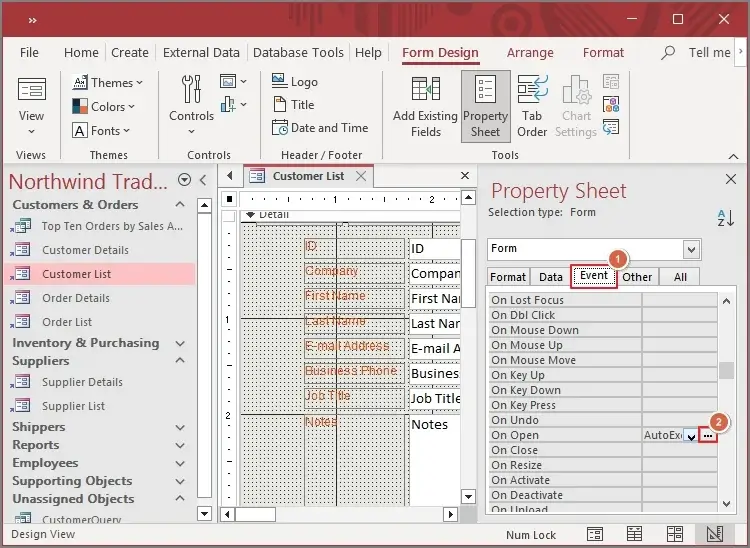
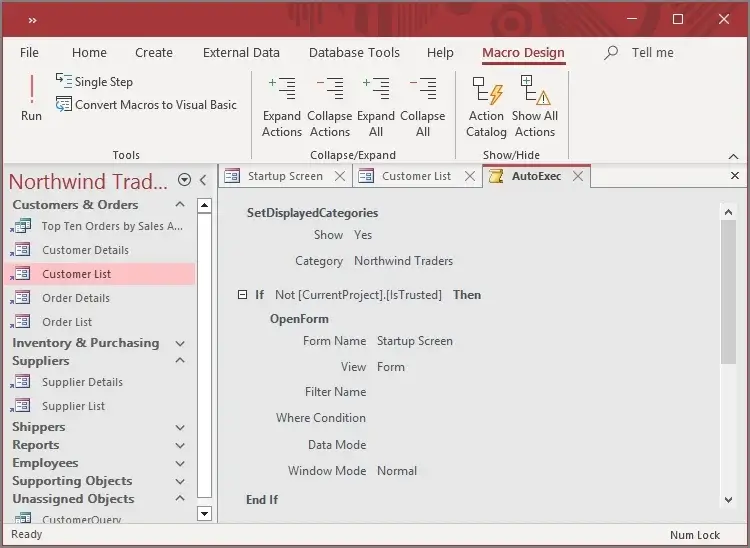
- It will land you on the VBA code. Verify all the commands & make changes accordingly to avoid unexpected blank forms in MS Access.
Solution 4. Remove Filters or Conditions
Check filters or conditions, as they can hide records that can lead to the blank form. So, use the following steps to clear all the filters:
- Open the form, go to the Home > Advanced option. If filters are applied, remove all.

- Save the changes & re-open the form.
Solution 5. Change the Current database settings
Misconfigured current database settings can create several issues, including “form opening blank” problem. Let’s explore the steps to fix Access database form opening blank issues:
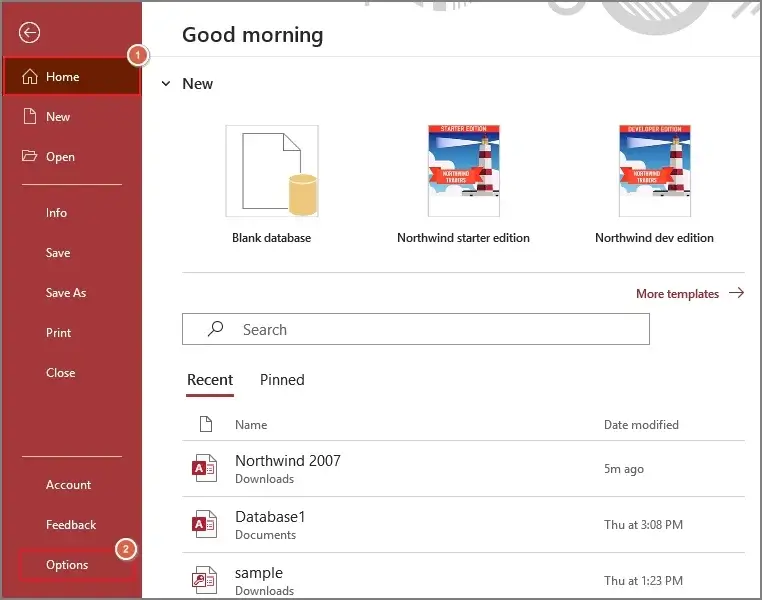
- Open the desired form in MS Access. Go to File > Options.
- Choose the Current Database under Access Options.
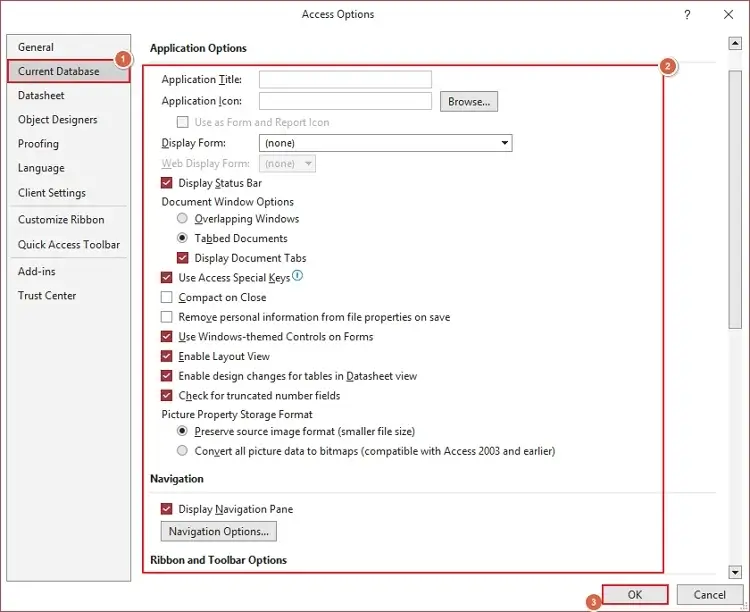
- Verify all the available settings in the Application, Navigation options, like Application Title, Display Form, Web Display, & application icon. Manage it accordingly & click OK.
Solution 6. Compact & repair the database
This built-in utility helps users to fix minor database corruption & improves stability. It can help in resolving the form blank issue. Check out the steps to know how to implement the method in the correct order:
- First, close all the database objects.
- Launch the Access database & go to the File option.
- Tap on the Info > Compact & Repair Database tab.
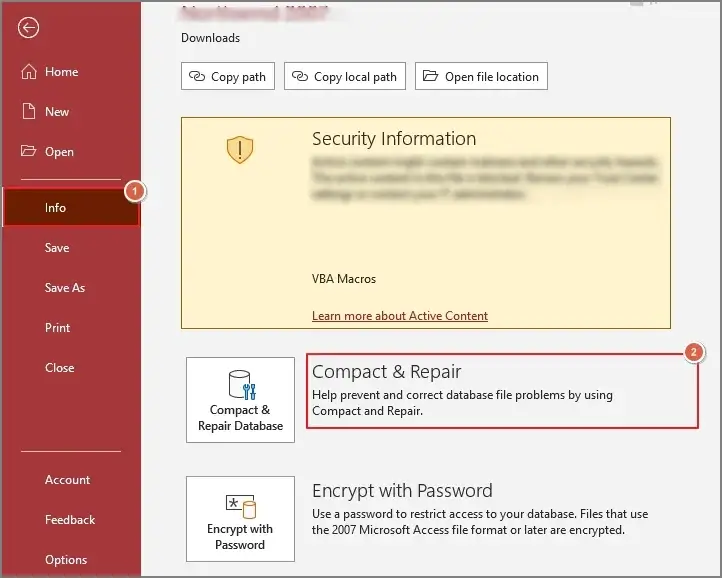
- Wait for a while till the process is completed.
Solution 7. Disable problematic VBA code
Errors in VBA event procedures, like Form_Load, may prevent records from loading. Hence, you can regain the normal behaviour by correcting the code.
- Open the database, press Alt + F11 to open the VBA editor.
- Verify for broken references under Tools > References.

- Check out the missing references & fix accordingly.
Note: If database corruption exists, try to import objects into the new database. It can help you to eliminate the structural issues.
Still trying to fix the issue? Check out the best one
If the provided methods are not in your favour, it implies that your database is going through severe corruption. Handling a damaged or corrupted database manually may not give you satisfactory results.
Thinking of the best one? Recoveryfix makes your problem simple with its advanced Access repair tool. It helps users to fix database corruption & regain the Database in its original state. The tool is equipped with versatile features with innovative filters to provide the specific output at the desired location. Irrespective of Windows & Access versions, users can run the tool smoothly without data loss.
Avoid unexpected blank forms in MS Access issue
You can take help of the following measures to avoid these issues in future:
- Do not shut down the systems abruptly.
- Always close Microsoft Access properly.
- Maintain backups of the Access database file.
- Regularly use the compact & repair built-in utility.
- Test the VBA code before deployment at the ground level.
- Make a practice of splitting the database in multi-user environments.
Conclusion
Access database form blank occurs in most cases due to improper record source configuration, filters, settings, etc. We have covered each & every detail in brief with the suitable approach to fix Access database form opening blank issues. But in case the cause is severe database corruption, you can try the suggested advanced resolution for instant & error-free results.