[Free Guide] Export Emails, Calendars, & Contacts From OST Files!

Published On - February 4, 2026
Imagine you have to send important email conversations among team members, but you can’t. But OST files are designed for synchronisation, not for data sharing or export purposes.
The situation is quite challenging for users who need to access the information outside the original account.
Don’t worry, this guide explains practical ways to export emails, calendars, and contacts from OST files even when the original mailbox is no longer available.
Why Users Extract Messages from OST Files? – Know Real-World Situations!
Here are the most frequent situations which lead users to export data from OST files:
- Email migration to a new account without direct server access.
- Mailbox becomes inaccessible after a system crash or Outlook profile corruption.
- Backup of crucial Outlook data before reinstalling the Outlook application.
- Retained or handed over mailbox data at the time an employee exits the organization.
- Legal audit or compliance requests need to retain specific emails or calendar records.
- The Exchange or Microsoft 365 account was deleted, but the OST file still exists on the local drive.
Before You Export Data, You Must Know These Points
Consider the following points before you export emails from OST files:
- OST files must be linked to the Outlook profile.
- Manual export requires an active Exchange Server connection.
- Native solutions won’t be able to extract messages from corrupted or damaged OST files.
- Make sure the Outlook data is completely synced before exporting data.
- Improper handling of large OST files may cause delays or incomplete exports.
- Select the appropriate export format based on the final use.
- Always create a backup of the OST file to avoid accidental data loss.
How to Export Emails, Calendars, and Contacts From OST File Manually?
This section highlights the most effective solutions that help you extract emails from OST files.
Way 1. Drag and Drop the Selected Mailbox Data
Follow the given steps to extract messages from OST files in a small quantity:
Step 1. Launch the Outlook application on your system.
Step 2. Go to Inbox folder to select the email messages that you want to export.
Step 3. Drag the chosen messages to the desktop to extract them.
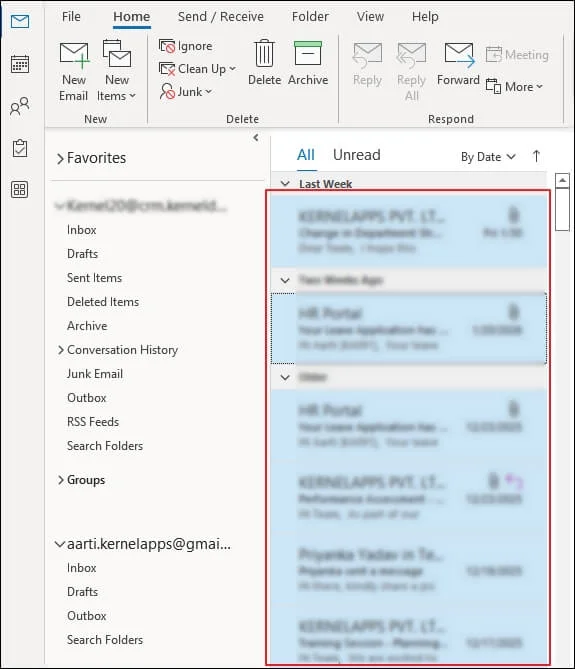
Step 4. It will save the selected emails to MSG format.
Way 2. Use Import/Export Utility to Extract Emails
Open & Export is the default utility of Outlook that helps users export emails from OST files. Here’s how:
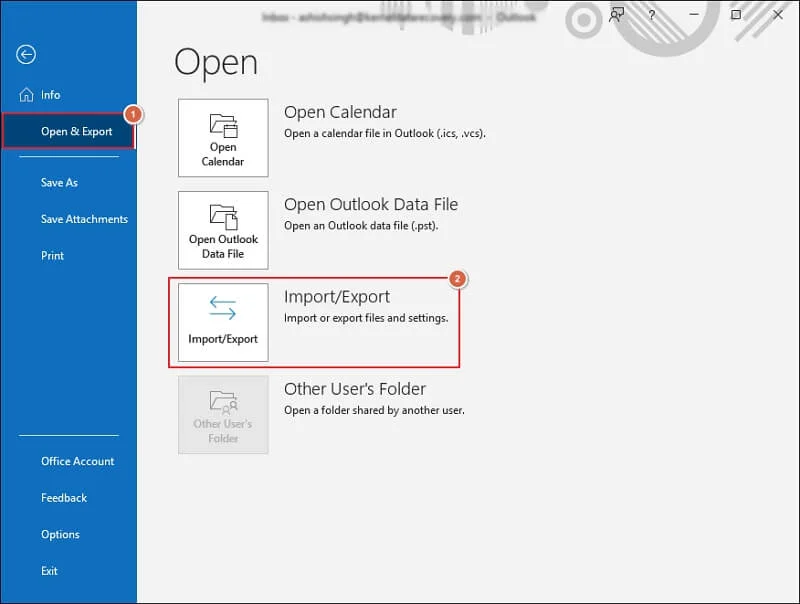
Step 1. Open Outlook and go to the File menu.
Step 2. Navigate to Open & Export> Import/Export.
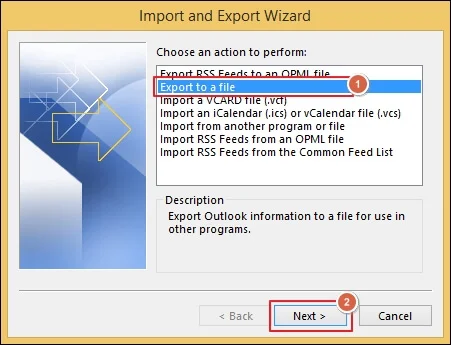
Step 3. Click on Export to a File and proceed to Next.
Step 4. Choose the Outlook Data File (.pst) file type and tap Next.
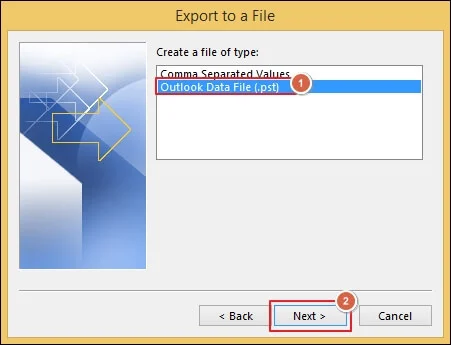
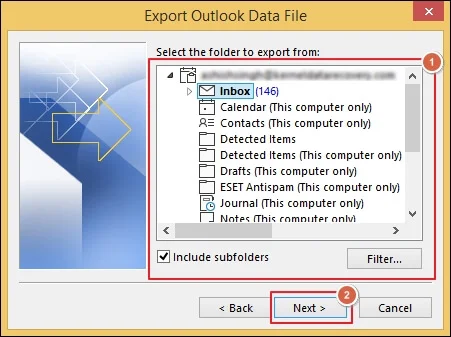
Step 5. Select the required mailbox folder to export data.
Step 6. Then, apply Filter to refine data and click Next.
Step 7. Browse to add the saving location and choose the necessary Options.
Step 8. Then, click on Finish to proceed.
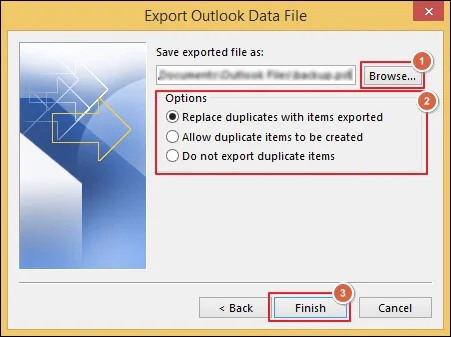
Step 9. It will export emails, calendars, and contacts from OST files.
Way 3. Extract Messages from OST Files with AutoArchive Settings
AutoArchive Settings is another feature which helps you extract mailbox data automatically. Here are the detailed steps to do so:
Step 1. Launch the Outlook application.
Step 2. Go to the Folder tab and access the AutoArchive Settings.
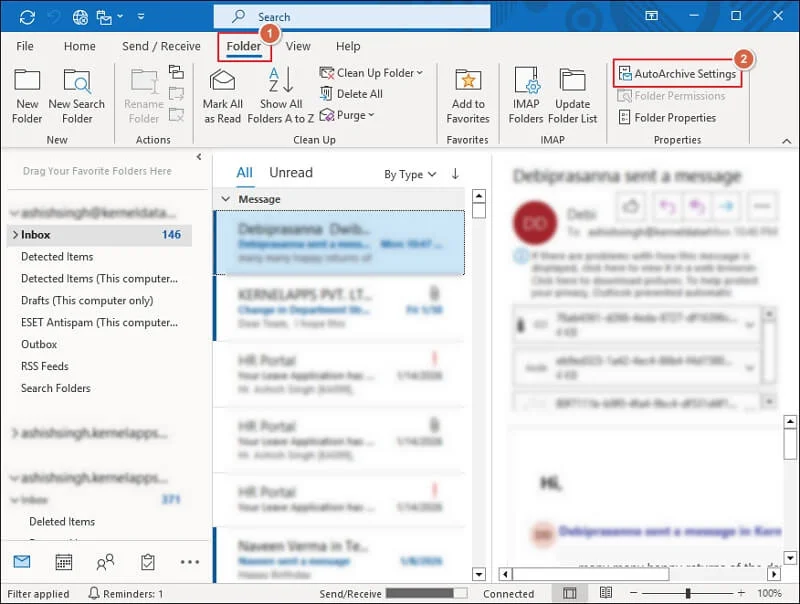
Step 3. Select the most appropriate settings as per your requirements.
Step 4. Browse the folder location to save and click OK.
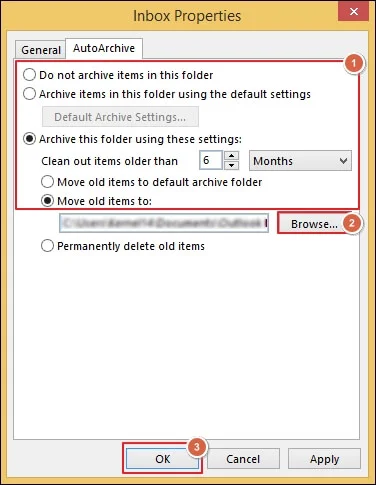
Step 5. It will start exporting the emails from the OST file.
Are Native Solutions Not Working? – Find the Best Alternative Now!
All the above methods will help you export emails, calendars, and contacts from OST files. However, the native solutions may only work when certain conditions are satisfied. Therefore, relying on professional tools like Recoveryfix will be the best approach.
The OST to PST Converter software helps you extract mailbox data from damaged, corrupted, or inaccessible OST files to different formats. Also, it allows you to extract email attachment from OST files separately.
Let’s Recap
Here, we have provided different native solutions to export emails, calendars, and contacts from OST files. You can use the stepwise guide to export data from OST files when the prerequisites are in your favour.
If not, then choose the recommended solution to eliminate the limitations and extract data from OST files without restrictions. The software doesn’t require Outlook or a live Exchange Server set up to retrieve lost items.